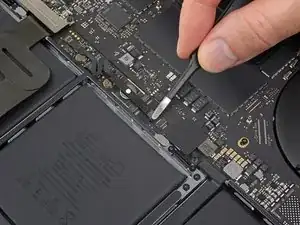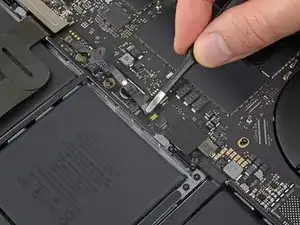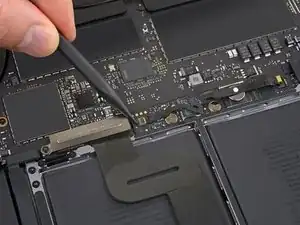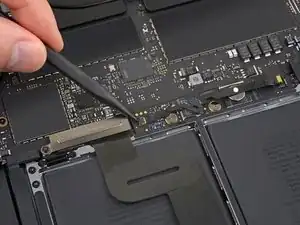
Einleitung

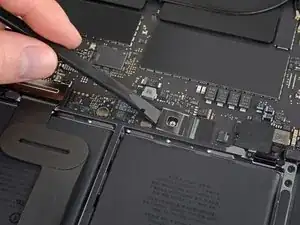
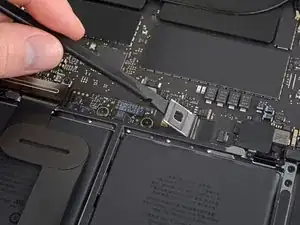
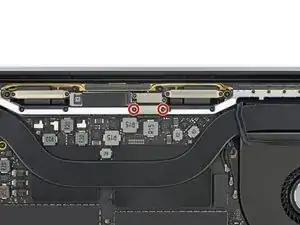
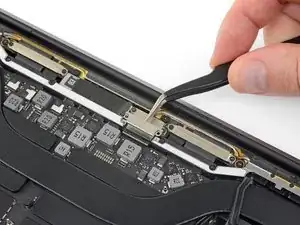
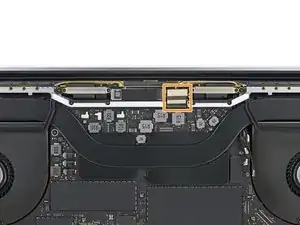
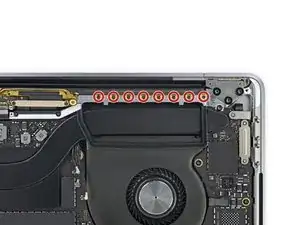
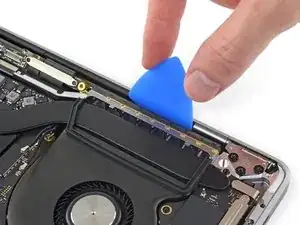
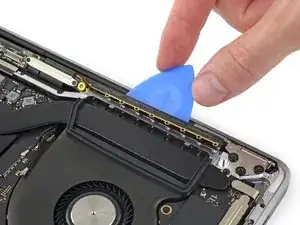
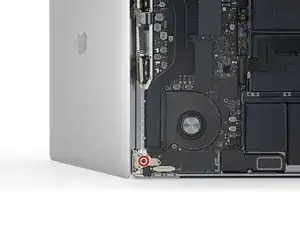
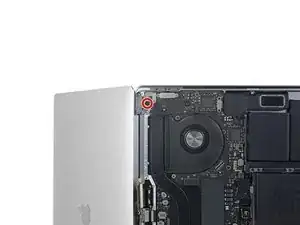
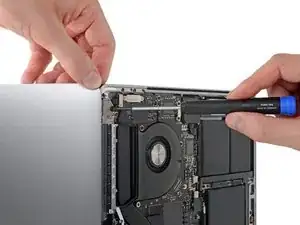
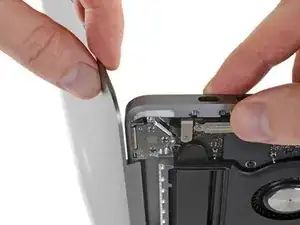
Anhand dieser Anleitung kannst du die gesamte Display-Baugruppe deines MacBook Pro auswechseln, wenn sie beschädigt oder defekt ist. Diese Baugruppe beinhaltet auch die integrierten Flachbandkabel, die als Teil des "FlexGate"-Defekts bei früheren Modellen bekanntermaßen ausfallen, so dass ein Austausch auch den "stage light"-Effekt und andere Probleme aufgrund von Flachbandkabelschäden beheben wird.

Obwohl wir dieses Verfahren erfolgreich an 2018er Modellen mit originalen Apple Ersatzdisplays getestet haben, kann es vorkommen, dass der T2-Chip von Apple verhindert, dass Aftermarket-Displays einwandfrei funktionieren'''', und dein MacBook Pro dadurch möglicherweise nicht startet.

Zu deiner Sicherheit empfehlen wir dir, den Akku deines MacBook Pro auf unter 25% zu entladen, bevor du anfängst. Ein geladener Lithium-Ion-Akku kann zu einem gefährlichen und unkontrollierbaren Feuer führen, falls er versehentlich perforiert wird.

  1. dLTjRC36EADiCFBK
    dLTjRC36EADiCFBK
    FZYKkYtpGq1QwBO2
    YAOsWGKtCtOGVFRy
    • Zuallererst musst du die automatische Startfunktion (Auto Boot) deines Macs deaktivieren. Auto Boot schaltet deinen Mac ein, wenn du ihn aufklappst, was versehentlich beim Auseinanderbau passieren kann. Benutze diese Anleitung oder befolge die anschließende Kurzversion zum Deaktivieren von Auto Boot. Dieser Befehl funktioniert eventuell nicht auf allen Macs.

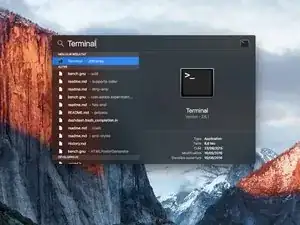
    • Schalte deinen Mac ein und starte Terminal.

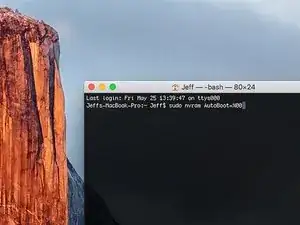
    • Kopiere den folgenden Befehl und füge ihn im Terminal ein (oder tippe ihn exakt so ein):

    • sudo nvram AutoBoot=%00

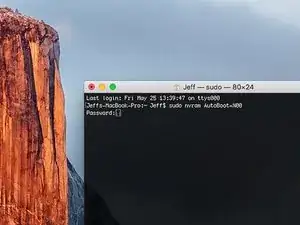
    • Drücke die Eingabetaste [return]. Wenn du dazu aufgefordert wirst, gib dein Administratorpasswort ein und drücke erneut [return]. Hinweis: die Return-Taste kann auch mit ⏎ oder "enter" gekennzeichnet sein.

    • Nun kannst du deinen Mac sicher herunterfahren und das untere Gehäuse öffnen, ohne dass er sich versehentlich einschaltet.

    • Nachdem deine Reparatur zu Ende ist und dein Gerät wieder erfolgreich zusammengebaut ist, musst du Auto Boot mit folgendem Befehl wieder aktivieren:

    • sudo nvram AutoBoot=%03

    Is this step necessary? I can’t perform this step as I am attempting to repair water damage and need to remove logic board & most likely replace the battery.

    Macrepair SF -

    @mac_medic You definitely don’t want the power coming on while the board is wet. In your case, I think powering on the machine to disable Auto Boot would do more damage than it prevents. I agree, skip this step and be prepared to disconnect the battery quickly if the laptop automatically powers on. Good luck!

    Jeff Suovanen -

    Thats right! You don't want power running while working on your logic board.

    Dan -

    This did not work when running High Sierra.

    Kyle B -

    Tried this on a 2018 MBP 13” Touchbar (there’s no iFixit guide for this model yet). Need to replace a broken screen.

    Luckily I managed to connect to an external screen (Cmd-Down Brightness to switch displays) and enter above command. Seems to work, but there’s another problem with this model - it powers up as soon as any key is pressed……. ffs <gnashes teeth>

    Cool_Breeze -

    I unscrew the battery first and wrap electrical tape over the logic board battery connector before attempting any repairs to the board. Haven’t had any problems yet and I’ve worked on about 10 of these models already. Also when you open the bottom case use a suction cup at the bottom and pull up then run a plastic spudger along the edges to disconnect the clips. Also only use a plastic spudger on the board. Saw a youtube video from a repair shop and he did not disconnect the power and used all metal tools during the entire process of removing the board. His last step was to disconnect the battery terminal.

    Brian -

    Is this step necessary if my mac can turn on? Battery fully dead(

    Nursat b -

    BEFORE YOU START: The included torx head stripped off before I was done (and you might need an additional T4) so stop now and go buy a good one. Also they fail to warn you above to get some blue threadlocker ahead of time.

    Jason Sherron -

    This command did not work for me and I read that sometime in later 2020 Apple stopped this command from working…any ideas on a work around?

    Patrick Machacek -

    Not able to do that with damaged screen

    richardjgreen -

    If you have a damaged screen you can still use a converter from thunderbolt (USB 3) to HDMI and plug your Macbook Pro to your TV as monitor display. Just make sure to chose the right Source (HDMI IN) in your TV. I did it and to make it work I unplug and plug again in my Macbook and so I could disable the Auto boot

    Roberto Sanchez Bustos -

    Hi. This does not work on 2018 13” MacBook Pro with Touch Bar. I did exactly this to disable auto boot. But when I check by using nvram -p it says: auto-boot true. Am I doing something incorrectly? I did everything step by step. Copied and pasted the sudo command, pressed enter and then entered my password. I have Big Sur 11.1 installed. Is there any other way since I need to replace the screen. Thank you. Adrian

    Adrian Vizik -

    Hi everyone. This is also a little pointless if you can’t see anything on the screen, and you don’t have a display adapter to USB C to display it. I agree with Brian about removing the back and disconnecting the battery cable before you even think about opening the lid of the MacBook. Applying the insulation tape is also a handy little tip that just makes sure there is no way to discharge from either the board or battery.

    Roberto Enrieu -

    running `nvram -p | grep 'AutoBoot'` in terminal verifies that it was accepted

    result: `AutoBoot %00`

    Marek Polák -

    Running Big Sur 11.6.7 on a 2019 16" MBP, it's "auto-boot". So it's: nvram -p | grep 'auto-boot' to display the current state, the default is true - and then to change it, sudo nvram auto-boot=false which turns it off.

    Ed Mechem -

    This step is completely unnecessary if you follow the guide to disconnect the battery properly. Just put some tape between the battery and logic board connection to prevent it from accidentally touching and therefore powering on the laptop.

    Grant Ormsby -

    It took me a few tries to make this command work, as I was able to copy and paste the command into Terminal, but could not type in my laptop’s password. I finally typed my password into a text document, copied it (command C), and then pasted it into Terminal and it worked.

    tommy404 -

    I didn’t do this. Mine never auto-booted before I replaced the battery. Now it does.

    hatuxka -

    BEFORE YOU DO ANYTHING - CHECK THE BATTERY!

    I-fixit sent me a bad battery, which I didn’t realize until it was already install. They sent me a new one, but I wasted hours uninstalling and reinstalled.

    Get a volt meter and measure the voltage on the output of the battery pack. If it reads 0 V, SEND IT BACK. It should read over 2 V.

    bcardanha -

    I've just received my replacement battery and it reads 0,042V between the two main connectors. Do you think it's dead?

    peter sussex -

    When I did this from Terminal.app within Recovery Mode, the “sudo” was not recognized but I could invoke it without the sudo part. It seems to have been accepted when looking at “nvram -p”

    johann beda -

    When in Recovery Mode, you already have superuser powers. So you don't need to prefix commands with the sudo command to invoke them with root privileges; you already have them. Do a pwd (print working directory) after opening Terminal in Recovery Mode, and you'll see that you're in the root user's directory.

    Ed Mechem -

    I received the battery kit for my 2018 MacBook Pro and as per the above comment from bcardanha - Oct 12, 2021, I checked the voltage on the pads marked + and - . It was zero volts so I panicked a bit.

    I sent a message on the iFixiT Facebook page and I got no reply. I finally found the customer service email for Ifixit Europe and sent them an email voicing my concern as I was not keen to work for couple of hours just to discover that the battery is faulty. I had an almost instant reply on the email (kudos to them) and they adviced me to go ahead and install the new battery as the voltage measured when battery is not connected is not relevant.

    I took a leap of faith and after two hours… the new battery showed 50% charge and everything seems to be working just fine. I am happy it worked.

    Mircea Comanici -

    After removing the old battery and installing the new battery I powered up the MBP before screwing the bottom on. I discovered the my keyboard would not function. It took a few hours of investigation and frustration that I discovered the track pad power ribbon had become partially dislodged from the trackpad. I was able to see that this through the little machined slot where the battery sat. I had to remove the trackpad to reinsert the power ribbon back into the connector in the trackpad. after reassembling and reinstalling the battery etc the keyboard worked. Just food for thought if your run into the keyboard issue.

    Ed Mease -

    This should be the default. IMO I tell you to power on - not the lid.

    G Sena -

    Est ce que cela fonctionne sur un macbook pro 2017 sans touchbar ?

    maël muzelet -

    Bonjour Maël, oui, ce tutoriel concerne "les MacBook Pro 2016 (et plus récents) et les MacBook Retina 12" 2017 (et plus récents)"

    Claire Miesch -

    Excellent instructions. I was able to follow and install the new screen. I recommend that you get a good set of tools before you begin. I started with an inexpensive repair kit bought online. The Penta and torx bits failed. I bought an IFIXIT kit with quality bits and I was able to do everything I needed.

    Tom Markham -

    If you're not running an admin account the sudo command won't work (which honestly, you should not be running admin). Rather than logging in to your admin amount via the OS, in the terminal type "login [admin username]," then the password and you'll be able to do the sudo command as described above. Once you're complete, type "logout [admin username]" and you'll be good to go. Obviously replace [admin username] with whatever the account name for your admin user is.

    arichard2401 -

    For those unable to complete this step because the screen is too damaged I recommend leaving your macbook on until the battery dies.

    Nicholas R Licato -

    Just replaced my 2018 15" MBP battery. Running Sonoma.
    I found no way to disable AutoBoot (The status can be checked in the Power section of system report).

    Anyway, i left my battery completely drain before opening the MBP, and had no issues during the process.

    Cédric Bontems -

    After sending this command in terminal when I checked what happens if I now open the lid, instead the screen lit slightly up (still black) then a battery symbol showing the charging state showed up.

    Now, after replacement of the battery, this is all I get to see.

    No reset of NVRAM nor PRAM helped.

    Currently the new battery charges (58% atm) and it feels like it‘s mocking me.

    webrockers -

    I suspected the keyboard or TouchID sensor wouldn’t work, so I went on and checked every connector.

    I missed connecting the left TouchID sensor from step 31.

    webrockers -

    Read the comments section at the bottom of the article before proceeding with the repair. It is unnecessary to remove the logic board. I actually removed the 45mm plastic bar to enable the cables to slip out then in. It is only there to frustrate repairers!

    Jack -

  2. 5iYIgSZgIU6hkP1B
    5iYIgSZgIU6hkP1B
    UVKOsGSvaL1OsSL3
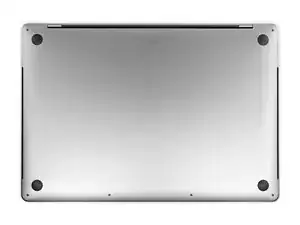
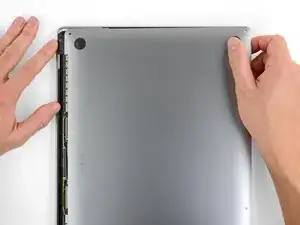
    • Schalte dein MacBook Pro vollständig aus und ziehe den Stecker aus der Steckdose, bevor du anfängst. Schließe das Display und drehe den Laptop um.

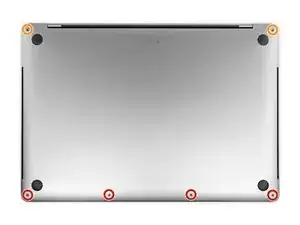
    • Entferne mit einem P5-Pentalobe-Schraubenzieher die sechs Schrauben, mit denen das untere Gehäuse befestigt ist:

    • Vier 4,7 mm Schrauben

    • Zwei 6,6 mm Schrauben

    • Du wirst sehen, dass die Schrauben in einem leichten Winkel herauskommen. Du musst sie dann später auch genau so wieder einsetzen.

    • Merke dir gut, wo welche Schraube war und vergewissere dich, dass du sie wieder genau dort eindrehst, wo du sie herausgedreht hast, um Schäden an deinem Gerät zu vermeiden.

    I miss a printable template to leave the screws and removed parts on it for future identification when reassembly, linked maybe with the location in the Macbook, or with the number of the step.

    Juan Ignacio Fernández García -

  3. ijkfCfPMSRX2ALo2
    ijkfCfPMSRX2ALo2
    5CkAq3GH4yfvDTM5
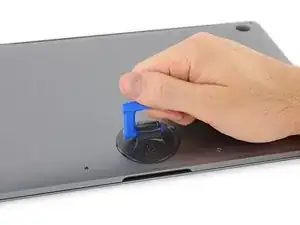
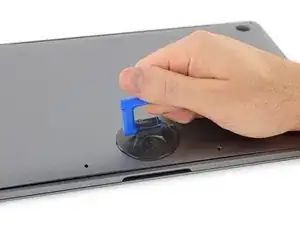
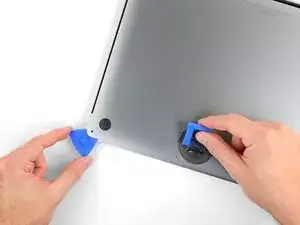
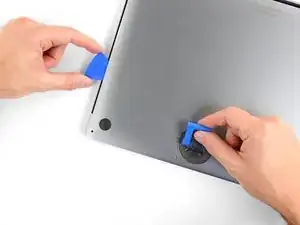
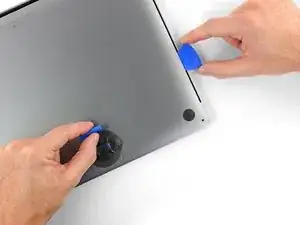
    • Drücke den Saugnapf in der Nähe der Vorderkante auf das untere Gehäuse zwischen den Schraubenlöchern.

    • Ziehe den Saugnapf gerade so weit nach oben, bis eine kleine Lücke unter dem unteren Gehäuse entsteht.

    Throw away this suction cup and get another. It just doesn't work! Luckily I had one that does work in my tool kit.

    Greek Taylor -

  4. 3tccyXXDSgVUfV5r
    3tccyXXDSgVUfV5r
    dGSZtjC2B25WfTqZ
    LkbLcUdZnPtyUlDZ
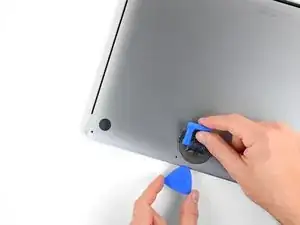
    • Schiebe die eine Ecke eines Plektrums in die entstandene Lücke.

    • Schiebe das Plektrum um die nächste Ecke und dann zur Hälfte über die Seite des MacBook Pro.

    • Dadurch wird der erste der verdeckten Clips freigegeben, mit denen das Gehäuse gesichert ist. Du solltest den Clip erfühlen und ihn klicken hören.

  5. HOVvMHuquXdBar2x
    HOVvMHuquXdBar2x
    oFJCHJDsnpdUHHUU
    ODWHnoCuXGXGKJla
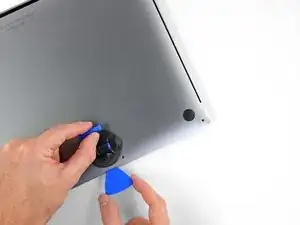
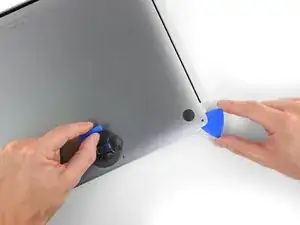
    • Wiederhole den vorherigen Schritt auf der anderen Seite und verwende das Plektrum, um den zweiten Clip zu lösen.

  6. cuTtNQlkiufuESrG
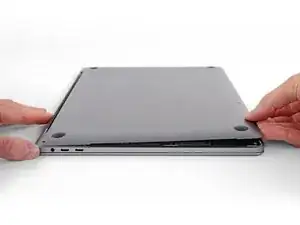
    • Hebe die Vorderkante des unteren Gehäuses (die dem Displayscharnier gegenüberliegende Seite) so weit an, dass du mit den Fingerspitzen darunter gleiten und es gut greifen kannst.

    • Zwei zusätzliche verdeckte Clips in der Mitte der Abdeckung können an dieser Stelle klicken und sich öffnen, sofern dies noch nicht geschehen ist.

    • Hebe nicht zu weit an und versuche noch nicht, das Gehäuse vollständig zu entfernen.

  7. rXaRTOtGXtFtIpF5
    rXaRTOtGXtFtIpF5
    AlvVmxKf6DlNLakh
    WJMFC2MdulDBxoXv
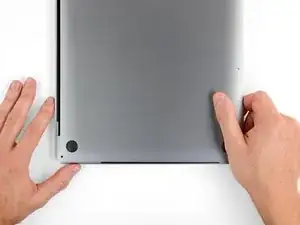
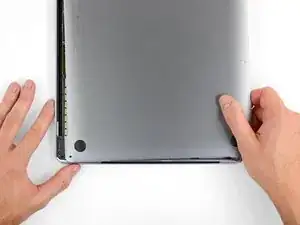
    • Ziehe das untere Gehäuse fest in Richtung der Vorderkante des MacBook (vom Scharnierbereich weg), um die letzten Clips zu lösen, mit denen das untere Gehäuse gesichert ist.

    • Ziehe zuerst an einer Ecke und dann an der anderen.

    • Zur Seite ziehen - nicht nach oben.

    • Das könnte ziemlich viel Kraftaufwand bedeuten.

    With the amount of force needed to carefully pull the back panel out, this caused the back panel to scratch the battery. I don't see or hear any expansion, but this still has me concerned.

    gladgura -

    this step must require a lot of force. I tried to pull it with the plastic hookie thing from the ifixit set by hooking it in one of the screw holes — the tip of the hookie thing broke.

    Oleksii Toldaiev -

    The amount of force required for removing the bottom cover is absolutely ridiculous. Almost feels like i'm about to push my MacBook towards the wall the second it comes off.

    Be careful, I ended up breaking 2 grounding pins on the motherboard last time I tried opening my computer up.

    techtalkf -

    PLEASE DON'T PULL!!!

    Instead just gently push with plastic pick from the other side (where vents outputs are) towards the center... Cover will very easily open that way.

    I hope iFixit will correct this step.

    Kamil Roman -

    Came here to share exactly this.

    Robert -

    That's definitely how this step should be done. Thanks!

    VovS -

    If someone has a photo to share regarding this comment, it might be very useful. Thanks.

    Mark Cohen -

    I used a screwdriver at 45 degrees angle and pushed the cover from the hinges, it worked really smooth. I had it close to the corners.

    Martin Lundgren -

    Yeah, definitely don't pull; if you do, wear protective gloves. Mine was stuck so strongly that I just cut my palm quite deep.

    Kirill Chernov (PowerDoge) -

    You would think ifixit would investigate why the last step required them to pull with great force to remove the bottom case lid as the solution.

    It's counter-intuitive to use an excessive method to remove a part.

    There's always an easier way. It's frustrating because you can't see inside.

    Cary B -

    Using the iFixit opening Tool in the hinge opening required close to no force to open.

    Anders Markstrom -

    Ah... after attempting to 'pull' this rear cover off, to no avail, I tried to coax the cover off with a nylon pry tool. MUCH better! iFixIt will do well to amend it's recommendation to 'pull' this cover in any way. All I wanted to do was a little house cleaning and exorcize the dust bunnies that took up residence in my MBP's fans. Today is much quieter. Thank you all for pointing out the obvious.

    P.C. -
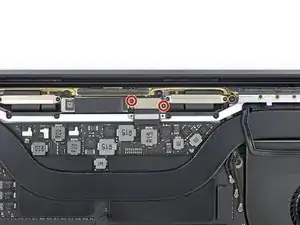
    I was able to very simply slide the case forward from the back of the hinges toward the front (where the trackpad is) and using the spudger thing to gently pry the edge of the bottom case (near the vents / display) 'forward' instead of pulling corners etc. Was actually really easy and slid simply.

    James Scanlon -
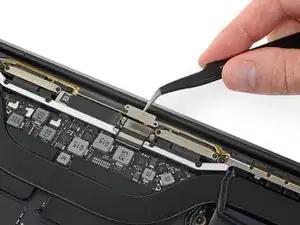
    This tip was the most helpful for me, used the blue prying tool that comes in the kit and lifted the hinge end up just slightly aiming for the middle of the cover, then pulled the whole cover towards the front (not lifting, pulling towards the front) and is slide right out.

    Stanley Dharan -
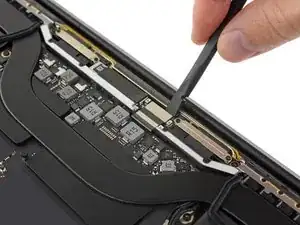
    Correction; When prying, aim just slightly left or right from the middle of the cover about and inch or so because there is some insulating material right in the middle that can get peeled off if you go dead center

    Stanley Dharan -

    I agree this is the easiest way to do it.

    LeBarron Durant -

    Correction; When prying, aim just slightly left or right from the middle of the cover about and inch or so because there is some insulating material right in the middle that can get peeled off if you go dead center

    Stanley Dharan -

    Well, I tried a few things including pulling forward with a large piece of strong adhesive tape. What finally worked for me was using a rubber mallet to tap gently on the cover's side edges near its two front corners, to loosen it. Then I was able to pull it forward and off.

    Kenneth Chin -

  8. 1eexZLVG2E3kwXhw
    1eexZLVG2E3kwXhw
    Koax55WG2pDjZ1MC
    WUXJn5rl13iOX11X
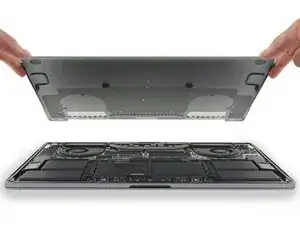
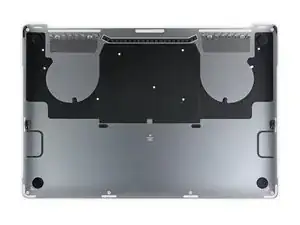
    • Entferne das untere Gehäuse.

    • So baust du das untere Gehäuse später wieder ein:

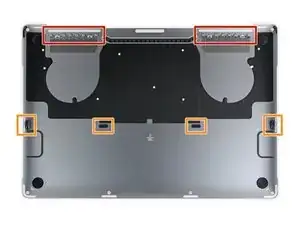
    • Lege es in Position und richtedie Clips in der Nähe des Displayscharniers aus. Drücke die Abdeckung nach unten und schiebe sie zum Scharnier. Es sollte nicht mehr rutschen, wenn die Clips einrasten.

    • Wenn die Clips vollständig eingerastet sind und das untere Gehäuse korrekt ausgerichtet ist, drücke fest auf das untere Gehäuse, um die vier verdeckten Clips darunter einzurasten. Du solltest fühlen und hören, wie sie einrasten.

    If I had it all to do over, again, I would blow out the dust with compressed air at this point. During the disassembly, I kept encountering little dust bunnies, and I was very worried that one would get caught in one of the connectors when I plugged everything back up (which wouldn’t get discovered until I put it all back together and tried out all of the components).

    Joe Emenaker -

  9. PTIZqDdpESIEg6iK
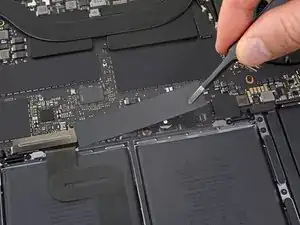
    • Ziehe den isolierenden Aufkleber auf der Akkuplatine an der der Akku nächstgelegenen Kante des Logic Board ab und entferne ihn.

    • Wenn sich die Abdeckung nicht leicht ablösen lässt, erwärme sie mit einem iOpener, einem Haartrockner oder einer Heißluftpistole, um den darunter befindlichen Klebstoff aufzuweichen, und versuche es erneut.

    • Wenn die Abdeckung beim Zusammenbau nicht sicher sitzt, drehe sie um 180 Grad. Sie muss richtig ausgerichtet sein, damit die darunterliegenden Klebepads die Schrauben vom Board berühren.

    i need a ziff connector flap for step 10

    Gregg Gorin -

  10. MZhqvhivJc6ltuBI
    MZhqvhivJc6ltuBI
    a5jICxWI6SwpreQK
    ur1oBPkypLAwkAay
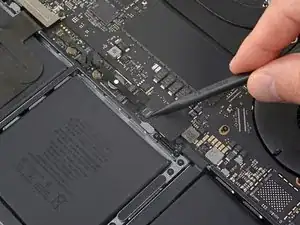
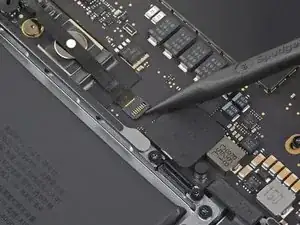
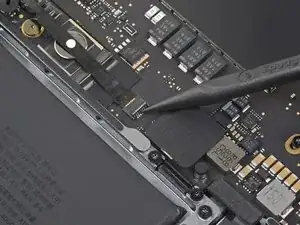
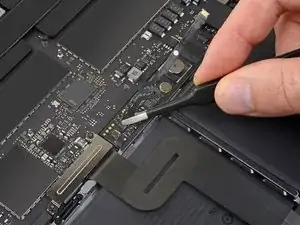
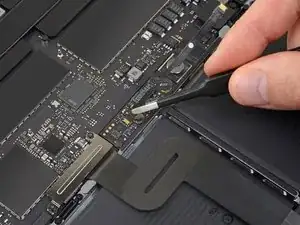
    • Ziehe das Klebeband vom Anschluss des Datenkabels der Akkuplatine ab.

    • Heble mit einem Spudger vorsichtig die Verriegelungsklappe am ZIF-Anschluss für das Datenkabel der Akkuplatine auf.

  11. SBuNWrrEsnEHWE5U
    SBuNWrrEsnEHWE5U
    WSVYglC4kJSVXbLA
    • Trenne das Datenkabel der Akkuplatine, indem du es aus der Buchse auf dem Logic Board ziehst.

    • Schiebe parallel zum Logic Board in Richtung des Kabels.

  12. 3QMLTKDDDaOIEXZk
    3QMLTKDDDaOIEXZk
    QJeqYMjSJObGSxLc
    • Heble die Verriegelungsklappe am Stecker am gegenüberliegenden Ende des Datenkabels der Akkuplatine auf und trenne sie.

    %#*@, the connector on the ifixit batter does not have a clamp down piece, and so just relies on the top tape to hold it in place. Pretty much the last step on re-assembly, too.

    Robert Brown -

  13. doyrMkF4Ol2fsUCf
    doyrMkF4Ol2fsUCf
    FlF4ZwiPrAxEkwSi
    • Schiebe das Datenkabel der Akkuplatine aus der Buchse auf der Akkuplatine und entferne es vollständig.

    • Achte darauf, dieses Kabel nicht verkehrt herum oder falschrum zu verlegen. Bei korrekter Installation sollte der weiße Aufkleber mit der Flüssigkeitsanzeige nach oben zeigen und direkt über der Verbindungsschraube des Akkus positioniert sein.

    Bonjour, super Tuto, petite question elle sert a quoi cette nappe , et quesqui se passe si elle est pas branché ?

    Jorgio -aigleBrun- -

  14. YCrvX4dDTLFRo2He
    YCrvX4dDTLFRo2He
    REFmgM15LSgj5I14
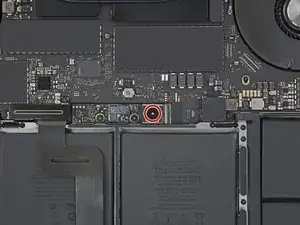
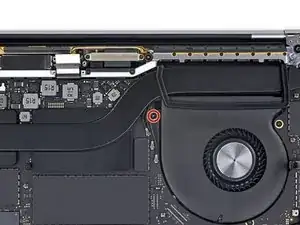
    • Entferne mit einem T5-Torx-Schraubendreher die 3,7-mm-Flachkopfschraube, mit der der Akkustecker befestigt ist.

  15. rmLuSU2NmsUdQIQp
    rmLuSU2NmsUdQIQp
    aMGREyB4myE324Ug
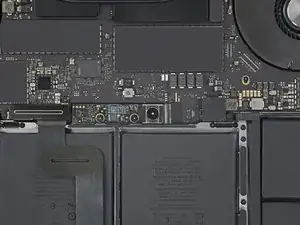
    • Verwende einen Spudger, um den Akkustecker anzuheben und den Akku abzuklemmen.

    • Hebe den Stecker hoch genug, um ihn während der Arbeit von der Buchse zu trennen. Wenn es versehentlich zu Kontakt kommt, kann dein MacBook Pro beschädigt werden.

    Put a little bit of insulating tape over the terminal to be safe.

    Brian Tibbels -

    Agreed - once this is back in place, the system is energized, you run the risk of creating little sparks or worse if metal objects such as cover brackets accidentally touch areas of the logic board.

    bkbkbk -

    I used painters tape to insulate the contacts. LOL!

    VicRod74 -

  16. p1KlKhOJv1Nl4jGP
    p1KlKhOJv1Nl4jGP
    MlBBnBYHMS2bQTJG
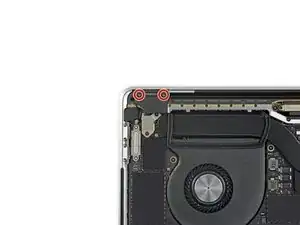
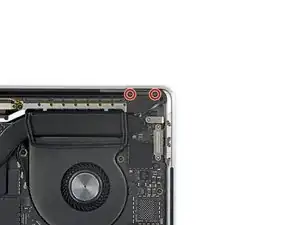
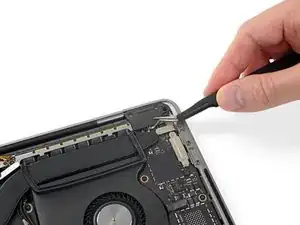
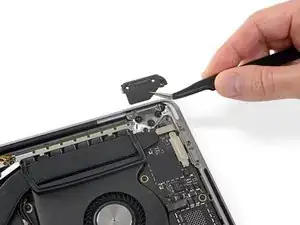
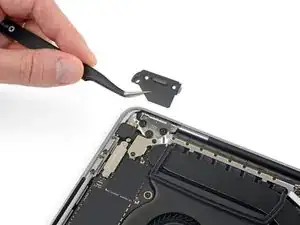
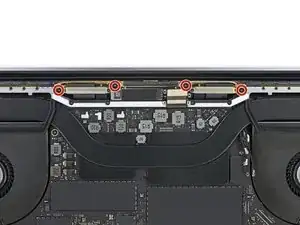
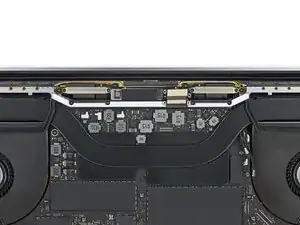
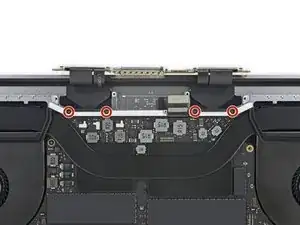
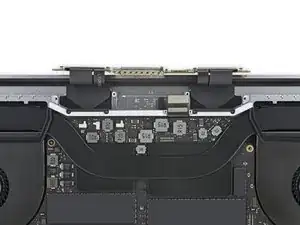
    • Verwende einen T3 Torx Schraubendreher, um die beiden 3,5-mm-Schrauben zu lösen, mit denen die Abdeckung auf dem Flexkabel des Displays befestigt ist.

    • Entferne die Abdeckung auf dem Flexibel des Displays.

    T3 or T4? I almost damage the screw trying with the T3.

    Christian Polychroniadis -

    I’d say T4 as T3 was definitely too small

    David Smith -

    T3 worked fine!

    Martin -

  17. woNJEcPA5rtwuSfu
    woNJEcPA5rtwuSfu
    4oZ5TFBKasNYaSMO
    • Verwende einen T3 Torx Schraubendreher um die zwei 1,7 mm Schrauben zu lösen, mit denen die Klammer für den Displayboardanschluss befestigt sind.

    • Entferne die Klammer für den Displayboardanschluss.

    Step requires T4 Torx instead of T3 Torx.

    Banana -

    I damaged the screw trying to use a T3. Now I am screwed.

    markshain -

    This wasn't seated right when I reassembled and the MBP didn't turn on. Crestfallen.... I had to take it apart and really make sure that this seated properly. It powered up.

    Sean Williams -

  18. doaNmBYvlZb25ClX
    doaNmBYvlZb25ClX
    3NIuQaax2QSatDXG
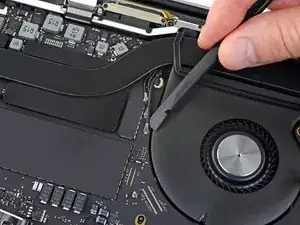
    • Heble das Display Board Flexkabel gerade aus seiner Buchse, um es vom Display Board zu trennen.

  19. EFvKv56ogs6YUGqT
    EFvKv56ogs6YUGqT
    uIkwNuUZOCMOVL1k
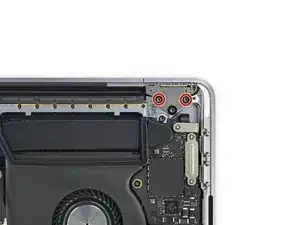
    • Verwende einen T3 Torx Schraubendreher um die vier 2 mm Schrauben von der Scharnierabdeckung zu entfernen. (Zwei Schrauben auf jeder Seite).

  20. BKhXLb1bUs1s1dFB
    BKhXLb1bUs1s1dFB
    Vy3FQEhskaj4aSvs
    f4j3NZHMVUVJXoJ5
    • Entferne die beiden Scharnierabdeckungen.

  21. YKox3NarM52gKoxK
    YKox3NarM52gKoxK
    DsK5FGBVKIbUYSvV
    • Verwende einen T5 Torx Schraubendreher um die eine 2,9mm Schraube zu lösen, mit der das Antennenkabel-Set befestigt ist.

  22. EfRS2INiWtk4hJoA
    EfRS2INiWtk4hJoA
    KPWDEvAeVUpcVvXC
    HsKrSYIWS3WZDuVT
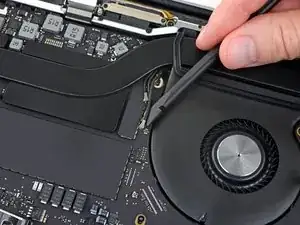
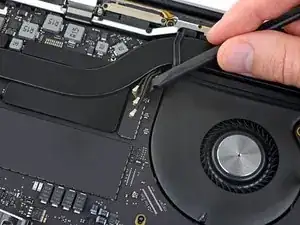
    • Trenne alle drei Antennenkabel, indem du sie gerade nach oben abhebelst.

    • Schiebe eine Pinzette oder das flache Ende deines Spudgers unter jedes Kabel, bis du nahe genug an der Buchse bist. Dann kannst du dein Werkzeug drehen oder leichten Druck nach oben geben.

    • Um die Kabel später wieder zu verbinden, musst du darauf achten, die Anschlüsse ganz genau über der Buchse auszurichten und dann erst zu drücken, bis sie einrasten.

  23. Q5RVSCZYJJWTac2q
    Q5RVSCZYJJWTac2q
    fWDqp4D5khLWWPMg
    KmfUu4FWRFeLCDrQ
    • Verwende einen T5 Schraubenzieher um die vier 3,3 mm Schrauben zu entfernen, mit denen das Display Board befestigt ist.

    • Bevor du beim Wiederzusammenbau diese Schrauben wieder anbringst:

    • Achte darauf, dass das Displayflexkabel an  der Oberseite des Boards liegt und nicht eingeklemmt wird.

    When reassembling, I found that I had to press in on the outer edge of the antenna (top edge when looking at the picture) at the midpoint between the left 8 screws and the right 8 screws as I screwed the display board screws in. I found that the outside antenna edge would otherwise rub against the display halfway through opening it making a pop sound. Installing this way fixed the problem.

    Robert Scheid -

    Running into the same issue with the pop sound. Could you explain a bit more as to what exactly needs to be pressed in, its a bit unclear :/

    Shubhang sharma -

  24. UZ1KpJs5W2ojvRIF
    UZ1KpJs5W2ojvRIF
    VWNrs5kRotjkmKPM
    • Verwende einen P2 Pentalobe Schraubendreher um die 16 1,5 mm Schrauben zu lösen, mit denen die Antenneneinheit befestigt ist.

    I’m having difficulty removing the screws. I’m not sure if the p2 screwdriver is defective but I am now stuck at this step.

    Sonia Carrillo-Ramirez -

    i can only seem to get 2/3 of the screws out

    Leif -

    After giving up, someone else got them all out in about 10 sec using the Apple pentalope screwdriver, specific to Apple.

    Leif -

    The 4 of Pentalobe5 screws in the middle between the two sets of 8 screws also need to be removed.

    pboyle -

    Oooops, wrong, those are 4 of T5 screws in the middle

    pboyle -

    Ok, wrong again. Step 23 is this set of 4 of T5s.

    The step that is missing is removing the set of 4 of T3s that hold the display flexes and springs.

    Sorry about the mess of corrections.

    pboyle -

    We had 4 MBP's that I removed the displays from. On this step, I stripped a 'middle' screw on each side.

    On the second one, I also noticed the middle screws didn't exactly want to easily come loose as I worked my way down the row.

    I wound up putting all screws back in, loosened then tightened the screw on the opposite end, then removed the two in the middle (without issue), then an outside screw going back and forth, until I just had one on each end. Since I had already removed and replaced them, they came out without issue.

    I used this method on the remaining 2 MBP's and had no further issues.

    YMMV and it may not even be necessary. Just seemed removing the screws from end to end put enough pressure on the remaining ones that they were harder to remove. Whereas a patterned removal seemed to resolve that 'issue'.

    fozman2 -

    so i had to first loosen all the screws just a little bit and then bit by bit remove one from each side, then remove the corresponding one from the other side and so on. This helped make sure that the entire thing comes off properly.

    I think the reason people were running into issues is because the screws are keeping the two parts together under tension, and if you remove a few of them completely, the remaining screws get under a lot of stress. So yeah, just loosen all of them a little bit first

    Shubhang sharma -

  25. vQkL3qWwhNFcBfgt
    vQkL3qWwhNFcBfgt
    3jDBLScjAGCIPn3d
    dwYOW21w5BpMPJOM
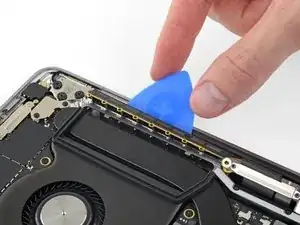
    • Nimm ein Plektrum zur Hand und heble damit die Antenneneinheit aus dem MacBook Pro.

    • Achte auf die sehr empfindlichen Flachbandkabel in der Mitte. Du solltest so wenig wie möglich mit dem Plektrum hin- und herfahren, um zu vermeiden dass diese Kabel versehentlich beschädigt werden.

  26. tlMIWibIfaaaOtAI
    tlMIWibIfaaaOtAI
    yse65pOXBBnB6ZZu
    2HiWNZE5uoLJMPpx
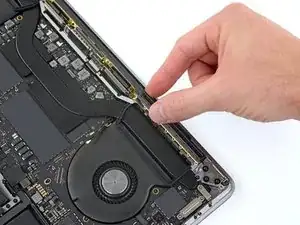
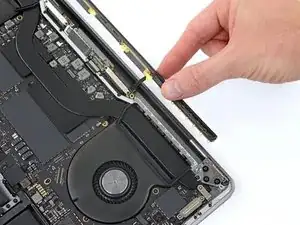
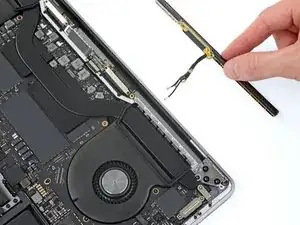
    • Entferne vorsichtig die Antenneneinheit und ziehe gleichzeitig den Antennenkabelstrang aus dem Kühlkörper, der darunter liegt.

    • Beim Wiederzusammenbau musst du den Kabelstrang vorsichtig zusammendrücken und unter das Kühlrohr einfädeln bis es in der richtigen Position liegt. Du kannst dazu auch Werkzeuge verwenden, wenn es sein muss, aber dann musst du wirklich aufpassen, dass du nicht mit Kraft arbeitest.

    FOR THE POPPING/CLICKING SOUND: The antenna assembly has a horizontal-thin metal plate-like thingy underneath that needs to be seated onto its cove in the aluminum body. If you don't make sure it is seated in correctly, the MBP makes a popping/clicking/cracking sound when the lid rotated between 100-120 degrees. You can partly see that plate only in the last picture. Mine got a dent after faulty reassembly at first try. If yours gets too, you can try to use tweezers to straighten with very gentle movements. The part doesn't need excessive force to be seated correctly. It only needs a gentle push to the correct angle. Don't force it. I also recommend reading the comment from Robert Scheid at Step 23.

    Ufuktan Yıldırım -

  27. vTCyugCTOxZLGWXb
    vTCyugCTOxZLGWXb
    LIRG3FoNXZTrOQ5y
    • Verwende einen T3 Torx Schraubendreher um die vier 3,9 mm Schrauben zu lösen, mit denen die Displaykabelabdeckung befestigt ist.

    Used a T4 here.

    PCICS -

    T4 for me (MBP 2018 15’)

    stephane -

    nah T3 for the macbook pro 15 inch 2019 A1990

    Shubhang sharma -

  28. nGKPUZTvYA3hI4SS
    nGKPUZTvYA3hI4SS
    tTGxYULmCcdEjMCV
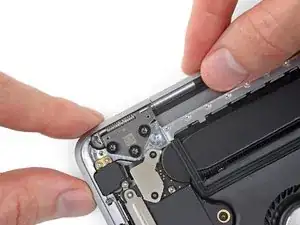
    • Verwende einen T8 Torx Schraubendreher um die zwei 4,9 mm Schrauben an jedem Scharnier zu lösen (also insgesamt vier Schrauben).

    • Jedes Scharnier hat eine dritte Schraube, die solltest du vorerst noch drin lassen.

    needed some a gentle but extra torque to loosen them up

    Shubhang sharma -

  29. bMcJDBC1ohAhHDQ4
    bMcJDBC1ohAhHDQ4
    l2rZdmKfIAdQCpHe
    IIgOW4nLGFP6FnfA
    • Beim Wiederzusammenbau solltest du die Scharnierschrauben erst einmal lose eindrehen. Du kannst dann das Display mittig ausrichten, so dass es an beiden Seiten mit den Rändern abschließt. Erst dann solltest du die Schrauben anziehen.

    • Wenn dein Display beim Öffnen klickt oder schnappt, löse die Scharnierschrauben nochmal und justiere nach. Achte darauf, dass das Display nicht zu weit nach vorne gesetzt ist, ansonsten könnte es sein, dass er beim Öffnen und Schließen das Gehäuse streift.

    • Wenn du magst kannst du etwas Gewindekleber verwenden, damit sich die Schrauben im Lauf der Zeit nicht lockern.

  30. Cs6xyqxTGE6igJLR
    Cs6xyqxTGE6igJLR
    GbFddFHxxvdiPwum
    • Solltest du planen, dein Display weiter zu verwenden, klebe das Glas direkt oberhalb des Scharniers auf beiden Seiten mit einem Stück Klebeband ab. So kannst du es vor Beschädigungen schützen, bevor du weitermachst.

    • Mach dein MacBook Pro jetzt ganz auf und stelle es auf die Seitenkante.

  31. 3EeSMH1SVUVfK3ZA
    3EeSMH1SVUVfK3ZA
    c12gMkRxpIAhWiKJ
    KttIZTNWe6T2nuMo
    • Verwende einen T8 Torx Schraubendreher, um die beiden verbleibenden 4 mm Scharnierschrauben zu entfernen. (Eine auf jeder Seite).

    • Entferne zuerst die untere und dann die obere Schraube. Du musst dabei das MacBook festhalten, damit die beiden Hälften dann nicht auseinander fallen.

  32. QCYVfipTaqhfWmiq
    QCYVfipTaqhfWmiq
    csqVHO1IvpdQltRa
    G5QaKJDrGrLXvVQH
    • Jetzt musst du aufpassen, dass du beide Hälften, sowohl das Display als auch das untere Gehäuse, wirklich gut im Griff hast, sonst können sie dir in diesem Schritt jederzeit entgleiten.

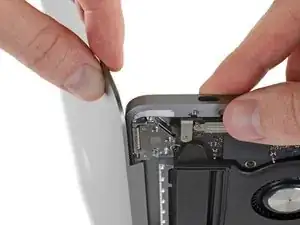
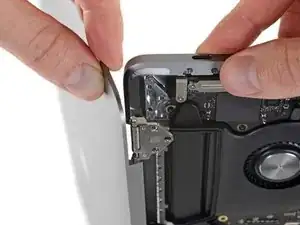
    • Schiebe beide Hälften des MacBook Pro zusammen, damit die Scharniere aus ihren Aussparungen im Gehäuse herausgehoben werden können.

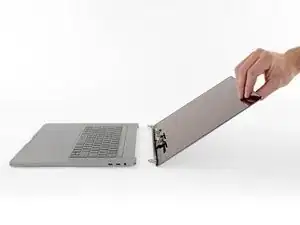
    • Drücke das untere Gehäuse des MacBook Pro weg von dir und das Display zu dir hin, so dass sie voneinander getrennt werden.

  33. SFdveGAs6OImm2Kg
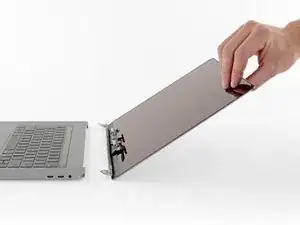
    • Entferne das Display.

Abschluss

Vergleiche dein neues Ersatzteil mit dem Originalteil. Möglicherweise musst du einzelne Komponenten übertragen oder Klebebeschichtungen vom neuen Teil entfernen, bevor du es einbaust.

Folge dann den Schritten in umgekehrter Reihenfolge, um dein Gerät wieder zusammenzubauen.

Entsorge deinen Elektroschrott fachgerecht.

Die Reparatur verlief nicht wie geplant? In unserem Antwortenforum hilft man dir sicher gern bei der Fehlersuche.

Jeff Suovanen

Mitglied seit: 06/08/13

442488 Reputation

19 Kommentare

where can I purchase an lcd screen for this computer?

Ron Glines -

hai jeff. Is that possible I can revive my screen not to buy a new one, instead of replacing 3 pairs of flexible cable? thanks

endyk novianto -

To reiterate Ron’s request - you’ve shown me how to fix the screen (thank you!) without showing me where/how to purchase the replacement?

John Capehart -

Banggodd or AliExpress but ta

Apple sry to get a genuine Apple screen as ‘compatibles’ may not pass in built Apple security- more expensive but can save a lot of heartache and later expense.

Terence Dixon -

Pleeeaaase I really need to know where I can purchase a new screen like this one

Vico -

Aliexpress. you can find screen replacments

zeta.fp -

For everyone looking for screen replacements the short story is you cannot get them. Apple has prohibited their source from selling the assemblies to third parties. 3rd parties attempting to make their own have had them seized by customs. The only way to get one at this current time is from another device. However you may have issues using a display from another laptop even if it is the exact same model as apple will notice it is an unauthorized repair. This is a textbook example of apple’s illegal practices in regards to right to repair. You can read more about this here https://uspirg.org/feature/usp/right-rep...

Nicholas -

Does anyone know if you can remove the MacBook screen and just use the keyboard mouse pad etc and connect to a monitor screen without attaching back a new screen? Thanks!

abyrneryan1 -

I changed the screen following this guide. The screen works but the camera of the new screen does not work and the backlight of the keyboard its not working (when turning on the computer the lights of the keyboard works but after login in with my password the backlight stops working). I tried nvram reset and pram reset and the problem is still there. If someone knows something about this please help me!

zeta.fp -

In step 24:

Use a P2 Pentalobe driver to remove the sixteen 1.5 mm screws securing the antenna assembly.

I can’t remove them with my P2, it looks like they use a different driver. The screws won’t budge with P2.

enrirego -

Thanks guys! Epic!

Banana -

Can I replace macbook 2016 lcd (A1706) with A1989 (2018) ??

Pinokio -

what is the part number for the screen?

Rick Fetters -

Does this work on a 13 inch?

Jon Wolfe -

Look for the 13” guide.

garfolino -

Hi, I tried to repair/check my 2018 mac 15”screen and when I finished i cant get the mac to charge… have I broken the dam thing? battery flat?

Walter Hay -

Hi,

Great guide thank you. Unfortunately during reassembly, 1 of the 3 antenna cable's conector broke. It's the long one. the machine itself works perfect, wifi and Bluetooth still work. Does anyone know what that longer antenna cable does?

Just wondering if it's really necessary for me to purchase and replace the antenna assembly all together.

Thank you

Carlos Herreros -

This was so incredibly helpful. Thanks you for this!

jason -

Is True Tone still available after the replacement?

Ard -