Einleitung

Diese Anleitung zeigt, wie du die Festplatte aus deinem MacBook Pro entfernen* kannst.

*Beachte, dass das Öffnen deines MacBook Pro jede Garantie ungültig macht.

  1. NMw2fChqQ4CvTHBv
    NMw2fChqQ4CvTHBv
    DEeXXeFLaBGHyGUM
    • Schalte das MacBook Pro aus und stecke alle Stromquellen aus. Es kann gefährlich sein, wenn das MacBook Pro unter Strom steht, während die Festplatte entfernt wird.

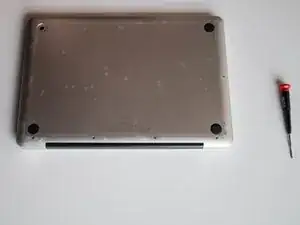
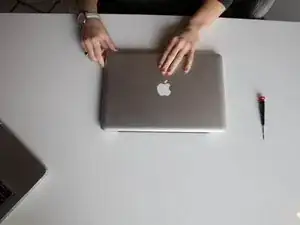
    • Drehe das MacBook Pro um, sodass das Apple-Logo auf dem Tisch liegt und das schwarze Scharnier am weitesten von dir entfernt ist.

  2. YfSsQxWJUZLN2Nr5
    YfSsQxWJUZLN2Nr5
    qKynKFZd1BoCqGkQ
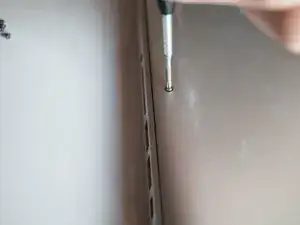
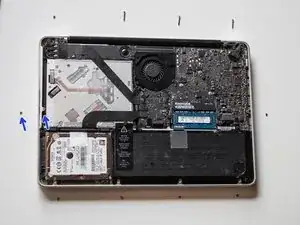
    • Entferne zehn Schrauben mit einem Kreuzschlitzschraubendreher #000. Drücke den Schraubendreher in die Schraube und drehe ihn dann, während du leichten Druck auf den Schraubendreher ausübst, um eine Beschädigung der Schraube zu vermeiden.

    • Nachdem du eine Schraube herausgedreht hast, platziere sie neben dem Loch, aus dem du sie entfernt hast. Wenn die Schrauben wieder eingesetzt werden, wird dies Verwirrung vermeiden, weil es mehrere längere Schrauben gibt.

    The two closest to the rear hinge are the short screws

    lucas -

  3. qbhxpK1LM2rulZdv
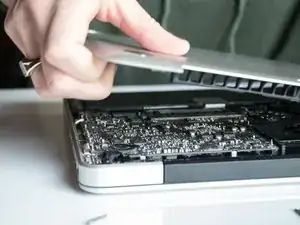
    • Hebe die Rückabdeckung deines MacBook Pro ab und lege sie zur Seite. Sie könnte ein lautes Geräusch verursachen, aber das ist in Ordnung.

  4. UdLqvGwbCXQQXHoJ
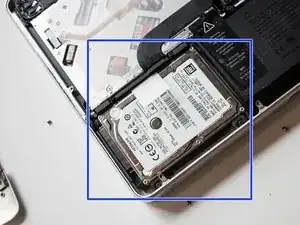
    • Suche die Festplatte. Wenn das Scharnier weg von dir zeigt, findest du die Festplatte in der Ecke unten links, dir am nächsten. Sie ist rechteckig und silberfarben.

  5. eqnNDUyOc6KuEBi6
    eqnNDUyOc6KuEBi6
    mYIdFSkNDA5Ty2BD
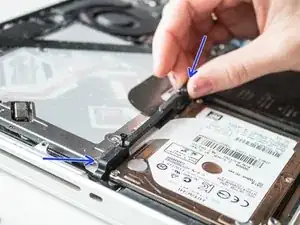
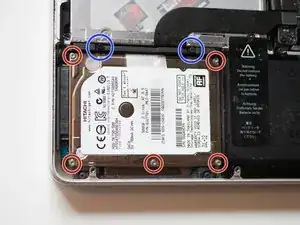
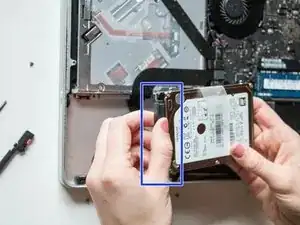
    • Finde die schwarze Leiste, die die Festplatte an ihrem Platz hält. Diese Leiste befindet sich oben an der Festplatte.

    • Lockere die zwei schwarzen Schrauben an der schwarzen Leiste mit dem Schraubendreher. Achte darauf, dass du die silbernen Schrauben nicht herausdrehst.

    • Hebe die schwarze Leiste von der Festplatte weg. Lege sie beiseite.

  6. UvVLijwQjGwYT6V1
    UvVLijwQjGwYT6V1
    ueNCFR4RivPWPRTV
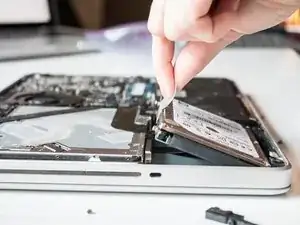
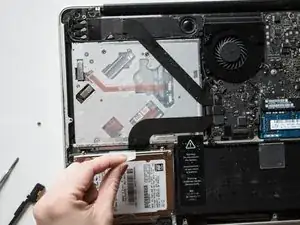
    • Ziehe an der Plastiklasche, um die Festplatte herauszuheben.

  7. BOQvBNZssuNrh3OL
    BOQvBNZssuNrh3OL
    IiNfKNKlM4USNCTS
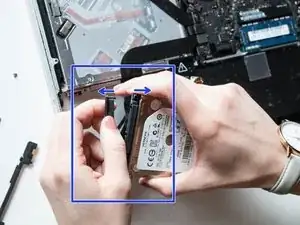
    • Ziehe die schwarze Leiste an der Seite der Festplatte vorsichtig ab. Diese schwarze Leiste bleibt weiterhin am Computer befestigt.

    Hi.

    Bought the screwdriver you recommended, Phillips #000 Screwdriver, on Amazon : Wera 05345290001 2050 PH Screwdriver for Phillips Screws for Electronic Applications, PH 000 x 40 mm, Black

    Can't get the screws to budge. My husband tried while I held the Mac & none of the 10 screw will turn. : (

    Any other suggestions?

    Thanks!

    Susan

    Susan Cahill -

Abschluss

Um eine neue Festplatte in diesen Computer einzubauen, folge diesen Anweisungen in umgekehrter Reihenfolge. Beginne damit, die Montageschrauben von der alten Festplatte abzuschrauben und sie in die neue Festplatte hineinzuschrauben.

Wenn du vorhast, die aktuelle Festplatte als externes Laufwerk zu benutzen, lass die Montageschrauben wo sie sind.

Kauf dir ein Festplattengehäuse für die Festplatte.
McKaila Ruud

Mitglied seit: 29/03/17

866 Reputation

13 Kommentare

Great documentation, photography was very good.

Jim Brennan -

wonderful, thank you very much.

Luc Constantin -

Will a T6 screwdriver work to remove the screws holding the back and hard drive?

Iris R -

Save the four mounting screws located on the side of the hdd . You will need them for your new hdd.I'm

James Michaud -

How do I remove those screws? They seem to be permanent placed.

lalof-1 -

Can I remove the old harddrive as instructed above and just have macpro use and external harddrive?

Ron -

The computer should work fine without a hard drive installed, but you will want a high speed external hard drive that connects over something faster than USB2 in order to have a usable experience. Depending on the model of computer you have, the drive could be connected over Firewire, Thunderbolt, USB3, or USB-C.

David Green -

Once I have my old HD out, how do you transfer the existing OS/files from it to the new SSD drive?

melvinwahl -

Suggest you install fresh copy of MacOS on another drive, and then run the ‘Migration Assistant’ (found in Applications/Utilities) The Assistant will ask for the source drive and whether you just want documents, or everything, applications, etc.

Hal D -

Excellent descriptions and photos, upgraded from 250GB to 1TB. Thanks!

Base ManDan -

Excellent-well done.Many thanks from those of us dependent on the kindness of techies

Kevin Quigley -

Darf man die Schrauben an der Seite der Festplatte entfernen? Ich möchte die Festplatte gerne auslesen, weil da meine ganzen Daten drauf sind. Alle Festplattengehäuse passen leider nicht aufgrund der seitlichen Schrauben. Vielen Dank für Eure Hilfe!

Heike von Fuchs -

не могу найти диод с

9560 мкф 330 2в

Вячеслав -