Einleitung

Wenn das Gerät nicht richtig mit Strom versorgt wird, solltest du das Netzteil tauschen. Bevor du anfängst stelle sicher, dass du alle benötigten Werkzeuge (wie aufgeführt) parat hast, nimm dir genug Zeit und sorge für eine freie, saubere Arbeitsfläche. Sei vorsichtig bei der Arbeit an deinem Gerät und folge den Schritten genau, um sicherzustellen, dass du das Netzteil richtig austauschst.

  1. xbQGh6p1ZhTEI1AM
    xbQGh6p1ZhTEI1AM
    KtrEJIpoTyD6Dxns
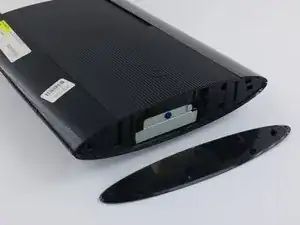
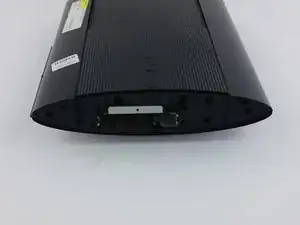
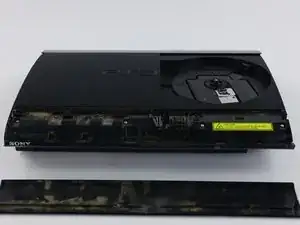
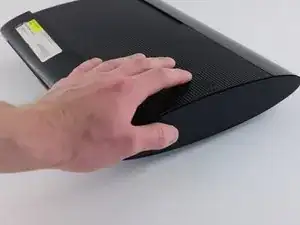
    • Schiebe die seitliche Abdeckung der Festplatte zur Rückseite des Gerätes hin und entferne sie.

    • Diese Abdeckung befindet sich auf der rechten Seite des Gerätes.

    Just wanted to add: the HDD bay cover isn't on the right all the time, it varies with each unit. The side without the rubber PS logo is the bay cover.

    Yash -

    I just wanted to add that the above is not correct either

    My PS3 Super Slim Mdel No. CECH-4004A has the removable PS logo rubber seal on the left side while the HDD is housed behind the right side (with no rubber PS logo seal)

    Eoin -

    My p3 just went off it goes on but then it just shut down

    Chadley Abrahams -

  2. plFIWwPRecFSCYtW
    plFIWwPRecFSCYtW
    aY24caeSlaSLeiSh
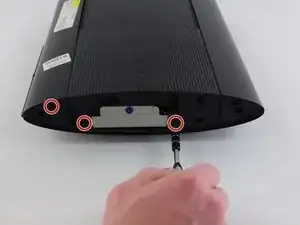
    • Entferne die drei schwarzen 9,8 mm langen Torx 8 Sicherheitsschrauben.

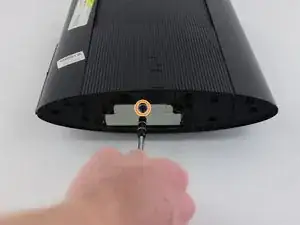
    • Entferne die blaue 7,9 mm lange Kreuzschlitzschraube #1.

  3. BI3LAQDYeBaY3rd6
    BI3LAQDYeBaY3rd6
    GE41y3D3UesWoFGO
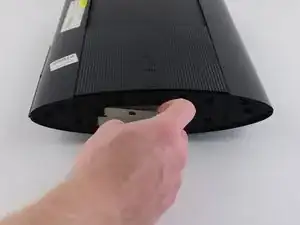
    • Ziehe an der Lasche und entferne die Festplatte.

    • Sei vorsichtig, wenn du die Festplatte herausholst und bewahre sie sorgfältig auf.

  4. uamMjKCFEnb1yVAd
    uamMjKCFEnb1yVAd
    RcLG3QQDdCi3cHKO
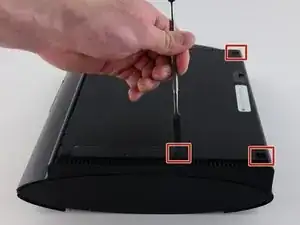
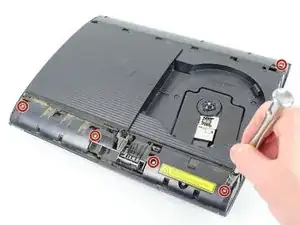
    • Heble die drei Gummiabdeckungen der Füße mit einem Metallspatel heraus.

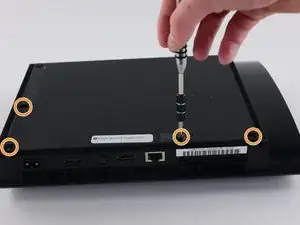
    • Unten sind vier schwarze 36,3 mm lange Kreuzschlitzschrauben #1. Drehe sie heraus.

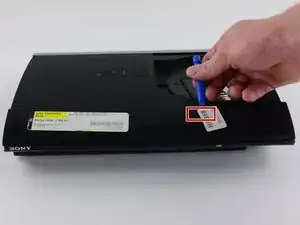
    • Eine dieser Schrauben befindet sich unter dem Garantieaufkleber. Du kannst den Sticker abziehen oder mit dem Schraubendreher ein Loch hineinstoßen.

  5. uV3ohQT1OHHuYKKm
    uV3ohQT1OHHuYKKm
    Hu2abpWkZKkfDyx3
    • Löse die Raste ganz rechts hinter dem Panel an der Vorderseite, hebe das Panel etwas hoch und drücke darauf.

    • Schiebe ein Öffnungswerkzeug im markierten Bereich ein und löse die zweite Raste.

    • Schiebe das Panel nach links, um die weiteren Rasten zu lösen.

    • Dies ist wahrscheinlich der kniffligste Teil des Verfahrens. Wenn es dir nicht gelingt die Raste am vorderen Panel zu lösen, kannst du versuchen, alle Rasten aufzuhebeln. Sei aber sehr vorsichtig, sie gehen leicht kaputt.

    Getting these on is harder than getting them off.

    Jake -

  6. ETZALUAjLVb3QSpP
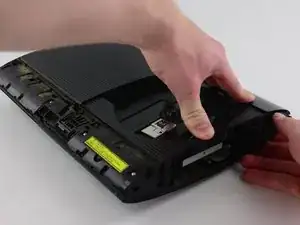
    • Drücke die Lasche an der rechten Seite des Gerätes nach unten und schiebe das Panel an der Rückseite nach links heraus.

    This tip and photo made me break this panel lmao there's a button top right of the disk tray you're supposed to push that not a "tab on the right side of the device" the mechanism to unlock the panel safely is in the top right of the inside of the disk tray

    maddestkhuntoutoften -

    You cannot really even see the bottom in this photograph but it is clearly visible in step seven please before trying to remove this panel look at step seven to see the button I have described lol

    maddestkhuntoutoften -

  7. 14ySA5tr4QOwXMli
    14ySA5tr4QOwXMli
    G5vooeSBbf642Z6a
    NRGGFxlrh5TjpOwj
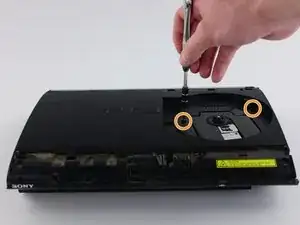
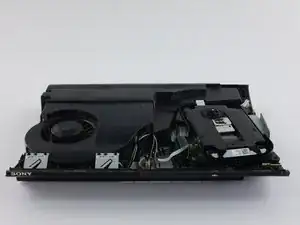
    • Entferne die fünf silbernen 20,8 mm langen Kreuzschlitzschrauben.

    • Entferne die beiden schwarzen 9,9 mm langen Torx T8 Sicherheitsschrauben.

    • Entferne die obere Kunstoffabdeckung.

  8. Qr6kVceLZaiWjTqM
    Qr6kVceLZaiWjTqM
    HPo5mESxObkLXBII
    XteObUULZPtjx1mE
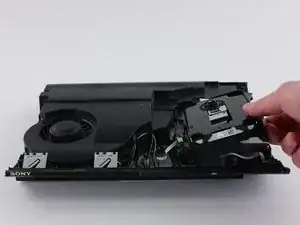
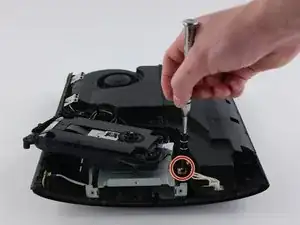
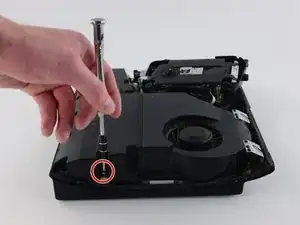
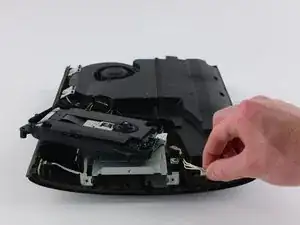
    • Bewege das optische Laufwerk zur Seite, so dass eine der silbernen 8,8 mm langen Kreuzschlitzschraube sichtbar wird.

    • Entferne die beiden 8,8 mm langen Kreuzschlitzschrauben an jeder Seite.

    be careful, the fiber-optic cables come out easily and are a pain to put back in

    tucker hartman -

  9. KYIxOow2iBFd3Pc4
    KYIxOow2iBFd3Pc4
    fyOJO3E4rKpl1mxm
    CrC3gLDSZsmGDnEc
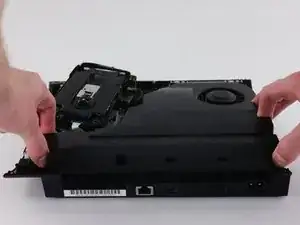
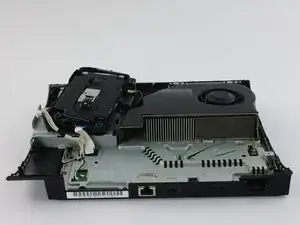
    • Löse das Kabel aus dem Anschluss und hole es aus den beiden Kunststoffhaltern heraus.

    • Ziehe zum Ablösen des Kabels am Stecker, nicht am Kabel selbst.

    • Entferne das Netzteil.

    The left side of the PSU sits on two long metal prongs so you may need to pull a little to get it lose but you should be able to pull the whole unit in an upward motion

    Matthew Symmons -

Abschluss

Baue das neue Netzteil ein. Um dein Gerät wieder zusammenzubauen, folge den Schritten in umgekehrter Reihenfolge.

Joseph O'Connor

Mitglied seit: 14/04/16

2820 Reputation

8 Kommentare

Perfect how to guide. Fixed my PS3 easily. Thanks

Andrew Roscoe -

Great guide. However, still no power on PS3. Any suggestions as to what else may be the problem?

Peter Maher -

Peter Maher, I am in the same boat. I have no idea what the problem is. Red light in standby, but as soon as I try to power on, nothing. Same as before I did this power supply replacement. Obviously, something else is the problem. Anyone who has some insight into this please help!

James Neely -

Did you guys get word on the red light with no power on fix mine has the same issue.

Benjamin P Patterson -

i have the same problem as Peter Maher, the red light is in standby neither turning green on pressing nor it sounds beep on long press. dont know whats wrong. anyone has any solution to this?

Thiemwang Kitnya -

my ps3 red light is not working at all could this be the problem I mean the power supply

Mohammed -

thanks for guide - had a blown power unit and this was a useful guide to getting at it so it could be replaced. I couldn’t see a guide for taking the power unit apart so with nothing to lose I opened that up to see what was going on, and could see the charred remains of what I guess was a capacitor.  New power unit in there now and working great. thanks

Phil March -

Fantastic guide, I used it today to check if my PS3 brought from the US could be plugged in a 220 socket (as I had read on this site). I can confirm this is the case, as the power supply is actually the 100-240V one (part # N12-160P1A). Thanks for this great piece of information!

Vincent -