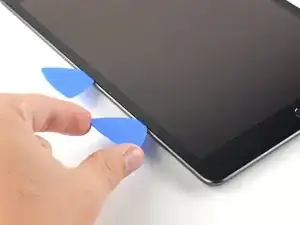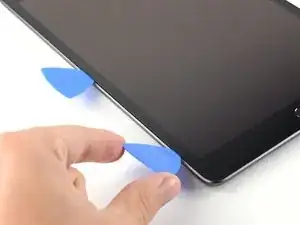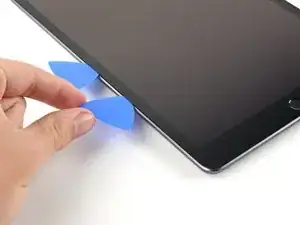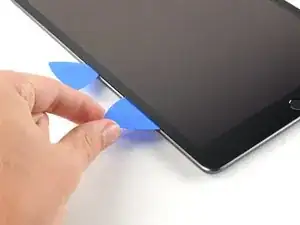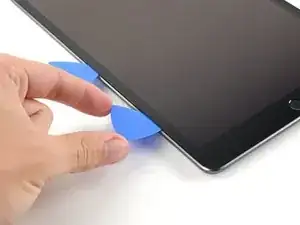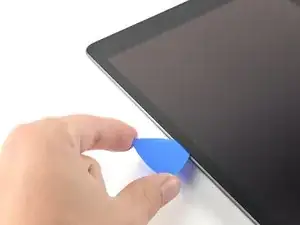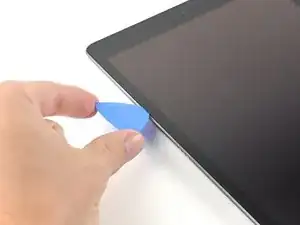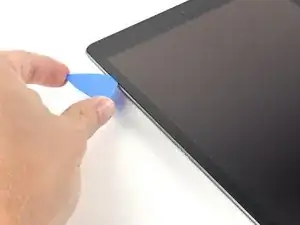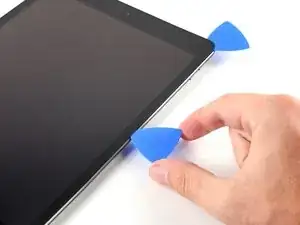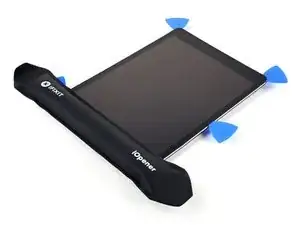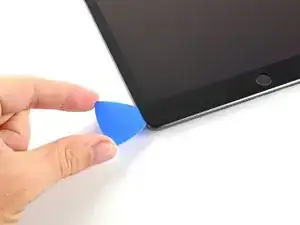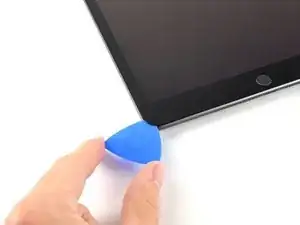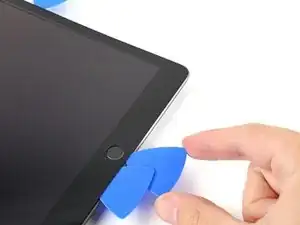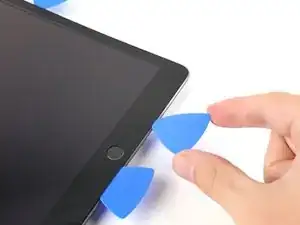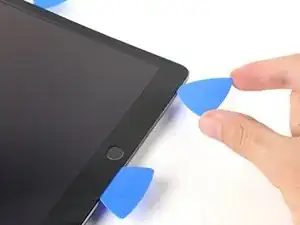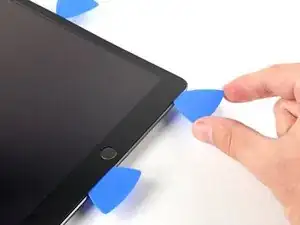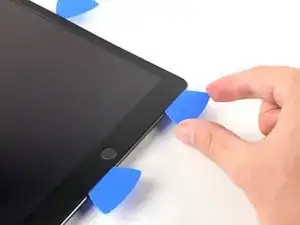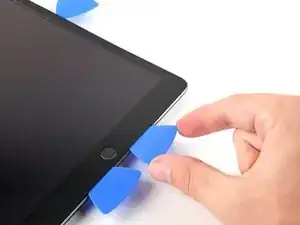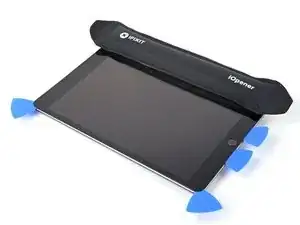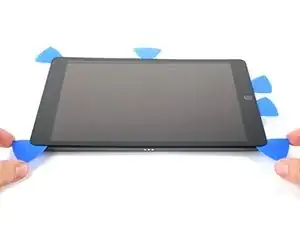
Einleitung

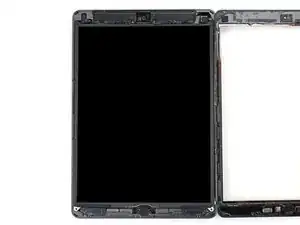
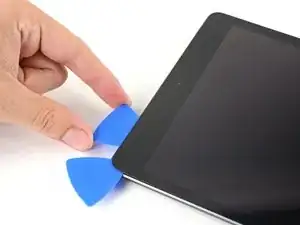
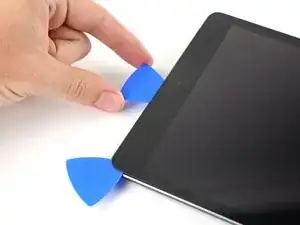
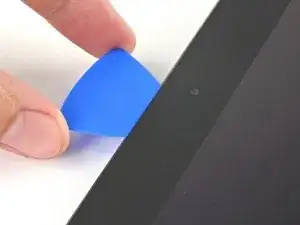
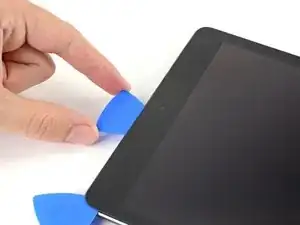
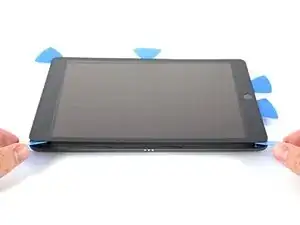
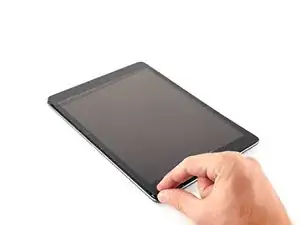
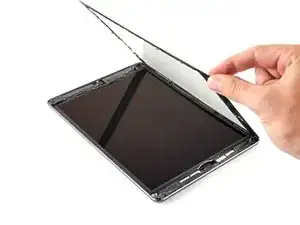
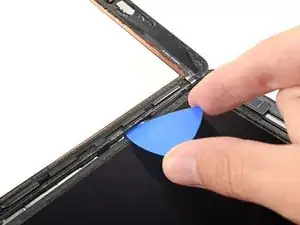
Ersetze ein beschädigtes oder nicht funktionierendes LCD an einem iPad 6.

Sei äußerst vorsichtig, wenn du den Akku mit einem Akkutrennstück ("Akkublocker") abtrennst: Die Kontakte am Akku sind sehr empfindlich und können dauerhaft beschädigt werden. Wenn du trotzdem den Akku auf diese Weise isolieren willst, dann befolge die Warnhinweise ganz genau und arbeite sehr sorgfältig. Wenn du aber weiterarbeitest, ohne den Akku zu isolieren, dann vermeide den Gebrauch von Metallwerkzeugen, außer wo unbedingt notwendig (z.B. um Schrauben zu entfernen). Dadurch beugst du einem Kurzschließen des Akkus und der empfindlichen Elektronik vor.

  1. THxeZqAlU4lI3Dsj
  2. BRY15JSctKOZ3CkU
    BRY15JSctKOZ3CkU
    LLyoJyrOLVZBYT2x
    GwocxG65kALerIpv
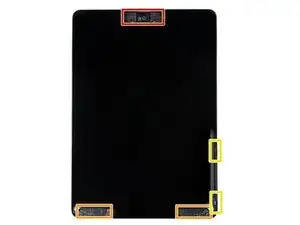
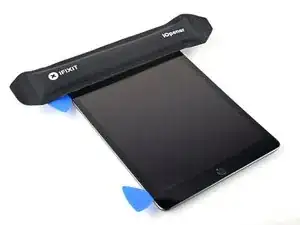
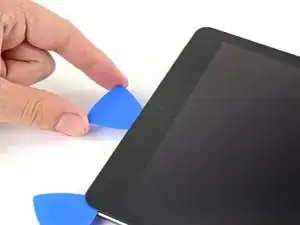
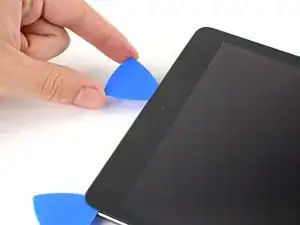
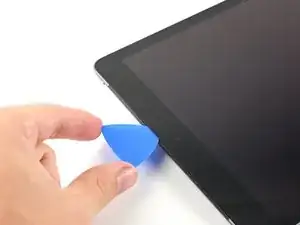
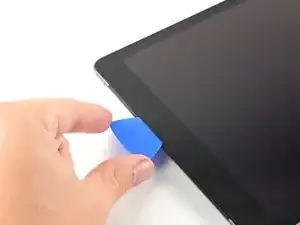
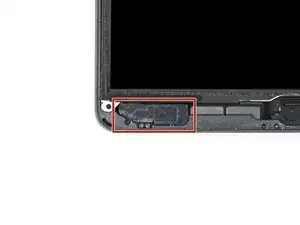
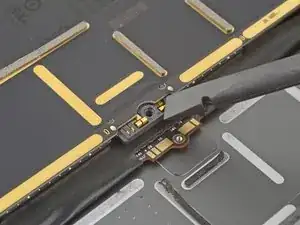
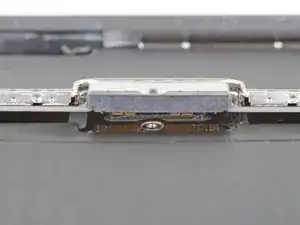
    • Während du darauf wartest, dass der Kleber weich wird, schaue dir die Stellen an, an denen das Hebeln gefährlich ist:

    • Frontkamera

    • Antennen

    • Displaykabel

  3. BKhTiWCLNw5gfZpV
    BKhTiWCLNw5gfZpV
    ZBBKsxR5VftA3VCb
    PUfMppeQG5XXhYZQ
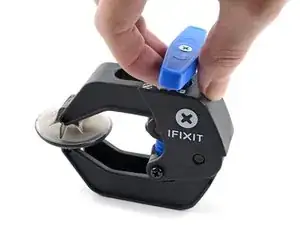
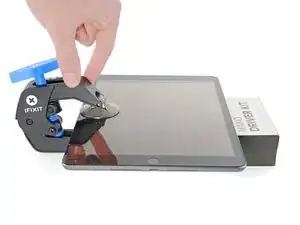
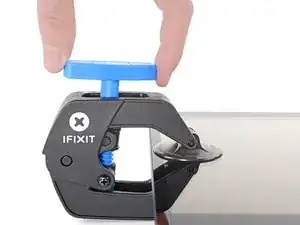
    • Wir haben die Anti-Clamp entwickelt, um das Öffnen von Geräten zu erleichtern. Die nächsten drei Schritte zeigen, wie sie verwendet wird. Wenn du sie nicht benutzen willst, überspringe die nächsten drei Schritte und folge einer anderen Methode.

    • Genaue Anweisungen für die Anti-Clamp findest du hier.

    • Drücke den blauen Griff zurück, um die Arme zu entriegeln.

    • Lege das iPad so auf einen Gegenstand, dass es waagrecht auf gleicher Höhe zwischen den beiden Armen liegt.

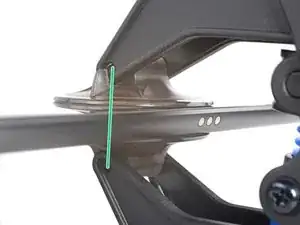
    • Bringe die Saugheber mittig nahe an der linken Kante des iPads an, einen auf der Vorderseite, den anderen auf der Rückseite.

    • Halte die Anti-Clamp unten gut fest und drücke fest auf den oberen Saugheber, damit er sich festsaugt.

    • Wenn die Saugheber nicht gut auf den Oberflächen des iPhones haften, dann kannst du Klebeband verwenden, um eine griffigere Oberfläche zu schaffen.

  4. opTJYtRiiInTVvaD
    opTJYtRiiInTVvaD
    BBoTfOOUWMFDN2pa
    yV2YABVAUAWpLbtc
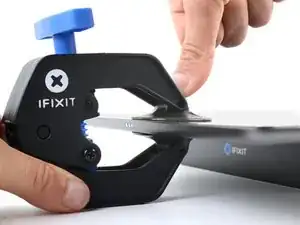
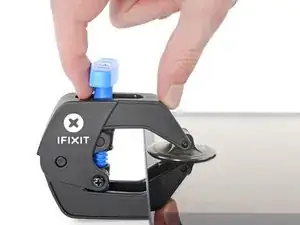
    • Drücke den blauen Griff vorwärts, um die Arme wieder zu verriegeln.

    • Drehe den Griff eine volle Umdrehung im Uhrzeigersinn, bzw. so weit, bis du merkst, dass sich die Saugheber dehnen.

    • Achte darauf, dass sich die Saugheber weiterhin gegenüber stehen. Wenn sie sich nicht mehr gegenüber stehen, dann löse die Saugheber ein wenig ab und schiebe sie in die richtige Position.

  5. NCrlvPydUbeM4wGW
    NCrlvPydUbeM4wGW
    6eTPKXJyPpiiiTte
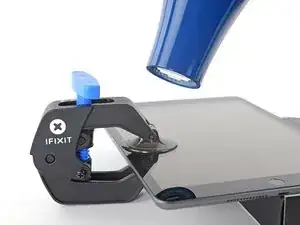
    • Warte eine Minute, damit sich der Kleber allmählich ablösen und sich ein Spalt bilden kann.

    • Wenn das Display nicht heiß genug ist, dann erwärme die linke Kante des iPads mit einem Haartrockner.

    • Genauere Anleitungen, wie der Haartrockner verwendet wird, findest du hier.

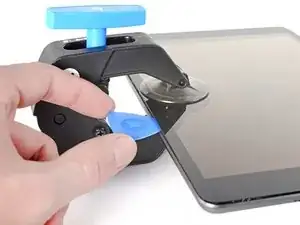
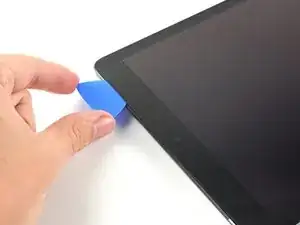
    • Wenn der Spalt groß genug ist, dann setze ein Plektrum unter den Touchscreen ein.

    • Wenn es nicht gelingt, mit der Anti-Clamp einen ausreichend großen Spalt zu erzeugen, dann erwärme die Stelle nochmals und drehe den Griff eine halbe Umdrehung im Uhrzeigersinn weiter.

    • Drehe den Griff jeweils nicht mehr als eine halbe Umdrehung weiter und warte jedes Mal eine Minute lang. Gib der Anti-Clamp Zeit, ihre Arbeit zu erledigen.

    • Überspringe den nächsten Schritt.

  6. J2IQvQOy1BYPtTom
    J2IQvQOy1BYPtTom
    mHcQZ3ybJlVWXZAX
    ZE5bLBVCycZZ4IXh
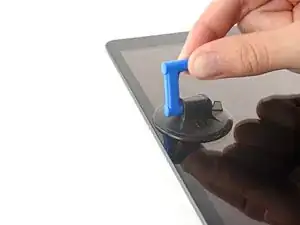
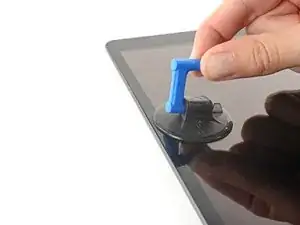
    • Wenn das Display stark gesplittert ist, haftet der Saugheber vielleicht besser, wenn du das Display mit durchsichtigem Klebeband überklebst. Du kannst auch statt eines Saughebers besonders kräftiges Klebeband verwenden. Wenn das alles nicht hilft, dann klebe den Saugheber mit Sekundenkleber am Display fest.

    • Wenn das Display zu heiß zum Anfassen ist, bringe einen Saugheber am linken Rand des Displays so nahe wie möglich an der Seitenkante an.

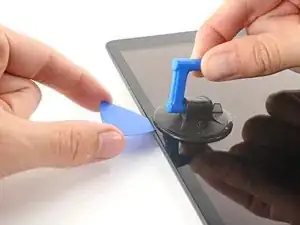
    • Hebe das Display mit dem Saugheber an, bis ein schmaler Spalt zwischen dem Touchscreen und dem Rahmen entstanden ist.

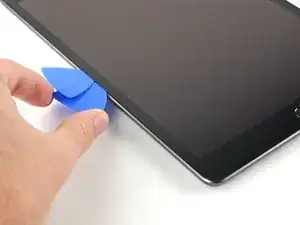
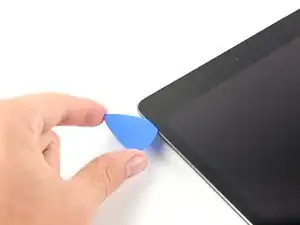
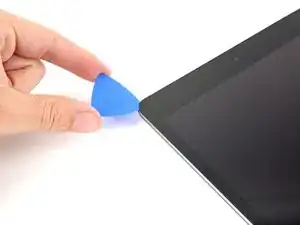
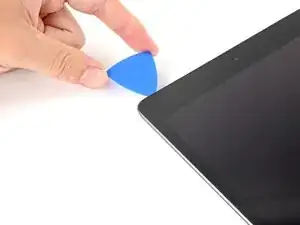
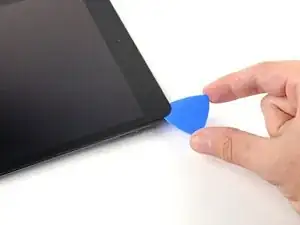
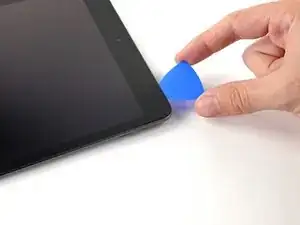
    • Setze ein Plektrum in den Spalt zwischen dem Touchscreen und dem Rahmen ein.

    I had a screen that was lightly cracked, and when I pulled up on the glass it cracked even further and made a mess of my removal. So, I would recommend taping cracks even if you can get suction so that you don’t induce even more cracks.

    Andrew Dixon -
    I actually had a really badly cracked digitizer. Using the suction cup did nothing but shatter the digitizer more. I intentionally drove a flat head screw driver into the digitizer to reveal the recess in the body where they are showing the opening-pick. Working around the edge, the glass shattered. You still need to be careful at all of spots noted in step 2.

    Do not go under the digitizer more than the 1 mm along the sides or 3-4 mm at the corners as shown in step 29 using the flat grey ring around the edge for a reference. Direct all of your tool force into the body to prevent slipping into critical parts.

    The antennas at either side of the home button were the trickiest part as they were thin and slightly attached to the digitizer. I would recommend using a plastic tool for these parts if you are having to 'scrape' the glass off of the tabs of the antenna.

    adoller -
  7. x2uBdEGsXXD1UGux
    x2uBdEGsXXD1UGux
    dLpd1xH2K1QoGc6n
    2caJZKMEgJeYYxP4
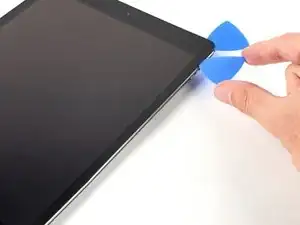
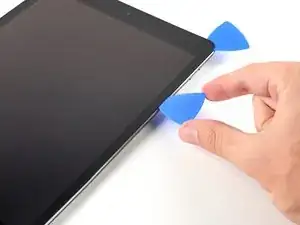
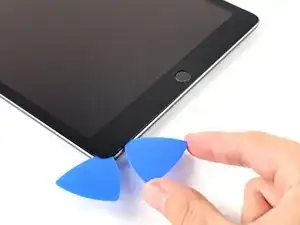
    • Setze ein zweites Plektrum in den eben erzeugten Spalt ein.

    • Schiebe das Plektrum zum Auftrennen des Klebers zur unteren linken Ecke des Gerätes hin.

    • Lasse das Plektrum in der unteren linken Ecke stecken, damit sich der Kleber nicht wieder verbinden kann.

    • Erschrick nicht, wenn du das Plektrum durch den Touchscreen sehen kannst - ziehe es einfach heraus. Das LCD sollte nicht beschädigt sein, allerdings könnte es mit schwer zu beseitigendem Kleber verschmiert sein.

  8. JPsPT5ML14VHRhGe
    JPsPT5ML14VHRhGe
    ultr2KYJ6Sc1kYaH
    ZATK6B6Fo1vrYUIw
    • Wenn das Plektrum im Kleber stecken bleibt, dann "rolle" das Plektrum an der Seite entlang, um den Kleber weiter aufzutrennen.

  9. EaRSxNw3vj5GpMur
    EaRSxNw3vj5GpMur
    yRXg6rNGAQgVf1Cf
    W26QbH5y1V5Kv2oM
    • Schiebe das erste Plektrum zum Auftrennen des Klebers zur oberen linken Ecke des Gerätes hin.

    • Lasse das Plektrum in der oberen linken Ecke stecken, damit sich der Kleber nicht wieder verbinden kann.

  10. FLj6SpbOQdrvVpRi
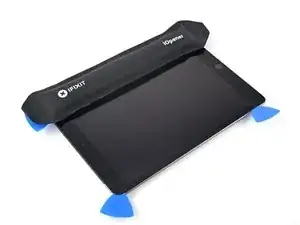
    • Lege einen erwärmten iOpener zwei Minuten lang auf die Oberkante des Gerätes.

    How do you heat the iopener?

    Steve Passmore -

  11. p15tb6VN1vUscQ2N
    p15tb6VN1vUscQ2N
    SocgxgkXBnLnGSWX
    oPDYoHHMVRcxhVPT
    • Schiebe das Plektrum um die obere linke Ecke herum, um den Kleber aufzutrennen.

  12. Jil3FKjTxdwCK5GP
    Jil3FKjTxdwCK5GP
    6nKHEJpQiZSaFBGo
    ROYjHt2LlrcPPDUx
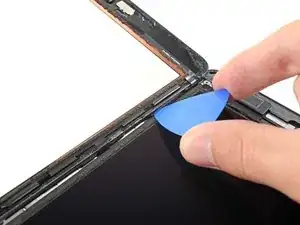
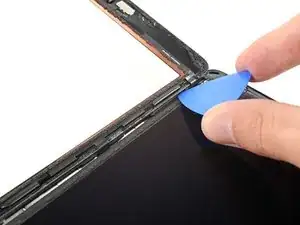
    • Schiebe das Plektrum an der Oberkante des Gerätes entlang, halte unmittelbar vor der Frontkamera an.

    • Schiebe das Plektrum nicht über die Frontkamera weg, das Objektiv könnte beschädigt werden. In den folgenden Schritten siehst du, wie du das vermeiden kannst.

  13. TioLriFFwlSWARE3
    TioLriFFwlSWARE3
    cBURkpbxyZsN2fs4
    fQWclYvRi615iGML
    • Ziehe das Plektrum heraus, bis es nur noch mit der Spitze zwischen Touchscreen und Rahmen steckt.

    • Schiebe das Plektrum über die Kamera weg und trenne den Kleber auf.

    • Lasse das Plektrum gleich rechts neben der Kamera stecken, bevor du weiterarbeitest.

  14. Jiwfe4BYASgflPlt
    Jiwfe4BYASgflPlt
    GNqQecAUKHkBQsFJ
    TjnBLTuM3hvFrh4t
    • Setze das Plektrum wieder ein und schiebe es zur oberen rechten Ecke hin, um den Kleber ganz aufzutrennen.

    • Lasse das Plektrum in der oberen rechten Ecke stecken, damit sich der Kleber nicht wieder verbinden kann.

  15. ZHBh3M1LZI1RNTnX
    • Lege einen erwärmten iOpener zwei Minuten lang auf die rechte Kante des Gerätes.

  16. IaiyPav5brNr6jCX
    IaiyPav5brNr6jCX
    IXOuHUPJMRyyp3gb
    wKVPV5jH516oONom
    • Rolle das Plektrum um die obere rechte Ecke des Gerätes herum und trenne den Kleber auf.

  17. uMAkRgI5TwCTd4Ks
    uMAkRgI5TwCTd4Ks
    6R5iFXyAqocMYSU4
    n3WPFtEKy3pVcab1
    • Setze ein weiteres Plektrum ein und schiebe es bis zur Mitte der rechten Seitenkante hin.

    • Die Displaykabel befinden sich etwa auf halbem Weg zur Unterkante des iPads. Halte an, wenn du etwa 7,5 cm von der Unterkante des iPads entfernt bist.

    There are sensitive display/digitizer cables no less than five inches from the bottom edge of the iPad. Insert the pick further down than this, or deeper than 1mm beyond this point and you risk irreparably damaging these cables.

    Three inches is much too far down this side of the iPad to use picks.

    rcrandall85 -

  18. UGjYPQYXKPD6dNES
    • Lege einen erwärmten iOpener zwei Minuten lang auf die Unterkante des iPads.

  19. ZLBC4NKlQbk3OZTD
    ZLBC4NKlQbk3OZTD
    OMqDTrkrkwxwGI5M
    A51oePiIiC2OVqED
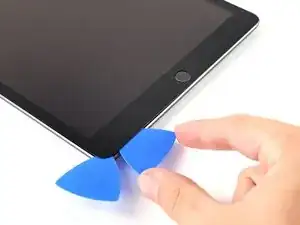
    • Schiebe das Plektrum unten links zur unteren linken Ecke hin und trenne den Kleber auf.

    • Rolle das Plektrum nicht ganz um die Ecke herum, das könnte die Antenne beschädigen.

    • Lasse das Plektrum in der Ecke stecken und gehe zum nächsten Schritt über.

  20. TEwIBIf3sxmJiEN1
    TEwIBIf3sxmJiEN1
    xOEXNBRtCOWQeuFY
    22JRGthoRvQSYaRf
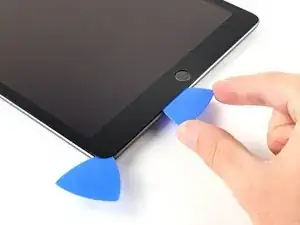
    • Setze ein weiteres Plektrum in den eben an der Unterkante des iPads erzeugten Spalt ein.

    • Schiebe das Plektrum über die Antenne weg, halte kurz vor dem Home Button an.

    • Schiebe das Plektrum nur zum Home Button hin und nicht weg von ihm, du könntest sonst die Antenne beschädigen.

    • Wenn du das Plektrum nochmals durch diesen Bereich schieben musst, dann ziehe es erst heraus und setze es wieder in die untere linke Ecke ein.

    • Lasse das Plektrum links vom Home Button stecken und arbeite dann weiter.

  21. C2RdZwTKLextDlUC
    C2RdZwTKLextDlUC
    ZYORWWfQkWbQHeZk
    35FCdHGOd2P3tVJH
    • Setze ein Plektrum in den eben erzeugten Spalt ein.

    • Schiebe das Plektrum unter den Home Button und zur unteren rechten Ecke hin. Achte darauf, dass das Plektrum nur mit der Spitze zwischen Touchscreen und Rahmen ist.

    • Setze die Spitze höchstens 1 mm tief ein, damit die rechte Antenne nicht beschädigt wird.

    Be careful with this step. Only insert the tip, 2-3mm. I broken the touch id and home button. No replace or fix to get the touch id working again.

    Juan Luis Montoya -

  22. EdcTHHvhSmUedM5X
    EdcTHHvhSmUedM5X
    aeho4dfNWsncrbYf
    CmWXujasluPDsXpH
    • Setze das Plektrum wieder tiefer ein und schiebe es zum Auftrennen des Klebers in Richtung Home Button.

    • Schiebe das Plektrum nur zum Home Button hin und nicht weg von ihm, du könntest sonst die Antenne beschädigen.

    • Wenn du das Plektrum nochmals durch diesen Bereich schieben musst, dann ziehe es erst heraus und setze es wieder in die untere rechte Ecke ein.

    • Lasse das Plektrum rechts vom Home Button stecken und arbeite dann weiter.

  23. lwiCOncwPlKLg3a3
    • Lege einen erwärmten iOpener zwei Minuten lang auf die rechte Seitenkante des Gerätes.

  24. ABh5NOiTnhO15fgU
    ABh5NOiTnhO15fgU
    Ub5UlnWWBB6GLUth
    • Sei bei diesem Schritt sehr vorsichtig. Lasse dir Zeit, achte darauf, dass der Kleber heiß und weich ist, und dass der Kleber komplett mit dem Plektrum aufgeschnitten worden ist. Wenn nötig, dann halte an und erwärme nochmals.

    • Verdrehe die beiden Plektren in den linken Ecken des iPads bis sich der Touchscreen leicht anhebt, um so die letzten Klebestellen aufzutrennen.

    • Wenn es schwergängig wird, dann erwärme die Kanten erneut und arbeite weiter mit dem Plektrum.

  25. H1yAsJZcQDoPHbPD
    H1yAsJZcQDoPHbPD
    YepL35FhpR6erNWD
    • Hebe den Touchscreen an der linken Kante nach oben, um den Kleber an der rechten Seitenkante weiter aufzutrennen.

  26. TuWcGklrctSA4vd1
    TuWcGklrctSA4vd1
    lCHklMQfQE6AZ6Gh
    kCab34QaCQWowvsm
    • Halte den Touchscreen fest und schiebe gleichzeitig ein Plektrum zwischen die beiden Displaykabel, um den letzten Kleber aufzuschneiden.

  27. d6WFtDjCYJBQvFcC
    d6WFtDjCYJBQvFcC
    vhSOEKyqAlrBFbwH
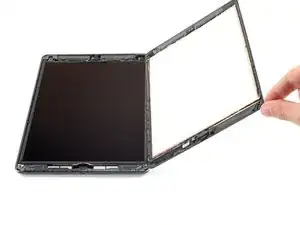
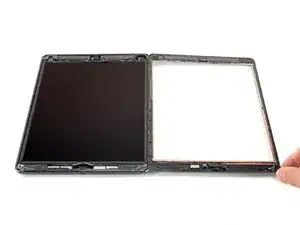
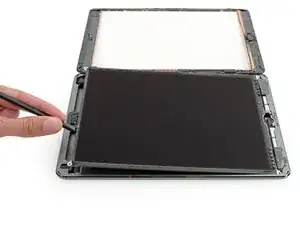
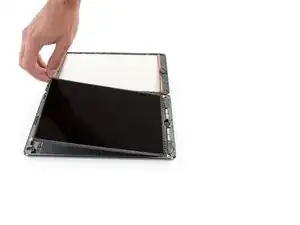
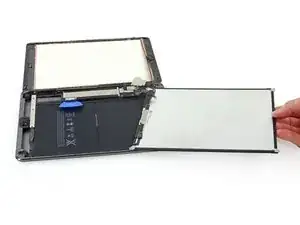
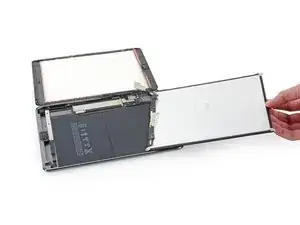
    • Wenn der Kleber komplett aufgetrennt ist, dann öffne den Touchscreen wie ein Buch und lege ihn parallel zum iPad hin.

    • Beseitige beim Zusammenbau alle Kleberreste mit Isopropylakohol vom Rahmen. Wenn du den Touchscreen weiterverwenden willst, muss er auch gereinigt werden. Ersetze den vorherigen Kleber durch Klebeband oder vorgestanzte Klebestreifen.

    • Denke beim Zusammenbau an die Displaykabel. Achte darauf, dass sie ordentlich zusammengefaltet unter dem LCD liegen, damit sie nicht beschädigt werden.

    While reassembling, REALLY make sure the display cables and the home button cable won't be folded / bent while closing the digitizer. I'm not exactly sure what I did, but I broke the home button and touch ID since I bent the home button cable to the point that it broke. These ribbon cables are SUPER fragile.

    op_ -

  28. UQQJiYXiSLt3Zr2u
    UQQJiYXiSLt3Zr2u
    OJTZ4aYLeO5gC61M
    TkO1pHHgA6i3OCYF
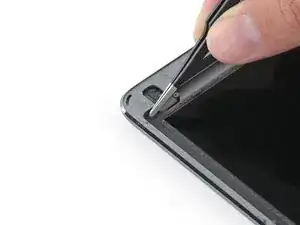
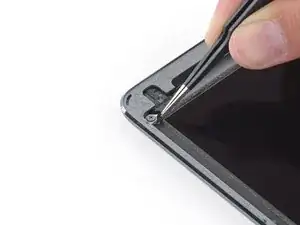
    • Entferne jegliches Klebeband, das die LCD-Schrauben verdeckt.

  29. d3dgtSjjAxO1YiVE
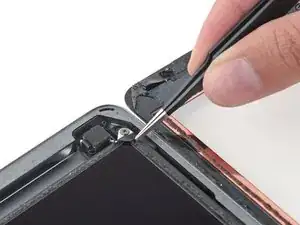
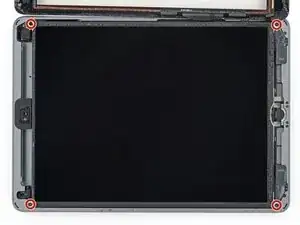
    • Entferne die vier 4,3 mm Kreuzschlitzschrauben #00, die das LCD befestigen.

    Both of the iPad 6th gen models i have seen so for (note they were cellular also) had the LCD secured with a grey silicone kind of adhesive in each corner under the screws. So you can’t just lift the LCD as you normally would after removing screws, it would break. I found you could pick at the corner closest to the rear camera easiest, slightly lift that corner and gently separate the other side next to the headphone jack. Then while supporting the LCD , lever the other end free with a up-and-down motion making slight progress each time.

    Anvil Electronics -

    I found the same thing on my 32GB wifi only ipad. Was unable to lift the screen off once I’d removed the screws so followed the instructions above and gently prized the screen up from the top left-hand screw bracket and it came away. Then moved onto the top right hand one.

    mann134 -

    One YouTube video said to dig all that glue out. I didn’t and it seems to not hurt to leave it there but you do have to break free from it.

    Robin -

    On my iPad 6, there were small rubber tabs covering the two screws on the front camera side. I carefully held them out of place with tweezers while unscrewing the screws.

    Martin Winter -

  30. cR6vVoaWkLnrHZnU
    cR6vVoaWkLnrHZnU
    PjWMBMpFkiFMvo4h
    ycK5lK3MntiqbwwB
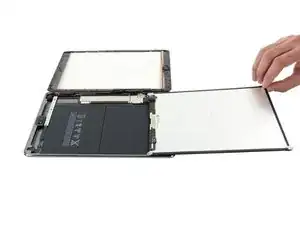
    • Versuche nicht, das LCD ganz zu entfernen. Es ist noch mit verschiedenen Kabeln am Ende mit dem Home Button angeschlossen. Hebe es nur am Ende mit der Frontkamera an.

    • Heble das LCD mit dem flachen Ende des Spudgers gerade soweit aus seiner Vertiefung heraus, dass du es mit den Fingern fassen kannst. Möglicherweise sind um die Schraubenlöcher noch Reste des Klebers, beseitige diese mit einem Messer.

    • Schlage das LCD wie eine Buchseite um, wobei du es in der Nähe der Kamera hochhebst und um das Ende des Gehäuses mit dem Home Button wendest.

    • Sei vorsichtig und achte beim Umwenden des LCD auf die Displaykabel.

    • Lege das LCD mit dem Glas nach unten, so dass du an die Displaykabel herankommst.

    • Lege das LCD auf eine weiche, saubere und fusselfreie Oberfläche.

    When you replace the LCD be sure to make sure it is screwed in fully. It is easy not, especially on the cornet where the digitizer cables are. The LCD is very sensitive and if you bend it then it can stop working. I was just pressing the digitized in place at the end of a repair and the screen was covered in white lines.

    hugh -

    I have no idea of what the logic board looks like !!!

    HenryFMora -

  31. GCxoFeK5h5SixExu
    GCxoFeK5h5SixExu
    Mm4BTgqqT56lZ4JY
    fbdcfAMbAPgEWNC1
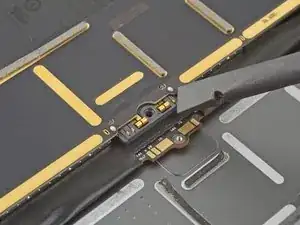
    • Diese Fotos zeigen, wie der Akkuanschluss unter dem Logic Board aussieht. Verwende diese Fotos als Referenz, um den Akku sicher abzuklemmen.

    • Beachte, dass der Akkustecker freitragende Federn auf dem Logic Board hat, die gegen die Kontaktflächen des Akkus drücken. Da sowohl das Logic Board als auch der Akku festgeklebt sind, musst du etwas Dünnes und Flexibles zwischen die Kontaktpunkte schieben um den Akku abzutrennen.

  32. TpXsLubuOLsZMUPg
    TpXsLubuOLsZMUPg
    LAcvxpjpfWIdE36i
    1QiOl5J5OubEbiYM
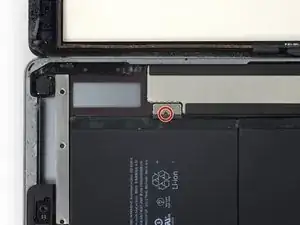
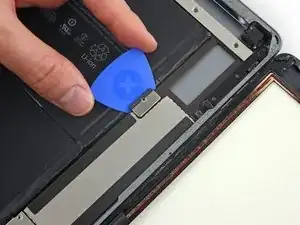
    • Entferne die einzelne 2,3 mm Kreuzschlitzschraube #000, welche den Akkustecker am Logic Board befestigt.

    • Mit einem speziellen Akkutrennstück kannst du den Akkuanschlusses besser abtrennen und so einen Kurzschluss vermeiden.

    • Setze das Akkutrennstück ("Akkublocker") in einem Winkel von 35° unter den Akkustecker auf dem Logic Board. .

    • Schiebe das Akkutrennstück nicht mit Gewalt unter den Akkustecker. Wenn sich der Akkublocker nicht leicht unter das Logic Board schieben lässt, dann versuche den Akku mit einer Spielkarte abzutrennen.

    • Im Idealfall sollte der Akkublocker oder die Spielkarte ohne Widerstand unter das Logic Board gleiten. Wenn das Werkzeug darunter steckt, sollte es in einem Winkel von 15° liegen.

    • Das Werkzeug muss im weiteren Verlauf der Reparatur stecken bleiben.

    If you insert a regular pick without a gap then you can damage this connector and will need a new motherboard. If in doubt just insert into the left corner enough to raise it a tiny bit. Arguably, if you are not sure, then it is safer just power off and don’t power back on until everything is fully connected. A photo of how this connector looks with its cover off would really help for people that have not seen this type of battery connector before. You just need to get it to lift a tiny bit, Do not try to slide anything under the contacts….

    hugh -

    I bumped this darn thing several times, it was twisted and skewed making me freak out but the iPad still works. I am thinking you should pull it out and put the screw back in right after the LCD is removed. Then use it again just before putting the LCD screen back in. The pick is sticking out there waitng to be be bumped.

    Robin -

    Hi Robin,

    Unfortunately, there is no easy way to pull the battery connector out of the logic board. If you try to pry this connector off, you will irreparably damage it. The easiest solution is to insert the battery blocker in-between to cut the power.

    Arthur Shi -

    The battery isolation pick or battery blocker is an outdated way of isolating the battery, as you risk damaging the battery pins underneath the logic board.

    So what is the new method?

    Wil Thieme -

    This is my question as well. Seems like this phrase contradicts the instructions. Confusing. Any reply?

    Melissa Hoffman -

    We are currently working on a better isolation procedure! In the meantime, I’ve updated the warning to hopefully clarify the issue.

    Arthur Shi -

    Why do you need to “To reduce the risk of a short”? There does not seem to by any risk of a “short” in this process. I can see other reasons for disconnecting the battery. I am an electrical engineer so I would appreciate a professional grade answer to this question.

    Rumboogy -

    I’ll give it a shot!

    When you remove the screw, it doesn’t disconnect the battery, as the connector uses spring contacts to touch the battery pads.

    If you leave the battery connected, it leaves the logic board energized. As there are many exposed traces and SMT components on the logic board, there is a chance that you accidentally bridge a trace with a metal tool, resulting damage. In addition, the display connector contains tiny pins, and the pinout is such that if you pry the connector from an energized logic board, there is a chance that a voltage rail pin may accidentally touch something it shouldn’t, blowing out the backlight circuitry.

    Arthur Shi -

    My battery was dead when i did the repair. Did not really need to perform this step

    Igor Kapitanker -

    Take a waterproof playing card, cut out the shape of the battery blocker and slide that under. Battery blocked and pins not at risk of damage. Got that from a YouTube video made by a microsolder repair tech fixing the damage caused by jamming a blocker in between the contacts.

    Melody Fraysier -

    Thanks for the tip Melody! I’ve updated the instructions to include the playing card method.

    Arthur Shi -

    I could not for the life of me get the playing card in there, but my iPad was turned off, so I decided to ‘risk’ a short, instead of potentially damaging the battery connectors by jamming the card in there as hard as possible. My repair went fine, no short, however I realized AFTER closing everything up that I forgot to put the battery screw back in. Really hoping this doesn’t become an issue long term, because I don’t want to pry this brand new screen off just to put the battery in.

    Janie Hughes -

    Let us know! I wasn't able to use the screw again after removing the battery blocker. Now my iPad turns off and on every so many minutes and when it restarts it's 1% and then shows actual charge.

    Martin Hinojosa -

    When you come to screw this back together, do not overestimate how little force it takes to strip the thread on this #000 screw. I did, and I now I can't screw this back down and have the problem where the iPad restarts every 3 mins 20 sec after you turn it on due to a poor connection here. I've used card to pack this out so the LCD puts a little clamping force on the terminal once you screw it back in, but it's not really enough so the iPad still suddenly restarts occasionally.

    Rory Condon -

    I use a small screwdriver and pry underneath that brown bracket from the top edge by the camera (with the elongated metal cover removed of course) all the way before the battery, then lift up just enough for me to unhinged the battery out of the secure post. I don't know why Apple has to go through ALL THIS just to connect the battery since there is a small screw AND ADHESIVE securing it anyway. Nonetheless the whole job (replacing the lcd screen and battery was a major pain in the neck!

    80s Guy -

  33. pSXagHwbWDIelll2
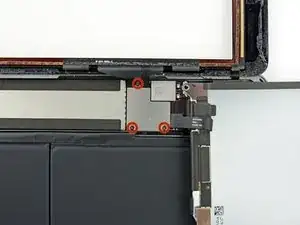
    • Entferne die drei 1,4 mm langen Kreuzschlitzschrauben #000 von der Halterung des Displaykabels.

    I believe these are also Phillips #00, not Phillips #000.

    Kevin Chatterton II -

    I lost a 1.4mm screw where can I buy these small screws and how big are they? 1.4mm x? flared or flat head

    ferdinando.gregis@gmail.com -

    Is this part important? It seems like I lost it.

    Will -

    You don't have to remove any of this when replacing the battery but doing so will make the job easier and can prevent from accidentally knocking the adjacent cables.

    80s Guy -

  34. CDkvW2pOADbCE5mp
    CDkvW2pOADbCE5mp
    bALHMflYomoDEAom
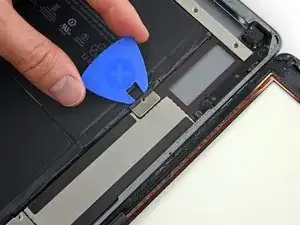
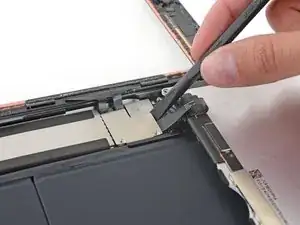
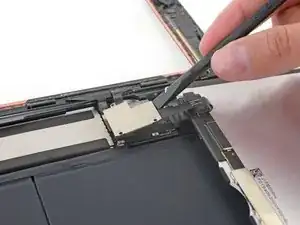
    • Heble vorsichtig mit dem flachen Ende des Spudgers die Displaykabelhalterung gerade vom Logic Board hoch.

    • Der Displaykabelstecker ist an der Unterseite der Halterung angebracht. Schiebe deshalb den Spudger nicht zu weit unter die Halterung, du könntest sonst den Stecker beschädigen.

  35. 2oYyLIWDGMDwn5ni
    • Entferne das LCD.

Abschluss

Befolge diese Anleitung in umgekehrter Reihenfolge, um das Gerät wieder zusammenzusetzen.

Sam Goldheart

Mitglied seit: 19/10/12

472837 Reputation

12 Kommentare

No comments…. No one is brave enough to attempt this :)

Tal Glazer -

I tried to replace the LCD with the iPad AIR 1 LCD and is NOT compatible. It fits and the connector is the same but shows just like tv static noise.

nazareno valentini -

I have same issue, but with LCD iPad 5, some idea to make it compatible.

Luis Prieto -

I replaced the front screen and now the number 9 on the passcode keypad isn’t working. I don’t get it.

Richard Lombardo -

I’m having the same issue! Different numbers, but same issue. Just certain sections of the screen won’t respond to touch.

Adriane Zaic -

I did this (screen replacement) on my iPad 6 LTE about a month ago. Was wicked difficult because my the screen was completely shattered and removing all of the shards was, well, a major PITA. It wasn’t all that bad otherwise as long as you TAKE YOUR TIME getting it apart in the first place. The only real issue I had otherwise was getting it back together with new adhesive strips because the screen doesn’t set on top straight down. You have to almost put one side down with the screen at an angle then lay it down but because of the adhesive strips, you can’t lay it down then adjust it. So that was not fun. Otherwise it wasn’t all that bad IF you are like me and savvy with electronics repair. *** also, once back together and fired up, I have some dead spots where there is zero registration of any touch on the screen. No clue as to why, and it’s frustrating because of the cost of these things and the replacement parts. Better than no usable screen I guess.

Please excuse any typos should you encounter any.

Bryan Purvis -

Hi Bryan,

If you haven’t yet, I would suggest checking two things. It sounds like either the digitizer cable may be having bad connectivity, or the digitizer may be shorting on something. Check, clean, and re-seat all of your display cable connectors as well as making sure the connectors have no debris. What is this (possibly conductive) gray foam adhesive called and where. Maybe that will remove the dead spots.

Arthur Shi -

This was extremely difficult! But it was a little easier for me as I am an IT professional. Some helpful pro tips: definitely spend time just heating the adhesives over a period of a couple of days. The hardest part of the repair was separating the broken screen from the rest of the ipad. On re-assembly, check to make sure that the home button and touch are functioning properly before putting on new adhesives. This way you can correct any mistakes. Otherwise, you will have to undo the work you just did. Take your time, don’t rush so that you don’t make mistakes or break anything. The guide is very helpful and I was able to repair my ipad 6th generation.

Kevin

Kevin Godfrey -

Ugh. This has been a PITA. I damaged the connector for lcd screen. bought replacement screen and now won’t work. HELP! Do I need to remove the old heat shield and attach it to the new lcd? What was I thinking?

Tera Virgin -

Ive used 3 brand new LCDs and can’t get any of them to show a picture, when i plug in the old broken one it lights up just fine but is shattered beyond use. im starting to wonder if you can’t just replace the LCD without some sort of trick that only apple knows about

Jessica Pickering -

at least you have some dead spots. I just replaced LCD and digitizer. LCD was fine except I threw the LCD cable bracket away because I thought it came with the new one as it was attached to the old one. Needless to say I have no LCD cable bracket. The digitizer does not respond at all though and LCD screen works.

Jacob Fulford -

Managed to repair a few of these over the years... my 3 kids al had 6th gen's and 2 had cracked glass (digitizers) that I've done... today I did an LCD swap for an older one at work that had backlight strobing. No issues with the repair. Heat gun for adhesive along with the Anti-Clamp (great tool btw) and a iSesame opener tool... didn't bother with the battery disconnect. Just removed the LCD bracket/cable and installed "new" LCD I purchased from iFixit... though it was clearly used... it did have a plastic film on the screen but was VERY dirty on back and had old adhesive on it. But it worked fine. I did pick up a new digitizer in case I broke the glass removing the old one, but didn't need it. I had some extra adhesive laying around that I used to replace some of the marred adhesive from opening this one up. All-in-all, pretty straightforward ipad repair. And yes, had the glass been shattered, it is a MUCH longer and annoying repair. Been there before. Take your time cleaning it all up first.

brentp -