Einleitung
This guide will show you how to navigate to the sensor ID screen on a WS-2000, 4000, or 5000 console, and register a sensor with your weather station.
-
-
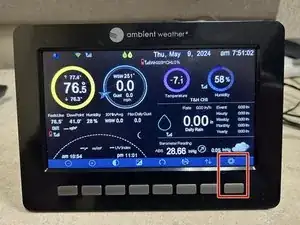
On the home screen of your console, select the settings tab using the bottom right button. It will appear as a gear icon.
-
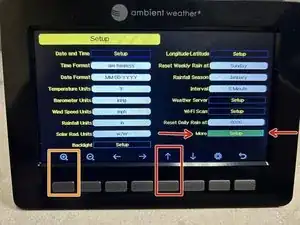
On the setup screen, you can press the up arrow to highlight the 'More : Setup' option.
-
Using the far left button, the 'plus magnifier', you can select 'More : Setup' to continue to the next screen.
-
-
-
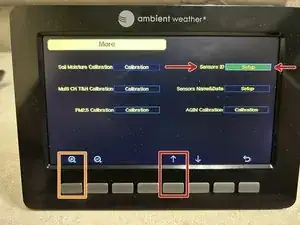
Using the up arrow you can highlight the 'Sensor ID : Setup' option.
-
Using the plus magnifier you can select this option, continuing to the next screen.
-
-
-
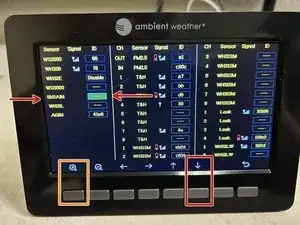
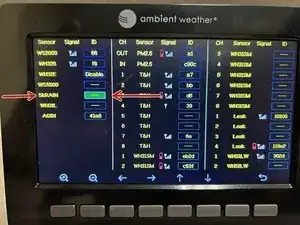
Using the down arrow, you can highlight the ID box next to the sensor you would like to connect.
-
Using the plus magnifier, you can select this option, opening the sensor window.
-
-
-
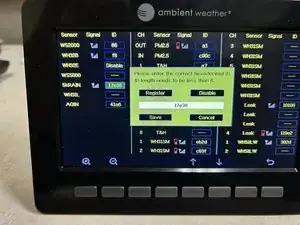
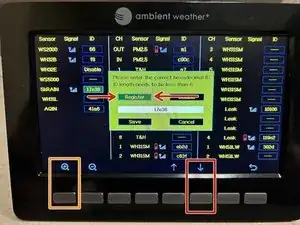
Using the down arrow, highlight the 'Register' option.
-
Using the plus magnifier, you can select this option, causing the console to search for any compatible sensor.
-
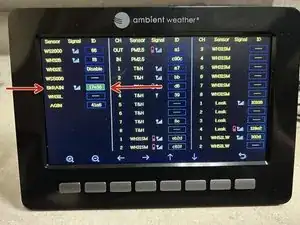
If not already blank, the ID box will have a few dashes next to it for a minute or two while it searches for the sensor.
-
This process can be used to make your way to the sensor ID page and register any of the available sensors for the Ambient Weather WS-2000, 4000, or 5000 weather stations.
