Einleitung

Bevor du mit der Reparatur beginnst, schaue in unsere Troubleshooting Seite, möglicherweise kann das Problem gelöst werden, ohne das Display zu tauschen.

Das Display wird auch mit Bildschirm bezeichnet. Dein Display muss ausgetauscht werden, wenn es zerbrochen oder so beschädigt ist, dass du die normalen Arbeiten nicht mehr ausführen kannst.

Lenovo bietet vier verschiedene Versionen von Displays für das ThinkPad X1 Carbon 6. Generation an, die Anleitung gilt für alle vier. Es gibt das14 Zoll FHD (1920 x 1080) IPS entspiegelte Display mit 300 Nits, das 14 Zoll FHD (1920 x 1080) IPS entspiegelte multi-touch Display mit 300 Nits, das Zoll WQHD (2560 x 1440) IPS entspiegelte Display mit 300 Nits und das 14 Zoll HDR WQHD (2560 x 1440) IPS Hochglanzdisplay mit Dolby Vision 500 Nits. Die Auflösung ist jeweils in den Klammern angegeben.

Wenn du der Anleitung genau folgst, solltest du in der Lage sein, dein Display ohne Probleme zu tauschen. Schalte dein Gerät vor Reparaturbeginn aus und ziehe alle Kabel ab.

  1. NFtYMIq2pIVe1NLS
    NFtYMIq2pIVe1NLS
    f3HPZLtAIooGCgUh
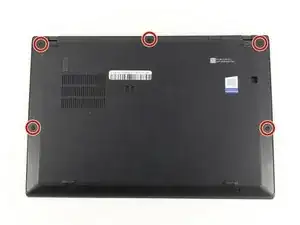
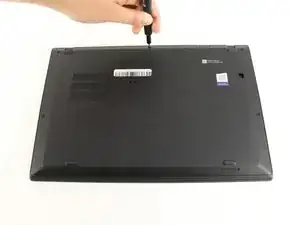
    • Benutze einen Kreuzschlitzschraubendreher #0, um die fünf Schrauben zu entfernen, mit denen die Rückseite befestigt ist.

    • Die Schrauben lassen sich nicht komplett aus der Rückseite entfernen. Lockere sie also einfach soweit es geht.

  2. HKMFZVKrjam3PWWH
    HKMFZVKrjam3PWWH
    6ZP1DMLSvgYbwIhX
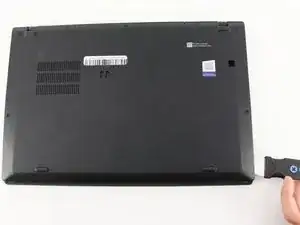
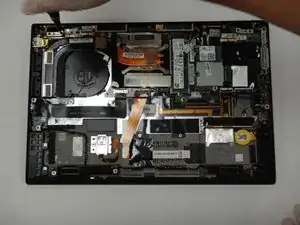
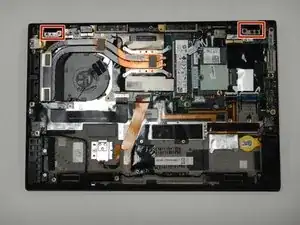
    • Benutze einen Jimmy, um die Rückseite direkt an den Fixierstiften anzuheben.

    • Auch wenn im Bild ein Metallwerkzeug zu sehen ist, empfehlen wir ein Öffnungswerkzeug aus Kunststoff zu verwenden, um eventuelle Schäden zu minimieren.

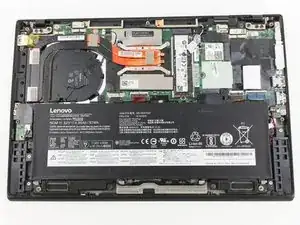
    • Entferne nun die Rückseite.

    • Falls du beim Anheben der Rückseite Widerstand spürst, kontrolliere die Schrauben und stelle sicher, dass sie komplett gelöst sind.

    I thank you for these instructions. They were quite helpful and I successfully replaced the fan. There is one thing however. Your instructions stated the following: "Be sure to pull on all of the cables at the same time."

    I disagree. One should never pull the wires. I was able to nudge the one part of the connector loose from the other part that it fit into." I then put the new fan in and gently and carefully pushed the connecting parts together.

    Otherwise, your instructions were clear and to the point. Thank you very much

    ALAN L SILBERLIGHT -

    The image shows prying the cover open at the bottom right. In fact, there are tabs securing the bottom edge to the frame. The cover needs to be pried open at the top edge. Once the top edge is released, the cover can be shifted slightly toward the top of the image to disengage the tabs at the bottom.

    This error, along with the similar error about removing the battery in step 4, suggests that the instructions were written with the laptop in the opposite orientation than what is shown in the images.

    EatCroc3 -

    I also don't believe that the iFixit Jimmy is necessary - in fact, it might scratch up the exterior paint of the X1 Carbon Gen 6. Instead, I find the triangular iFixit picks are more appropriate for the task: iFixit Plektren (6er Pack)

    Also, at least for my unit, the lid comes off easily and I only use the plastic picks if there's any resistance and I don't want to risk breaking any of the clips.

    Tai Lam -

  3. 2xBAZNGktDaK54Lm
    2xBAZNGktDaK54Lm
    IIjEKPgWLiLkttCO
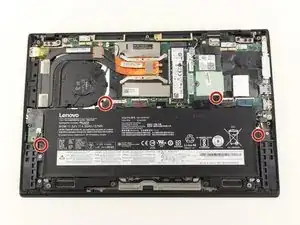
    • Benutze einen Kreuzschlitzschraubendreher #0, um die vier 5 mm Schrauben zu entfernen, mit denen der Akku am Gehäuse befestigt ist.

    The screw holes do not align 100%. Dont tighten all the screws as you re-insert them, leave just a little bit of play so that you can push the battery slightly until all the screws fit nicely, then tighten them. A little bit of DIY wisdom helps here. :-)

    Michael Dauer -

  4. OBGNfvQoRcUkViXt
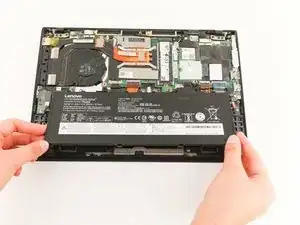
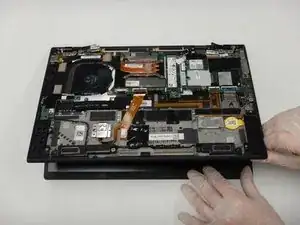
    • Entferne jetzt den Akku, indem du ihn an der Oberkante des Laptops anhebst und dann vom Motherboard weg ziehst.

    Recommend changing the command language to lifting from the TOP edge, as the BOTTOM edge is secured.

    Alexander Van Auker -

    Thank you, was wondering what I'm doing wrong

    Ash Weber-Campbell -

    Agreed, the original description is misleading at best, wrong at worst!

    Victor Vojtech Terber -

    You forgot to tell people to disconnect the battery from the motherboard before removing…

    Becky -

    Agree with both comments above: lift from top left and top right of battery. This disconnects it and it lifts out and away.

    Marc G -

    In my 6th generation X1 Carbon there are two wires that are routed on the edge of the battery and have to be moved out of the way. These are antenna cables, be gentle with them, kinks and indents change their high frequency properties and may lead to problems with your WIFI.

    Michael Dauer -

    Before removing laptop cover you can disable the battery in the bios before beginning work for extra safety. Battery will be re-enabled at next startup automatically.

    Darryl S -

    How do I know the generation of my X1 Carbon?

    Does this batter fit all generations?

    eric gofreed -

    The generation info of Lenovo ThinkPad X1 Carbon is marked on the back cover (i.e., 6th Generation), with shiny black color (ink ?), near the fan's openings.

    The battery's original PN for 6th gen is ASM P/N SB10K97587 (FRU P/N 01AV430), marked visible on the battery (after removing the back cover).

    vsm -

    The #0 Phillips screwdriver furnished with the kit was not well machined; it threatened to strip out the Phillips cross-grooves.

    Fortunately, in my own toolbox I had a robust and well machined #0 screwdriver, and was able to remove the battery screws without stripping the grooves.

    Otherwise, the kit was excellent.

    Roger Mehle - 10/23/23

    Roger Mehle -

    Hi @rogermehle, I'm very sorry to hear about the Phillips #0 screwdriver trouble. If you would like to reach out to our Customer Support team via help.ifixit.com, they will be able to assist you. Thank you for letting us know. We're happy your repair was a success overall : )

    Sarah Westberg -

    Yes top edge lift. Can't they change this?

    Ravi Sawhney -

  5. GYUOIiiFrflXdTpL
    GYUOIiiFrflXdTpL
    F5ltC3cF2FoqRWk1
    XfWMoKZ5F5q4dUG5
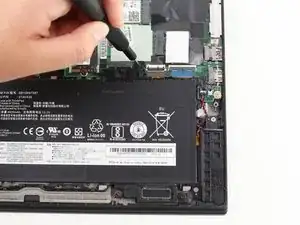
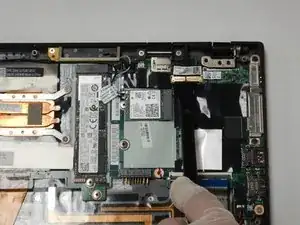
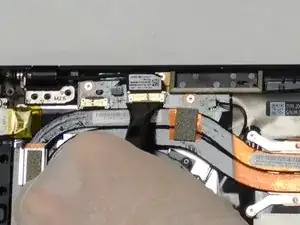
    • Hebe die Druckstecker der beiden Displaykabel mit einem Spudger hoch und trenne sie von der Hauptplatine ab.

    For step 2, we recommend deleting DISCONNECT THE CABLES BY, to remove confusion.

    Alexander Van Auker -

  6. S1TZnDZdQH12SeYD
    S1TZnDZdQH12SeYD
    DQoIUHnOZJ6g2lod
    1DuIm3G4MR6vAuIU
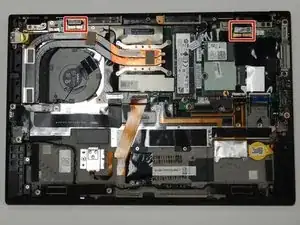
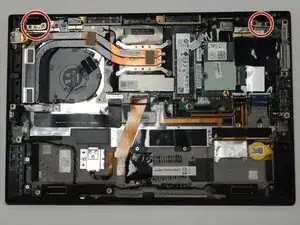
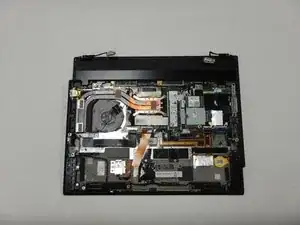
    • Entferne die sechs 5 mm langen Kreuzschlitzschrauben #0, mit denen die Displayscharniere am Gerät befestigt sind.

  7. TK5KE6efn2lb2uaD
    TK5KE6efn2lb2uaD
    vPcFCfKlZiOqfXVi
    JKHRYsPlOMZyQDUM
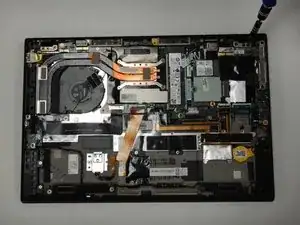
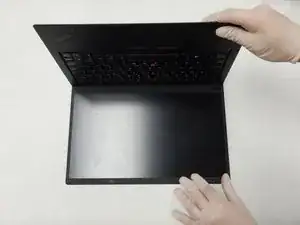
    • Klappe das Gerät auf, um die Scharniere zu öffnen.

    • Ziehe die obenstehende Hälfte zu dir hin, um die Tastatur zu entfernen.

    We recommend changing the word IT to THE KEYBOARD. This will avoid confusion for the guide user.

    Alexander Van Auker -

Abschluss

Um dein Gerät wieder zusammenzubauen, folge den Schritten in umgekehrter Reihenfolge.

Dylan McDowell

Mitglied seit: 16/09/20

490 Reputation

3 Kommentare

This only explains how to remove the complete lid assembly. What about replacing the screen itself??

Chris Herring -

Yes, I agree this guide is not complete. There are 2 types of bezels and they stick onto the screen rather than being fastened or clipped. In order to actually replace the LCD part listed here the bezel will need to be peeled off and it needs to be replaced as well since the adhesive isn't designed to be reused. From what I recall (and this is to be taken with a grain of salt as I last did this exact replacement 2 years ago), once the lid assembly is removed from the hinges and bezel peeled off, the LCD just pops out.

Philip Lee -