Einleitung

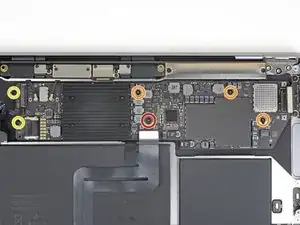
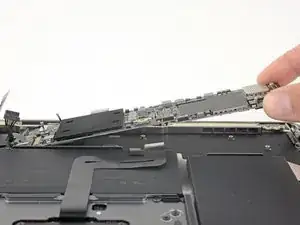
Diese Anleitung zeigt, wie das Trackpad im MacBook Air von 2019 getauscht werden kann.

  1. 4a1VSQBgdQXAZah2
    • Bevor du anfängst, solltest du die Auto Boot Funktion stilllegen. Auto Boot schaltet deinen Mac beim Aufklappen ein und kann während des Öffnungsvorgangs versehentlich ausgelöst werden. Benutze diese Anleitung oder folgende verkürzten nachfolgenden Anweisungen um Autoboot auszuschalten.

    • Wenn dein MacBook unter BigSur v11.1 oder einer späteren Version läuft, lässt sich AutoBoot möglicherweise nicht deaktivieren. Arbeite zuerst normal weiter, trenne aber den Akku sofort ab, wenn du ins Innere des Gerätes hinein gekommen bist.

    • Schalte dein MacBook Air vollständig aus und ziehe den Stecker aus der Steckdose, bevor du anfängst. Schließe das Display und drehe den Laptop um.

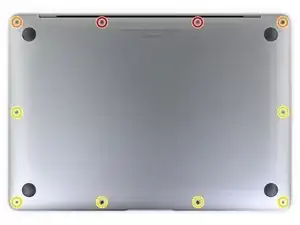
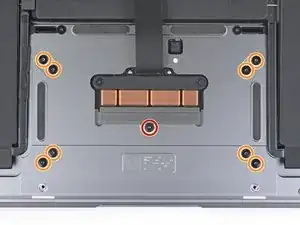
    • Entferne mit einem P5-Pentalobe-Schraubenzieher folgende Schrauben:

    • Zwei 7,9 mm Schrauben

    • Zwei 7,1 mm Schrauben

    • Sechs 2,6 mm Schrauben

    If the first thing you do is disconnect the battery, is it really an issue if you don’t (or can’t) disable auto-boot?

    maccentric -
    I agree, why disable Auto-Boot when the lid is closed and the battery is disconnected immediately? – I've never had an issue since 2016 when the feature was introduced.

    stevebsiegel -
    On my machine, the longest two screws were in the corners, while the other two long screws were in the middle. Perhaps previous service in the past had them replaced into the wrong place? In any case, the longest screws do seem to fit in either place. I guess 0.8mm is not very much of a difference. Seems like poor design if they could have used one size of screw.

    johann beda -

    Just did one, and it also had longest screws in the corners.

    maccentric -

    Just did another, and the long ones were in the middle. Definitely poor design and quality control.

    maccentric -

    HIGHLY recommend reading the entire guide AND all the step comments before starting. For example: before the battery can be fully disconnected, the battery disconnect "gold button" on the logic board needs to be held down. Step 25 calls for a T5 Torx bit that is not included in the kit for example. Double-sided pull tab stretch tape will likely be needed to reinstall batteries and speakers.....

    Sam -

    I agree with the suggestion to read the entire instructions first before attempting the battery replacement. Here are a few other suggestions: 1) Have a magnifying glass or a pair of cheap magnification glasses on hand, 2) wear a head-light to see better, 3) several pairs of tweezers was helpful, 3) I searched the web for instructions to disable autoboot for my MacBook that is using Sonoma 14.7.5 - I followed those instructions and they didn't work so I would also suggest ignoring this procedure, 4) I found that a Torx #3 was too small for some of the screws even though it was suggested but a Torx #4 worked just fine.

    This was my first battery replacement and took 3 hours, not the 30 mins to one hour suggested so give yourself time. If you are lucky all will go smoothly. In my case, one of the stretch tapes under a speaker broke. You do NOT want this to happen. I was able to retrieve the broken piece after some time so prying up the speaker was not necessary.

    Alexander -

    A final comment - with the Canada Post strike on when I wanted to order parts, iFixit was not able to deliver my order in a timely manner. They graciously refunded my purchase. I then turned to Amazon - gag. I purchased a SeaPlant replacement battery kit which contained the battery, P5 T5 and T3 drivers, stretch tape, a spudger, and gloves all for $77.

    Alexander -

    Dear God $77 for a battery!,…that’s what I paid for my entire MacBook! I always bought my battery’s for my pro here and at most those were 30 bucks

    3arthShineDivine -

    Also I can’t get my keyboard to respond,…I’m going to buy a type c wired keyboard but has anyone had this issue? I can’t type on my password to login and the onscreen keyboard function is inconveniently not functioning properly. I am quite unsure if they even make plug and play keyboards with a type c instead of usb a given that I would not be able to pair Bluetooth in this state it on,…my trackpads working but not dbl clicking for those options nor a single keys responsive I think maaaaaybe I hit the power button and I think that started it up one time but I’m stumped

    3arthShineDivine -

  2. 4Kra6VLGEa3eGmd6
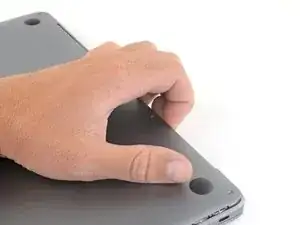
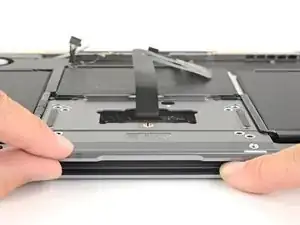
    • Zwänge deine Finger zwischen das Display und das Gehäuseunterteil und ziehe nach oben, so dass sich das Gehäuseunterteil vom Air ablöst.

    • Entferne das Gehäuseunterteil.

    • Nach dem Zusammenbau lässt sich das MacBook vielleicht erst dann einschalten, wenn es an ein Netzteil angeschlossen ist (ein leistungsschwaches Netzteil eines Smartphones genügt schon). Um die Reparatur zu überprüfen, schließe das Netzteil an, lasse dem MacBook zwei Minuten lang Zeit zum Starten und teste, ob alles gut funktioniert.

    Das geht etwas schwer, da das Unterteil mittig noch von 2 Druckverschlüssen gehalten wird.

    facebook -

    translated and true:
    This is a bit difficult because the lower part is still held in the middle by 2 pressure fasteners.

    Tom -

    Are there any suggestions to removing the pressure fasteners more easily?

    Drea Mastromatteo -

    I used a suction cup to lift up the cover. I mean those to lift up an iPhone display. Worked like charm.

    Juergen Stawska -

  3. xVJrmDjjKX3L1VEp
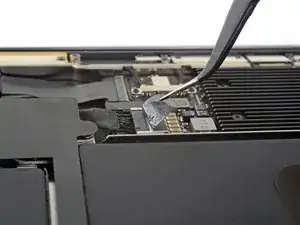
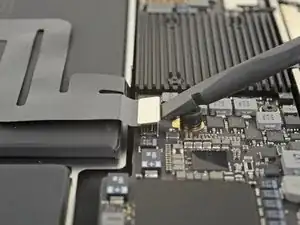
    • Ziehe den Aufkleber soweit vom Akkustecker zurück, dass der darunterliegende Stecker sichtbar wird.

    There was no tape covering the battery connector on my 2018 MacBook Air.

    Alexander -

  4. NZT3TL4hoGyeLE6L
    NZT3TL4hoGyeLE6L
    XZ2jGZmJoO1c5OHn
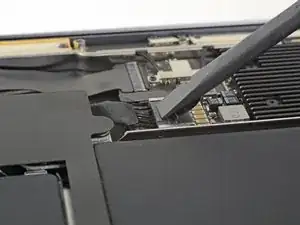
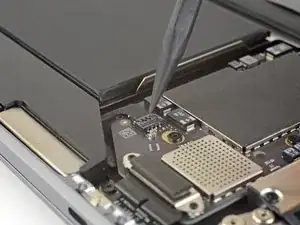
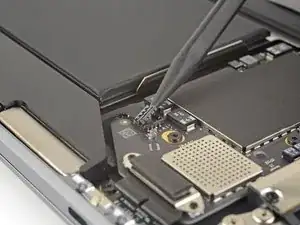
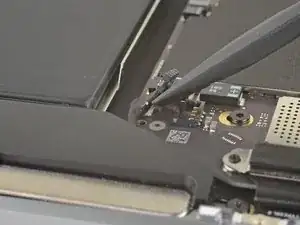
    • Schiebe den Akkustecker mit einem Spudger parallel zum Logic Board aus seinem Anschluss auf dem Logic Board heraus.

    Before the battery can be fully disconnected, the battery disconnect button needs to be held down. There is a gold button just above the battery socket, along with a small LED much like the 12” machines. Once this has been held down and the LED has switched off it is safe to remove the battery.

    Aaron Dalziel -

    This seems like an important step?

    maccentric -

    Also, seems like this should be done after the battery is disconnected, not before? Otherwise, wouldn’t the battery re-charge it?

    maccentric -

    What if the white LED dosent light up after pressing the yellow button again?

    Iron05 -

    I just performed this repair on my late 2018 mac air. I did click the gold button but saw no LED illuminated or otherwise. Question- after reassembly does the button get pressed again to connect the battery? Please clarify if this button is to be pressed and if it needs pressing again after the repair.

    All said - I pressed again after the battery connector clicked, assembled the back and all worked perfectly. The original issue was one dead port (no charge, no communication). The battery charge lightening bold icon was acting funny too. Genuis bar guy in Naperville said it was likely a logic board too. But it was not. The port was apparently confusing the logic board with regards to the charge function. Thanks Adam for saving me $440 and sending my computer back to Apple. I am 71 yrs young - who says an old dog can’t learn new tricks with good training!!

    William Lane -

    I didn't see Aaron's comment before completing the battery replacement. Afterwards, the computer would not turn on despite multiple SMC reset procedures. Upon double-checking the comments I see the importance of pressing the gold button. I pressed the gold button before disconnecting the new battery, then pressed it again after reconnecting for good measure. Computer booted!

    It would be good of iFixit to add this important step as most people probably don't open up every single comment on (seemingly) simple steps.

    Corey Matsumoto -

    Seconding Corey's comment. If paid more attention to the comment section, I would have avoided 15-30 minutes of panic. (BTW I did not notice any LED, but the golden button was easy to find).

    Lorenzo Sorbo -

    Where is the gold button? I replaced my battery and my laptop will not start

    Candace Williams -

    Where is the white LED you are referring to?

    Sam -

    Well... I have a 2018 MacBook Air and just replaced the battery. I did not see this comment about pressing a gold button. I took pictures during disassembly and it is only now that I see the gold button. Even thought I did not press the magic gold button all is working fine. I have had no issues with re-boot or battery charging since replacement. One suggestion though is when reconnecting the battery, make sure you feel a click when you re-insert the connector into the socket.

    Alexander -

    One note when reassembing, be sure to press down lightly on the plug with the spudger, so that it fully slides into the socket on the logic board.

    Thomas Ventimiglia -

  5. mCpNcwDmVvCIexvU
    mCpNcwDmVvCIexvU
    WCiJUh1bJboPNur2
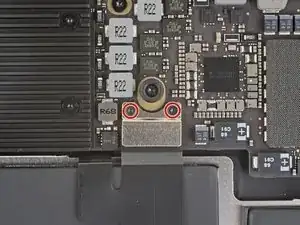
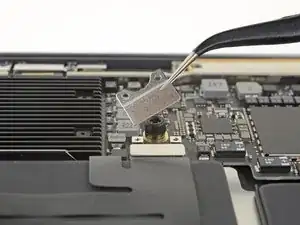
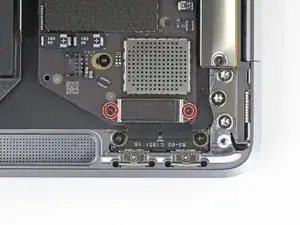
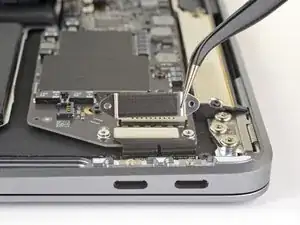
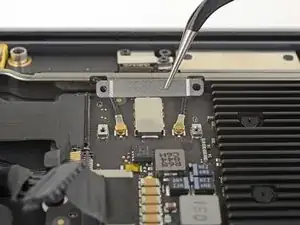
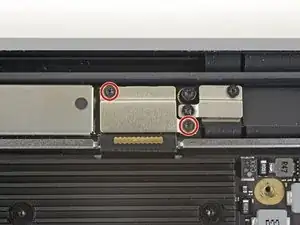
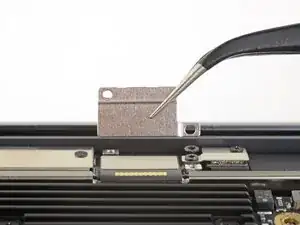
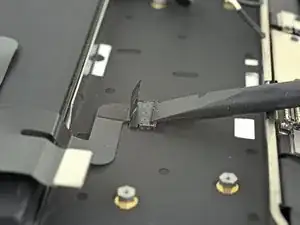
    • Entferne die beiden 1,4 mm Torx T3 Schrauben, mit denen die Halterung des Trackpad-Steckers befestigt ist.

    • Je nach Zustand deiner Bits passt vielleicht ein T4 Torx Bit besser.

    • Entferne die Halterung des Trackpad-Steckers.

    My machine used T4 screws

    johann beda -

    Me too! I tried with T3 and it wasn’t working.

    Rose Alshuaibi -

    I stripped my screws trying to get them out with a t3 driver...

    Aubrey Corcoran -

    video of logic board disconnects and removal

    https://www.youtube.com/watch?v=00JNJ1kb...

    Sam -

    It is not necessary to remove the logic board, which saves a lot of time.

    https://youtu.be/qze43HwUsxw?si=B9Lzb96b...

    Mike Davis -

  6. Sw6VN6VuYRYAnW2T
    Sw6VN6VuYRYAnW2T
    iGLvdxo4pDlVZOh6
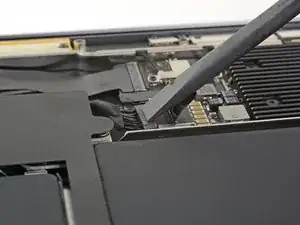
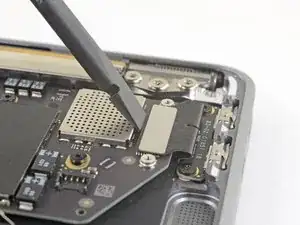
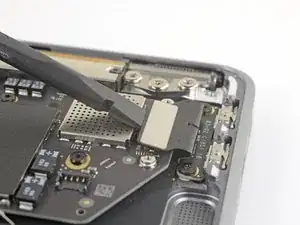
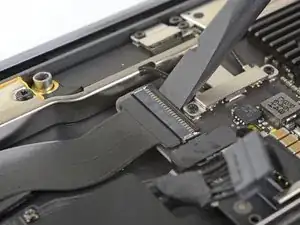
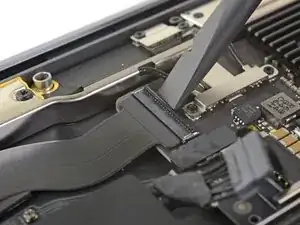
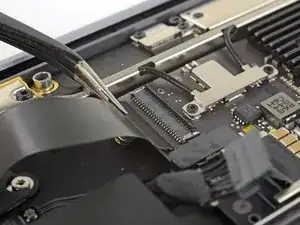
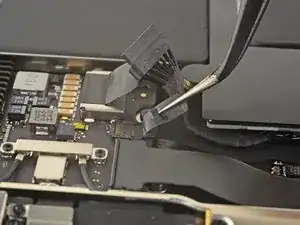
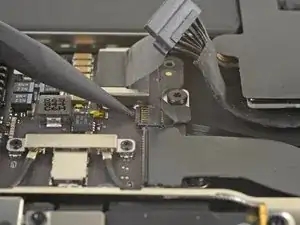
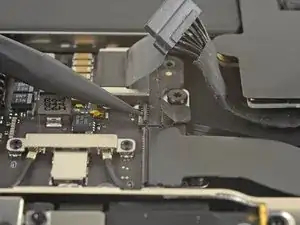
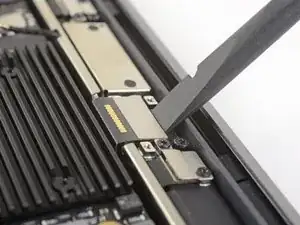
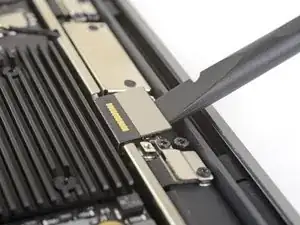
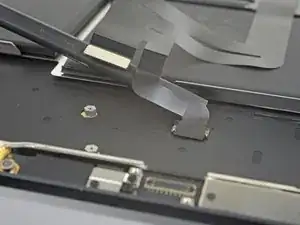
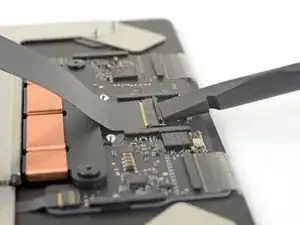
    • Heble den Stecker am Trackpadkabel mit dem flachen Ende des Spudgers hoch und löse ihn aus dem Abschluss heraus.

    Si eres una persona tranquila y paciente,, una vez desconectados los parlantes (altavoces) puedes desatornillar los 9 tornillos del trackpad y una vez levantada unos milímetros la tapa del mac, puedes mover el trackpad en paralelo a la tapa en dirección al inicio del punto de apertura. Con ello se consigue una holgura suficiente para jugar con el desmontaje de la batería vieja y la posterior colocación de la nueva, tal y como puedes ver en este video tutorial de You Tube:

    https://www.youtube.com/watch?v=qLKS7ShW...

    *Eliminas todos los pasos de desconexión de la placa lógica para su retirada y vuelta a montar.

    E. Parra -

  7. 2ANOeBCRlLS1Elpu
    2ANOeBCRlLS1Elpu
    gVBNK32AwYwuWQFx
    hRm4xZQXbIkkT4O5
    • Wenn der linke Lautsprecher bereits abgetrennt ist, dann überspringe diesen Schritt.

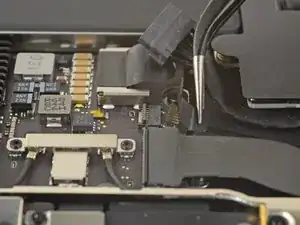
    • Schiebe die Spudgerspitze unter das Lautsprecherkabel und heble das Kabel zum Ablösen senkrecht hoch.

    • Schiebe das flache Ende des Spudgers bei gelöstem Stecker unter das Kabel und löse es aus der Klebeverbindung zum Logic Board.

    I think step 15 was a mistake because it’s a repeat of step 10.

    Ryan R -

    Yeah, the speaker is already removed at this point.

    Jason _ -

    el punto 15 queda anulado. se realizó en el punto 10.

    E. Parra -

  8. IHRbrlPXF2JApiqk
    IHRbrlPXF2JApiqk
    LyZ1foqy1wvBlOiv
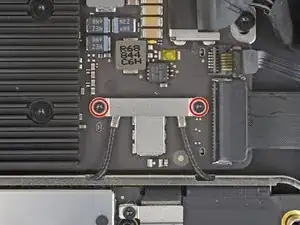
    • Entferne die beiden 1,3 mm Torx T3 Schrauben, mit denen die Halterung des USB-C-Anschlusses befestigt ist.

    • Entferne die Halterung des USB-C-Anschlusses.

    There is no need to remove the logic board!!

    Skip steps 16 through 28 and go to step 29 to release the trackpad cable from the battery. then follow steps to 30 through 33 to release the battery. The battery can be removed by slipping it counter-clockwise under the trackpad cable. The new battery can be slipped in place in the same way.

    Much easier!!

    josephgray -

    Agreed. Took me a minute to realize that I had to slide the top right screw bracket between the logic board and the case to get enough clearance for the rotation. Many thanks.

    w98fxr -

    Removing a few of the logic board screws allowed me to get the to right screw bracket under the logic board to give enough clearance as w98fxr mentioned.

    johann beda -

    This can be done, but it's very tight. Still, beats removing the logic board and the possibilities of breaking something in the process.

    maccentric -

    This worked for me as well. Saved a lot of time.

    John McKee -

    Well, it seemed to save a lot of time, but space is so cramped that I managed to damage the cable while wrangling the battery.

    John McKee -

    Don't remove the USB-C cable from the motherboard. It's a shocker to reconnect and those subatomic-scale screws are simply horrible to work with. Instead it's easier to unscrew the two T5 screws securing the USB-C cable to the chassis, leave the cable and cover attached to the motherboard and save 20 minutes of stuffing around.

    John McKee -

  9. M3RvYGtmREQuaLZ2
    M3RvYGtmREQuaLZ2
    B6AMphVrIvwKpisH
    • Heble den Stecker am USB-C-Kabel mit dem flachen Ende des Spudgers hoch und löse ihn aus seinem Anschluss auf dem Logic Board.

    please reconsider removing the logic board and and usb-c connector as is recommended in the prior step. i had a very difficult time reconnecting the usb-c connector

    Mario Obejas -

    It should be cautioned that this connector is very easily bent, meaning a bend in the length of the metal surface you press against to reconnect (or pry against for removal). Once bent it becomes very hard to establish a good connection.

    James Tropauer -

  10. BjgmhIFsgtdRtuUi
    BjgmhIFsgtdRtuUi
    hgUoCSOomRaZZNMa
    XNTm2JBIuDLHFUKi
    • Klappe den Sicherungsbügel am ZIF-Anschluss der Audio-Platine hoch.

    • Schiebe das Kabel zur Audio-Platine aus seinem ZIF-Anschluss heraus.

  11. RK65AOeFDCjfyyWv
    • Ziehe den schwarzen Aufkleber am Stecker des Lüfterkabels ab.

  12. EvCAoAoChgdZSUpP
    EvCAoAoChgdZSUpP
    VORkbyxUw5mQoLXP
    EBqFtxhhx5MFDscb
    • Klappe den Sicherungsbügel am ZIF-Anschluss des Lüfterkabels mit der Spudgerspitze hoch.

    • Schiebe das Lüfterkabel aus dem ZIF-Anschluss heraus.

    There may not be a locking flap. If not, just pull the fan cable out of the ZIF connector.

    rmilton -

  13. tXgZY3PV2kPaADlE
    tXgZY3PV2kPaADlE
    WAgCyw6YIrvC3RQH
    • Entferne die beiden 1,4 mm Torx T3 Schrauben, mit denen die Halterung des Antennenkabels befestigt ist.

    • Entferne die Halterung des Antennenkabels.

    These are T4 screws

    Richard Arnett -

    The MBA I just finished with were T3. I'm fairly confident with my tools as I recently updated/upgraded nearly my entire set with WiHa. I should also mention the many tools acquired from iFixit over the years have all been were exceptional lasting years. There's no doubt iFixit would have been my source but a close friend went to work for WiHa. His discount(s) & being motivated to help him was a major impact. For anyone not having such an advantage IMHO tools from iFixit are one of the best values anywhere. Let's not forget; buying from iFixit will also help to push "Right to Repair" forward. Here in Minnesota Right to repair ALMOST PASSED. Many believe it will become law during the next session! I can't tell you how proud this would make me. I would obtain as many service manuals as possible and post them all online!!! What a great dream...

    admin -

  14. SIwpML6D2V1THnvW
    SIwpML6D2V1THnvW
    HSbt4VrCJOZJWJeX
    vMkn5IqQ1LgQrMRK
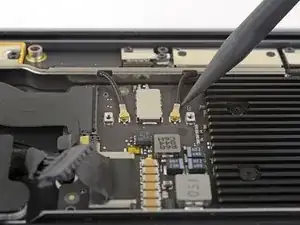
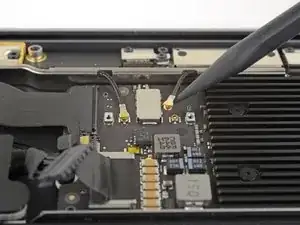
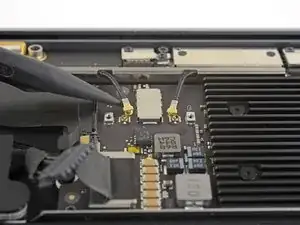
    • Setze die Spudgerspitze nahe am Stecker unter eines der Antennenkabel. Heble senkrecht nach oben und trenne das Kabel ab.

    • Wiederhole das Ganze für den anderen Stecker.

    Be SUPER SUPER CAREFUL pulling off the gold WiFi antenna connectors! As described, use the spludger to press up the black cable just behind the metal connector. I tried to ping them off from the bottom of the gold connector where it clips into the socket on the motherboard and ended up pulling off the SMD sockets from the motherboard - huge and costly mistake that will probably render it useless.

    Neale Whyatt -

  15. JwduCSLFH2CcraAQ
    JwduCSLFH2CcraAQ
    kTylWJvDOGiAPbQS
    • Entferne die beiden 1,5 mm Torx T3 Schrauben, mit denen die Halterung des Displaykabelsteckers befestigt ist.

    • Entferne die Halterung des Displaykabelsteckers.

  16. cELhRfbeZrcbMPps
    cELhRfbeZrcbMPps
    kHkPDOnxWduTqHLa
    • Heble den Displaykabelstecker mit dem flachen Ende des Spudgers hoch.

    How do I reconnect display connector??

    Kris Queck -

    Just align the plug section of the display flex with the socket on the logic board and gently press it in until it locks in place. Do not force it but just ensure it’s correctly aligned before pushing it into the socket.

    Peter Newman -

    Pro tip: You can remove the two T5 screws on the LCD connector side (located to the right of the display connector and to the left of the heat shield). From there, tilt the whole skinny LCD board towards the logic board connector and gently pinch the connector in to the socket. Before laying the skinny board back down, screw in the shield from Step 15 so it doesn’t pop out of the socket again.

    jason4 -

  17. 6TXbngaNJybXtDKP
    • Entferne folgende Torx T5 Schrauben:

    • Eine 5,5 mm Schraube

    • Drei 2,6 mm Schrauben

    • Zwei 1,9 mm Schrauben

    These are T5 Torx driver screws

    Richard Arnett -

    Need torx 5 AND torx 4 driver here ;)

    Marcel Popp -

    During re-assembly be soft when screwing in the logic board because those antenna plugs in Step 14 are quite awkward to pin back into their sockets and there is little leeway in the cables; to make this task a little easier in Step 14, secure the logic board loosely right up against the near outside edge; after re-connecting all the cables in Steps 16-9, return to Step 17 to firm up the logic board screws.

    Andrew Gordon -

    This tip was a huge help, hate these cables lol

    Konrad Anderson -

    The 5.5 mm screw goes into a hexagon standoff which may come off with the logic board being sanswiched beteen the 5.5 mm screw screw and the standoff like happened to me. Just something to be aware of. It also has a black rubber bumper over the screw which was not mentioned at all. It pulls straight off to give access to the screw.

    Peter Newman -

    On my board I needed to use T6 for all the screws except the rubber bumper for which I used a T7. I have a full set of small Torx drivers and tried for the best fit.

    jeffyouell -

    T5 fit best is all the screws on my machine

    johann beda -

  18. eHXdqWRQTLhS4rxV
    • Entferne das Logic Board.

  19. 6KlbC5YMuwIl1xag
    6KlbC5YMuwIl1xag
    dyjgWbYsxppIcXpC
    CsanNaDXlvspYfCS
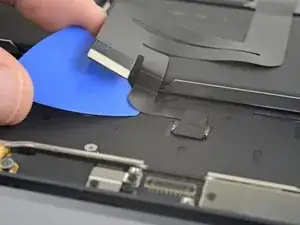
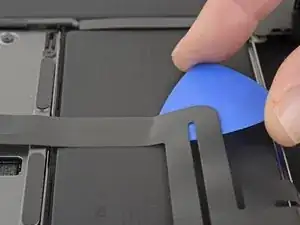
    • Schiebe behutsam ein Plektrum unter das Trackpadkabel und löse es aus der Klebeverbindung zum oberen Gehäuse.

    • Wenn sich der Kleber nicht leicht auftrennen lässt, dann erwärme das Kabel ein wenig mit einem iOpener oder einen Haartrockner, um den Kleber aufzuweichen.

  20. aAjFcxQgcYYQJHs5
    aAjFcxQgcYYQJHs5
    h1CD4iMuvXUr3Df2
    4kS6CEPwNGajdbXT
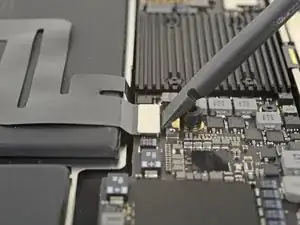
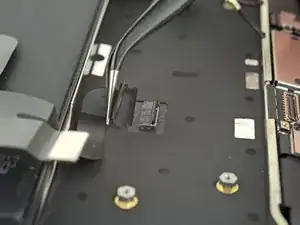
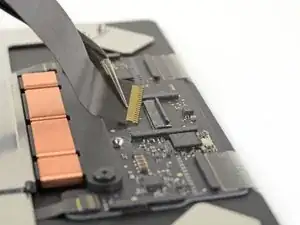
    • Klappe den kleinen Sicherungsbügel am ZIF-Anschluss des Trackpadkabels hoch.

    • Ziehe das Trackpadkabel gerade aus seinem Anschluss heraus.

  21. TcqNE6KcGbJbK2LL
    TcqNE6KcGbJbK2LL
    HftlAiCONfDIPA1p
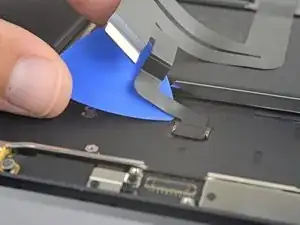
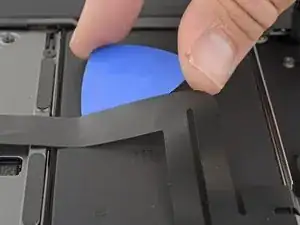
    • Schiebe behutsam ein Plektrum unter das Trackpadkabel und löse es aus der Klebeverbindung zum Akku.

    • Wenn sich der Kleber nicht leicht auftrennen lässt, dann erwärme das Kabel ein wenig mit einem iOpener oder einen Haartrockner, um den Kleber aufzuweichen. Überhitze den Akku nicht.

  22. fywHe11FGa6MFDmR
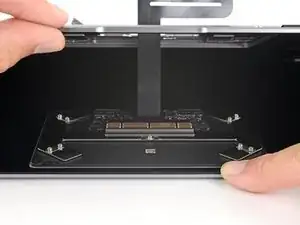
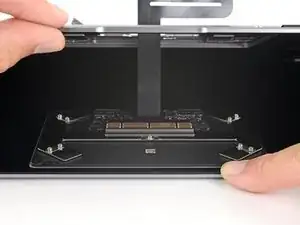
    • Entferne folgende Torx T5 Schrauben, mit denen das Trackpad befestigt ist:

    • Eine 3,2 mm Schraube

    • Acht 3,1 mm Schrauben

    If anyone else just threw all 9 into a pile without thinking ... the 3.2mm screw should have a silver underside. The others are black.

    matt -

  23. gZiWObP1EWgyRlhm
    gZiWObP1EWgyRlhm
    H1SNTRDfJsJCtKLc
    • Lasse das MacBook mit dem Display nach unten liegen. Öffne es behutsam. Das Trackpad bleibt auf dem Display liegen.

    • Entferne das Trackpad. Achte darauf, dass das Display nicht verkratzt wird.

    Don't overlook the 5 washers!

    Macrepair SF -

  24. O2vM1wtYLkGRSMZk
    O2vM1wtYLkGRSMZk
    BcL52bRTxVJ2Yxhb
    6WByDamUOktYGwEE
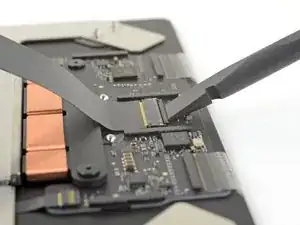
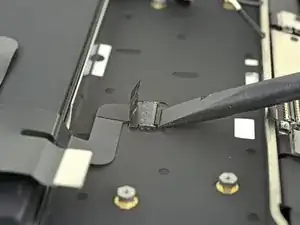
    • Klappe den kleinen Sicherungsbügel am ZIF-Anschluss des Trackpadkabels hoch.

    • Schiebe das Trackpadkabel gerade aus dem ZIF-Anschluss heraus.

Abschluss

Vergleiche dein Ersatzteil mit dem Originalteil — möglicherweise musst du fehlende Bauteile übertragen oder Schutzfolien vom Neuteil abziehen, bevor du es einbauen kannst.

Um dein Gerät wieder zusammenbauen, folge den Schritten in umgekehrter Reihenfolge.

Entsorge deinen Elektromüll fachgerecht. .

Hat die Reparatur doch nicht den richtigen Erfolg gebracht? Frage in unserem Antworten-Forum nach Hilfe.

Adam O'Camb

Mitglied seit: 11/04/15

220588 Reputation

0 Kommentare