Einleitung
Es ist nicht schwer, den Lüfter zu tauschen. Anschließend wird dein Gerät wieder gut gekühlt.
Werkzeuge


Ersatzteile
-
-
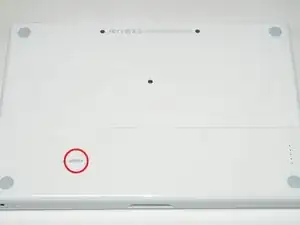
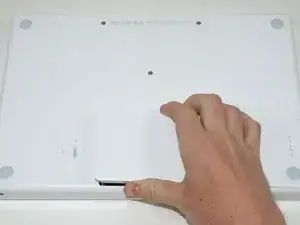
Nimm eine Münze oder einen Spudger (Spatel), um die Akku-Verriegelungsschraube um 90 Grad im Uhrzeigersinn zu drehen.
-
-
-
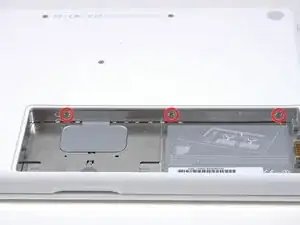
Entferne die drei im gleichen Abstand an der Rückwand des Akkufachs verteilten Kreuzschlitzschrauben #000.
-
-
-
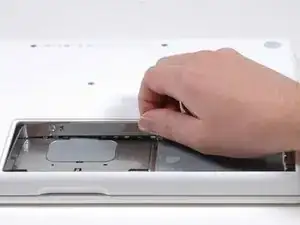
Fasse die L-förmige Speicherabdeckung am rechten Ende an und ziehe sie zu dir hin, so dass die Öffnung des Akkufachs frei liegt.
-
Hebe sie dann nach oben aus dem Computer heraus.
-
-
-
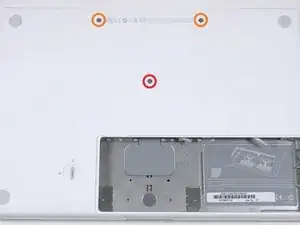
Entferne die folgenden drei Schrauben:
-
Eine 11 mm Kreuzschlitzschraube #00 in der Mitte des unteren Gehäuses. (Kopf: 5 mm Diameter, Dicke: 0,75 mm)
-
Zwei 14,5 mm Kreuzschlitzschrauben #00 (Kopf: 5 mm Diameter, Dicke: 0,75 mm)
-
-
-
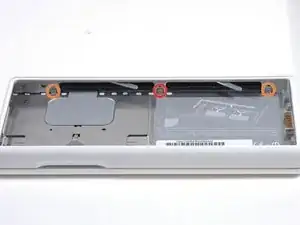
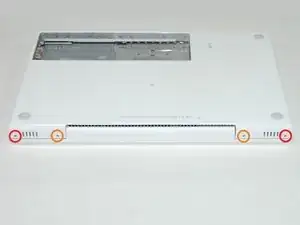
Entferne die folgenden drei Schrauben von der Rückwand des Akku-Gehäuses:
-
Eine 3 mm Kreuzschlitzschraube #0. (Kopf: 2,75 mm Diameter)
-
Zwei 4 mm Kreuzschlitzschrauben #0 auf jeder Seite. (Kopf: 2,75 mm Diameter)
-
-
-
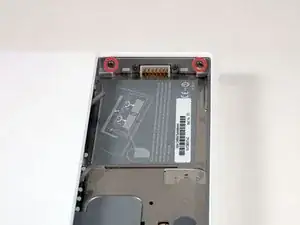
Entferne die beiden Kreuzschlitzschrauben auf beiden Seiten der rechten Wand des Akkufachs (nicht die, die sich direkt neben dem Akkuanschluss befinden).
-
Zwei 6,25 mm Kreuzschlitzschrauben #000. (Kopf: 4 mm Diameter, Dicke: 0,5 mm)
-
-
-
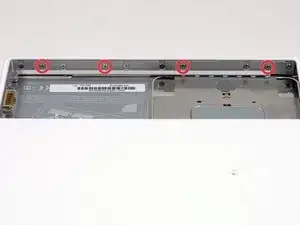
Entferne die vier gekennzeichneten Kreuzschlitzschrauben an der Vorderwand des Akkufachs. Wenn du von links aus arbeitest, entferne die 2., 4., 7. und 9. Schraube.
-
Vier 3,25 mm Kreuzschlitzschrauben #000. (Kopf: 4 mm Diameter, Dicke: 0,4 mm)
-
-
-
Entferne die folgenden vier Schrauben auf der Rückseite des Computers:
-
Zwei 11 mm Kreuzschlitzschrauben #00, mit Schaft (2,2 mm Diameter x 2 mm Länge) (Kopf: 3,2 mm Diameter , Dicke: 0,5 mm)
-
Zwei 7,25 mm Kreuzschlitzschrauben #00, mit Schaft (2 mm Diameter, 3,75 mm Länge) (Kopf: 3,2 mm Diameter, Dicke 0,5mm)
-
-
-
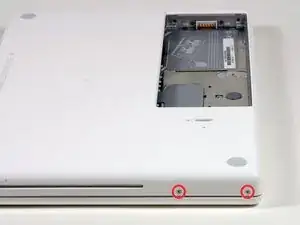
Entferne die beiden Kreuzschlitzschrauben von der rechten Seite des Computers. Das ist die Seite mit dem optischen Laufwerk.
-
Zwei 5,2 mm Kreuzschlitzschrauben #00 mit Schaft (Diameter: 2,3 mm,Länge: 3,25 mm) (Kopf: 3,2 mm Diameter, 0,5 mm Dicke)
-
-
-
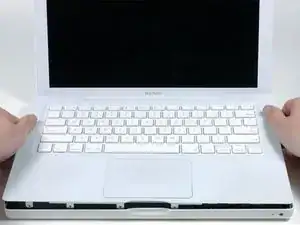
Verwende ein Öffnungswerkzeug aus Plastik, eine abgelaufene Kreditkarte oder eine ähnlich dicke Karte, um das obere Gehäuse aufzuhebeln, indem du in der linken oberen Ecke beginnst und dich zur Vorderseite des Computers vorarbeitest.
-
-
-
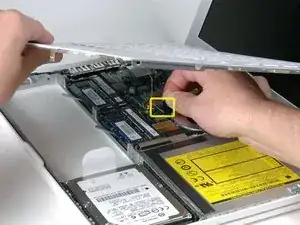
Halte das obere Gehäuse hoch und ziehe die schwarze Lasche am Steckerende des silbernen Flachbandkabels von seinem Anschluss auf dem Logic Board weg.
-
-
-
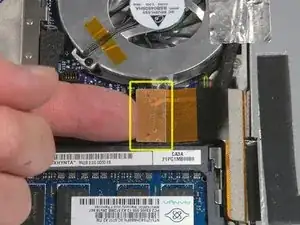
Trenne das orangene Flachbandkabel zum optischen Laufwerk mit einem Spudger vom Logic Board ab.
-
-
-
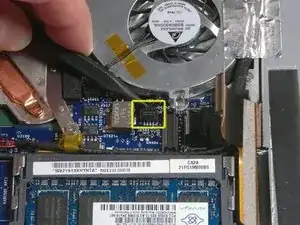
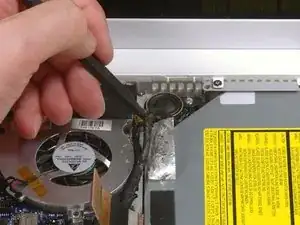
Schiebe das graue Displaydatenkabel und die schwarzen Lautsprecherkabel mit einem Spudger nach rechts. Eine silberne Schraube wird sichtbar, mit der die Lüfterfassung am Gehäuseunterteil befestigt ist.
-
-
-
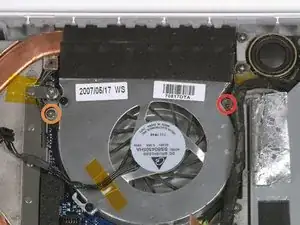
Entferne folgende zwei Schrauben:
-
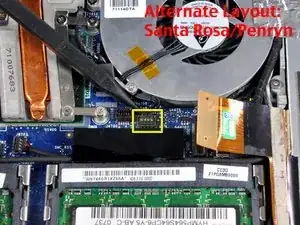
Eine 3 mm lange Kreuzschlitzschraube rechts am Lüfter
-
Eine 6 mm lange Schraube links am Lüfter
-
-
-
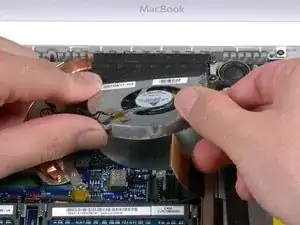
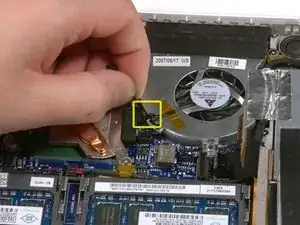
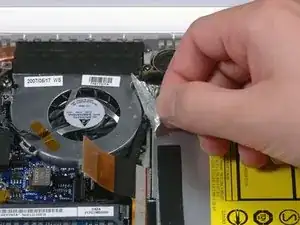
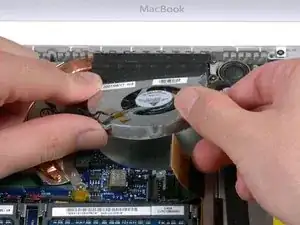
Hebe den Lüfter und seine daran befestigte Halterung nach oben aus dem Computer heraus, achte darauf, dass das schwarze Filz Klebeband nicht reißt.
-
Um dein Gerät wieder zusammenzubauen, folge den Schritten in umgekehrter Reihenfolge.

23 Kommentare
My wife's MacBook has been overheating for some time, and then shutting itself down. Your instructions were great, but I did note that I needed to unscrew the cable tie near the speaker in Step 17.
The system had some dust in it, used the air can to spray it all out. Dust was on the heatsink vents, too. Closed it all up, and peak temps during a software install that crashed it three times yesterday was 145F - yesterday it was passing 170F and crashing.
Thanks for the instructions, ifixit!
Redwolf -
Download and print out the PDF version of the repair guide. Tape the screws to their corresponding image in the guide so that you can't go wrong!
what a great idea! i've been thinking about a solution for organizing screws. that's genius!
Victoria -
Good Idea. I generally sketch up rough diagrams and putsmall pieces of double sided tapes and stick the screws on my drawing.
Worked a treat!!
I used this guide plus the Thermal Paste guide to resolve my MacBook RRS (Random Restart Syndrome) issue. My MacBook would randomly restart after the fan kicked into high speed. When I removed the heatsink I discovered an an irregular patch completely free of thermal compound of about 15-20% of the area on one of the processors. I removed and re-applied the thermal paste. I ran a memory test utility overnight that previously caused a restart after a couple of hours, and the probelm seems to be solved. TIme will tell.
ServiceDocs -
This guide was seriously helpful, so thanks for putting this together. I found a thick ribbon of dust/muck whatever between the fan outlet and the exhaust port that was almost as dense as felt. My fan must have been fighting like crazy trying to pass air through that blockage, which explains the high temps and excessive fan noise. Wish I'd done this sooner...
Thanks again!
skraggle -
Just R&R'ed the fan in my black MacBook Core 2 Duo tonight. Took me 30 minutes tops and I was taking my time. These instructions are SPOT ON! Great job ifixit.com! Two thumbs up!
Follow the instructions exactly as you see and have a piece of paper taped to the table next to you that you can outline all the screws you took out so you know where they go back in. I expected this to be a LOT harder, but it was one of the simplest repairs I've ever done to ANY computer!
mikeutter -
Piece of cake--or should I say gum. If you don't have a magnetized screwdriver, load up a stick of gum and chomp on it until it's needed then use a bit to retain screw on the driver. And if you should tear the black tape, or if the silver tape won't stick any more, just bubblegum it together. The instructions were clear and correct, which made for a very simple repair.
Mike Woodruff -
My battery does not pop out when after step 1. Any idea why, and how do fix it?
Calvin -
Will not drop out even if you turn it upside down?
skraggle -
Somehow, now my isight camera doesn't work and the light is always on. Cannot figure out what I did wrong.
josefsalyer -
Somehow the plastic disc with the slot for a coin got dislodged from the case, and I can't seem to get it open now. Any tips/links on how to open this without the aid of the plastic disc?
Peter Wood -
i broke my disc off as well. I used two toothpicks to rotate the thing. hi tech.
howard bederman -
Outstanding guide - thank you!
owen bullock -
My computer will not charge when plugged in. It will stay on as ling as the plug is in the wall however if the power source gets disconnected it will shut down immediately. I removed the battery and put it back in that did not help. It worked and charged fine 2 days ago. I have a backpack with a laptop storage area. I went to hang the backpack up and it fell and ever since the battery is not functioning. Is there some fix I can try or is my only solution to replace it? I would have thought that dropping it would affect more than the battery?
Beth Tomasek -
Better leave the back pack where it cannot fall. Hindsight is so much better than foresight . I learned the hard way too!
Loy Lum -
Many of the tiny screws in this project were quite sticky. I found some blue Loctite residue that must have been when the Apple repair shop worked on the laptop years ago. I have found that it is important to hold the correct driver firmly down in the screw and then just tweak the driver in short bursts to loosen it before unscrewing it with a smooth turn.
Patrick Langvardt -
Be really careful while doing this to not use too much force while doing this step, because the plastic disc can break off and it can be a cosmetic issue along with functionality issue. This happened to me first hand so please take my word for it…
[deleted] -
Probably worth mentioning at this stage that the caddy you propose to use should not have lugs on the front corners, like those used in unibody 1278 and onwards.
harwood -
Hehe, still my mac os running! After, already bit more than 10 years of use!
I put new heat paste now for the second time. Maybe this helped for staying young so long.
Thanx for all the repair guides!!!
Fabien -