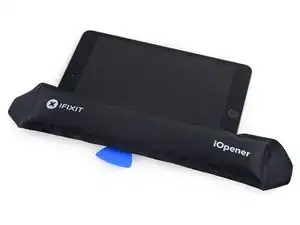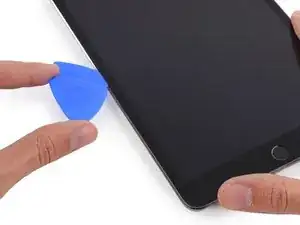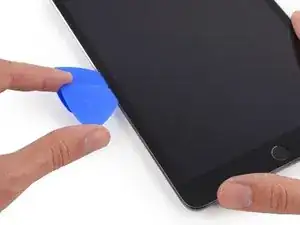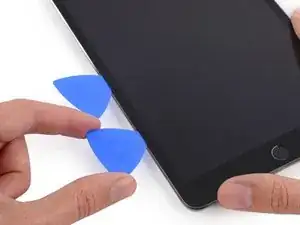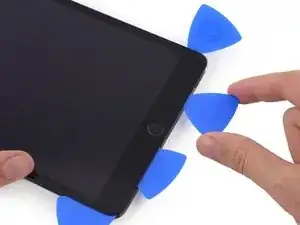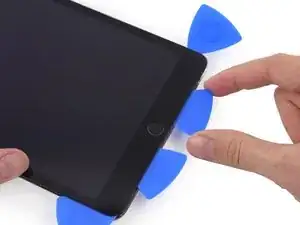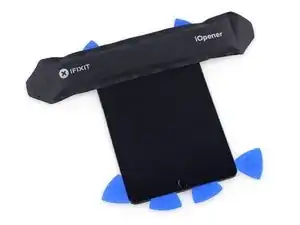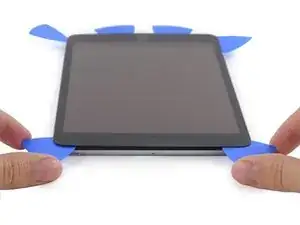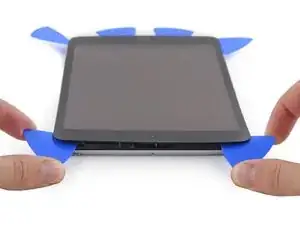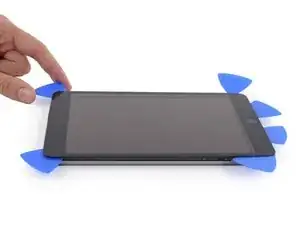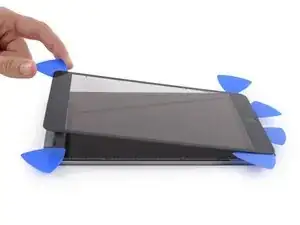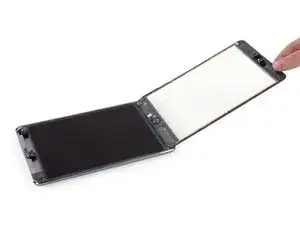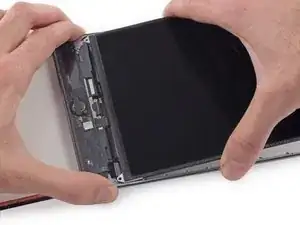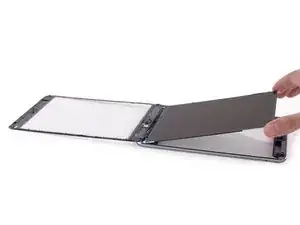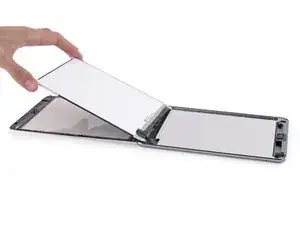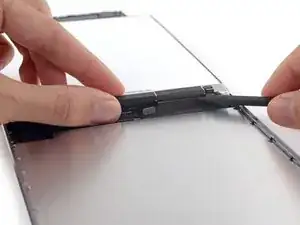
Einleitung

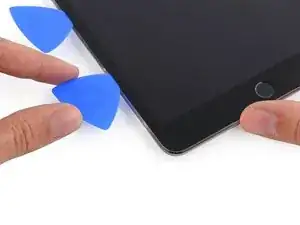
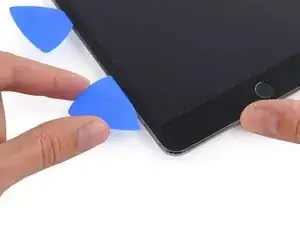
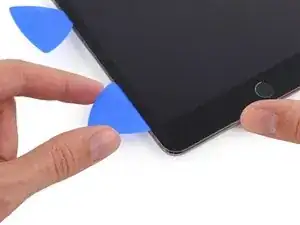
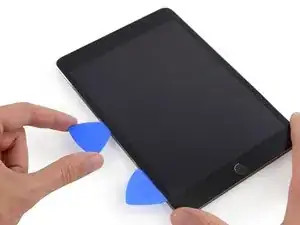
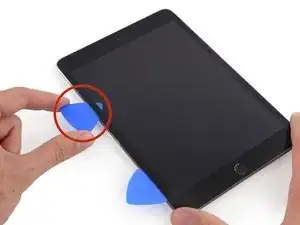
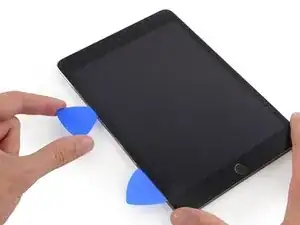
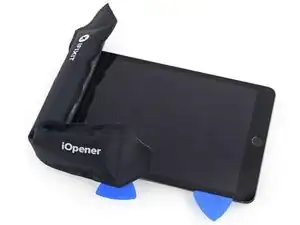
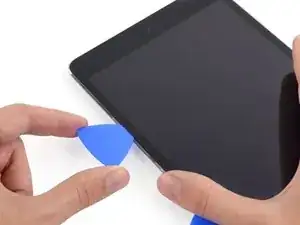
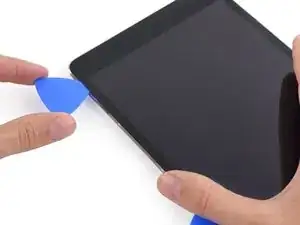
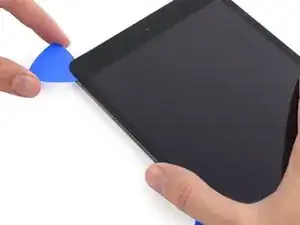
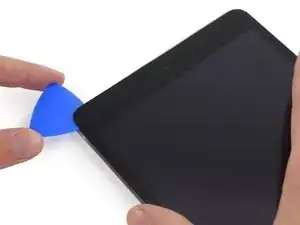
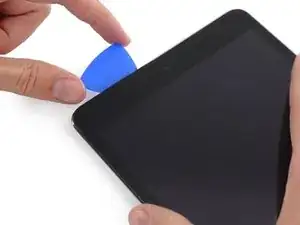
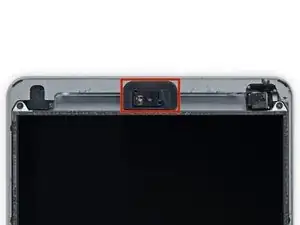
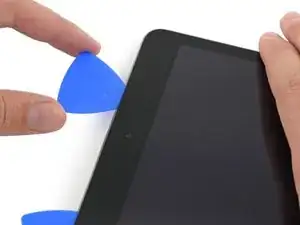
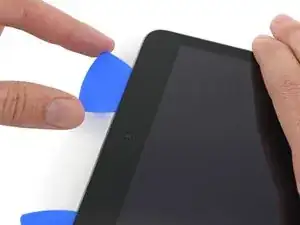
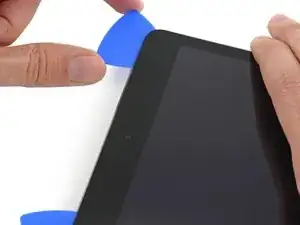
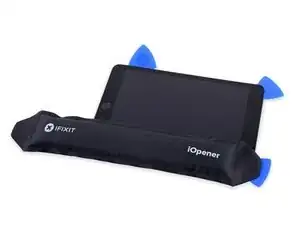
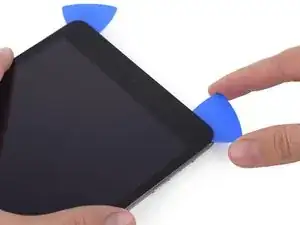
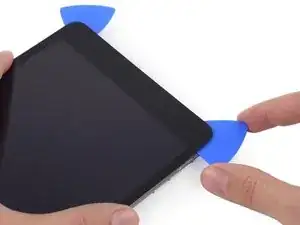
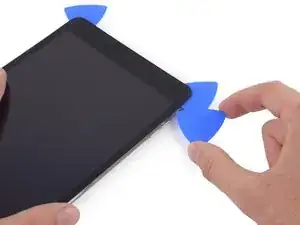
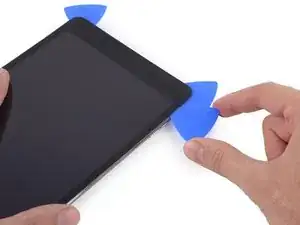
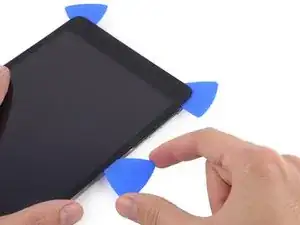
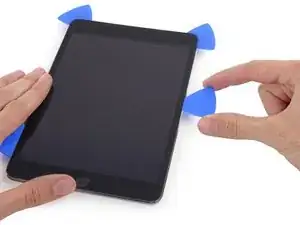
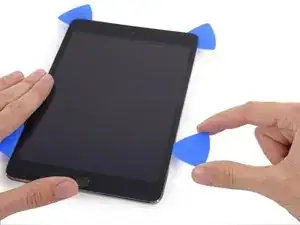
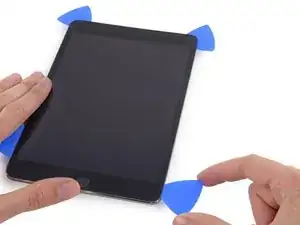
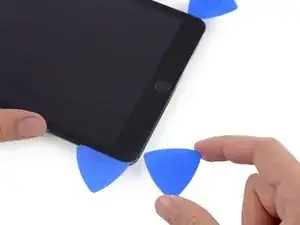
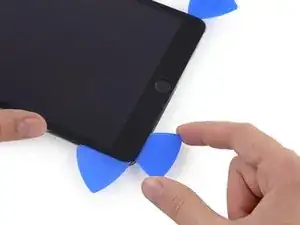
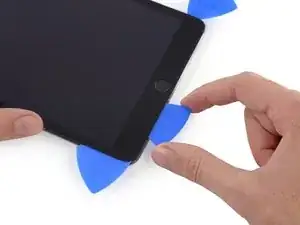
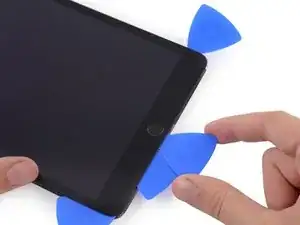
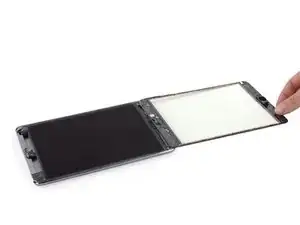
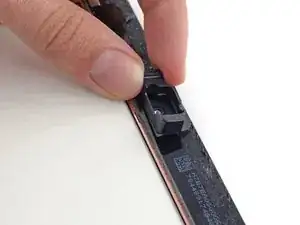
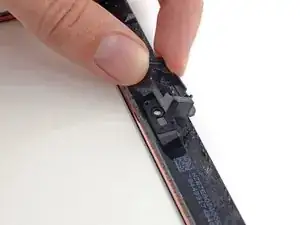
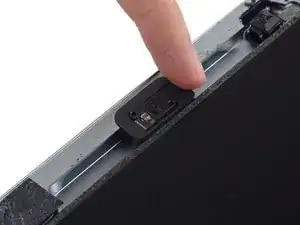
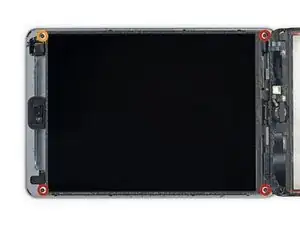
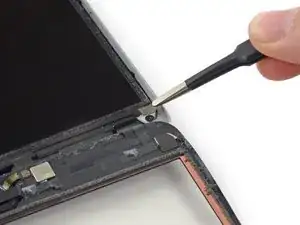
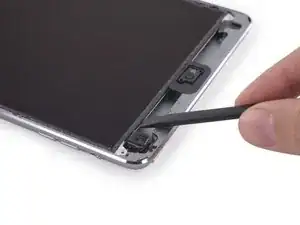
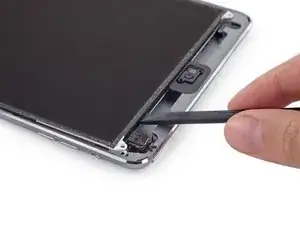
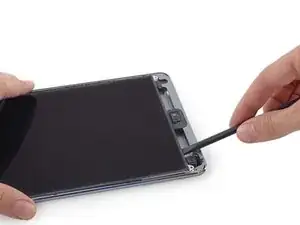
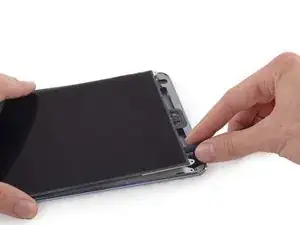
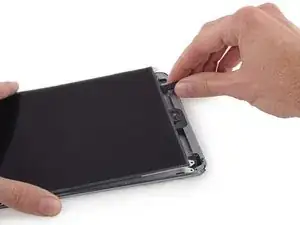
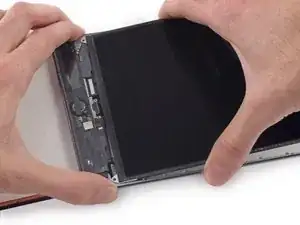
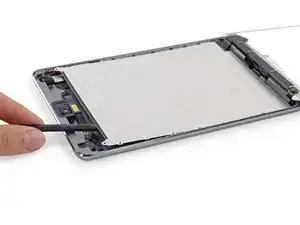
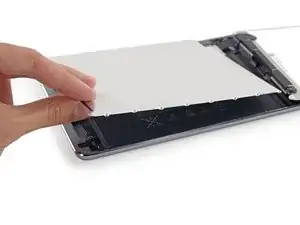
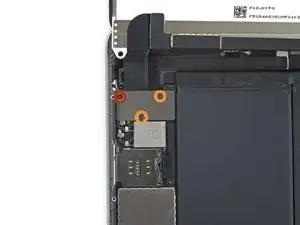
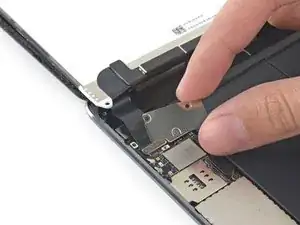
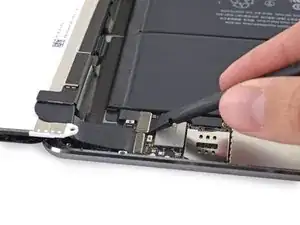
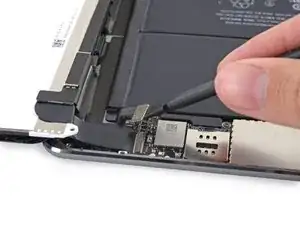
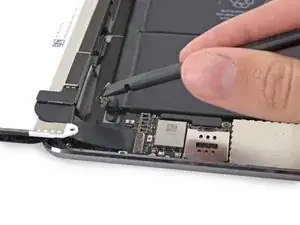
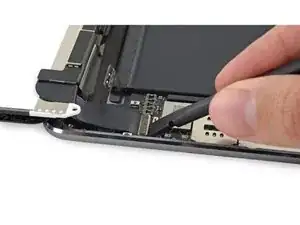
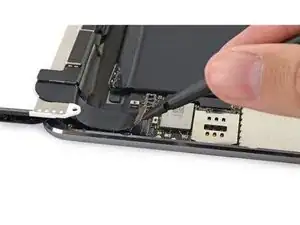
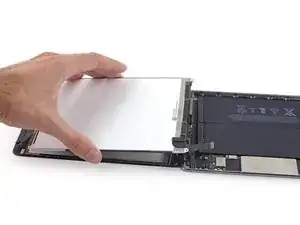
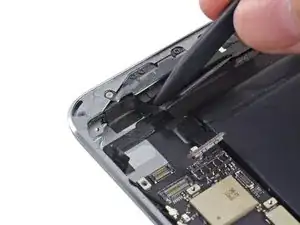
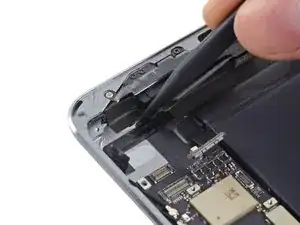
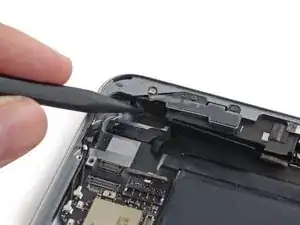
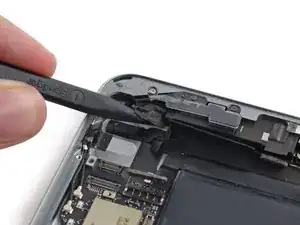
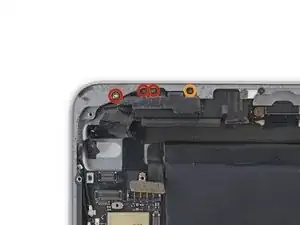
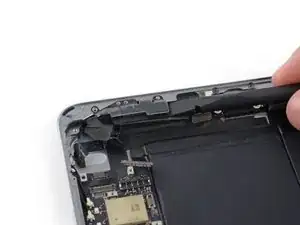
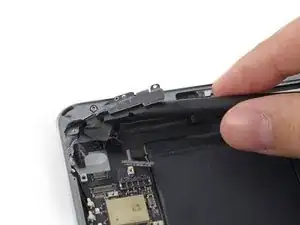
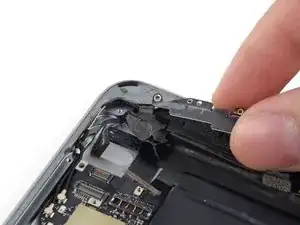
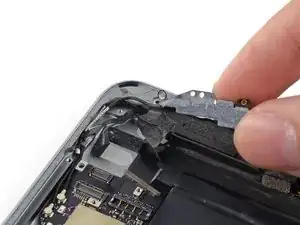
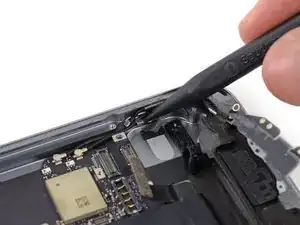
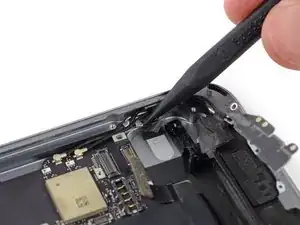
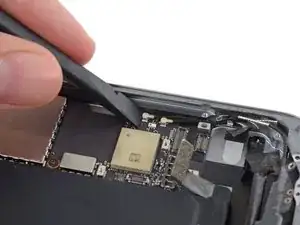
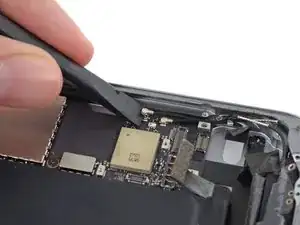
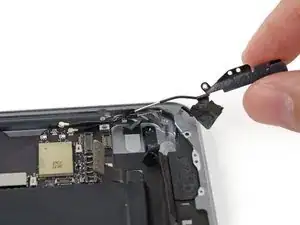
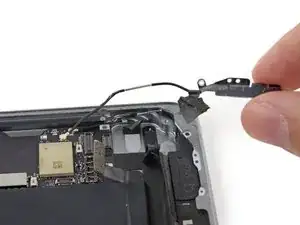
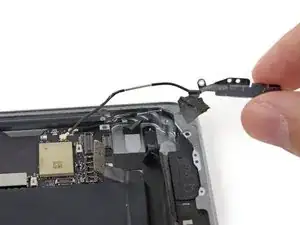
Diese Anleitung zeigt dir, wie du die rechte Antenne, die GPS Antenne, in deinem iPad Mini 2 LTE austauschen kannst.

Einige Teile der Anleitung wurden mit dem Wi-Fi Modell erstellt, die Innenansichten unterscheiden sich ein wenig vom LTE Modell. Das Verfahren ist aber für beide Modelle gleich, außer wo besonders vermerkt.

  1. PFpjwVSYrnq3JQap
    PFpjwVSYrnq3JQap
    RFsyoneYVYQDPSht
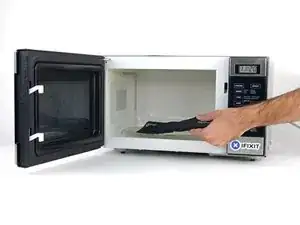
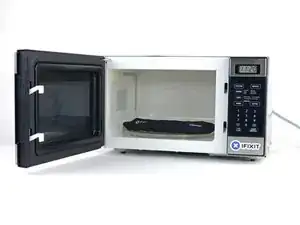
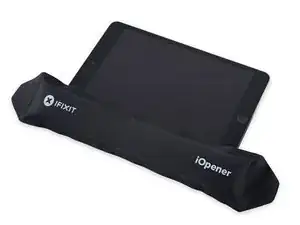
    • Wir empfehlen die Mikrowelle vor dem Gebrauch zu reinigen, da sonst Essensreste oder Ähnliches am iOpener hängenbleiben können.

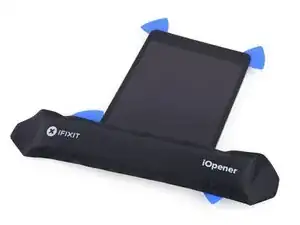
    • Lege den iOpener in die Mitte der Mikrowelle.

    • Für sich drehende Mikrowellen: Stelle sicher, dass der Teller sich drehen kann. Wenn der iOpener hängenbleibt kann er überhitzen und sogar Feuer fangen.

    I didn't find this to be as hard as I had built it up in my mind to be; HOWEVER, saying that I need to say years ago I was the local Nokia service center in my town. But many years ago right after they got rid of analog times. Yeah. A classic installer/repairer mistake when starting something they haven't fixed or installed before is picking up the instructions, flipping through them; maybe even reading a section that is new-then tossing the instructions over the shoulder. "I got this." This usually comes right before something major gets broke. And I can tell you when you try to do it yourself and then mess it up horribly then take it to the repair shop. Well we called that "I can do it myself" syndrome and charged extra to put back together what they brought in in the box. Now knowing all this - I can't stress this enough because I am stupid, stupid, stupid. COVER YOUR SCREEN IN CLEAR BOXING TAPE AND READ ALL THE INSTRUCTION BELOW THROUGH TO THE END BEFORE EVEN ATTEMPTING THIS FIX. Take my advise.

    windizy -

    I didn't have an iOpener, so I used a wheat type heat bag. If you do this though, make sure you put a layer of plastic between your Mac and the bag, or you'll get condensation in places you don't want it.

    Martin Gray -

    I started out using the iOpener but switched to my wife's hairdryer. A heat gun or hair dryer proved to be much more convenient and is a time saviour. You can heat more and the glue becomes more fluid make the next steps with the opening picks much easier

    Jan Van Puymbroeck -

    I know this is obvious, but backup your iPad with iTunes before you start. I'd also turn off your passcode if you have one.

    Laurie Higgins -

    Ther first time you heat up the iOpener for this repair when its room temperature I had to heat it up for more than 30 seconds. I remember I had to heat it up for around 45 seconds. However, after that when you need to reheat it again during the repair 30 seconds will be enough.

    Yousef Ghalib -

    I used the wheat bag in a sensor microwave heating up to 65-70 deg C (155 def F).

    ian cheong -

    Get yourself a cherry pit bean bag the size of your iPad. Heat it, put the iPad on it for 3 to 5 minutes or so, reheat the cherry pit bean bag, again put your iPad on it. Then heat the iOpener and start working. The cherry pit bean bag will have to be reheated several times, but it will soften the adhesive so you have less problems with the iOpener

    Tim Feyaerts -

    The heating can be done very effectively (and quickly) with 3d printer heated bed. Make sure the bed is clean. Set the temperature to 60c, (130f ) and put the ipad face down for +/- 10 minutes. Repeat as needed throughout the “gentle prying” stages.

    polleyphony -

    The iOpener did not work at all for me.

    I had to use a heat gun and bring the edges of the case up to ~200 degrees (used an infrared thermometer to measure) before the glue would weaken. This obviously superheated the metal frame, so I also had to wear gloves to handle the phone while prying the back off with the included picks.

    Mike Jeanette -

    Repair instructions worked like a charm. Had to be patient with the iOpener and getting the screen off. I tried repeatedly without success until shifting the suction cup a bit to the left side where perhaps the glue had loosened up a bit more.

    Kyle -

    The iOpener, in my opinion, is of no help. Many warnings to say “don’t warm it too much”, but the glue doesn’t melt if not warm enough. As a result, a complete waste of time and energy. In addition, too much liquid in it, so it doesn’t lay on the device on a sufficient surface. I took a hairdryer and it worked much much better.

    laurentvidu -

    I used an immersion bath to heat this to 180F and applied it to the device until the outside temperature of the opener read 150F with an IR thermometer. Removing the screen took very little force with this method.

    breadandbits -

    My experience. I was replacing the screen which had been cracked and a little shattered in some places. The iopener is pretty much useless, so was the suction cup. The suction cup would probably be more useful if I was doing something besides the screen. Also you probably want the clean the screen before using it so it can get good suction. I used a hair dryer on high for a couple of minutes at a time (someone on this tread suggested that). I used my exacto knife and a razor blade to get into the adhesive. First the exacto to get the initial cut, then the razor blade to go a little deeper. Could have probably just used the razor blade, but the exacto has a little more finesse. I got the razor blade in and a little under the glass then I used the picks to wedge in. I didn’t want to risk anything using the razor blade too much. Used tape to keep the shattered glass together.

    trebor65 -

    My experience pt2

    Fortunately the shattering was mostly on the edges and most of it had adhesive on the back so it stuck together. Just take your time and work your way around following the guide to get the screen off. Have some goof off or goo be gone to clean the frame when putting the new glass on or putting the existing one back. (someone suggested that also, very good idea). Be careful of the LCD (you should know that). The cable on my LCD was pretty tight, so I propped it up while taking the cable cover off and when I put it back on I did the same thing. I just put a bottle on the battery and leaned the back of the LCD on that while attaching the cables and putting the screws back on the cover. Also be careful with the home button and the bracket on the back of it. I had enough old adhesive on left on the bracket that it stuck back to the new glass fine. So far only 12 hours in, so we will see how that holds up when the kids get at it.

    trebor65 -

    Another alternative if you do not have the iopener is to use a bed time hotwater bottle. Do not over fill it though. Just put enough hot water in to support the phone while you work around the adhesive.

    I use both the hot water bottle and iopener together on Samsung's. It makes life easier

    gazza667 -

    I followed the directions and heated my iOpener for 30 seconds in a 1000 watt microwave, and it came out at 160 degrees F, as verified by a infrared thermometer. This allowed me to separate the last bit of the back of my Samsung S8, which was already coming off due to a swollen battery (hence the reason for the repair).

    Dennis -

    Hallo,habe den Akku erfolgreich getauscht.Doch seitdem gibt es bei Telefonaten eine Rückkopplung für den anrufenden.Bei mir ist alles normal.Woran liegt das?Mfg

    Manu R -

    If you follow these instructions, you will crack your screen like I did. Heating the iOpener for 30 seconds, using it to melt glue, then waiting 10 minutes to reheat is useless. The iOpener can be used to maybe warm the glue on whatever side you aren’t working on. You need a hairdryer and/or a heat gun to melt the glue and separate the glass from the iPad.

    Anyone want to buy an old iPad with broken glass and a dead battery?

    mpulliam -

    Not everybody has a microwave. You should provide a target temperature for the iOpener and instructions for a conventional oven, or pot of warm water, or whatever. Although I will probably use a heat gun …

    Esmond Pitt -

    Three times heating opener and no luck. Tried pressing down gently on opener with a towel, and the opener broke. Wondering if I now replace table mats, fancy table cloth, etc. or will this stuff wash out.

    Not impressed so far. Maybe the hair dryer next.

    doug -

    I support the comments about the iOpener. Everyone has a hair drier, FHS, so get a cheap IR thermometer (£18) and blow heat until the area is 60+ deg C. Still takes w while, and getting the screen off is v scary, but just add more heat if you feel resistance.

    The rest of the kit is good, esp the magnetic screwdrivers.

    Richard O'Brien -

    No, everyone does not have a hairdryer. Some of us don’t even have hair. Thank goodness I already had an IR thermometer, though.

    nin10doh -

    #### WARNUNG WENN MINIMALSTER SPRUNG IM DISPLAY IST FUNKTIONERT DAS NICHT!!! ######

    Hatte einen winzigen, minimalen Sprung im Display. Ich dachte es könnte gehen, weil der Sprung “abgeschlossen” war. Er hat in einer Ecke ein winzige Glasteil rausgeschnitten. NEIN! Geht nicht. Habe alles mit viel Geduld dem iOpener und einem Föhn erhitzt. Es ist trotzdem sofort über das komplette Display zersprungen…

    T z -

    I’ve started with iOpener but changed very quickly to a heatgun. That was more efficient.

    Mizzoo, s.r.o. -
    I could not get the iOpener hot enough to melt the glue on my ipad 6. I heated for 45 seconds once and it was boiling and it still never worked. Thank goodness contributors mentioned using a hair dryer. Using an 1700w hair dryer on high did the trick to get the screen off. Still took some time and the case got pretty hot but be patient. It took twice as long and a lot more patience to get the battery out.

    Randal Haufler -
    I have an Ipad with touch screen issue, if i replace this part it should be Ok?

    janderson martin -
    WARNING - DO NOT MICROWAVE ON A METAL MICROWAVE RACK
    The metal microwave rack can heat up and melt through the iOpener cover letting the contents leak out.

    Not a big issue for me as I have a heat gun and used that instead.

    Run Up A Tree -
    I opened my iPad with the iOpener. Be patient! It may take quite a bit longer to it the iOpener in the microwave than it says in the guide. My microwave can only do 800W and I had to put the iOpener in several times (maybe a total of 90-120 seconds). I recommend that you have the transparent side up an watch the bag carefully. As long a the bag doesn't bloat up and the liquid doesn't start bubbling you should be fine. But I recommend to take the iO out from time to time to check it. (More comments in Step 6.)

    marcelflueeler -

    I gave upon the I opener and used a hairdryer. (Fixed an iPad 6)

    Tom Weber -

    iPad mini gen5. I used the iOpener. My microwave is 1200w with carousel. 30 sec got the iOpener to 155ºF. For the 2nd heating, after 10 minutes sitting, the temp was still around 125º so I only cooked it for 15 sec. Not enough increase so +5 sec more which me to 165-170ºF. This should be considered ballpark info because who knows the real output of the various microwaves and the quality of the IR tool used to determine temp.

    To successfully open my iPad mini I applied the iOpener twice to the left edge and twice to bottom. & once to R edge. Using the suction cup was difficult for me (I'm in my 70's so my hands don't work too well anymore). I had trouble holding the guitar pick and slipping them in (at an downward angle). In the end, sliding my thumbnail along the edge opened it very slightly and allowed the pick to get into the gap. I marked the ends of all my picks with a sharpie pen for the recommended 2mm insertion to avoid going in too deep. To get the screen open it took me approx 1 hour.

    jharrison -

    Can’t you just use a hair curler instead?

    Aspect22 -

    A hairdryer or heat gun works, if heating is kept around 100 deg C (212 deg F - boiling point of water). But… heating this way is cumbersome. Using a hotplate, set to 100 deg C, measured carefully with a fairly inexpensive IR gun, is simpler and easier, if you can afford the hotplate (I used an old pancake griddle with a thermostat knob). It works great for phones, setting them face down for 2 minutes, then picking them up with insulated gloves - cheap, wool gloves work fine. This may require repeated reheating to continue the display removal, but its much simpler.

    Because its almost impossible to repeatedly lay an iPad/tablet on the hot plate, I propose an alternative.

    Initially lay the larger iPad/tablet, face down, for 2 min, to heat all of the adhesive surrounding the display. Lift and begin the picking process describe in your removal steps. Then lay an iOpener on the hotplate for 2 min (already set to the exact, desired temp) to bring it to working temp for the remaining operations.

    Dan Smith -

    For iPads in particular, it makes sense to construct a simple, aluminum window frame, laid on a hotplate (see my comment above) that only touches the edges of the display, heating only the adhesive underneath. This prevents general heating of the entire device. Four strips of aluminum, placed together as a frame, would be the simplest and allow variations for all devices - envision it as a pinwheel of strips, radiating outward. Use it for any size device.

    Dan Smith -

    BTW, always read all comments at each step. New, and possibly useful, suggestions appear on occasion that can be crucial.

    Dan Smith -

    My iOpener got damaged at the first heating (30 s @ 800 W). The bag got a little melted hole where the liquid came out and a little melted area. I used a combination oven (normal heat and microwave) in microwave only mode. It has a metal grill where the iOpener was placed on. I suppose the metal grill concentrates the microwaves at some points and there the bag melted?

    K. Fe -

  2. ylYXoFMbBeXNAIyj
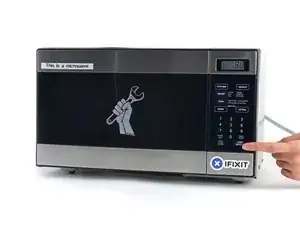
    • Erhitze den iOpener für dreißig Sekunden.

    • Je nach Leistung deiner Mikrowelle kann es etwas mehr oder weniger lang dauern. Der iOpener soll so heiß sein, dass du ihn kaum noch anfassen kannst.

    • Im Verlauf der Reparatur kühlt sich der iOpener wieder ab. Erhitze ihn dann noch einmal für dreißig Sekunden.

    • Achte darauf, den iOpener während der Reparatur nicht zu überhitzen. Eine Überhitzung bringt den iOpener möglicherweise zum Platzen. Erwärme ihn nicht über 100°C.

    • Berühre niemals den iOpener, falls er aufgeschwollen aussieht.

    • Falls der iOpener in der Mitte immer noch zu heiß ist, um ihn anzufassen, dann benutze ihn weiter, bis er ein wenig herunter gekühlt ist, bevor du ihn erneut erhitzt. Ein ordnungsgemäß erhitzter iOpener sollte für bis zu 10 Minuten warm bleiben.

    I had to heat mine up for more than 30 seconds. After 30 seconds on high it was only warm. It had to keep trying different times and checking it until it got hot. I think the initial time that I put it in for was over a minute.

    whale13 -

    DO NOT USE IN NON ROTATING MICROWAVE! It will pop a hole. I had it in for 45 seconds the first time. It wasn't very hot inside and I saw it started to leak on the paper towel I put under it. Just a fair bit of advice. I think I will just stick with the heat gun. Loud but useful.

    Alex Jackson -

    I heated mine up for 30 seconds, tested, then again for 30 seconds. It felt adequately hot. Leaving it on the left side, per the instruction, for a minute did not loosen the adhesive. I ended up pulling the suction cup hard enough to shadder the old screen. Moral of the story, I don't think it gets hot enough safely to have an affect.

    Travis Dixon -

    There is a clear problem here with the heating part using the iopener things....no details are given. Whoever is testing them needs to make it clear - What temperature does it need to be? And for which phone models, because they differ in what's needed. It's only £10-15 for a laser guided temp sensor unit, and the designers/repairers should have one of those already for doing these kinds of repairs. Explaining half a repair, is worse than not explaining at all :-(

    assortedrubbish -

    All phones/devices differ it’s unrealistic and unsafe to put a exact time/temperature needed to soften the adhesive. It’s really quite simple you warm the device evenly and in a controlled manner just enough to enable pry tools and picks to begin separating. Best tool in my opinion but again this is because I have experience is a hot plate and heat gun both of which are used at nearly the lowest settings and I can handle flat palming the plate for almost 10 seconds I leave the device to conduct heat until approx it’s about 110 at most 120 ish this will be plenty to soften all the adhesive if any problem areas I use heat gun while prying. Again you need go slowly and learn with a throw away phone

    Greg Latta -

    I used a hot water bottle, works well as it covers the whole screen and stays hot for longer.

    dave -

    Now that is a very good idea :) I was going to use a hairdryer

    Maz -

    If I may suggest include your microwave wattage so people can get an idea on time for there own

    Patrick Storey -

    I agree with this.

    Jarl Friis -

    I ended up using a hair dryer. That iOpener thing took forever.

    mark fitzgerald -

    30 seconds sure isn’t cutting it… 45 didn’t get the screen of my iPad air 2 to budge either… even after resting on the ipad for 4 minutes.

    60 seconds in the microwave, the iOpener burst.

    I’ll get a new one and try once more with heating it 45 seconds and repeat that for 30 minutes like others have said here. If that doesn’t work it’ll have to be the heat gun.

    K

    Karl Marble -

    I can’t recommend the microwave. If the the iOpener becomes too hot, it bursts. Better put the opener in cooking water. Dry it and use it. Instead of an iOpener you can use hot/cool packs as well.

    Bernhard Keim -

    Great idea with using the heat packs. I will try that next time. Thank you

    Collins -

    Trust the directions! I forgot and left it in the Microwave too long and after 1 minute I had Mt Vesuvius - the iOpener burst and spewed the goodies out. The problem is, the Digitizer can be damaged by a hot air gun, so I had to tough out and remove the glue the hard way. I made it … with lots of patience! Tough lesson.

    Larry Bennett -

    I also used a hairdryer. I used it on the low setting and I cut a piece of carboard to protect the rest of the screen. The iFixit tool and method is vert tedious and very time consuming in comparison. With the hairdryer method you can literally have the display apart in a few minutes. Using your other hand nearby the area you are heating it should be very hot but not enough to burn your hand. You only have to heat metal part of case near glass edge. If you have a cellular model then you need to be very careful because the black antenna area is plastic. So less heat and work your way up in adding heat just enough to separate around the area but not so much you melt the plastic!

    Fixrights -

    iOpener was the worst part of the kit. Followed directions for :30 in microwave and took 4 trips to the microwave to loosen adhesive on left side of home button. I thought I was figuring it out and it was working well… even set a timer to wait 10 minutes between heating it up. Was on the right side and was on my 12th heat up when it exploded in the microwave. My only tip is that if you set it clear side up, as soon as you see any bubbles or boiling in the liquid, STOP! If you put a pot holder over the iOpener and press slightly to make good surface contact, that seemed to help. I finished heating with a “Corn Sack” that held heat better than the provided iOpener.

    digital_only -

    Mon iopener n'a pas tenu une réparation. Je ne vous conseille pas ce produit

    Berard Romain -

    Bonjour,

    Nous sommes désolés que votre réparation ne se soit pas déroulée comme prévu. Il se peut que le produit était défectueux. Veuillez contacter notre service client support@ifixit.com (boutique américaine) ou eustore@ifixit.com (boutique européenne) en décrivant ce qui s’est passé.

    Claire Miesch -

    Readers looking for temperature advice might check the comments of the previous instruction, as there are more there. I used an immersion bath to heat this to 180F and applied it to the device until the outside temperature of the opener read 150F with an IR thermometer. Removing the screen took very little force with this method.

    breadandbits -

    Thank you for posting some actual temperatures. I have a heat gun with a very fine self-temperature regulation setting capability.

    I will set it for 150-180 F, and use that to soften the adhesive.

    G Trieste -

    Get a heat gun.

    alesha adamson -

    I followed the directions and heated my iOpener for 30 seconds in a 1000 watt microwave, and it came out at 160 degrees F, as verified by a infrared thermometer. A second heating about 15 minutes later in the micro and it came out at 190 degrees F. Plenty hot enough to soften the adhesive for removing the back on my S8. Based on the comments above I think people just need to use more patience.

    Dennis -

    I used various time settings. It got very hot. It would soften the glue but not a whole lot. If my screen had been intact and I was replacing something that was not a digitizer, it may have worked. A broken screen makes the process significantly more difficult. I ended up breaking the home button cable. Good bye TouchID…

    cvela90 -

    After reading previous comments I didn't even use the i-opener. Used the heatgun ( hairdryer ) which works great for me. Maybe I was lucky as this is my first attempt at replacing a cellphone battery. Motoz 3

    Collins -

    It appeared 30 seconds were not enough, so I heated it more, by 5 seconds at a time until I got the right temperature about 70 degrees Celsius (measured with infrared pistol) to get the screen heated up to 60 C, the best for softening the glue. But the heat was quickly dissipating by the big aluminum back cover, so the best I got in 2 minutes of applying iOpener was around 45 C, which made the procedure difficult and having risk of breaking the screen. So I eventually abandoned iOpener and user a hot air gun with precise temperature setup. I set it to 90 C, which allowed me to open my iPad quickly and safely.

    Sergey Kofanov -

    I, too, ended up using a hot air gun. I’ve done earlier versions of iPad before but the adhesive used on this IPad 5 A1822 was particularly difficult to remove.

    Also, while the suction cup worked great when the glass is in tact, any cracks in the glass make the suction cup useless.

    manningrl -

    You need to remember here are different sizes of microwaves. I had the same issue.

    Heating on a smaller unit I used 45-60 seconds. That worked but was time comsuming

    William Draheim -

    Yeah, the iOpener didn't work for me either.... ended up using a hair dryer and that worked. The iOpener was too warm to soften the glue in my case.

    Andrés Vettori -

    I had a rotating plate microwave for my repair, and heating the iOpener 30-40 seconds worked plenty well for me.

    Ciarán -

    I tried 600W microwave for 30 sec and it was nicely warm, did nothing on iPad. Added 10 more sec, bit warmer, another 20 sec and it was finally a bit hot to hot in the hand - but still didn't do anything on iPad. I switched to a hair dryer as I used to work with it before, while being a bit sad about not using this brand new iOpener tool. And I found it short on 12.9 iPad anyway, maybe next time.

    Liibo -

  3. Q3OPkaQyxV6cdnx3
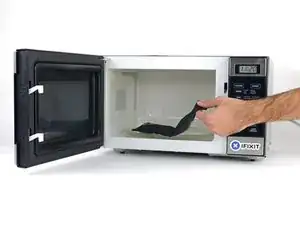
    • Halte den iOpener an einem der flachen Enden und vermeide die heiße Mitte, während du ihn aus der Mikrowelle nimmst.

    • Der Beutel wird sehr heiß, sei vorsichtig beim Gebrauch. Lege dir am besten einen Topflappen bereit.

    I did this repair. I used a hair dryer, I think it works better: gets very hot fast.

    Cobus de Beer -

    I did too, you get far more control and no expense on fancy equipment.

    Billinski -

    Readers looking for temperature advice might check the comments of the previous instruction, as there are more there. I used an immersion bath to heat this to 180F and applied it to the device until the outside temperature of the opener read 150F with an IR thermometer. Removing the screen took very little force with this method. I don’t know how much microwaves vary in heating consistency with these pads, but knowing how inconsistent the temperature of a bowl of plain rice gets in my microwave, I wasn’t interested in even trying to use it for this.

    breadandbits -

    I used an electric griddle set to the lowest setting. It seemed to work very well.

    John -

    I vote for the hair dryer. The other methods work too but if you aren’t having any luck, switch to the hair dryer. While holding the iPad in my hand, I found that I am aiming the dryer at my finger at the same time and it gauges how hot it is. I stop when my finger can’t take it - maybe five seconds up close. Repeat as needed like I did.

    Robin -

    This thing melts when placed up side down in the microwave…

    Mark -

    If the maximum temperature for this iOpener is lower than the gadget glue minimum temperature, this device does not make sense.
    I think the maximum temperature for this iOpener is below 100⁰C and most gadget glue minimum temperature is higher than 100⁰C. So the iOpener is useless for many opening steps in repair guides. But who knows because temperature range is not specified for this iOpener.

    Jarl Friis -

    Unfortunately, my iOpener broke after using it in the microwave. I carefully followed the instruction, did not even reheated for longer than 20 seconds and paused after using. But this did not prevent a leaking hole at one end on the upper side.

    It's rather hard to indicate the temperature in the microwave, as it counts in Watts not in Degrees. I just ordered another and will switch to boiling water method. Hopefully, it will not break that fast again.

    I used it to open a SP6 Pro, and I need to reheat the iOpener several times and did not yet get the glue warm enough to get the pick underneath the display.

    Roman -

  4. 2Nj3CEcEUHn2EtLQ
    2Nj3CEcEUHn2EtLQ
    lgRIBJjmHo2vTdda
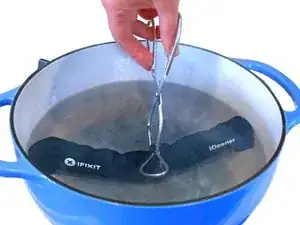
    • Solltest du keine Mikrowelle haben oder benutzen wollen, folge diesem Schritt, um den iOpener in kochendem Wasser zu erhitzen.

    • Fülle einen Topf oder eine tiefe Pfanne mit ausreichend Wasser, um den iOpener komplett damit bedecken zu können.

    • Erhitze das Wasser (ohne den iOpener) bis es kocht. Schalte die Wärmezufuhr (Platte) aus.

    • Lege den iOpener für etwa 2-3 Minuten in das heiße Wasser. Stelle sicher, dass der iOpener komplett mit Wasser bedeckt ist.

    • Nimm den iOpener mit einer Küchenzange aus dem Wasser heraus.

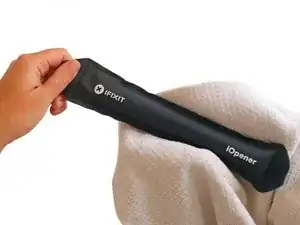
    • Trockne den iOpener gründlich mit einem Küchen- oder Handtuch ab.

    • Der iOpener speichert die Hitze, und ist daher sehr heiß. Sei vorsichtig, und halte den iOpener nur an den Endlaschen, nicht in der Mitte.

    • Der iOpener kann jetzt verwendet werden. Solltest du den iOpener erneut erwärmen müssen, erhitze das Wasser nochmal bis zum Siedepunkt, schalte die Wärmezufuhr aus, und lege den iOpener wieder für 2-3 Minuten vollständig in das Wasser.

    What do I do if I don’t have a iopener?

    alexdelarge103@gmail.com -

    Use a hair dryer

    Edited To the max -

    2 or 3 cups Rice in a sock, heat for about 2 minutes. But, I recommend the iopener.

    Robert Garcia -

    When boiling in water you can put the iopener in a ziplock to keep it dry.

    Robert Garcia -

    Even if you don't put in a ziplock bag, I found that the surface is mostly hydrophobic so drying it is very easy. I also didn't have tongs, but the bag is denser than water, so it sank and I attached clothes pins to the ends and was able to remove it with those.

    Jack Adrian Zappa -

    2-3 minutes in near boiling water, then 2-3 minutes on my s10+ and it was super easy to cut the glue off.

    Kipras Bielinskas -

    I have a question, if I have a pan, and I have water, and a mean to boil the water, won't it be easier and cheaper to just use that.

    Ollie Tan -

    Have you tried it? Water limits your temperature to 100℃, whereas 'pan on the stove' can easily get up to twice that. If your pan is even slightly warped, you'll have a few hot spots of direct conduction with convection everywhere else, heating things unevenly. Assuming you get the device up to temperature, how will you get it out without scratching it or burning yourself? After you're finished, do you really want to prepare food in the pan you warmed up adhesives and trace manufacturing substances in?

    .

    Boiling something form fitting to heat your device with is a lot more foolproof, and not being foolish is easier and cheaper. Direct pan heating can work, but you are leaving yourself open to a lot more problems than just taking the safe route.

    James Beegle -

    add a little basil and oregano on the pan peanuts cashews walnuts and bam it pops right off

    david pride -

    It's more 3 minutes than 2 minutes in hot water, in 2 minutes it's not getting hot enough I think. I used the combo iOpener + hair dryer for about 2 minutes and I could then insert a first opening pick easily. The first opening pick is the trickiest step, then if you go slowly and with patience around the screen with other opening picks, it works well.

    vincent becker -

  5. tTb1dDKSaGoKfuyF
    tTb1dDKSaGoKfuyF
    Dps1mvmo2P52bwQL
    u5lPtG2MA1hNMwKc
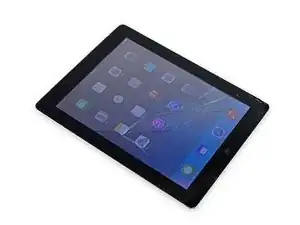
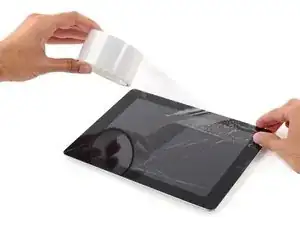
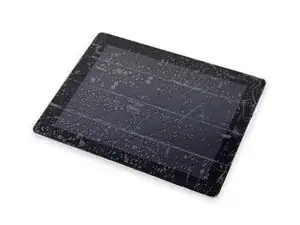
    • Wenn dein Display-Glas gebrochen ist, dann klebe es vorsichtshalber ab, um eine weiteres Zerbrechen und Verletzungen zu vermeiden.

    • Lege sich überlappende Streifen von durchsichtigem Klebeband über das Display des iPads, bis der gesamte Bildschirm bedeckt ist.

    • So können sich keine Glasscherben ablösen und es hilft dabei, das Display vom iPad zu entfernen.

    • Gib dir Mühe dem Rest der Anleitung wie beschrieben zu folgen. Denn sobald das Glas einmal gebrochen ist, wird es weiterhin brechen, solange du daran arbeitest und dann benötigst du möglicherweise einen Metallspatel, um das Glas herauszuheben.

    • Trage eine Sicherheitsbrille, um deine Augen zu schützen, und sei vorsichtig, damit du den LCD Bildschirm nicht beschädigst.

  6. tQHKoioft2C2Cbsy
    • Halte den erhitzten iOpener an seiner Lasche und lege ihn auf die Seite des iPads links von der Home Button Einheit.

    • Lasse den iOpener für ca. 5 min auf dieser Seite liegen, um den Kleber unter dem Glas aufzuweichen.

  7. aywS5BDp3KKcuCLn
    aywS5BDp3KKcuCLn
    VxMnbCa2doisSOdB
    FjRhAp3MYbwZmbMU
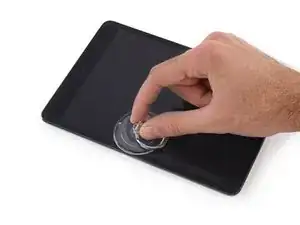
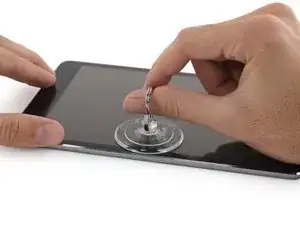
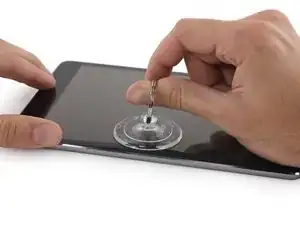
    • Platziere vorsichtig einen Saugheber etwa auf der Mitte der erwärmten Seite.

    • Achte darauf, dass der Saugheber komplett flach auf dem Bildschirm aufliegt, damit er gut haftet.

    • Halte das iPad mit der einen Hand nach unten nach unten und ziehe gleichzeitig den Saugheber mit der anderen Hand ganz vorsichtig nach oben, um das Front Panel Glas vom Rückgehäuse zu lösen.

    • Achte darauf, dass du das Glas nur so weit anhebst, dass du ein Plektrum dazwischen setzen kannst – je weiter du das Glas anhebst, desto mehr riskierst du eine Beschädigung des Glases.

  8. U3MksSSyeCJkofMc
    U3MksSSyeCJkofMc
    igKtd6N3KoQCFkOO
    FOZxGfKuC13KBNrk
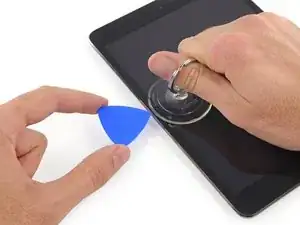
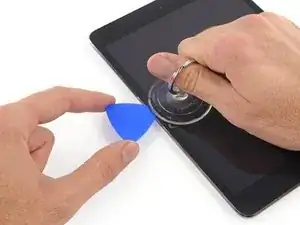
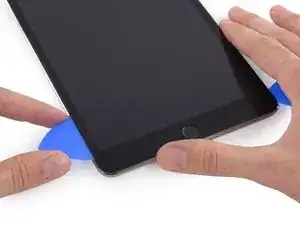
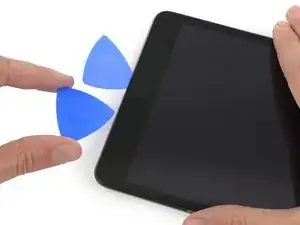
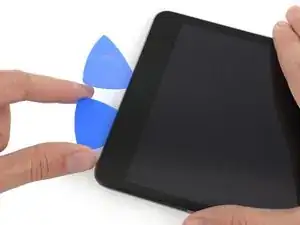
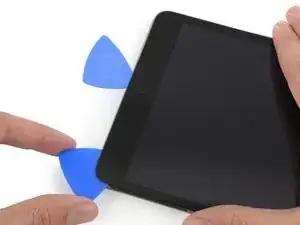
    • Während du das Glas mit dem Saughebe hochhältst, schieb die Spitze eines Plektrums in die Lücke zwischen Glas und Rahmen des iPad.

    • Schiebe das Plektrum nicht weiter, als der schwarze Rand des iPads breit ist. Wenn du das Plektrum zu weit hineinschiebst riskierst du eine Beschädigung des LCDs.

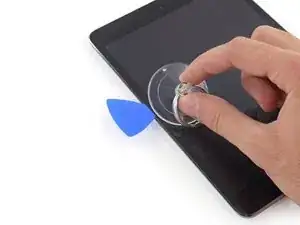
    • Ziehe nun an der Plastiknoppe des Saughebers und löse ihn vorsichtig von der Displayeinheit ab.

  9. bTCAqT5WBc4HR31i
    • Erwärme den iOpener erneut und lege ihn an dieselbe Stelle wie zuvor.

    • Achte darauf, dass du den iOpener während der Reparatur nicht überhitzt. Warte immer mindestens zehn Minuten, bevor du den iOpener erneut erhitzt.

    • Lasse den iOpener eine Weile ruhen, um die linke Kante des iPads erneut zu erhitzen.

  10. niZrKXuwZfjKEWUs
    niZrKXuwZfjKEWUs
    jvOxRqxLOsPUDvQj
    xJoYJWVPviY4pCAA
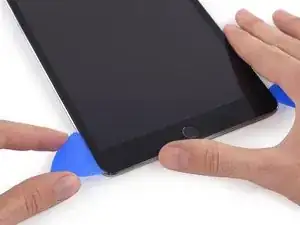
    • Platziere ein zweites Plektrum neben dem ersten und schiebe es an der Kante des iPads nach unten und löse dabei den Kleber.

    • Wenn du im weiteren Verlauf auf starken Widerstand triffst, um die Plektren unter dem Glas entlang zu schieben, dann halte an und erhitze den Bereich erneut, an dem du arbeitest. Die Plektren mit Gewalt zu verschieben, kann dazu führen, dass das Glas bricht.

  11. lDdhmi6N6RVCGtbH
    lDdhmi6N6RVCGtbH
    EtOCI4WYxyqgFEGZ
    qTKUcQgYRA2WjEmi
    • Verschiebe das Plektrum an der Displayseite nach unten und trenne dabei den Kleber auf.

    • Falls das Plektrum am Kleber hängen bleibt, dann "rolle" das Plektrum an der Seite entlang und trenne so den Kleber weiter auf.

  12. Ur3MeCd6PXDyOoWY
    Ur3MeCd6PXDyOoWY
    yVWsrEhSRCr6RowV
    4MsxmGKjtR6urGV6
    • Nimm nun das erste Plektrum, das du eingesetzt hattest, und schiebe es zur oberen Ecke des iPads.

    • Erschrickt nicht, falls du die Spitze des Plektrums unter dem Frontglas siehst – ziehe es einfach ein wenig heraus. Im Normalfall ist dann alles in Ordnung, aber versuche es zu vermeiden, da es vorkommen kann, dass so Kleber an auf die Vorderseite des LCDs kommt, der schwer zu entfernen ist.

  13. pZYokiUWii14phQR
    • Erhitze den iOpener erneut und lege ihn auf die Oberkante des iPad, über die Frontkamera.

    • Achte darauf, den iOpener während der Prozedur nicht zu überhitzen. Warte immer mindestens zehn Minuten, bevor du den iOpener erneut erhitzt.

    • Falls du einen flexiblen iOpener besitzt, kannst du ihn biegen und die obere linke Ecke und die Oberkante des iPad gleichzeitig erhitzen.

  14. bUYa2Px1AiNusqHH
    bUYa2Px1AiNusqHH
    YolMsuDCrRP5AFYx
    HJGUTTguNADvU4fS
    • Schiebe das Plektrum um die obere linke Ecke des iPad, um dort den Kleber aufzutrennen.

  15. HMtdN13wYFITJcCE
    HMtdN13wYFITJcCE
    yNDIj2kOdQ2ZNel5
    BfL2iBmADVKOZKED
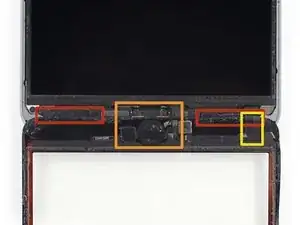
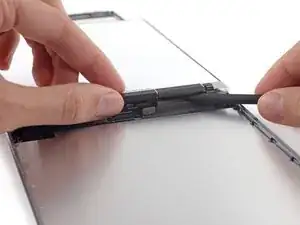
    • Schiebe das Plektrum weiter an der Oberkante des iPads entlang, aber halte an, bevor du die Frontkamera des iPads erreichst.

    • Das dritte Bild zeigt, wo sich die Frontkamera und ihr Gehäuse im iPad befinden.

    • Vermeide es das Plektrum über die Frontkamera zu schieben, da dabei möglicherweise Kleberückstände auf die Linse der Kamera kommen könnten, oder du sie beschädigst. Die folgenden Schritte zeigen dir, wie du es am besten vermeidest mit der Frontkamera in Berührung zu kommen.

  16. lvRRok4HUOZAkvHk
    lvRRok4HUOZAkvHk
    rnNUv3ayj2FotMBC
    rCBmEYNMcyImPSQ6
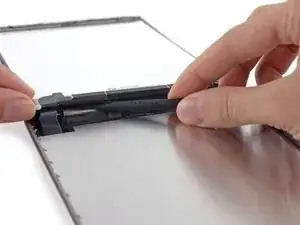
    • Ziehe das Plektrum etwas heraus und bewege die Spitze des Plektrums vorsichtig am oberen Ende des Bereiches der Frontkamera an der Oberkante vorbei.

  17. njvWSIkflJEe4oJI
    njvWSIkflJEe4oJI
    PBdJXJl2QNjE3DbZ
    6ELDwnfHGneRUWaP
    • Lasse das Plektrum nun kurz hinter der Frontkamera stecken.

    • Nimm dir ein zweites Plektrum und schiebe es links von der Frontkamera zwischen Gehäuse und Bildschirm, wo sich das andere Plektrum zuvor befand. Schiebe es zurück zur Ecke, um allen Kleber aufzutrennen.

    • Lasse das zweite Plektrum wo es ist, damit der Kleber während des Abkühlens nicht erneut Glas und Gehäuse verbindet.

  18. 1Ay2doECHTIuLCPo
    1Ay2doECHTIuLCPo
    3HAocCfA32DOZB1J
    cAdFdqTldCyxFJhj
    • Schiebe nun das vorherige Plektrum tiefer in das iPad hinein und schiebe es von der Kameraweg und zur Ecke hin.

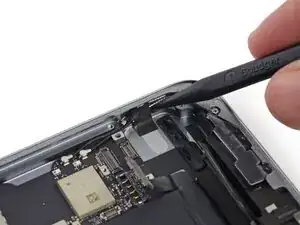
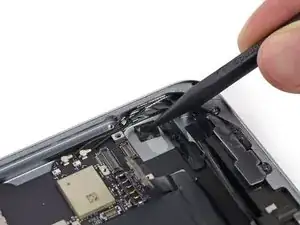
    • Achte genau auf das kleine Antennenkabel nahe der oberen rechten Ecke. Schiebe das Plektrum immer weg von der Kamera — wenn du es in die entgegengesetzte Richtung schiebst, kannst du versehentlich das Antennenkabel beschädigen.

    I broke the “small antenna cable”. Should have paid more attention to the fact that the LTE model is different from the WI-FI model. I have the LTE version. Oh well. I didn’t discover the break until reassembly so we’ll see what I’ve lost.

    Leon -

    I broke this cable too. Even though I’d read through this section before I got to it, when I was actually going through the process (with these photos and the text to hand) I didn’t appreciate the danger. If the photo linked to in the warning paragraph (showing the pick caught underneath the cable) was included in the main photos I’m very confident I’d have known exactly how to avoid the problem. It’d be worth tweaking the way this bit is presented. Thanks for the guide.

    Graham -

  19. JSlirTxaDc5XQ3lX
    • Belasse die drei Plektren in den Ecken des iPad, um zu verhindern, dass die Ecken erneut verkleben.

    • Erhitze den iOpener erneut und platziere ihn auf der übrig gebliebene lange Seite des iPad – über der Power- und den Lautstärketasten.

  20. 4sAF6IwncXYqQ2yr
    4sAF6IwncXYqQ2yr
    PSWn2W6JGQLIBcYI
    • Schiebe das obere rechte Plektrum um die Ecke, um die Oberkante des Glases vollständig abzulösen.

    • Belasse dieses Plektrum an seinem Platz, um ein erneutes Verkleben zu verhindern, und nimm dir ein neues Plektrum für den nächsten Schritt.

  21. D3jHHxya4ZIYTJKs
    D3jHHxya4ZIYTJKs
    pIKOrVuTTHFvnhGY
    RSE3mqsOkmJEc4Px
    • Setze ein neues Plektrum ein und schiebe es in die Mitte der rechten Seite des iPads und löse so den Kleber.

  22. 3RfwFHFvIIqW5AkN
    3RfwFHFvIIqW5AkN
    sXdm1xIKxJbGPe5q
    FjUAOPyUPCIuEKIU
    • Schiebe das Plektrum weiter an der rechten Kante des iPads nach unten, um den Kleber aufzutrennen.

  23. 2XkPAlUxl3yLYvFA
    • Belasse die Plektren an Ort und Stelle und erhitze den iOpener erneut.

    • Denke daran den iOpener nicht zu überhitzen – erwärme ihn nicht öfter als höchstens einmal in zehn Minuten.

    • Lege den erneut erhitzten iOpener an die Seite mit dem Home Button und belasse ihn dort für ein paar Minuten, um den Kleber unter dem Glas zu lösen.

  24. IDDKtZaXDg6OZleY
    IDDKtZaXDg6OZleY
    2APsCFLfDaSFYShO
    iYABwZHGDPCGVHYd
    • Schiebe das untere linke Plektrum zur unteren linken Ecke, um auch dort den Kleber zu lösen.

    • Belasse das Plektrum an dieser Ecke. Bewege es nicht weiter und ziehe des Plektrum nicht heraus.

    • Unter der unteren Einfassung gibt es einige Komponenten, die vermieden werden müssen, sieh dir also das dritte Bild genau an:

    • Antennen

    • Home Button Vertiefung

    • Touchscreen-Kabel

    • Die folgenden Schritte werden dir zeigen, wo du vorsichtig sein musst, um eine Beschädigung dieser Komponenten zu vermeiden. Heble und erwärme nur an den angegebenen Stellen.

  25. ZSGVNvsibO1nYx25
    ZSGVNvsibO1nYx25
    mS6QEbtVc5AmVrPJ
    u34rkMoqLBLTuU6B
    • Belasse das Plektrum des vorherigen Schrittes dort wo es ist, um das erneute Verkleben der Teile zu verhindern.

    • Schneide mit einem neuen Plektrum vorsichtig über die linksseitige Antenne und stoppe vor dem Home Button.

    • Schiebe das Plektrum nur von der äußeren Ecke in Richtung Mitte des iPad. Ziehe es nicht zurück in Richtung des äußeren Rands, da du ansonsten die Antenne beschädigen könntest.

    • Falls du das Plektrum mehrmals durch den unteren Bereich schieben musst, dann ziehe es heraus, führe es erneut an der äußeren Ecke ein und schiebe es nach innen.

    • Belasse das Plektrum dort, bevor du weitermachst.

  26. gwDYrXpgXXHTCD1M
    gwDYrXpgXXHTCD1M
    ZqTFknvgvjovgxDd
    3ZRlYCDHbNJPqZjC
    • Schiebe die Spitze eines letzen Plektrums neben das Plektrum, dass du zuvor eingeführt hast und schiebe es unter den Home Button.

    • Stoppe etwa 2,5 cm vor der rechten Seite, um eine Beschädigung des Touchscreen-Kabels zu vermeiden.

    • Führe das Plektrum nun vorsichtig etwas weiter hinein und arbeite dich zurück in Richtung Home Button.

    • Achte darauf, das Plektrum nur dann in Richtung Mitte des iPads zu schieben, wenn es vollkommen eingesetzt ist, sonst beschädigst du möglicherweise die Antenne unter dem Glas.

  27. BlnxFPSeQUlAruKU
    • Erhitze den iOpener erneut und lege ihn auf die obereEinfassung des iPads.

  28. Ig1DIEr25SjulBWQ
    Ig1DIEr25SjulBWQ
    Wx5bfiLMbg2I6Ou6
    • Sei besonders vorsichtig bei diesem Schritt. Nimm dir Zeit und stelle sicher, dass der Kleber heiß und weich ist. Achte außerdem darauf, dass du überall mit dem Plektrum entlang gegangen bist, um den Kleber zu lösen. Scheue dich nicht davor anzuhalten und alles erneut zu erhitzen.

    • Am oberen Rand des iPad, gegenüber des Home Buttons, solltest du in jeder Ecke ein Plektrum eingesetzt haben. Drehe die Plektren, um das Glas vorsichtig anzuheben, so löst du den letzten Rest des Klebers an allen vier Ecken.

    • Falls du einen starken Widerstand spürst, höre auf die Plektren zu drehen. Belasse sie, wo sie sind, erhitze den iOpener erneut und lege ihn erneut auf die Problemzonen. Nun kannst du die Plektren durch die vorher schwierigen Bereiche ziehen.

  29. QqUXZZWsJEWetEBc
    QqUXZZWsJEWetEBc
    xyDL2XRYqMktntZf
    • Hebe es weiterhin vorsichtig und langsam an, um den Kleber an der unteren Kante zu lösen.

  30. A6nVinsoPqipEgAu
    A6nVinsoPqipEgAu
    YOhEQlxuLKVEnFcW
    • Sobald der gesamte Kleber entfernt ist, klappe das Frontglas wie eine Seite in einem Buch auf und lege es auf deinen Arbeitsplatz ab.

    • Wenn du vorhast, deine Front Panel Einheit wiederzuverwenden, musst du die Display-Klebestreifen ersetzen. Folge unserer Anleitung zum Einsetzen von Display-Klebestreifen, um die Display-Klebestreifen einzusetzen und dein Gerät wieder zu verschließen.

  31. xyT2PDmuXFcxobum
    xyT2PDmuXFcxobum
    FWKPU2EwNN3AlH6n
    6V5XYse2TnHRtNQO
    • Das Gehäuse der Frontkamera kann am Front Panel kleben, löse das Gehäuse ab und lege es wieder über die Kamera, um diese zu schützen.

    • Bewege das Kameragehäuse an einer Kante hin und her, um es vom Kleber zu lösen, und entferne es dann vom Front Panel.

    • Lege das Kameragehäuse zurück in seine Vertiefung im Rückgehäuse.

  32. Vh6SyyqrcNyTyuPO
    Vh6SyyqrcNyTyuPO
    BggRIsCSIWShCAKa
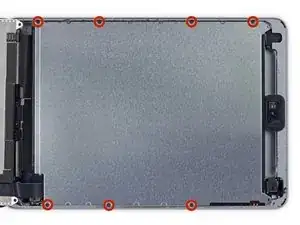
    • Entferne folgende Kreuzschlitzschrauben #00, mit denen das LCD befestigt ist:

    • Drei 3,3 mm Schrauben

    • Eine 4,5 mm Schraube

    • Falls die LCD Schrauben mit Klebeband bedeckt sind, musst du dieses erst mit einer Pinzette ablösen.

    I used the PH000 bit; PH00 was too large.

    Yoron -

  33. SbvJPrwW6vq4I3Oq
    SbvJPrwW6vq4I3Oq
    31QmLJAHSViHxeGT
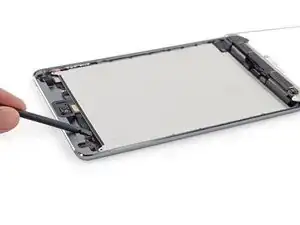
    • Versuche nicht das LCD ganz zu entfernen. Es ist weiterhin durch verschiedene Kabel am Ende mit dem Home Button mit dem iPad verbunden. Hebe es nur am Ende mit der Frontkamera an.

    • Schiebe das flache Ende des Spudgers unter das LCD zwischen LCD und Abschirmblech, und hebe es vorsichtig an.

    • Achte beim Einsetzen des Spudgers darauf, dass du nicht unter das Abschirmblech gerätst. Der Spudger muss zwischen LCD und Abschirmblech hineingehen.

    • Das LCD kann schon durch leichtes Verbiegen beschädigt werden, sei also beim Hochheben besonders vorsichtig.

    Peel up the thin foam tape attached to the very top of the LCD. Under it is a small strip of tape holding the top edge of the LCD down. You won’t be able to remove the LCD without first peeling back this tape. Trying to pry up the LCD without removing it will most likely bend the LCD.

    mturner -

    There is a problem that I ran into. This picture shows a wifi only model which does not have the LTE antenna up above. What I ran into is that on the LTE model the antenna has a slight lip that holds the LCD down. So on this model you actually have to lift the bottom portion up first just enough that you can then move the panel downward slightly then lift the top end of the LCD panel up past the lip on the antenna housing near the front facing camera at the top.

    Dylan Fox -

    How about those two rectangular magnets on each too corner? What happens if they’re removed?

    Victor Boo -

  34. YgjIyBiWxPcC1NqB
    YgjIyBiWxPcC1NqB
    oqUSFNHoiwl4YCMV
    SAaNA2MfQYl3HgNS
    • Das LCD ist durch eine recht schwache Klebeverbindung befestigt. Diese musst du zuerst auftrennen, bevor du das LCD von der Abschirmung wegklappen kannst.

    • Setze den Spudger zwischen LCD und Abschirmung und schiebe ihn bis zur entfernteren Kante des iPad.

  35. OCPenEKcMqRXxTNq
    OCPenEKcMqRXxTNq
    WOUh15qx3VNj6JhA
    • Das LCD ist mit zwei breiten Klebestreifen mit den Lautsprechern verbunden.

    • Halte das LCD mit einer Hand und das Rückgehäuse mit der anderen.

    • Versuche nicht das LCD ganz vom iPad abzutrennen.

    • Ziehe das LCD vorsichtig von den Lautsprechern weg, um das Klebeband zu lösen, achte aber darauf, nicht am Touchscreen-Kabel zu ziehen.

  36. MHTmDifM512fcEv3
    MHTmDifM512fcEv3
    I5Z2OGAMmDnjXSvi
    • Versuche nicht das LCD ganz zu entfernen. Es ist immer noch über verschiedene Kabel am Ende mit dem Home Button mit dem iPad verbunden. Hebe es nur am Ende mit der Frontkamera an.

    • Klappe das LCD wie die Seite eines Buches auf, wobei du an der Kameraseite hochhebst und es über das Home Button Ende des Rückgehäuses klappst.

    • Sei dabei sehr vorsichtig und achte auf die LCD Kabel.

    • Lege das LCD auf das Glas des Front Panels, um so an die Displaykabel zu gelangen.

  37. AnUN4QhiwUdyKrJr
    AnUN4QhiwUdyKrJr
    YqBpHEytgSBRnrRC
    1FbKP1SLPmTYLrl2
    • Schiebe die Spitze eines Spudgers zwischen das LCD und die Klebelaschen, um so das Display abzulösen.

    • Drücke dabei sehr vorsichtig zwischen jeder der beiden Laschen und passe auf, dass keine nahegelegenen Kabel beschädigt werden.

  38. QnCiykDiAbNok3FQ
    • Entferne die sieben 1,8 mm Kreuzschlitzschrauben #00 von der LCD Abschirmung.

  39. CxMgoBiaS4lKn5Bv
    CxMgoBiaS4lKn5Bv
    LhBRvNJILxQpIqPM
    dLOHLlbctEIWGLtY
    • Hebe die LCD Abschirmung mit dem flachen Ende eines Spudgers hoch und aus dem iPad heraus.

    • Entferne die LCD Abschirmung.

    Push the shield slightly left or right so that the other side clears the frame.

    rmac -

  40. EawcyciqjlZfGvXH
    • Entferne folgende Kreuzschlitzschrauben #00 von der Displaykabelhalterung:

    • Eine 2,7 mm Schraube

    • Zwei 1,4 mm Schrauben

  41. 5ED2upVeTDB1DuRp
    • Entferne die Displaykabelhalterung vom iPad.

  42. ynWhGGDgveKR1RFs
    ynWhGGDgveKR1RFs
    UVMfqEsbymSsJbH1
    XMAhWMOVCr4qJiQD
    • Hebe den Akkustecker vorsichtig mit dem flachen Ende des Spudgers aus seinem Anschluss auf dem Logic Board.

    • Sei sehr vorsichtig und heble nur am Stecker selbst und nicht am Anschluss. Wenn du am Anschluss auf dem Logic Board hebelst, kannst du ihn komplett beschädigen.

    BE SURE TO DISCONNECT THE BATTERY! If you don’t, when you put it back together the backlight will not light.

    Owen Stevens -

    And be sure to use something to block the connector from falling back and touching the battery connector again - a little tape or foam, or a piece of plastic will hold it safely.

    info -

    When I reassemble the iPad, must I first connect the display and then the battery? or do I have to reverse and connect the battery first and then the display?

    Marco Santoro -

    During reassembly this is where you want to reconnect the battery then power up the device to test. Make sure the LCD, digitizer, home button, etc., are functioning properly BEFORE you seal it up.

    Jeana Morales -

  43. LHqQ3K3ESxL4viS2
    LHqQ3K3ESxL4viS2
    OCZ466JTi3nciIBR
    • Heble den Stecker des LCD mit dem Spudger aus seinem Anschluss auf dem Logic Board.

    • Heble nicht gegen den großen IC neben dem Stecker, er kann leicht beschädigt werden. Heble vorsichtig wie gezeigt an der Seite des Steckers.

  44. ZBRjdfWYrcVtgLvY
    • Hebe das LCD hoch und entferne es vom iPad Mini.

    Need to add step for disconnecting the plug for digitizer as well

    ajnilges -

  45. UWNAdAkM42sCGyDD
    UWNAdAkM42sCGyDD
    AZ4HAkRIxHjENLhk
    • Löse mit der Spudgerspitze das Klebeband auf den Antennenkabeln nahe am Logic Board ab.

  46. CjTjfaK5sIdFM1kN
    CjTjfaK5sIdFM1kN
    AjP1xRJXelpu5F3G
    • Löse mit der Spudgerspitze die Antennen aus der Klebeverbindung zum rechten Lautsprecher.

  47. WBOUKfykOMXfexEt
    WBOUKfykOMXfexEt
    Qrlxt2UO3LnqJJVA
    • Löse den Kleber am Antennenkabel mit der Spudgerspitze aus dem Gehäuserückteil.

  48. XW2ty3hOfN1nRBnH
    • Entferne folgende Kreuzschlitzschrauben #00 von der rechten Antenne:

    • Drei 1,5 mm Schrauben

    • Eine 2,6 mm Schraube

    Doesn't the “2.6 mm” screw go on the far left?

    Benjamin De La Paz -

  49. Mys5BIdZqXnFUokT
    Mys5BIdZqXnFUokT
    njEhTty2gWLqNQXm
    • Durchtrenne mit dem flachen Ende des Spudgers den Klebeschaumstoff, mit dem die Antenne am rechten Lautsprecher befestigt ist.

  50. viEYBP6pd4RGadKg
    viEYBP6pd4RGadKg
    Rn6IqZqZfQchXPHU
    • Ziehe die Biegung des Antennenkabels aus der Ecke des Gehäuses heraus.

  51. xNBisWBvSMNitiWZ
    xNBisWBvSMNitiWZ
    QgW5WOUg2jEQqb3B
    • Heble die kleine Metallklammer mit der Spudgerspitze vom Antennenkabel weg.

  52. MjIVwMbGvNFbRsNM
    MjIVwMbGvNFbRsNM
    PmOLftrsiRuoXWKO
    • Heble den Stecker der Antenne mit dem flachen Ende des Spudgers aus seinem Anschluss auf dem Logic Board hoch.

  53. cBhp2km16qKVMn4I
    cBhp2km16qKVMn4I
    ufBFp1RmdRkR6nMx
    • Fädle das Antennenkabel aus der Klammer heraus.

    • Entferne die rechte Antenne vom iPad.

Abschluss

Um dein Gerät wieder zusammenzusetzen, folge den Schritten in umgekehrter Reihenfolge.

Sam Goldheart

Mitglied seit: 19/10/12

476408 Reputation

0 Kommentare