4

I'm running 10.04 and mythtv as a home DVR. It's working beautifully, except for one thing. In order to save on energy usage I have the computer shut down if it's going to be idle for more than 15 minutes, and automatically boot back up 10 minutes before the next scheduled activity.

The problem is that, if the computer boots with the TV off, it doesn't detect the display. When I turn the TV on it will display absolutely nothing. I must then reboot the computer with the TV on to get it to detect the display correctly so I can watch TV. Of course, I can't reboot the computer if it's in the middle of recording a show - which makes the whole thing a bit frustrating.

How can I set the display settings so they are permanent, rather than detected on boot? Or, how can I have the display re-detected and then restart X via command line so that I don't have to reboot? Or, are there any other suggested solutions?
dv3500ea
  • 37,754

2 Answers2

2

If the xrand -q answer works, could you create a script to run that and bind it to a hotkey combination? Not a great solution, but it might work as a bandaid. Turn on the TV, hit the key combo, video comes up.

0

You can make the system re-detect displays starting the display utilities. Just go to System-> Preferences ->Monitors.

If you prefer to use the command line look at xrandr, likely xrand -q will do, but I can't test it right now.

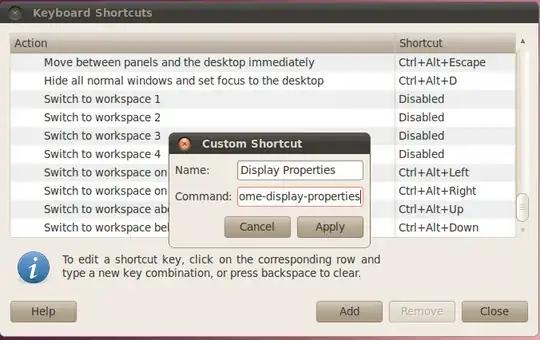
If you can't see anything you can bind some key combination to the display-settings:

  • Go to System-> Preferences-> Keyboard Shorcuts.
  • Press Add
  • In the new window, in the name box put something like Display Properties.
  • In the command box put gnome-display-properties
  • Click apply, click on the new shortcut, assign it some unused combo like CTRL+F8.

alt text

Thanks to user5232 for the keyboard binding idea.

Javier Rivera
  • 35,444
  • I can't go to System > Preferences > Monitors because I can't see it. But thanks's for the command line suggestion. Any thoughts on how to set the display permanently? – Jonathan Eggers Nov 02 '10 at 15:22
  • Opppsss... I don't know why but I instantly assumed this it was a laptop with his own screen. I'll update the answer. – Javier Rivera Nov 02 '10 at 15:48
  • Thanks for the suggestion. Of course this requires keeping a keyboard around, but I'll see if it works. I'm still hoping that xrandr will work, since I can bind a command to my remote. – Jonathan Eggers Nov 02 '10 at 16:01
  • If you can bind xrandr, you can bind gnome-display-properties, AFAIK. The second always worked with my computer. – Javier Rivera Nov 02 '10 at 16:12
  • Well, neither of these suggestions worked. I think there is more going on here. When the TV is off and the computer boots the wireless network adapter also doesn't work. If I open up a terminal (alt-f1), log in, and restart the network, it doesn't help. I have a dmesg from a good boot and from a bad boot and am looking for differences, but I don't know enough to figure it out. – Jonathan Eggers Nov 04 '10 at 13:34
  • You can edit the question and add the dmesg diff. We can look at it and try to determine if both problems are the same. – Javier Rivera Nov 04 '10 at 14:23