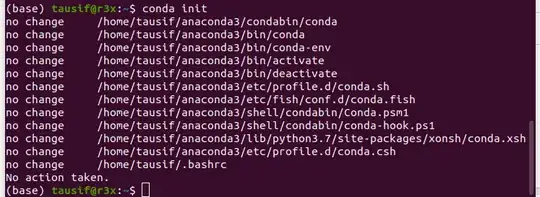
I'm getting this while installing anaconda on ubuntu 19.04
Asked
Active
Viewed 5.0k times
13
Arronical
- 20,311
Tausif Ahmed
- 131
7 Answers
13
While this does not try to fix this problem, rather helps as a workaround when I want to activate an env.
$ source ~/anaconda3/bin/activate <env_name>
0xc0de
- 255
7
I had the same problem. Previously I had anaconda 2 but I removed to install anaconda 3. After installing anaconda 3 and using conda init I got the same error message, as I solved it. Enter your .bashrc:
gedit ~/.bashrc
Identify the following lines in the .bashrc file and delete them:
# >>> conda initialize >>>
# !! Contents within this block are managed by 'conda init' !!
__conda_setup = "$ ('/ home / spidey / anaconda3 / bin / conda' 'shell.bash'
'hook' 2> / dev / null)"
if [$? -eq 0]; then
    eval "$ __ conda_setup"
else
    if [-f "/home/spidey/anaconda3/etc/profile.d/conda.sh"]; then
        . "/home/spidey/anaconda3/etc/profile.d/conda.sh"
    else
        export PATH = "/ home / spidey / anaconda3 / bin: $ PATH"
    fi
fi
unset __conda_setup
# <<< conda initialize <<<
Explanation:
Since previously you already had an anaconda installation, the conda init command did not modify anything because it detected that you had already made changes to the .bashrc file.
ThunderBird
- 1,963
Antonio L
- 71
3
Try By Using anaconda-navigator:
activate conda:
$ source ~/anaconda3/bin/activate root
Launch conda:
$ anaconda-navigator
If you want to launch JupyterNotebook simply run
jupyter notebook
Dinesh Kc
- 31
2
I found the solution
/opt/conda/bin/conda init zsh
as it states here (from /opt/conda/bin/conda init -h )
positional arguments: shells One or more shells to be initialized. If not given, the default value is 'bash' on unix and 'cmd.exe' on Windows. Use the '--all' flag to initialize all shells. Currently compatible shells are {bash, fish, powershell, tcsh, xonsh, zsh}
This is weird because I did not have this problem before while setting up another server. But anyway it is clear that you need to specify the shell (which is zsh here), otherwise conda will pick up bash as default shell.
Long
- 123
-
Indeed:
conda init zshfollowed bysource ~/.zshrc(or any other shell) – bathyscapher Nov 27 '24 at 13:23 -
normally I always log out then log in, but
sourceshould work too. Sometimes my shell hangs when sourcing so I don't do it often. – Long Dec 02 '24 at 06:00 -
1
-
1it happened once or twice in the past on some test servers and at that time I didn't look for the reason. I think you're right about the mess I created in
~/.zshrc. Just tried sourcing on my current server, it ran well ^_^. Thanks. – Long Dec 02 '24 at 07:57
0
As far as I understand this, conda init [shell] is used to initiate a specific shell utilized when executing command-line conda commands. Not specifying one will default it to bash, which I'm guessing is what you already use here—since this is the output.
More information can be found by using the [-h] flag:
$ conda init -h
yogogoba
- 1
- 3
anacondadoes not needrootpriviledges when installed in the home directory of a user. – Thomas May 14 '19 at 13:32anacondaor just did a fresh install? Maybe nothing has to be done byconda init? It looks like thecondaenvironment is set up already. Doesconda activate <environment>work? – Thomas May 14 '19 at 13:35