How can I make part of the image transparent? I tried the "Color to alpha" option in GIMP, but it's not working.
I know in Photoshop you can erase the part you don't like, and make it transparent. Does GIMP support that?
How can I make part of the image transparent? I tried the "Color to alpha" option in GIMP, but it's not working.
I know in Photoshop you can erase the part you don't like, and make it transparent. Does GIMP support that?
In GIMP layers can either have an alpha channel or have no alpha channel. When you try erasing parts of an image when there's no alpha channel you get backround color.
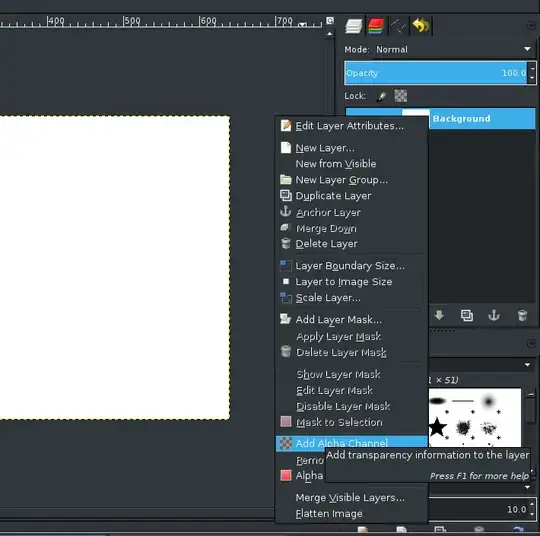
To add an alpha channel you can bring up the Layers dialog by pressing Ctrl+L, right-click on the layer you want to edit and select Add Alpha Channel there.
From there everything is very much like in Photoshop - i.e. Eraser tool erases to transparency, you can make a selection (using, for example, Magic Wand tool) and erase everything in it by pressing Del, etc.
There are exotic formats, such as GeoTIFF etc. where the meaning of channels may be completely different, such as "average windspeed" and "annual precipitation" etc., but for any normal image made for viewing alpha is a synonym for transparency.
– Sergey Sep 01 '25 at 02:03If you use an eraser, that will erase to transparence. You also can select an area and press the delete key (not backspace)
I find the simplest way to do this in GIMP is to use a Layer Mask.
Many other answers don't work if you opened an image file (eg. JPG, PNG etc.), because using the eraser doesn't reveal transparency, instead appears to erase to the background color.
The below does work for JPG/PNG.
Add Layer Mask.If you want to permanently apply this transparency to the layer, right-click the layer and choose Apply Layer Mask.
I think what you want to so is as follow: You blur a layer (eg image of a face) and want to remove the blur from detail areas (eg eyes, lips, eyebrows). Add alpha channel to the blur layer as suggested above, then hold down Alt as you use the eraser tool, and it will remove the effect only from the erased area. Then turn down the layer opacity until you get a just perceptible softening of the features with sharp details (eyes, lips, etc).