I'm looking for a quick screen capture application that simply brings up the screen selection tool (which part of the screen I want to capture) with some keybinding and saves it directly into some specified directory. In particular, I don't want any GUI to pop up. Has someone an application in mind that fulfills the above criteria?
Asked
Active
Viewed 1.3k times
3
-
2Can you be more specific? What kind of screenshot are you expecting? In which application will you use the screenshot app? What kind of features do you want? Which version of Ubuntu are you using? Which desktop environment are you using? Please [edit] to include all these details. – Error404 Jan 09 '22 at 04:18
-
The previous version of gnome had it, all I had to do was Shift + Print Screen and it would allow me to select an area of the screen and immediately capture it, without me clicking anywhere else. Now the current version (gnome 46), when I press Print Screen, it shows a GUI, where I have to drag some rectangle borders and then press enter. That takes longer and doesn't allow me to capture certain quick moments. – seven-dev Aug 09 '24 at 09:00
2 Answers
4
Gnome already does this.
- Shift + PrtSc allows you to draw the rectangle to capture.
- Ctrl + PrtSc captures the active window on the screen.
- PrtSc captures the entire screen.
It saves to your Pictures directory. You can change the save directory using dconf-editor.
No dialog, no GUI. Just a flash to provide you feedback that the image was captured.
Error404
- 8,333
user535733
- 68,830
-
1
-
1"I don' t use the gnome desktop": How is that clear from your question? Other desktops usually also have something like this. – vanadium Jan 09 '22 at 11:49
2
Gnome Screenshot
If you're using the gnome desktop then you can easily capture screenshot using these key-bindings
- PrtSc – Save a screenshot of the entire screen to the “Pictures” directory.
- Shift + PrtSc – Save a screenshot of a specific region to Pictures.
- Alt + PrtSc – Save a screenshot of the current window to Pictures.
- Ctrl + PrtSc – Copy the screenshot of the entire screen to the clipboard.
- Shift + Ctrl + PrtSc – Copy the screenshot of a specific region to the clipboard.
- Ctrl + Alt + PrtSc – Copy the screenshot of the current window to the clipboard.
Flameshot
It is my personal favorite screenshot application, which can be installed using:
$ sudo apt install flameshot
By default, you need to launch it using GUI but you can easily set a screenshot for flameshot by following these steps:
- Head to the system settings and navigate your way to the Keyboard settings.
- You will find all the keyboard shortcuts listed there, ignore them and scroll down to the bottom. Now, you will find a
+button. - Click the
+button to add a custom shortcut. - You need to enter the following in the fields you get:
Name: Anything You Want
Command:/usr/bin/flameshot gui - Finally, set the shortcut to PrtSc – which will warn you that the default screenshot functionality will be disabled – so proceed doing it.
Reference
You can easily configure it to suite your needs. Just press PrtScn and it'll open a selection tool. Selct the desired area, do customizations and easily save it.
Features:
- Annotate (highlight, point, add text, box in)
- Blur part of an image
- Crop part of an image
- Upload to Imgur
- Open screenshot with another app
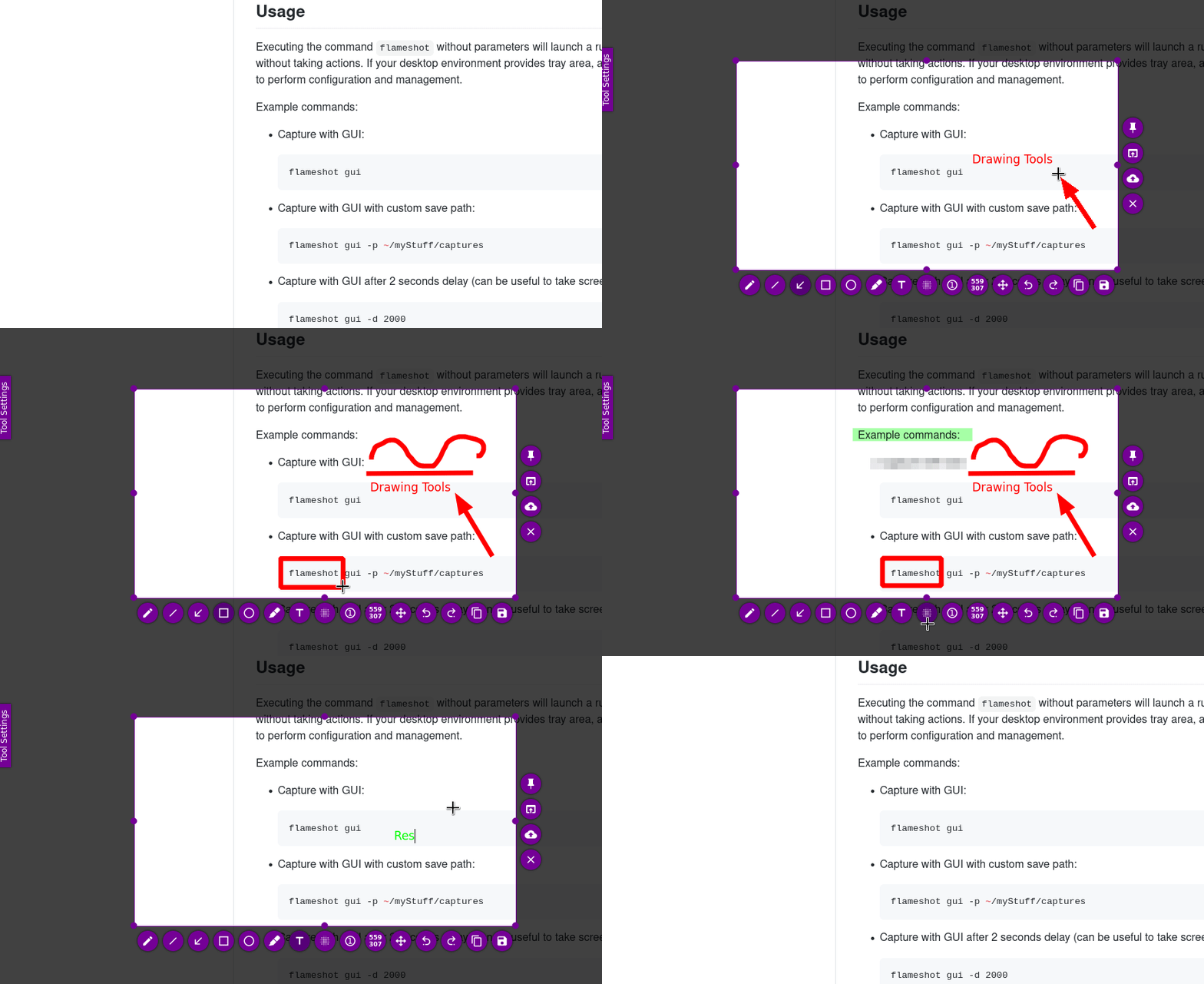
You can easily press the save button to save the image. In the app settings, you can also choose the default directory to save images in. It also have a lot of customisable key-bindings and features.
Error404
- 8,333
-
thanks, the second one does it for me since I don't use the gnome desktop environment. – CNNTT Jan 09 '22 at 11:19