88

I'm using windows 10 and I installed Ubuntu 22.04 on Virtual box 7.0.0.

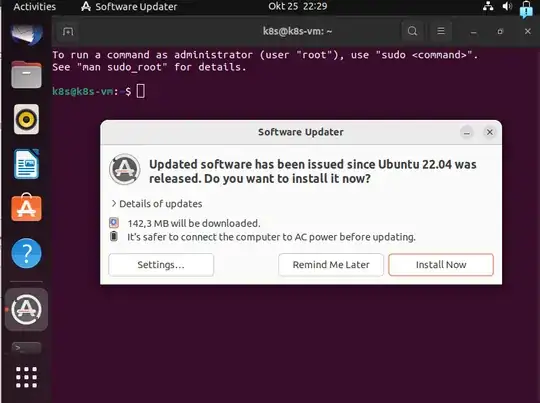
When I click the terminal icon, the upper left side of the screen(where is the executing application name view), there is the title 'Terminal' and a turning arrow that indicates it's launching.

enter image description here

But somehow it blows away and the terminal is not opening and really executing.

I'm not sure it's about Ubuntu or Virtual machine too. How can I fix this?
yun
  • 991
  • From your question "But somehow it blows away and the terminal is not opening and really executing." can you explain what this means? – David DE Oct 17 '22 at 16:33
  • David, sorry for the confusing writing. I meant the 'terminal' letter and arrow disappear while the terminal is not opening and not executing. – yun Oct 17 '22 at 17:57
  • ChanganAuto, I tried CTRL+ALT+T but it didn't work. My Ubuntu and Virtualbox are up to date. The extension pack and guest additions are also installed. – yun Oct 17 '22 at 18:07
  • So, what exactly you've done since installing Ubuntu? Did you perhaps tried to change the phyton version? – ChanganAuto Oct 17 '22 at 21:03
  • 2
    ChanganAuto, I did change nothing after installing Ubuntu. After installing it, I started the terminal right away, but the situation above happened. So I updated the Ubuntu through GUI and installed the lastest extention package of Virtual box that is for my version, but nothing changed. – yun Oct 18 '22 at 01:05
  • 7
    Simplest solution: https://www.youtube.com/watch?v=NvTMQBxGqDw – ozeray Mar 29 '23 at 21:08
  • Creating another administrator account solved my problem. – Taha Malik Apr 09 '23 at 20:50
  • 2
    I just changed the Settings/Language and Region/Language from english to english(Canada), and then I restarted the VM and I could open the terminal without any issue. – Pepe Alvarez Oct 24 '23 at 09:51
  • Bizar.......... – Matthias Nov 12 '23 at 13:33

7 Answers7

66

Same on vbox 7.0, I had fixed it adding en_US.UTF-8 instead of en_US to the /etc/default/locale then sudo locale-gen --purge and reboot.

As pointed out in the comments, one can also do this via: Settings>Language & Region> and setting all settings to United States.

Note: Both solutions are applied inside the Virtualbox Ubuntu machine.

  • 30
    Method of Mike Lugin works. I changed the language (just to another one, I chose UK) in the UI Settings -> Language and Region, the VM restarted and Terminal works. – MargaretM Oct 30 '22 at 09:59
  • 1
    @MargaretM Thanks, this worked! – nicodp Nov 14 '22 at 21:59
  • 27
    I can not open a terminal -> Go open a terminal and do the following XD – Alex Dec 08 '22 at 16:41
  • How to edit /etc/default/locale when I don't have Terminal to run, e.g., sudo gedit /etc/default/locale ? I can launch gedit from the menu, but then seem to lack the 'sudo' rights required to save the changes to /etc/default/locale – FlorianH Dec 22 '22 at 11:28
  • 5
    Hi @FlorianH, try to switch session using (CTRL+ALT+F3), it will promt you to a cli where you can use sudo, then you can edit locale using nano and switch back to GUI using (CTRL+ALT+F1). – Mike Lugin Dec 23 '22 at 18:27
  • 1
    Thanks @Mike Lugin, sounds like it might have worked. In the meantime instead I simply evaded the issue by re-installing my Virtualbox@Win10 installation of Ubuntu16.04 first without Guest Additions, before adding them post-hoc. – FlorianH Dec 24 '22 at 19:42
  • 5
    I could do the change using GUI by going to Settings > Region & Language, then setting all to US. – orique Jan 07 '23 at 22:46
  • 3
    This worked. I just can't believe that Ubuntu would ship out a build with such obviously wrong configurations. – tutiplain Apr 17 '23 at 10:41
  • How do you do this without terminal? – mLstudent33 Apr 21 '23 at 12:27
  • 1
    As suggested, changing the language from Settings menu fixed the problem. The default was en-US, I have changed to Türkçe. – ibilgen Jun 27 '23 at 10:05
  • Not able to save the changes in locale file since it is read only. – Sanushi Salgado Nov 12 '23 at 12:09
  • @SanushiSalgado Try sudo nano /etc/default/locale – Flinsch Jan 15 '24 at 11:47
32

I got this issue with VirtualBox 7.2 on Windows 11, My findings:

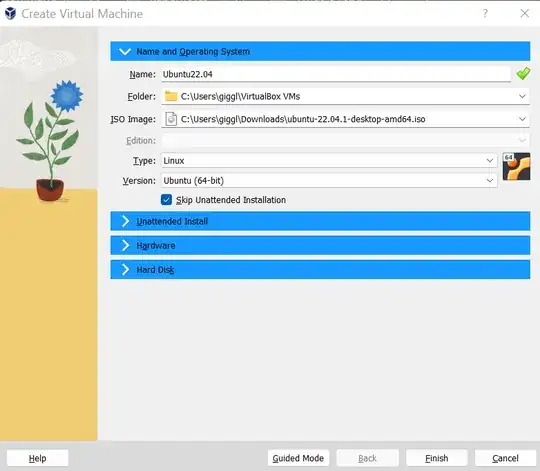
If you use "unattended installation", the created user will not even have sudo privileges, so you cannot update/edit "/usr/bin/gnome-terminal" with the correct Python version or purge gnome-terminal. The created user cannot even run updates.

As suggested above, skip the unattended installation:

As shown in snip below

After installation, everything worked correctly.

Terminal worked

Esther
  • 3,932
kartik
  • 421
24

I've spent 3h to fix this problem (Win 10 Pro, Vbox 7.0) and finally, I've decided to re-install a new guest OS with Skip Unattended Installation checked

Luke
  • 605
  • 1
  • 8
  • 17
12

I had the same problem. The first thing I tried after installing Ubuntu 22.04 in VirtualBox 7.0 was to start the terminal. But it didn't work.

My solution was to create a new VM with a new installation. This time I selected "Skip unattended installation" when I created the VM, so that the Guest Additions was not automatically installed. Now I could start the terminal! After this I installed the Guest Additions using sudo apt-get install virtualbox-guest-additions-iso. In this way I got an old version of the Guest Additions, but that version seems to work fine.

So obviously the problem is related to the Guest Additions.

5

I've been cracking my brain all day with the same problem. The only solution was to install a version of VB lower than 7.0

Simon
  • 51
1

Switch Ubuntu to X11 instead of Wayland.

Also you can try to switch off 3d acceleration in the machine settings.

I just installed VB 7.0.2 and also had some trouble with graphics.

Finally all works with X11 and 3D enabled.

Pilot6
  • 92,169
1

This worked for my Virtualbox 7.0 with host Windows 10 and guest Ubuntu 22.04.

  1. Start Virtualbox machine and press Shift quickly until the grub boot menu is shown.
  2. Go to Advanced options for Ubuntu and boot in recovery mode.
  3. Drop to root shell prompt (will ask for root password)
  4. sudo adduser username sudo (change username with your username)
  5. Change everything in /etc/default/locale to be 'en_US.UTF-8', I used nano.
  6. reboot
Katu
  • 3,663