Note: In addition to MATE, this app works in other X11 based DEs such as LXDE, XFCE, Cinnamon and so on.
x86_64 and ARM and others (using graphical interface)
Install Screen Orientation Manager.
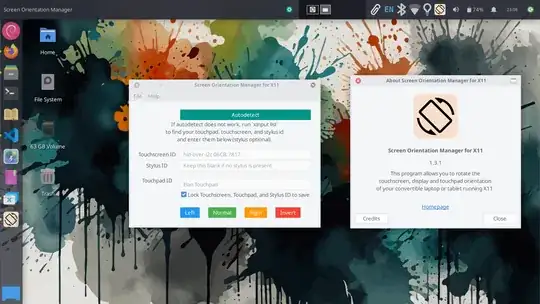
Download and install the .deb package from GitHub releases.
Alternatively, use the official PPA.
sudo add-apt-repository ppa:apandada1/screen-orientation-manager
sudo apt update
sudo apt install screen-orientation-manager
Run xinput list to get the ID for the touchscreen and touchpad, and enter it into the app (it will remember them).
It can also automatically load the configs of some known devices (so that you don't have to manually run xinput list), if you want to get your device added, please create an issue in GitHub.
Command line options: After setting up, you can also run screen-orientation-manager invert to quickly invert the configuration without opening the app (you can also add it to startup applications if you need to invert the screen on app run). You can also use the arguments left, right and normal. If you want the GUI to show up after applying the orientation settings, run, for example, screen-orientation-manager left --persist.
$ screen-orientation-manager --help

usage: ScreenOrientationManager.py [-h] [--normal | --left | --right |
--invert] [--persist]
[{normal,left,right,invert}]
Screen Orientation Manager for X11
positional arguments:
{normal,left,right,invert}
Rotation (alternative positional form)
options:
-h, --help            show this help message and exit
--normal              Rotate to normal orientation
--left                Rotate to left orientation
--right               Rotate to right orientation
--invert              Rotate to inverted orientation
--persist             Keep the GUI running after applying rotation
x86_64 only (keyboard shortcut based)
You can use the autorotate tool.
First, download the tool from github, and unzip the binary named autorotate in $HOME/.local/bin. (In case you did not have the hidden folder .local/bin, create it, logout, and login).
Run chmod +x $HOME/.local/bin/autorotate to mark it as executable.
Next, detect your screen type using autorotate.
autorotate list
For me, the screen type is eDP-1.
Check that the command autorotate invert --display eDP-1 inverts the display, and the command autorotate normal --display eDP-1 restores the display orientation.
Finally, open Keyboard shortcuts, and assign custom keyboard shortcuts with these commands, so that you can quickly rotate the display (I am using ctrl + alt + ↑ and ctrl + alt + ↓).