When you shut down you get the "Are you sure..." dialog. Occasionally I want to send myself a reminder e.g. to run an overnight job instead of shutting down. Then I'd need to display another dialog box - before or beside the "are you sure" one. (or any other obvious reminder would do, like changing the color of the "are you sure" box, but that might involve tinkering with the guts of Linux modules which I've no wish to try.) I cannot get a new .service file to work as described elsewhere. As I might not have access to the screen at that point in the shutdown I tried adding "touch /home/myuser/i_ran" to my pre-shutdown script. I also tried adding it to the stop clause of the init.d script for atd. Neither do anything. What would work? Ideally it should run as my current user, or if as root my script can su to my current user. I'm using notify-send for my dialog box, and running Ubuntu 20.04, classic Gnome.
-
AFAIK, on gnome, some applications use GTK's inhibit which you can implement in an application that you write in e.g. C or even Python ... Also gnome session manager can handle an inhibit call via D-bus ... Either of those should do what you want. – Raffa Sep 21 '23 at 16:16
-
Thanks Raffa. So I guess I'd create a GTK app that does nothing, just sits in the background after calling Inhibit. Then when I shutdown, the message is different. It appears I can set a window in my app that maybe can be opened from the shutdown dialogue. That's my guess anyway, I may need to try it to find out for sure. It's very different from any other ideas I had, but nothing else seems to work. – adrianhb Sep 21 '23 at 21:22
-
Correct, I added (not really an answer) ... But, it should help ... What you want is a bit complicated (pulling many unrelated strings at the same time) ... So, you'd need to invest some time and efforts in that. – Raffa Sep 22 '23 at 07:46
2 Answers
Preface
This answer is not a direct solution to your question, but rather an important methodology discussion that should direct you as well as other community members who are trying to help in the right direction and hopefully save time and efforts.
Discussion
You need to first hold/block shutdown which can be done with many ways ... One easy way is the builtin functionality provided by Free Desktop's systemd-inhibit that can be simply used from the terminal or a script ... And then you need to display a dialog window with a certain message and this is not as simple as the above (first requirement) as it requires a running display server and a running user graphical gnome session ... This, however, is not possible by methods external (independent) to gnome-shell as by the time the system gets informed about the "shutdown", the user's gnome session will have already had terminated and had taken away with it any chances of possible user GUI interactions ... Therefore, your two options, as far as I know, are:
- Either, write your own application in e.g. C or even Python to implement GTK's inhibit that is apparently used by some gnome applications like e.g.
gedit(The text editor) in the linked source code at line number 1407 where the message"There are unsaved documents"is the one that will show at the gnome shutdown confirmation dialog and that's where your own message would be in your own application ... However, for this to work, your application's process needs to be running at the time a system shutdown is attempted from within the gnome user session ... Here is an example very minimal Python script (using Calculator from Gnome Core Apps as a dummy app) that will do just that and nothing more:
import gi
gi.require_version('Gtk', '3.0')
from gi.repository import Gtk

def on_activate(app):
win = Gtk.ApplicationWindow.new(app)
app.inhibit(win, Gtk.ApplicationInhibitFlags.LOGOUT |
Gtk.ApplicationInhibitFlags.SUSPEND,
'It's time to do some tasks:\n1) Task one ...\n2) Task two ...\n3) Task three ...')
app = Gtk.Application.new('org.gnome.Calculator', 0)
app.connect('activate', on_activate)
app.run()
- Or, use the logind D-Bus API to set and hold an inhibitor lock to basically achieve the same outcome.
Workarounds
Workarounds are alternative less native solutions that can be in the form of for example a shutdown script like this:
#!/bin/bash
shut_down () {
zenity --question --default-cancel
--text="You still have unfinished tasks:\n \
- Task one ...\n \
- Task two ...\n \
- Task three ...\n\n
Are you sure you want to shutdown anyway?"
}
if shut_down
then
echo "Shutting down ..."
# Your shutdown command(s) (either systemd or gnome-shell based) here
fi
... and then, you'll need to use that script instead of the normal shutdown GUI button ... You might want to disable the default button or link it to this script instead (You'll need to probably find/write an extension for the linking part) to achieve somewhat a native functionality look.
Other workarounds might be:
- Readily available gnome-shell extensions for that purpose if you can find one ...
- or, you can create your own gnome-shell extension if you know how.
- Some packages/applications to manage shutdown might be available via Ubuntu's package managers e.g. APT, SNAP or FLATPACK ... etc. ... So, make sure to search those.
Gnome Session discussion
Although, what happens in Gnome stays in Gnome i.e. it has its own methods separated from the rest of processes (Gnome internals I mean), but you can use the right tools to observe how it works and try to interact with it ... if you run dbus-monitor in the terminal, keep it running and attempt to shutdown/logout then just click the cancel button on the shutdown dialog, then you would notice methods being called and signals being emitted on different addresses and in particular one that has CanShutdown in it where a check is being carried on on whether the user is allowed to actually shutdown the machine which you can intercept with something like:
if dbus-monitor | grep -q 'CanShutdown'
  then
    zenity --info --extra-button "Logout" --extra-button "Suspend" \
    --extra-button "Restart" --extra-button "PowerOff" --text="What to do?"
    fi
... run that and keep it running then attempt to e.g. logout ... That however is too early.
Another call that you'll notice is the dialog opening call that should have something in like EndSessionDialog with Open and also with Canceled where the first is a method and the second is a signal ... You can watch for the dialog, close it and send the signal like so (Be warned, your system will logout/shutdown no matter what you do to prevent it):
if dbus-monitor | grep -q 'EndSessionDialog'
  then
    sleep 3
    gdbus call --session --dest org.gnome.Shell \
    --object-path /org/gnome/SessionManager/EndSessionDialog \
    --method org.gnome.SessionManager.EndSessionDialog.Close
    gdbus emit --session --object-path /org/gnome/SessionManager/EndSessionDialog \
    --signal org.gnome.SessionManager.EndSessionDialog.Canceled
    fi
... if you try that, you'll notice it closes the dialog after 3 seconds and even sends the Canceled signal, but your session logged off after 60 seconds. That's because Gnome sets a counter in the background that you'll need to find and find a way to disable it as well ... Yeah I know what you think :-) ... Anyways, you get the point.
- 35,113
-
2Many thanks Raffa. You say it's "not really an answer" but it seems a better answer than any I can find online. As you explain, by the time external processes hear about the shutdown the gnome session has already terminated so display is not possible. Your detailed description seems clear to me who knows nothing about Gnome but can hack a bit of C, so I'll investigate and report back. If I end up answering my own question it will include full acknowledgement of yours. – adrianhb Sep 22 '23 at 09:43
-
Reporting back, I created a basic GTK app displaying a window, and including the line
inh = gtk_application_inhibit (app, NULL, GTK_APPLICATION_INHIBIT_LOGOUT | GTK_APPLICATION_INHIBIT_SUSPEND, "because I say so");Oddly, this does pop up a "Some programs are still running" box if I log out, but NOT if I suspend or shut down. Can anyone suggest why? – adrianhb Sep 22 '23 at 18:42 -
1@adrianhb I have included a simple Python (Simpler to deploy and modify) program that you can run with e.g.
python3 scriptfile... On the other hand your code snippet looks fine and should work given the rest of the code e.g. app definition is correct ... Note, however, that suspend is not always supported on all systems due to configuration related issues while logout (shutdown and restart included) is almost always supported. – Raffa Sep 23 '23 at 10:40 -
Thanks once again @Raffa for your amazing help. I can't get your Python to run, probably for some trivial reason, but my C program and also as you say gedit with an unsaved change both do the job. When I log out, both apps show "Some programs are still running". Also when I run
gnome-session-quit --power-off. It's only when I click Shut Down from the top right icon that they are ignored. So this shutdown method must ignore the inhibit. It's the one under the top right system menu like this link – adrianhb Sep 24 '23 at 16:26 -
The system menu Suspend option also ignores inhibit. I can find no desktop file containing a name of "Shut Down", so maybe this is some sort of built-in action (I know nothing about Linux internals). If it runs a command that I could change I could enclose it in my own check. Or is there a way to remove this shutdown menu entry and replace it with a more configurable one? – adrianhb Sep 24 '23 at 16:41
-
I find
gsettings set com.canonical.indicator.session suppress-shutdown-menuitem trueremoves the "Shut Down" entry from the system menu. I wonder if I can change what it does. Or add a new shutdown entry to the system menu. – adrianhb Sep 24 '23 at 17:32 -
@adrianhb I have added more technical info to the answer ... I hope you find it useful ... Now, you might see more clearly that what you're trying to achieve is not an easy task for everybody and I have to say I'm impressed by your progress and hope that you'll share whatever solution you come up with by adding an answer next to mine and probably accept it (leaving this one as a technical reference) to help users who need a copy/paste solution and given the scarcity of good resources on this matter. – Raffa Sep 25 '23 at 12:13
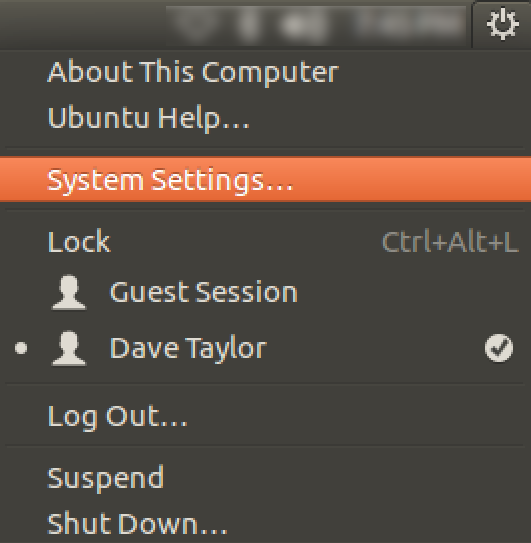
Raffa has written a long answer with a huge amount of technical detail which should be invaluable to anyone who wants to create an elegant solution in keeping with Gnome. I don't have the Linux and Gnome system knowledge to do so but I have created a practical workaround similar to the one in Raffa's answer. I put this workaround below as the accepted answer, but with a strong recommendation to read Raffa's answer for the technical background if you can use it to make a better solution.
Workaround
Applies to: Ubuntu 20.04/Gnome flashback metacity and many other/older versions.
Object
To be able to run a script or executable before shutdown starts, allowing you to run or cancel it. You might for instance want to display a reminder to run an overnight job.
The problem
The system menu, accessed by the on/cogwheel icon at top right of the screen, contains the "Shut Down..." menu option. It doesn't use a .desktop file, which would allow easy change of the command to be run. And it ignores GTK inhibits, which applications set to warn of unsaved changes or operations in progress.
The workaround
- Remove the existing shutdown option from the system menu.
- Create a new shutdown icon and add it to the top menu bar.
The new shutdown has a .desktop file that calls a shell script. This does anything you want, e.g. displays an info box or runs a quick command. After this the script runs a shutdown command, a different one from the system menu one, that observes GTK inhibits and gives the option to shut down or cancel.
The workaround shown is for shutdown, but can be adapted for Restart, Suspend and Log Out operations.
To test if a particular shutdown option or command ignores GTK inhibits
Run the Gnome Text Editor gedit and enter some text in a new file without saving. This raises a GTK inhibit. Make sure you don't have any real unsaved changes or processes that shouldn't be interrupted, and run your shutdown. If it observes GTK inhibits, the shutdown will display a "Some processes are still running" dialog, listing any apps which have raised an inhibit, with a text reason, allowing you to continue regardless, or cancel. If it doesn't it will just run with no warning.
Steps to implement the workaround
Remove the Shut Down entry from the top right system menu
gsettings set com.canonical.indicator.session suppress-shutdown-menuitem true
Replace it with a new application This will be a shell script that does whatever you want to do. It should return when the operation completes or the user dismisses an info box, and the script then runs a shutdown command.
Here is a basic way of showing a reminder if a text file exists and contains reminder text.
Save this as e.g. ~/.local/bin/shutdown-notify.sh and run chmod +x ~/.local/bin/shutdown-notify.sh to make it executable.
#!/bin/bash

shut_down () {
call a shutdown command that observes application inhibit.
If the reminder is something you need to do in the current session,
you can click the Cancel button it displays.
gnome-session-quit --power-off
}
if [ -s "$HOME/shutdown-note.txt" ]; then
readarray -t lines < "$HOME/shutdown-note.txt"
printf -v text '%s\n' "${lines[@]}"
Display an info box. Control does not return to the script until the user dismisses the box.
zenity --question --width=400 --ok-label="Shutdown anyway" --cancel-label="Cancel" --title="Shutdown reminder" --text="$text"
status="$?"
if [ "$status" = 0 ]; then
# truncate the text file so it won't display next time
: > "$HOME/shutdown-note.txt"
# Do shutdown
shut_down
fi
else
shut_down

fi
Create a desktop file for the new shutdown
save the following code as (e.g.) ~/.local/share/applications/shutdown.desktop
#!/usr/bin/env xdg-open
[Desktop Entry]
Name=Shutdown
GenericName=Shutdown with reminder
Comment=Display reminder before shutdown if set
Exec=/home/MYUSER/.local/bin/shutdown-notify.sh
Terminal=false
Type=Application
Icon=/home/MYUSER/.local/share/icons/shut-down-icon-32.png
Categories=
StartupNotify=false
Find a suitable icon, or create one, 32x32px in PNG format, and save to the path given above on the Icon= line - here ~/.local/share/icons/shut-down-icon-32.png
Open the folder containg the desktop file and drag the file up to the menu bar at the top of the screen. The cursor will change to a hand and plus sign and you can drop it at either the left or right-hand side.
After this, the Shut Down option will be missing from the system menu, but a better one will be shown as an icon on the menu bar.
Other possible enhancements
Replacing Logout, Reboot or Suspend
To replace Log Out (may not be necessary as it does obey GTK inhibits), run gsettings set suppress-logout-menuitem true
To replace Log Out, Restart AND shutdown, run gsettings suppress-logout-restart-shutdown true
The command to run at the bottom of your shell script would be gnome-session-quit --reboot or gnome-session-quit --logout
I've not investigated how to replace Suspend or which command to use.
Add the new shutdown as a system menu option like the old one
I haven't tried to do this. There are Gnome Extensions that change options in the system menu, but I can't find one that does this, or can be configured to. One may exist, or maybe someone familiar with them can write or adapt one.
use a GTK inhibit to display a warning
If you just want to display a warning, the desktop file can call gnome-session-quit --power-off directly and a user-supplied shell script is not needed.
This will make the shutdown itself show a "Some processes are still running" dialog, with a text reason.
In this case you have to create a dummy GTK application, in C or Python, that raises the inhibit and then runs invisibly in the background.
In C you'd include the lines, e.g.
inh = gtk_application_inhibit (app,
NULL, GTK_APPLICATION_INHIBIT_LOGOUT |
GTK_APPLICATION_INHIBIT_SUSPEND,
"run the overnight jobs");
-
I am happy you found something that worked for you and thank you for sharing your solution. – Raffa Sep 27 '23 at 17:03
-