1

Some users realize that they boot directly to Windows after installing Ubuntu. Also some users have to install Windows after Ubuntu, but this affects the loss of the grub bootloader. When the USB flash drive is lost or corrupted they can't go back to an Ubuntu live session or Ubuntu partition.

Now we have to reach Ubuntu from Windows, but the problem is that Windows prevents us from adding Ubuntu to the boot menu. In addition, Windows can't read the Linux based partitions, and doesn't help to boot from an Ubuntu ISO file.

Most guides recommend using EasyBCD to add the Ubuntu partition to the Windows boot menu, but this doesn't work anymore with the new Ubuntu releases.

For recovery purposes and for dual boot users, it is important to add an Ubuntu live session and or Ubuntu partition to the Windows Boot Manager.

The question is how to boot with Ubuntu from the Windows boot menu?

Update:

The aim is boot by Ubuntu Live Session from squashfs file and Ubuntu partition, this makes difference from other questions existed or suggested. Ubuntu 24.04 desktop version and Windows 11 23h2 are used in bios based device. thanks for sharing your experience.

Talaat Etman
  • 1,352
  • 1
    This question is similar to: Is it possible to boot Ubuntu using the Windows bootloader?. If you believe it’s different, please edit the question, make it clear how it’s different and/or how the answers on that question are not helpful for your problem. – guiverc Aug 23 '24 at 23:10
  • Yes you can; as I've done it, though it was so long ago I'd sure not want to give directions on how to do it (it also wasn't windows 10/11 but an earlier version; where windows instructions can vary on the version) I just searched for & followed instructions I found online, and with minor adjustments they worked for me. You gave no specifics as to Ubuntu product (Server? Core? Desktop?) nor Windows version (that really matters!) but I used windows and booted Ubuntu Desktop okay. – guiverc Aug 23 '24 at 23:12
  • How to Replace GRUB With Windows Boot Manager doesn't require using EasyBCD like most of the answers of the question linked to in the first comment.. – karel Aug 23 '24 at 23:51
  • FYI: I don't see booting an live system as much different; I've done that too from windows boot loader (though not recently; and release really does matter) as Ubuntu ISOs do vary just as windows versions do. Where as grub contains the chain-loading option windows had something somewhat similar (it was some time ago though for me) – guiverc Aug 24 '24 at 00:53
  • @guiverc it is difficult to boot with Ubuntu ISO file from Windows so I try to boot with extracted one or more. Easybcd use modified MBR and says it don't guarantee that the ISO file will boot for Linux versions. – Talaat Etman Aug 24 '24 at 01:16

1 Answers1

1

Adding multi-Ubuntu boot entries to the Windows boot manager

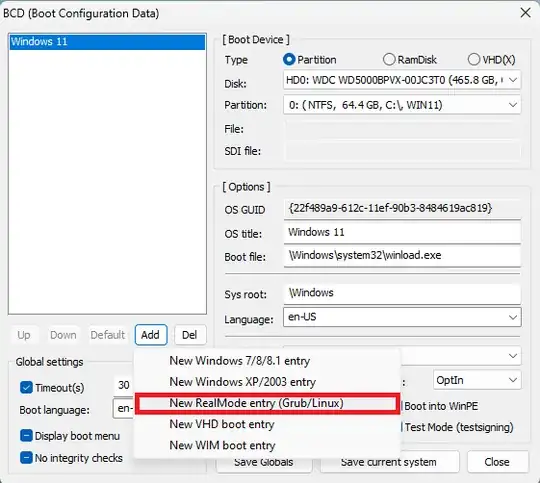
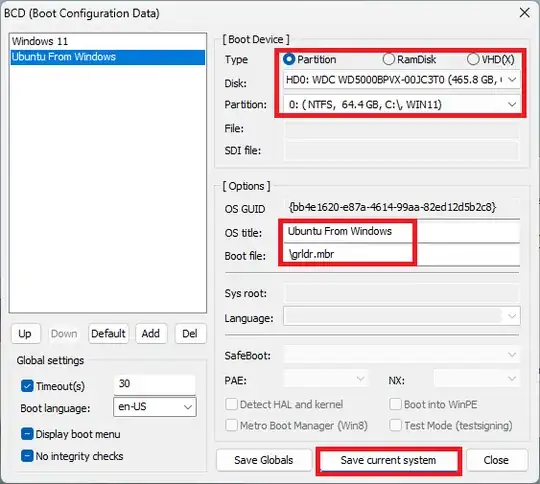
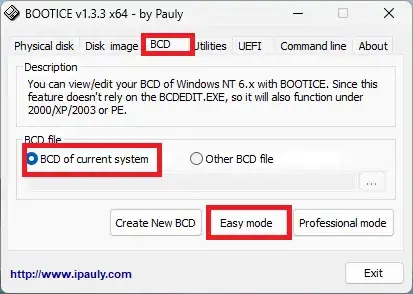
1. Use Bootice.exe to add one entry to the BCD file.
enter image description here

enter image description here

enter image description here

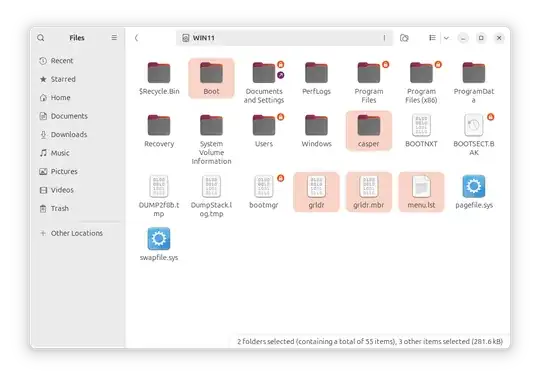
2. Copy the /casper directory from the Ubuntu ISO file to the root of the Windows partition. If you want to install Ubuntu, copy all directories from the ISO file except the boot directory; don't copy the boot directory to the Windows partition.

3. Copy these files; grldr and grldr.mbr from the Easybcd directory to the root of the Windows partition. Bootice.exe and Easybcd.exe exist in HBCD_PE_64.iso and can be downloaded online.

4. Create a menu.lst file in the root of the Windows partition, and add the appropriate entries. this is an example:

timeout 5
default 0

title Ubuntu kernel /boot/vmlinuz-6.8.0-40-generic root=/dev/sda3 ro -- initrd /boot/initrd.img-6.8.0-40-generic

title \n root

title Ubuntu 24.04 Live System kernel /casper/vmlinuz-noble boot=casper layerfs-path=minimal.squashfs -- initrd /casper/initrd-noble

title \n root

title Ubuntu 22.04 Live System kernel /casper/vmlinuz boot=casper layerfs-path=filesystem.squashfs -- initrd /casper/initrd.gz

In this example, three entries were added, one for the Ubuntu partition and two for live sessions. When you reboot and select Ubuntu, you will see all these entries in the submenu.

If you use more than one live session, rename the vmlinuz, initrd, and *.sguashfs files in the /casper directory and use the same names in the menu entry. If you want to install Ubuntu, don't rename the files, rename the live session files instead.

Now you can boot with one or more live sessions. To reach the Ubuntu partition, copy the vmlinuz and initrd files from the /boot directory in Ubuntu to the /boot directory in the Windows partition. Also, you can add more kernels.
enter image description here

Now you can use the live session to reinstall the grub bootloader or use boot-repair to solve the auto booting to Windows without the USB flash drive.

Update:

Menu entry to boot from Ubuntu ISO file:

title Boot ubuntu noble iso 
set ISO=/noble-desktop-amd64.iso
find --set-root %ISO%
map %ISO% (0xff)
map --hook
root (0xff)
kernel /casper/vmlinuz boot=casper iso-scan/filename=/noble-desktop-amd64.iso --
initrd /casper/initrd

Menu entry to boot from Super Grub2 Disk ISO file:

title Boot Super Grub2 Disk
find --set-root --ignore-floppies --ignore-cd /super_grub2_disk_hybrid_2.04s1.iso
map --heads=0 --sectors-per-track=0 --mem /super_grub2_disk_hybrid_2.04s1.iso (hd32)
map --hook
root (hd32)
chainloader (hd32)

How to use Windows CMD to boot from the Ubuntu ISO file in the C partition without needing a USB flash drive or creating another partition

Create recovery partition to install, backup, restore and repair: multi Ubuntu versions, HBCD-PE-64 and multi Windows installation without usb drive

Boot to any payload (e.g. linux ISOs) directly from the Windows Boot Manager menu

Talaat Etman
  • 1,352