In gnome's screen shot program, the quick keys PrtScn captures the entire screen and alt+PrtScn captures the active window. Is there a way to script or set up the third capture option of a selected area?
-
2Which Ubuntu version? – ish Jul 31 '12 at 14:52
-
7in 16.04 There is already a short cut of shift-print – Christian Bongiorno Mar 16 '16 at 21:13
-
This question was for 12.04. (It was a tag) – Rick Mar 16 '16 at 21:42
8 Answers
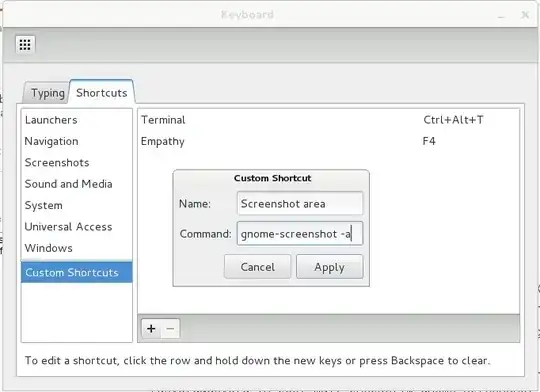
- Open System Settings -> Keyboard -> Shortcuts
- Select Custom Shortcuts(you can go to Screenshot-s too and it will work)
- Click +
- Fill fields
- Name to
Take a screenshot of area - Command to
gnome-screenshot -aorshutter -s(if u prefer shutter)
- Name to
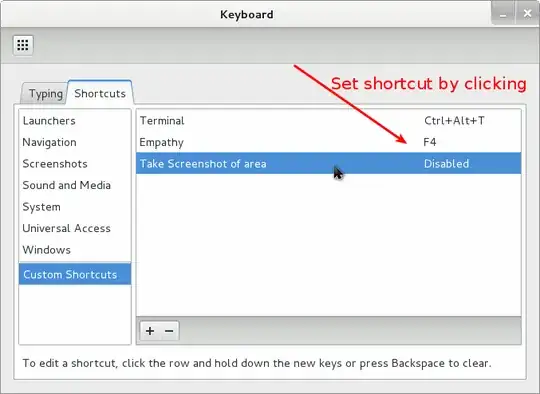
- Click OK
- Double-click on what you make and set shortcut Shift+PrtSc
— And that's all ... ;)
-
-
open Sistem Settings -> Keyboard settings and follow steps @Halkinn, or go to chat and say what you can't get – hingev Jul 31 '12 at 16:54
-
3Ubuntu 12.04 has this shortcut built in out of the box now as per the answer below. – sjakubowski Jun 11 '14 at 18:30
-
2In Linux Mint, it's
Preferences -> KeyboardShortcuts, and the command you need ismate-screenshot -a– Gordon Williams Oct 31 '16 at 19:14 -
Been a long time but theres a shortcut for this in Ubuntu 14.04 its 'ctrl+shift+prntscrn' hope this helps. – Josyula Krishna Apr 09 '17 at 17:17
-
gnome-screenshot -a -cto send the screenshot to clipboard. After doing that, I triedimport gtk; gtk.clipboard_get().wait_for_targets()in Python and got('TARGETS', 'MULTIPLE', 'image/tiff', 'image/jpeg', 'image/x-MS-bmp', 'image/x-bmp', 'image/bmp', 'image/png', 'SAVE_TARGETS', 'TIMESTAMP'), so it offers multiple formats to the application where you paste it. Trying it in Inkscape, then saving, it becomes an embedded PNG. Pasting it into Google Docs, then Download as ... Web Page, it also becomes a PNG. Pasting it into Gmail, sending then Show Original, also PNG – Evgeni Sergeev Apr 05 '18 at 22:38 -
1Do you provide any CLI solution to map the shortkey with this command? – alhelal May 30 '18 at 08:27
-
Yeah, I'd like a CLI option maybe, too. When I hit the PrintScreen button to set the shortcut, it... just takes a screenshot. :) – CivMeierFan Aug 18 '20 at 04:16
-
Oh, if I Disable the original shortcut, then I can set the PrintScreen button to my own shortcut. This was for setting up
/usr/bin/flameshot guishortcut, so I can jazz those snips up. – CivMeierFan Aug 18 '20 at 04:18 -
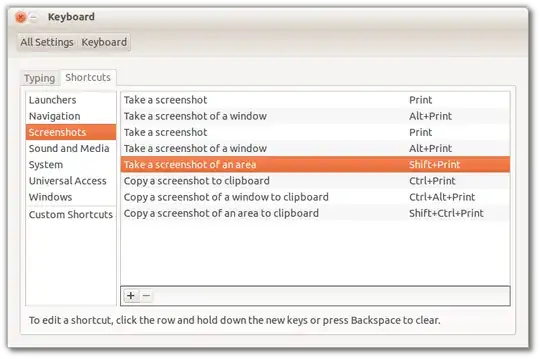
That shortcut is already built-in: Shift+PrtScr :)
The full-list of screenshot keyboard shortcuts is:
- 142,198
-
2Thanks, but I don't seem to have that. Would you mind posting a screen shot of which command this is mapped to? I've included a screen shot of mine above in the update. – Rick Jul 31 '12 at 14:49
-
1
-
1
-
7
-
-
1
-
It is documented here: https://help.ubuntu.com/stable/ubuntu-help/screen-shot-record.html – heroin Feb 20 '18 at 14:51
-
1
-
2
-
-
-
Ah, actually just pressing "prt scr" / print screen and not any shift will now allow you to snip it. – odinho - Velmont May 16 '22 at 12:43
-
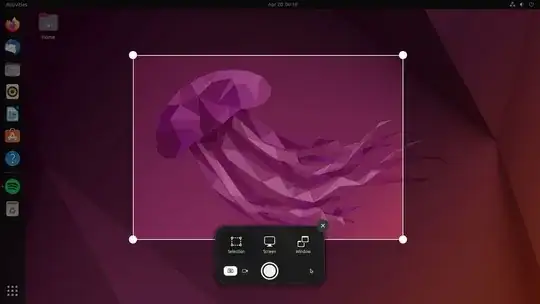
Gnome now includes a tool by default.
The previous Shift+Prt Scr seem to no longer work for me. Not sure if that is a regression.
But just pressing Prt Scr (Print screen) will bring up this UI, allowing you to snip:
Image courtesy omg! ubuntu! Ubuntu 22.04 LTS: Screenshot Tour
- 985
-
-
-
1This is the best feature of Ubuntu 22 I discovered so far. I think it was lacking in the previous LTS version (version 20). Thanks! – Sajjad Ahmed May 08 '24 at 08:12
-
I don't like the fact that this new tool automatically also saves every screenshot in the
~/Pictures/Screenshotsdirectory, even if you only want to immediately paste it somewhere from the clipboard, or if you want to discard it altogether. – natka_m Mar 30 '25 at 00:01 -
1@natka_m True. I use Flameshot in addition nowadays, especially when I need to do a timed screenshot, which is often because hitting
Print Screenand other shortcuts usually closes context menus I want to screenshot. That has a busy UI, but you only need one or two buttons. :) – odinho - Velmont Sep 24 '25 at 09:31
While to above answers worked for me in Ubuntu; after switching to Lubuntu I noticed that the ShiftPrtScn was no longer working.
The following procedure fixed it for me. Since in Lubuntu the program scrot is used, I found that I had to add the following to the ~/.config/openbox/lubuntu-rc.xml:
<!-- Launch scrot with interactive select when Shift-Print is pressed -->
<keybind key="S-Print">
<action name="Execute">
<command>scrot -s</command>
</action>
</keybind>
After the change do not forget to issue: openbox --reconfigure to activate the updates.
See the Lubuntu documentation for more details.
- 207,970
- 61
you can try this command from terminal if you have a problem with shortcuts.
sleep 5 && gnome-screenshot -a -c
Now open the window you want to take screenshot from and select the area after 5 seconds after the command execution.
sleep 5
makes the terminal waits 5 seconds before executing the command so you can go to the window you want within this while
gnome-screenshot -a -c
takes screenshot of an area and copy it to clipboard.
in Ubuntu 22.04.4 LTS use the hotkey combination Ctrl + Shift + S
- 11
-
-
I am using Ubuntu 22.04.4 and is gives me the option to "Select a region". – stumblebee Nov 18 '24 at 02:22
For xubuntu and xfce users:
Run Keyboard app from the launcher menu, go to Application Shortcuts, check current action for Print, if it's xfce4-screenshooter -f:
- add a new action:
xfce4-screenshooter -r - Set Shift+PrtScn for it
- Check
- Enjoy
If it's not xfce4-screenshooter - check the current tool how to run it in the "region screenshot" mode
- 151
-
A suggestion to add this to the default xubuntu package: https://bugs.launchpad.net/ubuntu/+source/xubuntu-default-settings/+bug/1812234 – Ilya Sheershoff Jan 17 '19 at 15:56
To take screenshot from a selected area And copy to clipboard, just press:
Ctrl+Shift+PrtScrn
- 333