How can I automatically shutdown the system after a certain customizable time?
Asked
Active
Viewed 1e+01k times
60
-
This graphical script can be useful https://askubuntu.com/questions/640845/what-graphical-utility-can-i-use-for-ubuntu-auto-shutdown – VRR Dec 17 '15 at 17:15
8 Answers
69
Open a terminal window and type in:
sudo shutdown -h +60
and just replace 60 with whatever number of minutes you want to take.
More info here:
http://ubuntuforums.org/archive/index.php/t-473173.html http://www.linux.org/lessons/beginner/l5/lesson5a.html
-
3
-
shutdown +m 60 doesn't work for me. gives me an error message and says that there's an invalid time value. – NES Jan 03 '11 at 14:26
-
I thought it was odd... it shouldn't be "+m 60", it should be "+60" (or maybe more like "-h +60". The bottom of this page seems to know how it works: http://www.linux.org/lessons/beginner/l5/lesson5a.html. – Daniel Jan 03 '11 at 19:04
-
"shutdown -P 1" - works well and shuts down the system in 1 minute, no time unit needed. – n3rd Aug 02 '11 at 12:01
-
2
11

karthick87
- 84,713
-
1
-
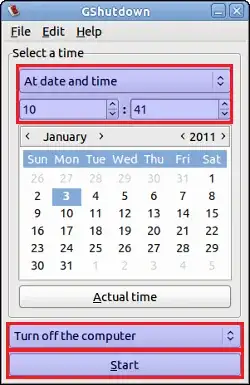
2i didn't down vote. But Gshutdown doesn't work smoothly here. When i choose shutdown it insteads log the user out? – NES Jan 03 '11 at 14:45
-
-
4
Because the topic abt shutting down PC after certain period of inactivity is redirected to this topic, I will explain this issue here.
I spent lots of time to solve this problem, so I find it useful to share it, to make the same issue simple for others. I hv tried different programmes but they haven't work for me so I found using short script with cronjob the best solution.
Firstly I refered to post Timed Shutdown - shutdown after 30 minutes
I will copy it below and then explain improvements to make it work:
Install xprintidle. This tool gives the idle time of a user.
sudo apt-get install xprintidleMake a script autoshutdown.sh which checks for the idle time and instructs the computer to shutdown if idle for 30 minutes.
idle=$(xprintidle)

if [ $idle -gt 1800000 ]; then
    shutdown -h now
fi
Make a cronjob for this that checks from time to time if the system has been idle for too long and if it has been idle for a longer than 30 minutes it will shutdown. Note that the cronjob has to be made for the root user.
This script needs some improvements to work, like:
idle=`env DISPLAY=:0 su OUR_USER -c xprintidle 2>&1`
OUR_USER is the user we refer to for checking idle time (not root user)
DISPLAY=:0 is correct for one desktop display (run env command to read DISPLAY in your situation)
if script is run by OUR_USER, line above can be reduced:
idle=`env DISPLAY=:0 xprintidle 2>&1`
This topic is described http://ubuntuforums.org/showthread.php?t=1069602
if script is run by OUR_USER, shutdown command should be preceded by sudo
sudo shutdown -h now
My script was run from cron by line in cron file:
*/5 * * * * /home/OUR_USER/autoshutdown.sh
- every 5 minutes
- OUR_USER should be replaced as earlier to the user we refer to.
If script is not run by root we should remember to add the line:
ALL ALL=(ALL) NOPASSWD: /sbin/shutdown
in sudoers file, so shutdown command won't need a password to be executed.
I tried such cronjobs on 2 similar distro Lubuntu 12.04.4 RC LXLE 32-bit ( http://www.lxle.net/ )
In one system it works only using root cronjob set in file:
/var/spool/cron/crontabs/root
CAVEAT
Another problem is that xprintidle in my system has given sometimes random for me values and sometimes logically incremental. The final result - my system has been usually shutdown after 20 mins maybe, if I set the max idle value to 30 mins. I think the culprit is xscreensaver which doesn't work as is set by entered parameters.
1
You can use sleep for that. They're used to delay/ pause an operation. Combine that with shutdown you get a power off timer.
Example to sleep after 1 hour:
sleep 3600 && sudo shutdown now
You can use math as well, here's to power off after 3 hour:
sleep $((3600*3)) && sudo shutdown now
user14429451
- 11
1
You can use
ComplexShutdown https://launchpad.net/complexshutdown
or EasyShutdown https://launchpad.net/easyshutdown
Emad Habib
- 33
0
Crontab seemed like the perfect and most convenient solution for a scheduled shutdown.
But I could not get it running for quite a while using (as supplied by Chat):
crontab -e
30 22 * * * /sbin/shutdown -h now
My solution was to create a crontab, but as superuser. Makes sense, dont want any old bod shutting down the server.
sudo crontab -e -u root
Then add PW,select text editor
Then:
30 22 * * * /sbin/shutdown -h now
Works for me.
0
Another option is Shutdown Timer, a GNOME Shell extension.
An old version for older GNOME version is still available.
To be able to use GNOME Extension, type into a terminal:
sudo apt install chrome-gnome-shell gnome-shell-extension-prefs
Filbuntu
- 13,911
- 42
- 90
- 116
0
sudo shutdown -h +$(( ($(date -d "2025-08-23 15:30" +%s) - $(date +%s)) / 60 )) "Scheduled shutdown"
$(date -d "2025-08-23 15:30" +%s)date -d= interprets a specific date"2025-08-23 15:30"= the target date and time+%s= converts that date to Unix timestamp (seconds since January 1, 1970) Example: If the target date is 23/08/2025 15:30, this returns something like1756044600
$(date +%s)- Gets the current Unix timestamp
- Example: If it's 6/08/2025 10:45, returns something like
1754570700
The subtraction:
$(target_date) - $(current_date)1756044600 - 1754570700 = 1473900- Result: 1,473,900 seconds difference
Division by 60:
/ 601473900 / 60 = 24565- Converts seconds to minutes
- Result: 24,565 minutes
$(( ... ))- This is bash arithmetic to perform mathematical calculations
shutdown -h +24565shutdowninterprets+24565as "shutdown in 24,565 minutes from now"
Simpler practical example: If you wanted to shutdown in 2 hours (120 minutes):
# Current date: 6 Aug 2025 14:00
# Target date: 6 Aug 2025 16:00

TARGET=$(date -d "2025-08-06 16:00" +%s)    # 1754575200
CURRENT=$(date +%s)                          # 1754568000
DIFF=$((TARGET - CURRENT))                   # 7200 seconds
MINUTES=$((DIFF / 60))                       # 120 minutes
sudo shutdown -h +120
The command does all of this automatically in a single line.
-
Can you please translate the answer from Spanish to English? - ¿Podrías traducir la respuesta del español al inglés por favor? – Chester Gillon Aug 06 '25 at 18:59
-