81

In Emacs run in terminal, ctrl+space is a standard shortcut key to select region. But under Ubuntu 12.04, it will invoke some input method for non-English language. I was wondering if I can reserve it for Emacs only?

Under System Settings -> Keyboard -> Shortcuts, I couldn't find to what ctrl+space has been bound. Strange.

Other programs, especially auto-complete in Eclipse, also seem to have a problem handling ctrl+space.

Braiam
  • 69,302
Tim
  • 26,197

9 Answers9

119

It sounds like you have Ibus running, which uses Ctrl + Space by default to enable/disable the input editor.

You can change the shortcut key assigned to it in Ibus Preferences.
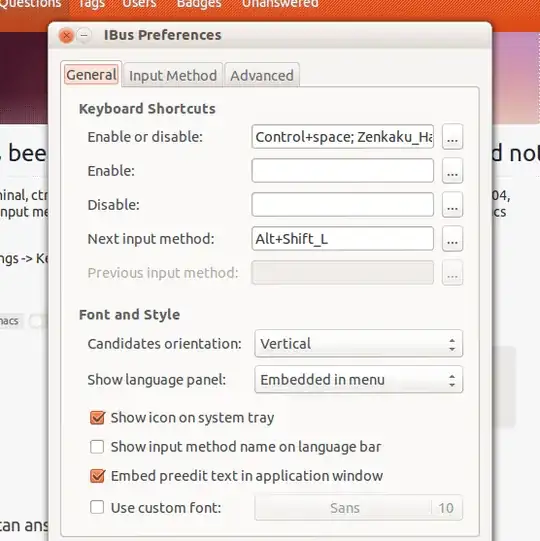
enter image description here

If Ibus is running in the menubar, you can right-click to choose Preference from the menu. If Ibus is not running in the menubar, you can start the Preferences dialog from the Dash by running Keyboard Input Methods or from the terminal with ibus-setup.

Update for 14.04

ibus-setup is no longer available for 14.04. Functions from the former ibus-setup are instead integrated into System Settings >> Text Entry.

Input switching is now set by default to Super + Space, but Ibus may still steal focus from the Control + Space keybinding and cause other system problems, most notably the auto-complete in Eclipse.

Integration of Ibus input switching into the new Text Entry settings is still a work in progress, and this is causing the problem since the older setting still exists behind the scenes.

If you have upgraded from 12.04, ibus-settings should still be available.

In 14.04, you can edit the settings directly is dconf-editor.

If it is not installed:

sudo apt install dconf-editor

Then browse to Desktop >> ibus >> general >> hotkey. The trigger and triggers setting will still show 'control+space'. Edit these settings out, being careful to leave empty brackets [] in triggers.

Name is carl
  • 393
  • 5
  • 18
chaskes
  • 15,576
  • 3
    This also fixed autocomplete not working in Eclipse after I upgraded to xubuntu 14.04 – Brian Laframboise May 06 '14 at 13:50
  • My ibus-setup on 14.04 is slightly different and does not have that option. – BoppreH May 06 '14 at 17:50
  • @BoppreH 14.04 has changed ibus setup a little. I'll look into it. Thanks. – chaskes May 06 '14 at 17:51
  • @BoppreH 13.10 and 14.04 use super+space for input switching. Are still having trouble using ctrl-space in emacs? – chaskes May 06 '14 at 17:57
  • @chaskes Not emacs, eclipse, but it's the same problem. Started with the 14.04 upgrade and I've checked Preferences -> Keyboard -> Shortcuts and the shortcut is not there either. Here's what my ibus-setup looks like: http://i.imgur.com/sJM1utb.png . For some reason left alt is also stealing focus and I don't know why. – BoppreH May 06 '14 at 18:02
  • 4
    dconf-editor fixed my problem, thank you very much @chaskes . – BoppreH May 06 '14 at 19:03
  • 2
    @BoppreH Glad it worked out. Please upvote (if you haven't done so). ;) – chaskes May 06 '14 at 19:04
  • Not sure why this isn't accepted as the answer, because this worked for me on Lubuntu 14.04. On a side-note I had to go to Desktop>>ibus>>general>>hotkey instead of straight from ibus to hotkey – Peter Raeves Jul 31 '14 at 09:02
  • +1 I wish I could give you more up-votes! I just chased my tail for days. Thank you! – Jeff Sheffield Nov 04 '14 at 02:29
  • Glad it helped. :) – chaskes Nov 04 '14 at 02:30
  • This fixed a problem I was having when running emacs in the terminator terminal (not sure why it never happened in other terminals). – Steven C. Howell Jul 01 '15 at 14:09
  • Worked for me on Android Studio running on Xubuntu – Nishad Jul 24 '15 at 07:05
  • I've just run into this with a newly installed Ubuntu 14.04.3. Neither Ctrl-Space nor Ctrl-@ sends a null character in xterm or gnome-terminal. The problem still exists after deleting the "Next input method" setting in IBus Preference and all modifier-Space hotkeys in dconf-editor (desktop > ibus > general > hotkey). – Keith Thompson Dec 16 '15 at 20:15
  • Correction: After trying both this and Eyal's solution of removing ibus altogether, I am getting a null character when I type Ctrl-Space. I just wasn't seeing it when I typed Ctrl-V Ctrl-Space in bash. – Keith Thompson Dec 16 '15 at 20:47
12

Disable the IBUS trigger using the commandline:

gsettings set org.freedesktop.ibus.general.hotkey triggers @as []

Or if this does not work try if the first one produces an error:

gsettings set org.freedesktop.ibus.general.hotkey triggers []
aba
  • 311
  • 2
    The second command worked for me on a corporate customized version of Ubuntu 14.04 (goobuntu), which fixed my emacs problem copy/yank or copy/paste. – rrenaud Jul 07 '15 at 22:33
  • The second command fixed this for me, and it is now in my install script for setting up newly installed ubuntu desktops. Thanks, askubuntu! – Mnebuerquo Feb 01 '16 at 01:02
6

ibus causes me nothing but headaches. Everytime that I try to change the settings, when I reboot, the Ctrl+Space comes back. Here's my solution:

sudo apt-get purge ibus
sudo killall ibus

Now everything works until Ubuntu decides their next stupid thing. Maybe the letter 'o' will map to turning off the computer?

Eyal
  • 1,261
  • I just tried this (Ubuntu 14.04.3 LTS). It didn't help. – Keith Thompson Dec 16 '15 at 20:26
  • CORRECTION: Either this, or changing the IBus preferences, or running dconf-editor, did work. I was testing by typing Ctrl-V Ctrl-Space in bash; for some reason bash wasn't accepting it. But Ctrl-Space is generating a null character. – Keith Thompson Dec 16 '15 at 20:46
2

After upgrade to ubuntu 14.04, I had the same problem. What I did.
In Ibus preferences: System > Preferences > Keyboard Input Methods.
There is an option: Next input method it was set to ctrl+space, I removed that and then all started to work back again.

Pabi
  • 7,439
1

Ubuntu Studio 14.04 (XFCE) here. I didn't have problem with Autocomplete (Ctrl + Space), but with Copy Line (Ctrl + Alt + Down).

This worked for me:

  • Open Windows Manager: xfwm4-settings
  • Go to Keyboard tab
  • Scroll down to conflicting Action
  • Hit Clear button or change action to different shortcut
  • Thanks! This can be done on command line, too xfconf-query -c xfce4-keyboard-shortcuts -r -p " /xfwm4/custom/<Primary><Alt>Up" ; xfconf-query -c xfce4-keyboard-shortcuts -r -p " /xfwm4/custom/<Primary><Alt>Down" ; xfconf-query -c xfce4-keyboard-shortcuts -r -p " /xfwm4/custom/<Primary><Alt>Left" ; xfconf-query -c xfce4-keyboard-shortcuts -r -p " /xfwm4/custom/<Primary><Alt>Right" . – Stéphane Gourichon Jun 02 '16 at 10:20
0

For some people using Japanese input with fcitx, check Fcitx Configuration. There's a menu for global configuration, and under Trigger Input Method, the default shortcut will be Ctrl + Space.

0

This happened me with Ubuntu 24. Culprit was Tabby terminal emulator Settings > Hotkeys "Toggle terminal window" toggle-window was set to Ctrl-Space.

screenshot of Tabby, Settings > Hotkeys

Screenshot shows fixed up Hotkey changed to Ctrl-Shift-Space.

gaoithe
  • 541
0

I have Ubuntu 14.04 GNOME with LXDE. Apparently this desktop has ibus-setup. So, for me, changing the ibus setting was the right fix. Perhaps it was only Unity that did away with the ibus-setup app.

JamesH
  • 192
0

The dconf-editor change was not sufficient for me. I have the Mozc (Japanese) input source installed.

On Ubuntu 16.04, I also had to:

  1. Go to System Settings -> Text Entry
  2. Click Mozc to highlight
  3. Click the wrench/screwdriver icon below
  4. Global Config tab
  5. The first setting there, "Trigger Input Method," was CTRL_SPACE. I clicked it and then hit Escape to unset the keybinding.