1

I’m experimenting with IPT's (iptables) in Xubuntu.

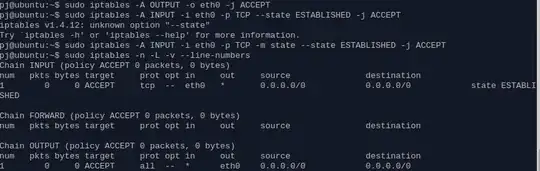
First experimentation wato allow all OUTPUT traffic and block all INPUT except already existing TCP connections can somebody verify if these are correct

enter image description here

To go a bit more advanced I'm trying to allow als TCP connections to active services on my workstation. My idea is to do a nmap scan and grep the listening/open ports but I'm probably over thinking it.

Finally I'm trying to allow FTP.
I used this additional rule to allow FTP but it seems I still get blocked

sudo iptables -A INPUT -p tcp --dport 21 -m state --state NEW,ESTABLISHED -j ACCEPT
  • i do know that images can only be posted at 10 rep but i think it is more clear what i want achieved with a img – user1082381 Feb 26 '13 at 18:34
  • 1
    It's better just copy and pste the text from terminal to your question. – Eric Carvalho Feb 26 '13 at 18:56
  • 1
    Can you try sudo iptables -A -p tcp --dport 21 -m state --state NEW,ESTABLISHED,RELATED -j ACCEPT. FTP opens another connection for data transfer. I think "RELATED" should handle that. – Eric Carvalho Feb 26 '13 at 18:58
  • still getting blocked. I must add that i'm trying to connect to a xubuntu that runs in VMPlayer from Windows with WinSCP but that shouldn't realy be a problem. Also tried to ftp to localhost in ubuntu -> connection refused :S – user1082381 Feb 26 '13 at 19:09
  • 1
    Try to load the FTP connection tracking module sudo modprobe nf_conntrack_ftp. You can also try sudo iptables -A -p tcp --dport 21 -m conntrack --ctstate NEW,ESTABLISHED,RELATED. – Eric Carvalho Feb 26 '13 at 19:20
  • still getting refused - screen of uptodate ipt can be found here --> http://www.tiikoni.com/tis/view/?id=1eb1c3d – user1082381 Feb 26 '13 at 19:28
  • 1
    OK, looking at the screenshot I realise now that iptables is blocking nothing, the policy for all chains is ACCEPT, which means if no rule is matched the packet is accepted. The refused message usualy means the port is closed. I don't think you have an FTP server running (sudo netstat -tlnp to check, search for port 21). – Eric Carvalho Feb 26 '13 at 19:38
  • @EricCarvalho - good point. All the rules should be listed to debug an iptables problem. – Panther Feb 26 '13 at 19:43
  • thnx for the response ... will experiment further tomorrow. Kinda strange that the the default behaviour is accept - in windows server if i remember it well it's deny – user1082381 Feb 26 '13 at 20:33
  • setup a vsftpd server - however when i try to login i get this error - 500 OOPS: cannot read user list file:/etc/vsftpd.userlist - edit: typo in the config file got a working ftp server now to my home folder ;) - only the question left on how to allow all allow als TCP connections to active services on my workstation – user1082381 Feb 27 '13 at 12:34
  • @EricCallho so basically what you are saying that you always need a deny all or iptables will assume it is allowed? – user1082381 Feb 27 '13 at 12:46
  • Yes, to change the policy (default behavior if no rule matches) run, e.g., sudo iptables -P INPUT DROP, sudo iptables -P OUTPUT DROP, etc. – Eric Carvalho Feb 27 '13 at 16:07
  • interesting fact – user1082381 Feb 27 '13 at 17:57

2 Answers2

4

FTP is a bit odd in that to allow inbound traffic on port 21 and outbound traffic on port 20 :

sudo iptables -A INPUT -p tcp --dport 21 -j ACCEPT
sudo iptables -A OUTPUT -p tcp --sport 20 -j ACCEPT

In addition ftp will use a random higher port. To allow this you need to load the ip_conntrack_ftp module on boot. Uncomment and modify the IPTABLES_MODULES line in the /etc/sysconfig/iptables-config file to read

IPTABLES_MODULES="ip_conntrack_ftp"

You will still need a way to save your iptables configuration and restore it when you boot. Ubuntu does not have a simple way of doing this. Basically you can either use /etc/rc.local or disable NetworkManager and use networking scripts.

First save your rules:

sudo iptables-save /etc/iptables.save

Method 1 : Edit /etc/rc.local and add the line

iptables-restore /etc/iptables.save

Method 2 : Edit /etc/network/interfaces and use "post-up" to bring our iptables rules up.

auto lo
iface lo inet loopback

auto eth0
iface eth0 inet dhcp
post-up /sbin/iptables-restore /etc/iptables.save

Then reboot.

The preferred method is probably to use UFW

sudo ufw allow ftp

UFW is the fedault tool for Ubuntu, uses syntax very similar to iptables, and is enabled and restored on rebooting.

See:

https://serverfault.com/questions/38398/allowing-ftp-with-iptables

http://slacksite.com/other/ftp.html

http://bodhizazen.com/Tutorials/iptables

https://help.ubuntu.com/community/UFW
Panther
  • 104,796
1

If you are new to iptables, you may want to use either gufw or ufw to set up rules initially. You can use rules as simple as "allow incoming ftp" instead of needing to understand all of the special flags to make it work. They will also allow you to set up advanced rules if you need to.

Both ufw and gufw create iptables rules behind the scenes.