3

EDIT: I think the problem is in the NVIDIA x server, that doesn't support an RGB screen from 1990. The screen was the best of them all when it was released.

This a strange thing! In windows the EDID must work because 1280*1024 is used as max resolution, but in ubuntu those stuff aren't being received, so how do I tell ubuntu/nivida to find those EDID stuff?

Hi, I have an external monitor which is an 20" 1280*1024. In windows 7 it works fine with that resolution but in ubuntu it can't.

The screens model name is IntelliColor Display/20 and the name of the company is "radius".recived Well, twin view is working but the only maximum resolution is 1024*768. I'm using nividas x server program. If I force it to use 1280*1024 it all crashes and I have to force a reboot.
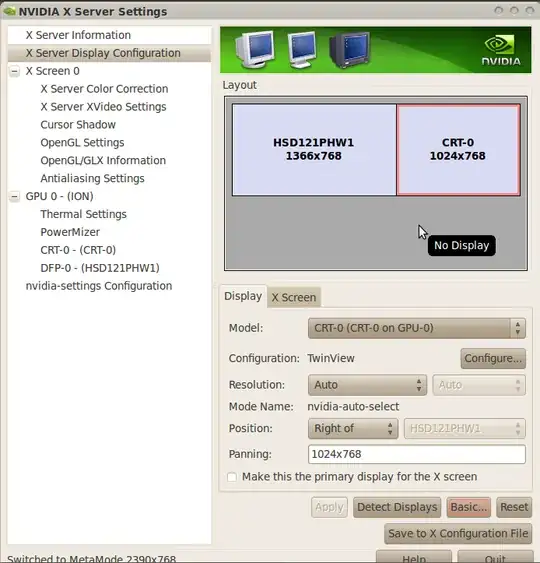
This must HELP

    alvar@alvars-laptop:~$ disper -l
display DFP-0: HSD121PHW1
 resolutions: 320x175, 320x200, 360x200, 320x240, 400x300, 416x312, 512x384, 640x350, 576x432, 640x400, 680x384, 720x400, 640x480, 720x450, 640x512, 700x525, 800x512, 840x525, 800x600, 960x540, 832x624, 1024x768, 1366x768
display CRT-0: CRT-0
 resolutions: 320x240, 400x300, 512x384, 680x384, 640x480, 800x600, 1024x768, 1152x864, 1360x768
Alvar
  • 17,028
  • I assume you used the button "Detect Display". I asked, because the driver shows only the laptop monitor, but you mentioned that you forced both monitors to use 1280x1024. How did you do that? How is your external Monitor connected? HDMI? – bdr529 Feb 22 '11 at 14:49
  • nope the pictures shows the external monitor the laptop is in the background! VGA and I only forced the external monitor to use 12801024 because the laptop is using it's max 1366768! – Alvar Feb 22 '11 at 15:37
  • from your edit, it looks like you found the answer to your problem (ie, the nvidia drivers don't work like you want). Post this as an answer instead of editing it into your question, then accept your answer. If the nvidia driver is updated, come back and edit your answer. If someone finds a sweet workaround, change the accepted answer to that one. – djeikyb Mar 18 '11 at 01:32

3 Answers3

1

You can try disper: disper on launchpad It's a command line tool for switching between internal and external displays (You can't use Xrandr with NVIDIA-Drivers. NVIDIA doesn't support it)

Install disper and try disper -l

bdr529
  • 3,118
  • Sorry it still doesn't support 1280*1024... – Alvar Feb 22 '11 at 15:05
  • What happens, if you try 'disper -r=1280x1024 -S'? – bdr529 Feb 22 '11 at 15:10
  • alvar@alvars-laptop:~$ disper -r=1280x1024 -S

    invalid literal for int() with base 10: '=1280'

    – Alvar Feb 22 '11 at 16:36
  • I will switch to windows to show you how it looks there (thats the goal) At first I thought my graphics card didn't support 1280*1024 then i noticed windows did, that was an disappointment. – Alvar Feb 22 '11 at 17:30
  • Oh, i'm sorry, the command was wrong, it should be 'disper -r 1280x1024 -S'. There should be no "=". – bdr529 Feb 23 '11 at 08:21
  • deletion of dangling metamode 50 failed could not find nor create MetaMode: :: CRT-0: 1280x1024 +0+0 What does this mean? – Alvar Feb 23 '11 at 09:52
1

This problem was resolved in 12.04 via the native display application, displayed below:

  • System Settings --> Displays
Alvar
  • 17,028
0

Check the output in /var/log/Xorg.0.log. This should tell you what the external monitor is reporting about its capabilities, and how the server is dealing with those capabilities. You may have to define your monitor(s) in /etc/X11/xorg.conf to override the information.

EDIT: Modern monitors supply an EDID which describes your monitors capablities. The software should use this to determine which modes to enable. These will likely go:

  • If duplicating the display, offer only the modes supported by both monitors.
  • If switching monitors, offer only the modes supported by the current monitor.
  • If running separate displays (side-by-side), offer all modes supported by the monitor for each display.

EDIT2: Having separate data on different display has multiple names including Multi-Head, Multi-Monitor, Dual-Head, and Dual-Monitor. Many recent display cards support Dual-Head configurations. More than two heads usually require additional display cards.

Windows calls their implementation Dualview. It is enabled by selecting 'Extend my display onto this monitor' from the display configuration menu.

Ubuntu Gnome enables dual-head from the System -> Preferences -> Monitors menu. This requires the RANDR extension version 1.2 or newer. It is enable by unchecking 'Same image on all monitors'. Randr configuration can be done from the /etc/gdm/Init/Default script. This is additional option to configuring an xorg.conf file. Either or both can be used. The command to do the configuration is xrandr which can also be used from a console window.

BillThor
  • 4,698
  • bash: var/log/Xorg.0.log: No such file or directory – Alvar Feb 23 '11 at 09:53
  • Strange all my X systems have /var/log/Xorg.*.log files. Multiple files exist if I have multiple sessions. /etc/X11/xorg.conf is now optional. – BillThor Feb 23 '11 at 16:59
  • I think the problem lays in the software that only offers the resolutions that my laptop has and then checks with the external monitorn if it supports them. But I'm just guessing I don't really now anything... – Alvar Feb 23 '11 at 17:07
  • Edited in expected behavior above. – BillThor Feb 23 '11 at 17:27
  • I would llike to have a new screen to the right, so I can just move my mouse pointer to the right and then be in the external monitor. If you undrstand me, what is the short word for this view? – Alvar Feb 24 '11 at 08:27
  • @Alvar I have added more information for you. xrandr can be used from the command line to show and modify the current configuration. Most importantly for you, you can add modes using xrandr if necessary. I did that for a monitor connected through a KVM which does not pass the EDID. Be careful not to exceed your monitor's capabilities, although I don't think it is as likely to damage an flatscreen as it would a video monitor. – BillThor Feb 25 '11 at 19:26
  • It is a very big box screen – Alvar Feb 26 '11 at 09:05
  • @Alvar Try configuring Twinview. This should allow you to set the screens side by side. Look up the specs for the monitor, and configure the CRT using them. Once you have the screens side by side use the advanced configuration screen. You may need to configure a mode line. You should be safe at 60Hz. Good CRTs will shut down if you exceed their limits, but others will burn out one of the circuits. It appears the card is not retrieving the EDID for the CRT, but I would try detect monitors once you have side by side working. – BillThor Feb 26 '11 at 23:57
  • I have edited my original post! :) I hope it helps – Alvar Feb 27 '11 at 20:01
  • You may need to adjust the screen to the combined width of the two screens. It appears you are using the restricted driver. Additional help may be available from https://help.ubuntu.com/community/NvidiaResolutionXorgConf or https://help.ubuntu.com/community/BinaryDriverHowto/Nvidia. – BillThor Feb 27 '11 at 23:37