21

So I just bought an Asus x202e, and have installed Xubuntu 13.04 on it. All working great.

However, I want to be able to rotate the screen from landscape to portrait, and still use the touch. When I currently rotate it, the touch doesn't correspond with it.

How do I fix it?

Pepe Lebuntu
  • 3,302

4 Answers4

29

This answer is a command-line based method. For a GUI based app, see the answer below.


In the end, I found out how to do it, although it's a little tricky. Still, if a non-mega-Geek like me can do it, I'm sure most of you can too! :)

Firstly, Go to Terminal, and type this to find the name of your touchscreen, and if you have one, your touchpad (say, if you have a laptop with a touchscreen):

xinput -list

The names should be pretty obvious for each.

Now, make two "shell scripts": these are little text documents that contain several commands, which are joined up in the document to be done together (effectively creating a little program). Make them using gedit, naming them "portrait.sh" and "landscape.sh" respectively. Save them in a new folder: /home/your username/Scripts/

For PORTRAIT, type this:

#!/bin/sh

#portrait (left)

xrandr -o left xinput set-prop "Your Touchscreen's Name" --type=float "Coordinate Transformation Matrix" 0 -1 1 1 0 0 0 0 1 xinput set-prop "Your Touchpad's name, if applicable" --type=float "Coordinate Transformation Matrix" 0 -1 1 1 0 0 0 0 1

Next, for LANDSCAPE:

#!/bin/sh

#landscape (normal)

xrandr -o normal xinput set-prop "Your Touchscreen's Name" --type=float "Coordinate Transformation Matrix" 0 0 0 0 0 0 0 0 0 xinput set-prop "Your Touchpad's name, if applicable" --type=float "Coordinate Transformation Matrix" 0 0 0 0 0 0 0 0 0

If you don't have a touchpad, you can leave out that line of code for each shell script.

Afterwards, I also made launchers to automatically run each shell script when I tapped on them (this is possible in Xubuntu, Ubuntu MATE, and many other Ubuntu flavours). To do so, go to your panel, right-click, click on "add to panel" (or equivalent, for all these subsequent commands, too), create a custom application launcher. For portrait's launcher, put in this command:

sh /home/username/Scripts/portrait

For landscape's launcher, put in this command:

sh /home/username/Scripts/landscape

I also made a "super+" keyboard shortcut for each of them. Find your "keyboard shortcuts" settings program (under Settings in many flavours, or just search for it). Effectively, do the same thing as you did with the panel launchers: Add a new keyboard shortcut, Name it Portrait and give it the command, "sh /home/username/Scripts/portrait", and do the equivalent for Landscape. Then give each of them a keyboard shortcut (say Super+P and Super+L respectively... although be aware Super+P is sometimes the standard keyboard shortcut for your Display Settings).

I STRONGLY recommend you make a keyboard shortcut for LANDSCAPE - that way, if your touch stops working, you can at least get out of Portrait, and back to Landscape successfully (VERY USEFUL).

For more information, go here. http://ubuntuforums.org/showthread.php?t=1972447

(This link - https://wiki.ubuntu.com/X/InputCoordinateTransformation - will also help you understand a little of the theory behind it...)
Pepe Lebuntu
  • 3,302
  • maybe you should accept your answer (and also expand it in case the links die in future? – Zanna Sep 27 '16 at 09:07
  • Okay. :) how do I do that? – Pepe Lebuntu Sep 28 '16 at 00:23
  • Click on the little grey tick, like this and add some info so we can figure out what to do without visiting external links :) – Zanna Sep 28 '16 at 04:58
  • Will that do..? – Pepe Lebuntu Sep 29 '16 at 01:08
  • That's wonderful! +1 for your efforts :D – Zanna Sep 29 '16 at 05:20
  • Note that for the landscape transformation, coordinates given are wrong. You're using the null matrix but you should use the identity matrix. I.e. xinput set-prop $touchpad_name --type=float "Coordinate Transformation Matrix" 1 0 0 0 1 0 0 0 1 – Peeyush Kushwaha Sep 22 '18 at 13:45
  • for people that want to rotate to the right, the rotation matrix is xinput set-prop $touchpad_name --type=float 150 0 1 0 -1 0 1 0 0 1 (obs.: 150 is the code for rotation matrix property) and the xrandr command is xrandr -o right – ignacio May 22 '20 at 10:27
  • Does anything like this exist for wayland? I'm having the exact same issue but I can't use commands like xrandr and xinput because I am on wayland (gnome-shell). I have debian 12 – Ciro García Jan 29 '24 at 03:07
1

I also wrote a little utility to handle this. Mine is a suite of lowly shell scripts, but they're interfaced and documented fairly well, so I'll add them to the list of solutions here.

You can find the source code here (docs here), and if you're on a Debian derivative, you can install them by adding my package repo here and running sudo apt update && sudo apt install ks-rotate-display.

kael
  • 111
  • Are you still maintaining repository? I could not install due to a bad/no public key plus the version is for bionic. – Terence Golightly Oct 21 '22 at 12:59
  • @TerenceGolightly, I do still maintain that repo. Strange that you're running into key issues. I assume you imported the key per step # 1 here?. Can you post the specific error you're getting? Also regarding the distros, you're right, I haven't been good about publishing for other distros; however, almost all of the packages are just bash scripts and will work just fine on other distros, so you can feel free to use the bionic repo. – kael Oct 23 '22 at 00:59
  • I attempted this: ' W: GPG error: https://packages.kaelshipman.me/public/deb bionic InRelease: The following signatures couldn't be verified because the public key is not available: NO_PUBKEY 8825EFF3280FDB58 E: The repository 'https://packages.kaelshipman.me/public/deb bionic InRelease' is not signed. N: Updating from such a repository can't be done securely, and is therefore disabled by default. N: See apt-secure(8) manpage for repository creation and user configuration details. ' – Terence Golightly Oct 29 '22 at 13:17
  • @TerenceGolightly ok, I've just updated my keys and re-exported everything. I tested it in a docker container and it worked for me. Please try again and let me know if you still have trouble. – kael Nov 01 '22 at 01:34
  • I tried it again; wget -O /etc/apt/trusted.gpg.d/kaelshipman.me-archive-keyring.gpg https://packages.kaelshipman.me/kaelshipman.me-archive-keyring.gpg --2022-11-02 16:47:20-- https://packages.kaelshipman.me/kaelshipman.me-archive-keyring.gpg Resolving packages.kaelshipman.me (packages.kaelshipman.me)... 168.235.71.32 Connecting to packages.kaelshipman.me (packages.kaelshipman.me)|168.235.71.32|:443... connected. HTTP request sent, awaiting response... 404 Not Found 2022-11-02 16:47:20 ERROR 404: Not Found. Thanks for taking the time to look at this. – Terence Golightly Nov 02 '22 at 20:48
  • This does not work on ARM Chromebooks, but this post worked https://askubuntu.com/a/1547502/124466 – Archisman Panigrahi May 11 '25 at 00:49
0

I've built a little GUI that can do that. Completely based on those open source scripts. Have a look at Screen Orientation Manager here.

  • Tx for your reply. I'll try that when I am near my 2in1 machine. – Terence Golightly Oct 29 '22 at 00:35
  • apt errors out with your public key is unavailble: W: GPG error: https://packages.kaelshipman.me/public/deb bionic InRelease: The following signatures couldn't be verified because the public key is not available: NO_PUBKEY 8825EFF3280FDB58 E: The repository 'https://packages.kaelshipman.me/public/deb bionic InRelease' is not signed. N: Updating from such a repository can't be done securely, and is therefore disabled by default. – Terence Golightly Oct 29 '22 at 02:57
0

This method works with X.Org with all DEs I have tested (GNOME/KDE/Cinnamon/XFCE/MATE/LXDE). It also works on ARM computers.

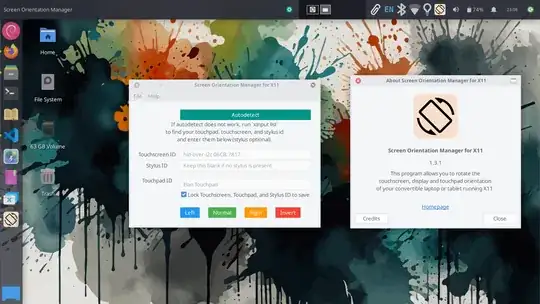
You'll have to install the Screen Orientation Manager app.

Download and install the .deb package from GitHub releases.

Alternatively, use the official PPA:

sudo add-apt-repository ppa:apandada1/screen-orientation-manager
sudo apt update
sudo apt install screen-orientation-manager

Run xinput list to get the ID for the touchscreen and touchpad, and enter them into the app (it will remember them).

image

Finally, add the Screen Orientation Manager app to the list of startup programs.

Command line options: After setting up, you can also run screen-orientation-manager invert to quickly invert the configuration without opening the app (you can also add it to startup applications if you need to invert the screen on app run). You can also use the arguments left, right and normal. If you want the GUI to show up after applying the orientation settings, run, for example, screen-orientation-manager left --persist.

$ screen-orientation-manager --help

usage: ScreenOrientationManager.py [-h] [--normal | --left | --right | --invert] [--persist] [{normal,left,right,invert}]

Screen Orientation Manager for X11

positional arguments: {normal,left,right,invert} Rotation (alternative positional form)

options: -h, --help show this help message and exit --normal Rotate to normal orientation --left Rotate to left orientation --right Rotate to right orientation --invert Rotate to inverted orientation --persist Keep the GUI running after applying rotation


For Wayland, see this.