I have just bought a Beetel BG64 usb modem. This modem is working fine on Win 7 but not in ubuntu 13.10 (saucy).
I have tried a lot, but still not working.I have posted the output of lsusb & usb-devices necessarily. Any suggestion will be helpful. Thank you in advance.
edit:
What I did:
- without attaching the dongle I pressed Ctrl+Meta+T, then typed:
mount /dev/sr
And pressed Tab. This gave me the only suggestion,
mount /dev/sr0
- Again I attached the dongle , then did the same, and the output is:
mount /dev/sr
sr0  sr1
- Now I pulled out the dongle from my machine and did:
lsusb
And I got the result:
Bus 001 Device 001: ID 1d6b:0002 Linux Foundation 2.0 root hub<br>
Bus 002 Device 003: ID 0d8c:0201 C-Media Electronics, Inc. CM6501<br>
Bus 002 Device 002: ID 04f3:0212 Elan Microelectronics Corp. Laser Mouse<br>
Bus 002 Device 001: ID 1d6b:0001 Linux Foundation 1.1 root hub<br>
- Then I connected it to the machine again and did the same, and got:
lsusb
Bus 001 Device 004: ID 2020:0002  <br>
Bus 001 Device 001: ID 1d6b:0002 Linux Foundation 2.0 root hub<br>
Bus 002 Device 003: ID 0d8c:0201 C-Media Electronics, Inc. CM6501<br>
Bus 002 Device 002: ID 04f3:0212 Elan Microelectronics Corp. Laser Mouse<br>
Bus 002 Device 001: ID 1d6b:0001 Linux Foundation 1.1 root hub<br>
<br>
- without connecting the dongle I did:
usb-devices
and got:
T:  Bus=01 Lev=00 Prnt=00 Port=00 Cnt=00 Dev#=  1 Spd=480 MxCh= 9<br>
D:  Ver= 2.00 Cls=09(hub  ) Sub=00 Prot=00 MxPS=64 #Cfgs=  1<br>
P:  Vendor=1d6b ProdID=0002 Rev=03.11<br>
S:  Manufacturer=Linux 3.11.0-15-generic ehci_hcd<br>
S:  Product=EHCI Host Controller<br>
S:  SerialNumber=0000:00:02.1<br>
C:  #Ifs= 1 Cfg#= 1 Atr=e0 MxPwr=0mA<br>
I:  If#= 0 Alt= 0 #EPs= 1 Cls=09(hub  ) Sub=00 Prot=00 Driver=hub<br>

T:  Bus=02 Lev=00 Prnt=00 Port=00 Cnt=00 Dev#=  1 Spd=12  MxCh= 9<br>
D:  Ver= 1.10 Cls=09(hub  ) Sub=00 Prot=00 MxPS=64 #Cfgs=  1<br>
P:  Vendor=1d6b ProdID=0001 Rev=03.11<br>
S:  Manufacturer=Linux 3.11.0-15-generic ohci_hcd<br>
S:  Product=OHCI PCI host controller<br>
S:  SerialNumber=0000:00:02.0<br>
C:  #Ifs= 1 Cfg#= 1 Atr=e0 MxPwr=0mA<br>
I:  If#= 0 Alt= 0 #EPs= 1 Cls=09(hub  ) Sub=00 Prot=00 Driver=hub<br>

T:  Bus=02 Lev=01 Prnt=01 Port=00 Cnt=01 Dev#=  2 Spd=1.5 MxCh= 0<br>
D:  Ver= 1.10 Cls=00(>ifc ) Sub=00 Prot=00 MxPS= 8 #Cfgs=  1<br>
P:  Vendor=04f3 ProdID=0212 Rev=23.24<br>
S:  Product=PS/2+USB Mouse<br>
C:  #Ifs= 1 Cfg#= 1 Atr=a0 MxPwr=100mA<br>
I:  If#= 0 Alt= 0 #EPs= 1 Cls=03(HID  ) Sub=01 Prot=02 Driver=usbhid<br>

T:  Bus=02 Lev=01 Prnt=01 Port=06 Cnt=02 Dev#=  3 Spd=12  MxCh= 0<br>
D:  Ver= 1.10 Cls=00(>ifc ) Sub=00 Prot=00 MxPS= 8 #Cfgs=  1<br>
P:  Vendor=0d8c ProdID=0201 Rev=00.10<br>
S:  Product=PnP Audio Device        <br>
C:  #Ifs= 3 Cfg#= 1 Atr=80 MxPwr=500mA<br>
I:  If#= 0 Alt= 0 #EPs= 1 Cls=01(audio) Sub=01 Prot=00 Driver=snd-usb-audio<br>
I:  If#= 1 Alt= 0 #EPs= 0 Cls=01(audio) Sub=02 Prot=00 Driver=snd-usb-audio<br>
I:  If#= 2 Alt= 0 #EPs= 0 Cls=01(audio) Sub=02 Prot=00 Driver=snd-usb-audio<br>
- Then I did the same after attaching it again, and got:
usb-devices
T:  Bus=01 Lev=00 Prnt=00 Port=00 Cnt=00 Dev#=  1 Spd=480 MxCh= 9<br>
D:  Ver= 2.00 Cls=09(hub  ) Sub=00 Prot=00 MxPS=64 #Cfgs=  1<br>
P:  Vendor=1d6b ProdID=0002 Rev=03.11<br>
S:  Manufacturer=Linux 3.11.0-15-generic ehci_hcd<br>
S:  Product=EHCI Host Controller<br>
S:  SerialNumber=0000:00:02.1<br>
C:  #Ifs= 1 Cfg#= 1 Atr=e0 MxPwr=0mA<br>
I:  If#= 0 Alt= 0 #EPs= 1 Cls=09(hub  ) Sub=00 Prot=00 Driver=hub<br>

T:  Bus=01 Lev=01 Prnt=01 Port=01 Cnt=01 Dev#=  5 Spd=480 MxCh= 0<br>
D:  Ver= 2.00 Cls=00(>ifc ) Sub=00 Prot=00 MxPS=64 #Cfgs=  1<br>
P:  Vendor=2020 ProdID=0002 Rev=02.00<br>
S:  Manufacturer=Network Connect<br>
S:  Product=MT6229 <br>
S:  SerialNumber=192101021136100<br>
C:  #Ifs= 1 Cfg#= 1 Atr=80 MxPwr=500mA<br>
I:  If#= 0 Alt= 0 #EPs= 2 Cls=08(stor.) Sub=06 Prot=50 Driver=usb-storage<br>

T:  Bus=02 Lev=00 Prnt=00 Port=00 Cnt=00 Dev#=  1 Spd=12  MxCh= 9<br>
D:  Ver= 1.10 Cls=09(hub  ) Sub=00 Prot=00 MxPS=64 #Cfgs=  1<br>
P:  Vendor=1d6b ProdID=0001 Rev=03.11<br>
S:  Manufacturer=Linux 3.11.0-15-generic ohci_hcd<br>
S:  Product=OHCI PCI host controller<br>
S:  SerialNumber=0000:00:02.0<br>
C:  #Ifs= 1 Cfg#= 1 Atr=e0 MxPwr=0mA<br>
I:  If#= 0 Alt= 0 #EPs= 1 Cls=09(hub  ) Sub=00 Prot=00 Driver=hub<br>

T:  Bus=02 Lev=01 Prnt=01 Port=00 Cnt=01 Dev#=  2 Spd=1.5 MxCh= 0<br>
D:  Ver= 1.10 Cls=00(>ifc ) Sub=00 Prot=00 MxPS= 8 #Cfgs=  1<br>
P:  Vendor=04f3 ProdID=0212 Rev=23.24<br>
S:  Product=PS/2+USB Mouse<br>
C:  #Ifs= 1 Cfg#= 1 Atr=a0 MxPwr=100mA<br>
I:  If#= 0 Alt= 0 #EPs= 1 Cls=03(HID  ) Sub=01 Prot=02 Driver=usbhid<br>

T:  Bus=02 Lev=01 Prnt=01 Port=06 Cnt=02 Dev#=  3 Spd=12  MxCh= 0<br>
D:  Ver= 1.10 Cls=00(>ifc ) Sub=00 Prot=00 MxPS= 8 #Cfgs=  1<br>
P:  Vendor=0d8c ProdID=0201 Rev=00.10<br>
S:  Product=PnP Audio Device        <br>
C:  #Ifs= 3 Cfg#= 1 Atr=80 MxPwr=500mA<br>
I:  If#= 0 Alt= 0 #EPs= 1 Cls=01(audio) Sub=01 Prot=00 Driver=snd-usb-audio<br>
I:  If#= 1 Alt= 0 #EPs= 0 Cls=01(audio) Sub=02 Prot=00 Driver=snd-usb-audio<br>
I:  If#= 2 Alt= 0 #EPs= 0 Cls=01(audio) Sub=02 Prot=00 Driver=snd-usb-audio<br>
- Then I did:
sudo mount /dev/sr1 /cdrom/
got the output as:
mount: block device /dev/sr1 is write-protected, mounting read-only
- Finally doing:
nautilus /cdrom/
I got no .tar.bz2 or .deb so that I could make it or directly install its driver.
- In my gesture my device is (lsusb):
Bus 001 Device 004: ID 2020:0002
and (usb-devices),
T:  Bus=01 Lev=01 Prnt=01 Port=01 Cnt=01 Dev#=  5 Spd=480 MxCh= 0<br>
D:  Ver= 2.00 Cls=00(>ifc ) Sub=00 Prot=00 MxPS=64 #Cfgs=  1<br>
P:  Vendor=2020 ProdID=0002 Rev=02.00<br>
S:  Manufacturer=Network Connect<br>
S:  Product=MT6229 <br>
S:  SerialNumber=192101021136100<br>
C:  #Ifs= 1 Cfg#= 1 Atr=80 MxPwr=500mA<br>
I:  If#= 0 Alt= 0 #EPs= 2 Cls=08(stor.) Sub=06 Prot=50 Driver=usb-storage<br>
Modem Detail:
beetel
S/N: 110100371109632
IMEI: 911210201163014
Made in China
Ubuntu 13.10 (saucy)
GNOME 3.8.4 (Ubuntu 2013-12-05)
Kernel 3.11.0-15-generic (#25-Ubuntu SMP Thu Jan 30 17:22:01 UTC 2014)
OS Type Linux
GCC Version 4.8 (x86_64-linux-gnu)
Xorg Version 1.14.5 (17 December 2013 10:06:15AM)
More strangely this dongle does not show up my 2GB micro SD memory card.
Any help will be saviour for me.
Otherwise I would have to stick to Windows 7,
since without an internet connection ubuntu cannot even be upgraded.
-------------------------------------------------------------------
With the dongle attached I started booting ubuntu, did the following and got:
appuraja@appuraja-System-Product-Name:~$ dmesg | tail  <br>
[   24.919630] IPv6: ADDRCONF(NETDEV_UP): eth0: link is not ready<br>
[   26.631204] init: udev-fallback-graphics main process (1237) terminated with status 1<br>
[   26.839371] nvidia 0000:05:00.0: irq 44 for MSI/MSI-X<br>
[   27.340359] vboxdrv: Found 2 processor cores.<br>
[   27.342598] vboxdrv: fAsync=1 offMin=0x5c90e offMax=0x5c90e<br>
[   27.346034] vboxdrv: TSC mode is 'asynchronous', kernel timer mode is 'normal'.<br>
[   27.346040] vboxdrv: Successfully loaded version 4.2.16_Ubuntu (interface 0x001a0005).<br>
[   27.388335] vboxpci: IOMMU not found (not registered)<br>
[   45.088400] FAT-fs (sdb1): Volume was not properly unmounted. Some data may be corrupt. Please run fsck.<br>
[   70.090509] systemd-hostnamed[2508]: Warning: nss-myhostname is not installed. Changing the local hostname might make it unresolveable. Please install nss-myhostname!<br>

appuraja@appuraja-System-Product-Name:~$ lsusb <br>
Bus 001 Device 004: ID 2020:2000  <br>
Bus 001 Device 003: ID 0781:556b SanDisk Corp. <br>
Bus 001 Device 001: ID 1d6b:0002 Linux Foundation 2.0 root hub<br>
Bus 002 Device 003: ID 0d8c:0201 C-Media Electronics, Inc. CM6501<br>
Bus 002 Device 002: ID 04f3:0212 Elan Microelectronics Corp. Laser Mouse<br>
Bus 002 Device 001: ID 1d6b:0001 Linux Foundation 1.1 root hub<br>
<br>
Then after removing the dongle I did this and got:
appuraja@appuraja-System-Product-Name:~$ dmesg | tail  <br>
[  207.048903] usb 1-4: New USB device strings: Mfr=2, Product=3, SerialNumber=4<br>
[  207.048909] usb 1-4: Product: MT6229 <br>
[  207.048914] usb 1-4: Manufacturer: Network Connect<br>
[  207.048919] usb 1-4: SerialNumber: 192101021136100<br>
[  207.049560] usb-storage 1-4:1.0: USB Mass Storage device detected<br>
[  207.051143] scsi8 : usb-storage 1-4:1.0<br>
[  208.049695] scsi 8:0:0:0: CD-ROM            UsbModem Storage Disk     6229 PQ: 0 ANSI: 0 CCS<br>
[  208.051794] sr1: scsi3-mmc drive: 0x/0x caddy<br>
[  208.053540] sr 8:0:0:0: Attached scsi CD-ROM sr1<br>
[  208.060184] sr 8:0:0:0: Attached scsi generic sg4 type 5<br>

appuraja@appuraja-System-Product-Name:~$ lsusb <br>
Bus 001 Device 006: ID 2020:0002  <br>
Bus 001 Device 003: ID 0781:556b SanDisk Corp. <br>
Bus 001 Device 001: ID 1d6b:0002 Linux Foundation 2.0 root hub<br>
Bus 002 Device 003: ID 0d8c:0201 C-Media Electronics, Inc. CM6501<br>
Bus 002 Device 002: ID 04f3:0212 Elan Microelectronics Corp. Laser Mouse<br>
Bus 002 Device 001: ID 1d6b:0001 Linux Foundation 1.1 root hub<br>
<br>
Oh! I forgot to tell you this time I had left a SanDisk Cruzer Edge 8GB pendrive in one USB port.
Edit (05/02/2014 12:30 PM):
appuraja@appuraja-System-Product-Name:~$ dmesg | tail & lsusb <br/>

[1] 21063<br/>
[ 1519.068041] usb 1-2: new high-speed USB device number 5 using ehci-pci<br/>
[ 1519.200920] usb 1-2: New USB device found, idVendor=2020, idProduct=0002<br/>
[ 1519.200933] usb 1-2: New USB device strings: Mfr=2, Product=3,     SerialNumber=4<br/>
[ 1519.200939] usb 1-2: Product: MT6229 <br/>
[ 1519.200945] usb 1-2: Manufacturer: Network Connect<br/>
[ 1519.200950] usb 1-2: SerialNumber: 192101021136100<br/>
[ 1519.201451] usbserial_generic 1-2:1.0: The "generic" usb-serial driver is only     for testing and one-off prototypes.<br/>
[ 1519.201458] usbserial_generic 1-2:1.0: Tell linux-usb@vger.kernel.org to add     your device to a proper driver.<br/>
[ 1519.201464] usbserial_generic 1-2:1.0: generic converter detected<br/>
[ 1519.203272] usb 1-2: generic converter now attached to ttyUSB0<br/>
Bus 001 Device 005: ID 2020:0002  <br/>
Bus 001 Device 001: ID 1d6b:0002 Linux Foundation 2.0 root hub<br/>
Bus 002 Device 003: ID 0d8c:0201 C-Media Electronics, Inc. CM6501<br/>
Bus 002 Device 002: ID 04f3:0212 Elan Microelectronics Corp. Laser Mouse<br/>
Bus 002 Device 001: ID 1d6b:0001 Linux Foundation 1.1 root hub<br/>
[1]+  Done                    dmesg | tail  <br/>
appuraja@appuraja-System-Product-Name:~$ <br/>
Edit:
07/02/2014 04:56 P.M.
The issue is finally solved, I followed the complete instruction by Azker Mohamed, and the issue was already 99% solved, I give him many thanks, but for him, thanks would be insufficient appreciation, he helped me a lot.
By the grace of GOD, I suddenly discovered the following and issue is 100% solved:
1) Put the dongle plugged in,
2) Start the computer with ubuntu, it searches for the devices attached, although you will not see the internal process.
3) Never Ever put a blank modem into any USB port, be equipped with a valid SIM card and a freshly formatted (you can use Windows 7 also to format) micro sd memory card. Be sure you have sufficient Internet balance, at least 10 MB, I recommend 30 MB, which will be useful when we will be testing the connection. Put both of them into the respective slots. If your micro sd memory card is shown in the unity launcher, the problem is almost solved.
4) All the problem arises when your micro sd memory card is not shown in the unity launcher, so manage to show it, here is the process: Open Terminal by Ctrl+Meta+T then type
sudo mount /dev/sr
then hit 'Tab key' twice at least. If you see the options like sr0 sr1 then your
card is detected but not mounted, you have to do it manually.
/dev/sr0 is generally DVD-RW Drive in my case, and /dev/sr1 is the required micro sd that all we need.
Don't close the terminal and do:
sudo mount /dev/sr1
If ubuntu says ' mount: can't find /dev/sr1 in /etc/fstab or /etc/mtab ', don't get anxiety, its normal.
DO:
sudo eject /dev/sr1
Your micro sd is immediately shown in the unity launcher, see it.
5) Now in the same terminal do:
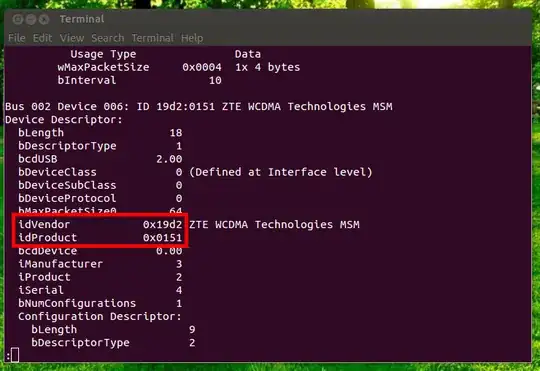
sudo modprobe usbserial vendor=0x2020 product=0x0002
close the terminal.
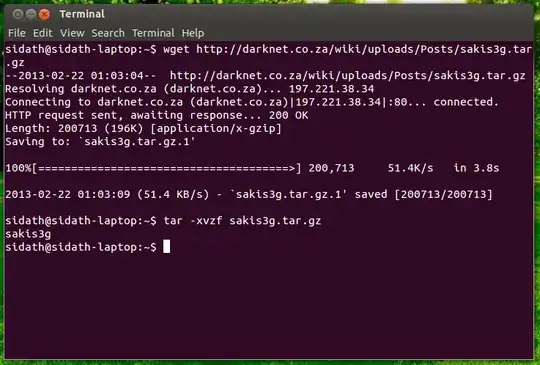
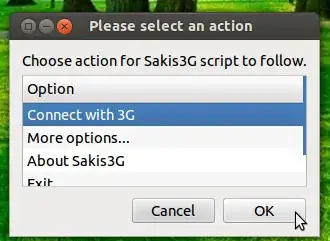
6) Start sakish3g and choose the following option one by one: a) More Option -> Only switch modem (if applicable). See whether it only says 'Modem Switched', if it says 'modem switched to 2020:0002' then there is surely some problem. b) Only setup modem (Switch+load module+setup tty), if it says 'Modem setup residing on /dev/ttyUSB0.' Then you have one more level of success. If it gives some warning message, don't bother even. Its natural. It may ask you for your login password, submit it.
c) Only prepare modem (Setup+PIN unlock+Register Network+Update HAL), if it says 'Modem on /dev/ttyUSB0 is registered to Unknown operator 40491.' don't bother if any warning is shown.
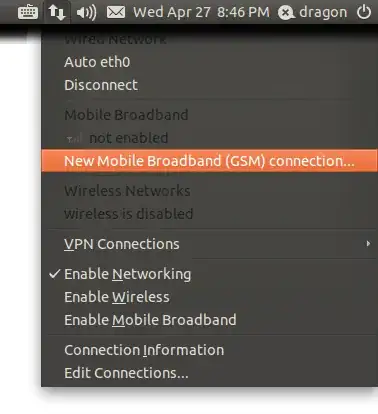
d) At the top-right corner of your screen (between Ubuntu Cloud and the sound icon) network manager applet is present, click to select 'Enable Mobile Broadband', already you may see the name of your network provider. Wait for a few minute, let the blinking radar sign stop, then click the network provider's name e.g., Airtel, BSNL, AIRCEL etc.
e) Open Mozilla Firefox, Opera, Google Chrome, Chrome Browser etc., or open Software Updater to check whether there are any updates available.
The Process is complete, but remember a few things:
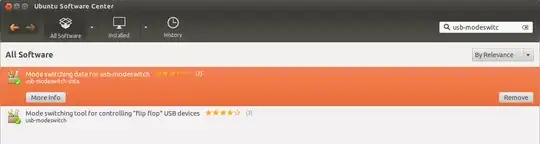
1) You need the following programs: lsusb, usb_modeswitch, wvdial and data files for usb_modeswitch.
2) For the first time you need a freshly formatted micro sd maybe formatted with Win7/XP, Linux etc.
3) You need a Valid connection (SIM card) with sufficient balance.
4) If you plan to use the usb-modem with ubuntu even after a few hour later, it doesn't matter,
you may not use it if you don't need it but plug it before booting, then unplug after boot up and setting it up. And again plug it when needed. Device is already set up in memory. Ubuntu searches for attached the devices at boot time so plug the device earlier the boot, if this not the case and you have just inserted the device while ubuntiu is running, you may need to re-boot the pc.
5) If you eject the micro sd card after setting up, your modem is still usable if you re-plug it, but you may need to do the following to access the micro sd drive in it:
sudo mount /dev/sr1
sudo eject /dev/sr1
Enjoy the internet.
dmesg | tail(do this by removing and re-plugging back after few seconds) & also following withlsusb.. – AzkerM Feb 03 '14 at 19:18