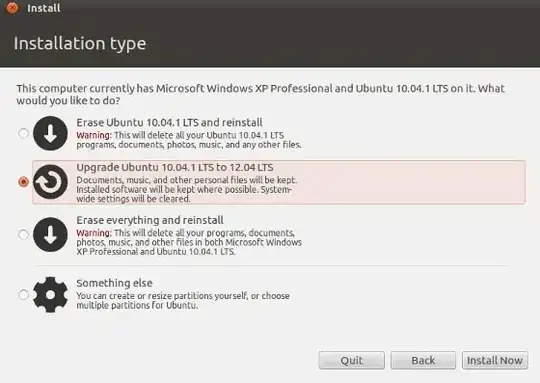
What if you're using a modern release of Ubuntu Desktop (or flavor) and don't see an Upgrade/Repair existing installation option?
The option still exists on releases up to and including Ubuntu 22.10, but it's not offered as an easy to click option, and needs to be manually triggered.
This option will allow you to
- repair an installation (ie. re-install the same release)
- upgrade to a later release (ie. next release, or even skip releases)
- go backwards to a prior release (ie. you didn't like a later release, and want to revert to something older; though there can be consequences with this, which I won't cover, but it's possible & problems will not occur in many cases; issues are package level basis, so do your homework before you expect a backwards install will be good for you)
- you're installing a Ubuntu system over a non-Ubuntu, but other GNU/Linux OS, this will work too (within limits).
Assuming you're using a Desktop installer (namely ubiquity (used by Ubuntu Desktop & many flavors, including Kubuntu which uses a different skin which changes how it looks), or calamares (used by modern Lubuntu or Ubuntu-Studio)) this will work. I'm not covering a di (Debian installer for server or desktop alternate ISO) or subiquity server installer, you will
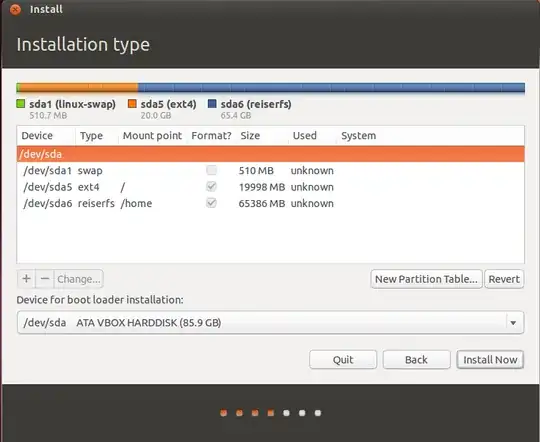
- Choose the Manual option, which may appear as
- Something Else
- Manual Partitioning
- Select your existing partition(s).
Note: You do not need to have a separate /home partition for Ubuntu Desktop to have your settings & datafiles survive re-install; this works equally with a single partition for all supported releases of Ubuntu (most unsupported too).
Ensure you DO NOT format any, the lack of format for "/" is what triggers the REPAIR or RE-INSTALL option I'm talking about here.
The installer will
- take note of your manually installed packages (ie. those you added to your system post-install)
- erase system directories (if you have some server apps installed; as they store configs in system directories, you may suffer loss here, but it won't impact desktop applications)
- install the new system (from your booted live media)
- if internet is available install the extra packages noted earlier
- ask to reboot (and won’t touch any user files unless you formatted)
This is QA (Quality Assurance) tested to work with all Ubuntu repository software only (not 3rd party), so no guarantees are offered with 3rd party, and I'm choosing to ignore 3rd party apps for this 'answer'.
The user is asked to reboot, where you'll be able to login & see your older desktop configs, the additional apps (manually installed packages you'd added) also re-installed, and be able to load your favorite music player & continue playing your existing playlists as if the re-install didn't occur.
(FYI: I use clementine as example in the Understanding Lubuntu QA Testcases document as it's a non-standard app for Lubuntu, and thus allows me to confirm it got re-installed correctly as I perform other post-install checks during QA; all your Ubuntu repository apps should re-install where available).
Notes:
I've used this to migrate a Fedora system to Ubuntu, as well as an older OpenSuSE Leap system to Ubuntu. As Fedora & OpenSuSE are rpm based (not deb based), no manually installed packages will get auto-reinstalled. ie. this will work for converting any GNU/Linux system to Ubuntu, as long as the Ubuntu installer can cope with the file-system that is used.
I've also used it for Debian systems very regularly, though as packages never really align for Debian & Ubuntu, I'd suggest erasing system directories manually prior to the install process to avoid having the re-install attempt to re-install packages for the non-Ubuntu system that cannot be found (ie. avoiding the error messages on unfound packages). If your system was a non-Ubuntu system, please do not file bugs on unfound packages (such bug reports will be invalid).
I've also used this to switch a Linux Mint system to Ubuntu. Before I trust a new (second hand) box I use it for a week or two before I start my real install. I used Linux Mint (& FreeBSD as I dual boot systems) to test my old primary box during this 'hardware' testing, but decided there was some pieces of the Linux Mint I really liked & wanted to survive into my install, so I opted to do an unclean install instead of my intended clean (ie. format) install. As I wanted a clean package system (no Linux Mint packages attempted to be re-installed), I just erased all system directories that contained data I didn't want to survive, so the install of Ubuntu (17.10 at the time) didn't detect a prior OS, but without format, the parts I wanted to survive remained. FYI: The FreeBSD system used a non-Ubuntu compatible file-system, thus I didn't attempt to re-use that & did a format install over that system.
I'm involved with QA, as well as heavily involved with one flavor in particular, thus keep systems of all supported releases available for support reasons. For many of those, I never actually perform the normal upgrades of packages, but use this install method to re-install as it accomplishes two tasks at once, ie. a QA test is performed & I check it still works for unreleased media, as well as updating the packages on my support installs. Currently the releases that get this approach are jammy (currently using 22.04.2 daily media; ie. unreleased) & lunar. When I no longer need an install for support, I'll use this install method to convert it to another release (ie. 21.10 reached EOL, that install became 22.10 as I already had a 22.04 system)
I like to think of this Repair Installation option as Upgrade via re-install, though Lubuntu refer to it as Upgrade using existing partition. I tend to think of this as my backup for release-upgrades if I lack time, don't have sufficient disk space (as system directories are wiped, no downloads occurs; a pretty full disk isn't the issue it is with normal release-upgrades), or just if I lack the time to do the release-upgrade.
It can be used with encryption, though I won't support it with full disk encryption (very easy to make mistakes here); if your system uses Data Partition encryption (home folder which used to be a default install for older releases like 17.10 I mentioned earlier), you can still use this install method very easily. For home partition encryption, you need only to add the encryption packages (not default any more thus not included on modern ISOs) to the live system prior to starting the installer, then start the installer & install normally.
Update for Ubuntu Desktop 24.04 & 24.10
What is described above will work with releases up to and including Ubuntu Desktop 23.10, where ubiquity (and ubuntu-desktop-installer for 23.04 & 23.10) were available. In the noble cycle a new feature of ubuntu-desktop-provision was added to the ubuntu-desktop-installer which caused a problem reported here
To get around the problem encountered; a FORMAT is forced for ubuntu-desktop-installer installs for 24.04 & later, which means the non-destructive re-install talked about in this question is no longer possible for Ubuntu Desktop 24.04 LTS & later, and any flavors that use that installer.
Ubuntu flavors using calamares installer however will not have a forced format; thus Lubuntu, Kubuntu and Ubuntu Unity can still use the method described in this answer.
FYI: My QA of installs included installing one flavor (eg. Lubuntu), making changes to make it my own system including adding music, non-standard music player, changing wallpaper & other options etc.. Then I'd non-destructively re-install a different desktop (eg. Ubuntu Desktop) so as to which the LXQt desktop to GNOME as provided by Ubuntu Desktop; I'd expect my data files to exist (even where a single partition install was used) plus my non-standard music player was there to continue my created music playlist. I'd then re-install & switch GNOME to Xfce via non-destructive install using Xubuntu media... again existing no data loss & my manually installed apps remain... I'd do other flavors too if I had time, before finally re-installing the Lubuntu system I started with; where I expect ALL my configuration changes (desktop wallpaper, WM changes etc, plus music & non-standard music player) to be there; ie. I've returned to my adjusted configured system despite numerous installs... I could do this until late in the noble or 24.04 cycle without issue. It is hoped in time this type of re-install will return to ubuntu-desktop-installer, but resources need to be available to correct the issue that is currently avoided by a forced format
universepackages involved (which I suspect most of us use). As flavors have 'universe' installed by default there is no issue, but Ubuntu Desktop does not have it enabled by default; thus if you want 'universe' packages to install, you may need to add that repository &sudo apt updateprior to starting the installer for many releases where using Ubuntu Desktop (if you want those to re-install automatically). This is not required for all releases though. – guiverc Apr 10 '23 at 08:42subiquitycan be upgraded without re-spinning ISOs).. https://bugs.launchpad.net/ubuntu-desktop-provision/+bug/2058638/comments/5 Where 23.04 & 23.10 hadubiquityISOs available as alternatives; Ubuntu Desktop & many flavors will only haveubuntu-desktop-installerfor noble – guiverc Mar 25 '24 at 21:23calamareshaving switched toubuntu-desktop-installer(see prior comment which still applies), but Kubuntu and Ubuntu Unity now also usecalamares. – guiverc Aug 25 '24 at 23:00calamaresinstaller; however as mentioned in my prior comments, a forced format still occurs on 24.04 & 24.10 if using theubuntu-desktop-installerISOs, thus it could only be used on earlier releases using that installer (ie. 23.04, 23.10 beforeubuntu-desktop-provisionwas added). The current Desktop installer has been available as canary since 19.10 and becameubuntu-desktop-installeror default at 23.04, so isn't exactly new @Andreas You cannot format and preserve files. – guiverc Oct 31 '24 at 01:58ubuntu-desktop-installerISOs beyond 23.10) Lubuntu, Ubuntu Unity & Kubuntu use thecalamaresinstaller for 24.04 & later... @Andreas – guiverc Oct 31 '24 at 03:05ubuntu-desktop-provisionfix has been completed; you'll be able to take advantage of it using existing ISOs (eg. 24.04 Desktop) by updating installer prior to starting the install, however the fix doesn't yet exist.. – guiverc Oct 31 '24 at 03:06