I'm using Ubuntu Server and I made the permanent mount as follows with a disk already formatted in ext4.
I have listed my disks and partitions with
sudo fdisk -l
After that, I listed the UUID of the partition I would like to mount permanently with the following command:
sudo blkid /dev/sda2
To mount the partition I created a target location with
sudo mkdir -p /home/files
then I wrote
sudo mount /dev/sda2 /home/files
Now we need to find out the name of the new device that has to be permanently mounted.
First in the Ubuntu Disk Utility look after the partition, right click on it and under "Device" note down the name e.g "/dev/sda2" or /dev/nvme0n1p2 and the UUID, to make sure you have the right device. Or use the terminal with "sudo blkid" if you don´t have a GUI.
Then back in terminal get the PARTUUID of the device, because this is needed later in fstab.
sudo blkid /dev/sda2
/dev/sda2: LABEL="something" UUID="SOME-THING" BLOCK_SIZE="512" TYPE="exfat" PTTYPE="dos" PARTLABEL="something" PARTUUID="6d81205-fc60-44ce-9da2-3565aa"
Note the PARTUUID that is shown.
We need to put the mounted partition in the /etc/fstab file
Don't forget to make a backup first. run
sudo cp /etc/fstab /etc/fstab.bkp
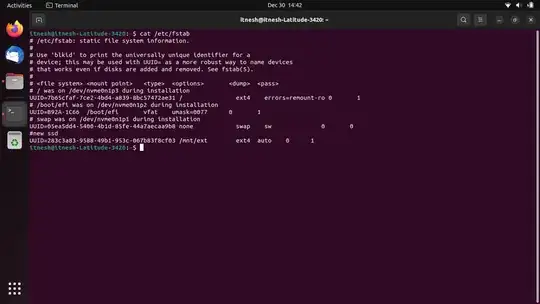
To avoid breaking the file system you need to look at the structure that is already in /etc/fstab for the disks that are already auto-mounted. In my case it is like this
sudo cat /etc/fstab

/ was on /dev/sdb3 during curtin installation
device                                               dir type options  dump fsck
/dev/disk/by-uuid/866f0e5d-e590-450c-beff-507620a4afbd /   ext4 defaults 0     1
On the site Arch Linux Wiki it is presented what this structure means. Below is an excerpt:
<device> describes the block special device or remote file system to be mounted; see #Identifying file systems.<dir> describes the mount directory.<type> the file system type.<options> the associated mount options; see mount(8) §FILESYSTEM-INDEPENDENT_MOUNT_OPTIONS and ext4(5) §MOUNT_OPTIONS.<dump> is checked by the dump(8) utility. This field is usually set to 0, which disables the check.<fsck> sets the order for file system checks at boot time; see fsck(8). For the root device it should be 1. For other partitions it should be 2, or 0 to disable checking.
Edit the /fstab file with
sudo vim /etc/fstab
or
sudo nano /etc/fstab
In the file I added the following line
/dev/disk/by-uuid/6d81205-fc60-44ce-9da2-3565aa /home/files ext4 defaults 0 2
Save the file at the end
You can test by restarting the machine
mountcommand not have a flag to just persist the mount after a reboot? Incredible. – Andrew Koster Oct 19 '21 at 22:30