4

I currently have four workspaces ('Main', 'Game', 'Work', 'Overflow'). In a perfect setup, the 'Game' workspace would have shortcuts (either on the Desktop or in a Panel) for Steam and individual games.

Switching to 'Work' should NOT have anything game related, but instead have things like Google Docs links and shortcuts to all of my work-related files.

Are uniquely customized workspaces possible in xfce4?

  • Regarding the '14.04' tag that was appended: "Only use this tag if your question is version-specific." Is my question specific to 14.04? @sylvain – muad-dweeb Feb 05 '15 at 09:09
  • No, that is not in any workspace concept I know about. But what do I know... Maybe you should get in touch with the xfce community and put it on the wishlist: https://wiki.xfce.org/wish_list – mondjunge Feb 05 '15 at 09:10
  • @SCK: Since you have this problem on 14.04, having the tag can help diagnosing the issue. It's probably affecting other releases but it's good to have this information to reproduce the problem. – Sylvain Pineau Feb 05 '15 at 09:14
  • That is a huge list. @mondjunge

    It is very strange to me that there are so many requests simply for unique wallpapers on each workspace, but I can't seem to find anyone talking about unique sets of launchers and shortcuts.

    – muad-dweeb Feb 05 '15 at 09:21
  • @SCK: yeah, it is strange to me also, but most people tend to do only one thing (beside surfing fakebuzz and tweeter) on their machines, so there is no need to. – mondjunge Feb 05 '15 at 09:33
  • Would a altering set of starters on your desktop be an acceptable option? – Jacob Vlijm Feb 05 '15 at 15:12
  • @JacobVlijm : Please forgive my stupidity, but when you say "starters", are you referring to application launchers and shortcuts? I could also look into other DEs to see if one is a better fit, but I really love xfce4 so far. I just think that everyone's personal computer should be exactly what that individual needs for a fully optimized workflow/user-experience down to the smallest details. – muad-dweeb Feb 05 '15 at 20:22
  • What could be done is to have a set of application launchers (and links) on the desktop per workspace, but it would be quite an operation. Also the alignment of the referring icons would be kind of coincidental (unless we'd make it really a big project :)). A background script would have to alter the desktop icons, depending on the current workspace, and update the set, according to changes, made by the user. I've been working on something like that before, but it is quite a job. Interesting though. I am afraid on all Ubuntu variants, there is one desktop for all workspaces/ viewports. – Jacob Vlijm Feb 05 '15 at 20:51
  • @JacobVlijm : Understood, thank you for the insight. I hadn't realized it was such a extensive undertaking as my knowledge of the programming behind these sorts of things is effectively Zero. Well, don't keep yourself up at night on account of my nitpicking, I can live with xfce as-is; it is still much better for my own usage than Unity was. – muad-dweeb Feb 05 '15 at 21:16

2 Answers2

4

If we limit the setup to have a different set of launchers per desktop it is not very complicated. What we need is a script, running in the background to keep track of the current workspace and automatically alter the set of launchers accordingly.

1. A set of launchers per workspace

Let's say I have four workspaces, I want the following launchers to be available on the different workspaces:

workspace 1 > workspace 2 > workspace 3 > workspace 4 >

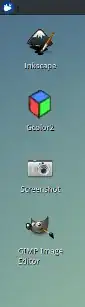
enter image description here enter image description here enter image description here enter image description here

  • Workspace 1: Firefox / Idle
  • Workspace 2: Gcolor2 / Gimp Image Editor / Inkskape
  • Workspace 3: Abiword / Gnumeric / Mail Reader
  • Workspace 4: Mines / Sudoku

How to set up

  1. The script uses wmctrl:

    sudo apt-get install wmctrl
    
  2. In your home directory (not in a subdirectory, but on the "first" level), create a directory (exactly) named:

    desktop_data
    

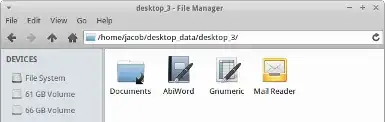
    inside this directory, create for each of your desktops, a folder named (exactly):

    desktop_1
    desktop_2
    desktop_3
    desktop_4
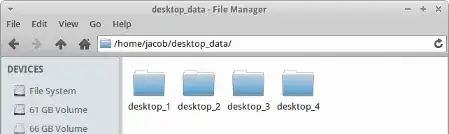
    

    <image5>

  3. Create launchers for all applications (for all workspaces) on your desktop and copy them to the corresponding folders.

  4. Copy the script below into an empty file, save it as change_launchers.py. Test-run it by running in a terminal window the command:

    python3 /path/to/change_launchers.py
    

    If all works fine, add it to your startup applications

    The script

    #!/usr/bin/env python3
    import subprocess
    import os
    import time
    import shutil
    
    home = os.environ["HOME"]
    desktop_dir = home+"/"+"Desktop"
    data_dirstr = home+"/desktop_data/desktop_"
    
    get = lambda cmd: subprocess.check_output(["/bin/bash", "-c", cmd]).decode("utf-8")
    
    def get_desktop():
        return [l for l in get("wmctrl -d").splitlines() if "*" in l][0].split()[-1]
    
    while True:
        curr_dt1 = get_desktop()
        time.sleep(1)
        curr_dt2 = get_desktop()
        # alter the set of launchers when workspace changes
        if not curr_dt1 == curr_dt2:
            datafolder = data_dirstr+curr_dt2
            for f in [f for f in os.listdir(desktop_dir)if f.endswith(".desktop")]:
                subject = desktop_dir+"/"+f
                os.remove(subject)
            for f in os.listdir(datafolder):
                subject = datafolder+"/"+f; target = desktop_dir+"/"+f
                shutil.copyfile(subject, target)
                subprocess.call(["/bin/bash", "-c", "chmod +x "+target])
    

Note

In different localized versions of Ubuntu, the name of the "Desktop" folder may differ (In Dutch: "Bureaublad"). If in your Ubuntu version the name of the desktop folder is not "Desktop", change it in the line:

desktop_dir = home+"/"+"Desktop"

2. Extending possibilities, launchers and links

If we add a few lines to the script, the setting-per-workspace options can be extended with a altering set of links to directories:

On one workspace we have a e.g. a link to the Documents folder, combined with launchers of office applications:
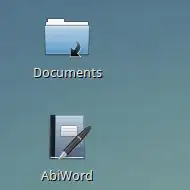
enter image description here

On another workspace we have a link to the Pictures folder, combined with launchers of Image editors:
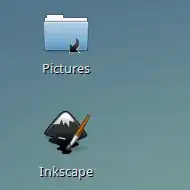
enter image description here

How to setup

The setup is pretty much the same as in option 1, but additionally, in the data folders (see option 1), create links to folders (using ln -s <source> <destination>) you'd like to be available on the corresponding workspace:
enter image description here

The script

#!/usr/bin/env python3
import subprocess
import os
import time
import shutil

home = os.environ["HOME"]
desktop_dir = home+"/"+"Desktop"
data_dirstr = home+"/desktop_data/desktop_"

get = lambda cmd: subprocess.check_output(["/bin/bash", "-c", cmd]).decode("utf-8")
def get_desktop():
    return [l for l in get("wmctrl -d").splitlines() if "*" in l][0].split()[-1]

while True:
    curr_dt1 = get_desktop()
    time.sleep(1)
    curr_dt2 = get_desktop()
    # alter the set of launchers & links when workspace changes
    if not curr_dt1 == curr_dt2:
        datafolder = data_dirstr+curr_dt2
        for f in os.listdir(desktop_dir):
            subject = desktop_dir+"/"+f
            if os.path.islink(subject) or subject.endswith(".desktop") :
                os.remove(subject) 
        for f in os.listdir(datafolder):
            subject = datafolder+"/"+f; target = desktop_dir+"/"+f
            if os.path.islink(subject):
                os.symlink(os.readlink(subject), target)
            else:
                shutil.copy(subject,target)
Jacob Vlijm
  • 85,675
  • Hey @jacob, I'm sorry for the delayed response. I've been using the script (Option 1) for over 24 hours now with much success. It is added to my Application Autostart as "Workplace-Respawn". On my system the spawn only takes 1-2 seconds to complete. One important detail though is that the folders within the 'desktop_data' directory should be named desktop_x, where 'x' is whatever name is currently given for each workspace. In my case, this means that my folders are ('desktop_Main', 'desktop_Game', 'desktop_Work', 'desktop_Overflow'). Without that minor tweak it didn't work for me :) – muad-dweeb Feb 09 '15 at 02:48
  • !["Main"][1] !["Game"][2] !["Work"][3] !["Overflow"][4]
    I love this! Great work @jacob. [1]: http://googledrive.com/host/0B3MINFJvcJ9IfkJsdzVWWXY3bThIRzVzVmI5Z0g3YTJoUUdTTWFING9BWTRRUHBad3BnV3c/workspaces-0.png) [2]: http://googledrive.com/host/0B3MINFJvcJ9IfkJsdzVWWXY3bThIRzVzVmI5Z0g3YTJoUUdTTWFING9BWTRRUHBad3BnV3c/workspaces-1.png [3]: http://googledrive.com/host/0B3MINFJvcJ9IfkJsdzVWWXY3bThIRzVzVmI5Z0g3YTJoUUdTTWFING9BWTRRUHBad3BnV3c/workspaces-2.png [4]: http://googledrive.com/host/0B3MINFJvcJ9IfkJsdzVWWXY3bThIRzVzVmI5Z0g3YTJoUUdTTWFING9BWTRRUHBad3BnV3c/workspaces-3.png
    – muad-dweeb Feb 09 '15 at 03:03
  • Perfect! just curious how you did the tweaking, since the script recognizes the folder (-name) by the current number of the workspace (last character of the output of wmctrl -l). Did you add a line to "convert" the name to the ones you use? – Jacob Vlijm Feb 09 '15 at 12:57
  • No, I haven't modified the script itself at all. I only had to change the directory names to get the script to work. My programming proficiency is extremely limited, so I don't have any ideas for why that was required on my end. Sorry :/ – muad-dweeb Feb 09 '15 at 19:00
  • Nono! it is not required at all, I am just sitting with a question mark above my head, since if you really named the folders differently, the script should not work :). Well, if it works, I am happy :) I must be misinterpreting something of the text above. – Jacob Vlijm Feb 09 '15 at 19:30
  • I just upgraded to Option 2 :D This would make a neat addition to the apt repositories. @Jacob Not that it means much coming from me, but I am very impressed with this. – muad-dweeb Feb 10 '15 at 04:19
  • 1
    Wow, thanks! I might polish it a bit further and make it available via Launchpad (ppa). – Jacob Vlijm Feb 10 '15 at 06:20
  • Thanks for the wmctrl command. I relied on it to build a different solution (panel-based, posted as a separate answer) in order to avoid having a script running in an infinite loop. – WhiteWinterWolf Sep 10 '16 at 15:33
1

Some other desktop environments (like KDE) offer this natively, but this is only partially supported in XFCE.

What works natively in XFCE:

  • You can set a different wallpaper on each workspace, this is fully supported and can be easily configured through the workspace settings GUI.
  • You can affect a panel to a specific workspace, but AFAIK there is no GUI option allowing to configure this but the script below will take everything in charge.

The solution I adopted:

  1. Create a new panel for each workspace. You can also create supplementary global panels which will be displayed on all workspaces (some elements like the notification bar can be added only once, so the only way to have it visible on every workspace is to add it to a global panel).
  2. Configure and run the script below to distribute each local panel to their own workspace.
  3. Configure XFCE to run the script at each start.
  4. Configure the panels as you will.

Contrary to the other answer, this script will not run as an endless loop fetching the status each and every second. It runs only once during the session opening in order to associate each local panels to their own workspace, afterwards all the rest is handled natively by the window manager.

#! /bin/sh

# First panel to move
start=2

# Number of panels to move
count=$( wmctrl -d | wc -l )

desk=0
for winid in $( wmctrl -l | grep 'dom0 xfce4-panel$' \
    | awk "NR==$start,NR==$(( start + count - 1 )) { print \$1; }" )
do
    wmctrl -i -r $winid -b remove,sticky
    wmctrl -i -r $winid -t $desk
    desk=$(( desk + 1 ))
done
  1. Save this script, for instance as local-panels.sh in your home directory, and make it executable (chmod u+x ~/local-panels.sh)

  2. Configure the script to suit your needs:

    • $start: XFCE numbers your panels, this is the number of the fist panel you want to make local. Here the first panel is kept global, and the panel 2 and onward are made local to their own workspaces.
    • $count: The number of panels to make local. By default this is equal to the number of workspaces, ie. one different local panel per workspace.
    • $desk: The first workspace to have a local panel. By default every workspace will have a local panel, but setting this variable to a higher value allows you to have no local panel on the first few workspaces if you would like to.
  3. Configure XFCE to automatically start this script upon session opening: go in XFCE Settings Manager > Session and Startup, click on the Application Autostart tab, and then on the Add button to schedule the execution of the script upon each session opening.

  • The last script (local-panels.sh) does not work on xubuntu 24.04. (it does nothing) In line 10 it greps for 'dom0 xfce4-panel$' but the list given for 'wmctrl -l' does not contain any 'dom0' May you please update the script so that it can be used on recent versions of XFCE (4.18)? – Rubenalf Nov 05 '24 at 17:33