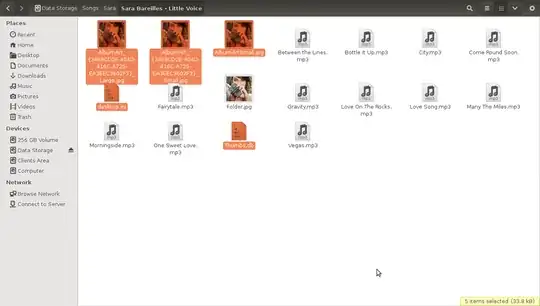
How can I stop showing me those selected file from songs folder?
Asked
Active
Viewed 2,836 times
5
-
edit the title so it's more obvious what you're trying to figure out – user3113723 Jul 14 '15 at 05:12
4 Answers
3
You can use the find utility to delete album covers in our music folders:
find /music_path -type f -name "*.jpg" -exec rm -f {} \;
Now to remove the "desktop.ini" and "Thumbs.db" files use:
find /music_path -type f -name "desktop.ini" -exec rm -f {} \;
find /music_path -type f -name "Thumbs.db" -exec rm -f {} \;
Tip:
You could use the even shorter version:
find /music_path -type f -name "*.jpg" -delete

find /music_path -type f -name "desktop.ini" -delete
find /music_path -type f -name "Thumbs.db" -delete
If you want also to remove the images tagged in the audio mp3 files you can use the eyeD3 application. Install it:
sudo apt-get install eyed3
Now you can remove those images:
eyeD3 --remove-images *.mp3
Take a look on man eyeD3
NAME
       eyeD3 - displays and manipulates id3-tags on mp3 files

       --remove-images
              Remove all image (APIC) frames from the tag.
Maythux
- 87,451
-
lemme ask you a question - if i do that is there any effect will for windrows ? – Alex Ainik Jul 14 '15 at 06:38
-
1
Thumbs.dbwill be recreated as soon as you open the folder in Windows with thumbnails displaying.desktop.iniwill also get recreated by Windows. However, the images of the album covers are gone. Unless your favorite music player automatically downloads them if they're missing, they should not come back. – ByteBOT Jul 14 '15 at 06:44 -
-
@AlexAinik Also take into consideration that eyeD3 will remove the images that are in the mp3 files as tags. I don't think this was the problem to be solved here, as the screenshot does not show such previews. – Bruni Jul 14 '15 at 07:24
-
@Bruni I added eyeD3 as general solution whatever the vase and insert specific solution for the above preview using the
findutitlity. I edited my answer – Maythux Jul 14 '15 at 07:25 -
-
i am still having the issue. its not solved. anybody want to help me by skype please . – Alex Ainik Jul 14 '15 at 09:13
-
@AlexAinik It works 100% maybe you miss something, what did you do? how did you tried it? – Maythux Jul 14 '15 at 09:16
-
-
2
Use Nautilus [Files icon in the launcher]
Open the folder containing the thumbnails and click Edit, select Preferences, click Previews tab.
In the Files section Show Thumbnails click the drop down arrow and select never close the Preferences window.
Thumbnails should now be gone.
RCF
- 2,137
A1 Computers
- 149
-
Indeed this wouldn't remove those Images which the OP is really asking for, your solution valid for enabling/disabling the thumbnails. – Maythux Jul 14 '15 at 06:23
0
open the terminal inside the folder that contains the music files & their Album art files & create a .hidden file using the command
touch .hidden
then type in the terminal
ls *.jpg > .hidden
this will write all the files names with extension .jpg in the folder to the .hidden file, which automatically hides the files which their names are in, in Nautilus.
You have to repeat the second command each time you add a new music file in that folder in order to hide it's album art files.
Notes:
You must create the file using the
touch .hiddencommand from the terminal. Copying another file & renaming it to .hidden won't work.This method will hide all .jpg files in that folder so make sure you don't have any .jpg file that you don't want to hide in there, or simply open the .hidden file and remove it's line if you need it there.
This is a manual way so you have to repeat that second command each time you add another music file with album art in order to hide it's album art files. You can create a script for automating the process , anyway.
n0krashy
- 109
0
As per documentation of eyeD3 you can delete images of .mp3 file using the following commands
--remove-image=DESCRIPTION
          Remove image matching DESCRIPTION.

   --remove-all-images
          Remove all images from the tag
Just navigate to the directory where you have stored all the .mp3 files, then typeenter code here
eyeD3 --remove-all-image *.mp3
aswal94
- 1
-
Its an update as the command to remove image has been update (images => image) – aswal94 Oct 27 '19 at 17:27