168

I have one sound card and one pair of Bluetooth headphones. I want to play my audio through both my sound card and my Bluetooth headphones.

I believe Windows has checkboxes that allow you to "check" outputs to enable/disable them, but Ubuntu seemingly has the equivalent of radio selectors (you can only select one at a time).

Bonus question: On a similar note, I have 5 analog output channels on my sound card (in addition to my digital & HDMI audio) -- I would like to be able to determine what comes out of each of those ports (e.g. "front speakers" on all 5 or "front", "center", "back", etc).

Nathan J.B.
  • 2,740
  • 1
    I have read all answers, checking answer date too. What is the current solution for ubuntu 18.04? – LeonidMew Jan 21 '19 at 08:56
  • 5
    Yes, the version of paprefs in Ubuntu 18.04 repos is useless (because it still thinks GConf is in fashion and hence fails to work). The best alternative is to, you know, load the module-combine-sink of PulseAudio yourself (because that's all paprefs does behind-the-scene anyway). Use command pactl load-module module-combine-sink and check the Sounds section of Ubuntu Settings. – AneesAhmed777 Aug 11 '19 at 16:16
  • 1
    In Ubuntu 19.10 solution with paprefs works out of box again. – Marcin Skórzewski Nov 22 '19 at 07:15
  • 1
    Ubuntu 20.04 - paprefs worked for all hard-connected speakers, after closing all audio settings & restarting the pulsaudio killall pulseaudio however it disconnected my bluetooth speaker - had to reconnect and switch to it and back to the multioutput :) – jave.web Feb 09 '21 at 11:46
  • it works but the timing is a mess. i understand now why no professional wanted to write software for linux. the complete audio architecture is a bit of a mess. pulseaudio being more network oriented and jack single audio device. it is hard to create tight sync between multiple audio devices. The synchronisation issues are simply not easy to solve. – U.V. Nov 28 '21 at 03:13

9 Answers9

171

With paprefs you have access to a virtual output device that enables simultaneous output to all attached sound cards and devices:

sudo apt install paprefs

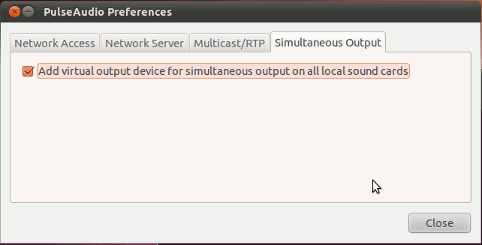
Then in the terminal run paprefs, select Simultaneous Output tab, and check Add virtual output for simultaneous output on all local sounds cards.

paprefs

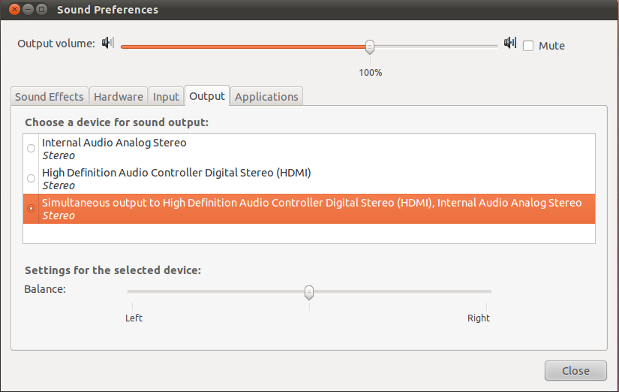
The additionally created audio output device for simultaneous output may be selected in the Output tab from the PulseAudio Sound Preferences menu (pavucontrol):

pavucontrol screenshot

In this example it is shown for an HDMI-device, but, as soon as your Bluetooth device is recognized, it will also be available for simultaneous output.

The changes may need a restart of PulseAudio to take effect, either by logging out and back in to your session or by running pulseaudio -k in a terminal.


In case paprefs does not do the job or if you prefer to have paprefs not installed, use this command from the command line:

pactl load-module module-combine-sink

To unload the module from the command line and reset PulseAudio to defaults, just restart PulseAudio with:

pulseaudio -k

or issue:

pactl unload-module module-combine-sink
Takkat
  • 144,810
  • 5
    This gets the job done. As I get deeper into audio development, I would really like to be able to select specific devices and/or ports, though. – Nathan J.B. Nov 13 '11 at 03:14
  • 2
    @NathanJ.Brauer: you may be interested in this answer. For changing ports see also the pulseaudio wiki I linked to there. – Takkat Nov 13 '11 at 07:43
  • but what if i want to use the built-in speakers along with an audio line that does not have bluetooth? i used this solution but since the audio jack is not connected to something that has an audio card, sound options does not recognize it... –  Dec 21 '11 at 05:59
  • Is there any way to fix the delay between bluetooth speaker and build in speakers? It seems to me that they are quite in syc one time and far appart another. – seb Apr 20 '12 at 07:29
  • The delay comes from buffers needed for the A2DP protocol. Not much we can do about this, unfortunately. – Takkat Apr 20 '12 at 07:51
  • 3
    this one doesn't work for me in 18.04. If you know how I can do this with ALSA please help me here: https://askubuntu.com/q/1042485/586277 – ICE Jun 02 '18 at 19:38
  • 5
    doesnt work for me in ubuntu 16.04. I don't see any such option like "Simultaneous output" in the sound preferances window – node_man Mar 26 '19 at 09:46
  • @node_man: did you install and set up paprefs as shown in the first part of my answer? It would be a prerequisite for creating a simultaneous sink. – Takkat Mar 26 '19 at 18:47
  • 1
    yes I followed the steps correctly but it didn't worked. Then I tried it on another ubuntu machine and it worked. So I reinstalled pulse audio on my machine and now it's working. The problem was pulseaudio -k was not killing pulseaudio it was throwing some permission errors. now it's fixed. thank you – node_man Mar 27 '19 at 02:44
  • How can one control each output device's volume independently? If that can't be done, this answer is almost useless. – Jollywatt Sep 01 '19 at 03:36
  • 2
    @Jollywatt - Separate volume control of each audio device is possible through PulseAudio Preferences (pavucontrol), under both 'Playback' and 'Output' tabs. – cipricus Sep 16 '19 at 11:44
  • 1
    Didn't create a device on Ubuntu 20.04. – Velkan Jul 31 '20 at 11:31
  • 1
    @Velkan: thanks for the notice. Paprefs appears to be broken. Try with the command I gave in an edit to this answer. – Takkat Jul 31 '20 at 18:08
  • @Takkat, yea, I did instead add the load-module module-combine-sink into ~/.config/pulse/default.pa as other comments say. It's working. – Velkan Jul 31 '20 at 21:15
  • 1
    Works on Ubuntu 20.10, too. – conualfy Jan 01 '21 at 00:24
  • @Velkan you need to CLOSE ALL AUDIO SETTINGS WINDOWS, then killall pulseaudio and then reopen them when audio starts again, tested on Ubuntu 20.04 right now and it works – jave.web Feb 09 '21 at 11:47
  • @Takkat however I had a different issue - killing pulsaudio also disconnected my bluetooth speaker - I had to reconnect to it again and switch output device to the bluetooth speaker and back to the virtual multioutput :) – jave.web Feb 09 '21 at 11:50
  • Am I right that this does not work on Ubuntu 23.10? apt, aptitude and Synaptic do not seem to be able to resolve the dependencies – Didier L Apr 15 '24 at 22:05
30

Ubuntu

I've just confirmed this solution still works on Ubuntu 14.04 LTS.

  1. Install: Open terminal and type sudo apt install paprefs go to the tab exactly as per the picture above and select the option.
  2. Initial Run:
    1. Remaining in terminal, type pulseaudio -k to kill and restart pulseaudio (this way with current systemd pulseaudio user service).
    2. Then go to your sound settings and you will see the option to output to multiple sound devices.
    3. Props to whoever wrote paprefs it's a brilliant little piece of software I would actually like to see included in Ubuntu without requiring additional installation.

Apple Mac OS X

A similar solution is available via an included piece of software and whats so great about pulseaudio is that the sound seems to be perfectly in-sync from both outputs so it must be adjusting for the lag as well which is why its so impressive; otherwise we would be hearing a slightly delayed version from one output and another.

Pablo Bianchi
  • 17,552
aaricus
  • 309
14

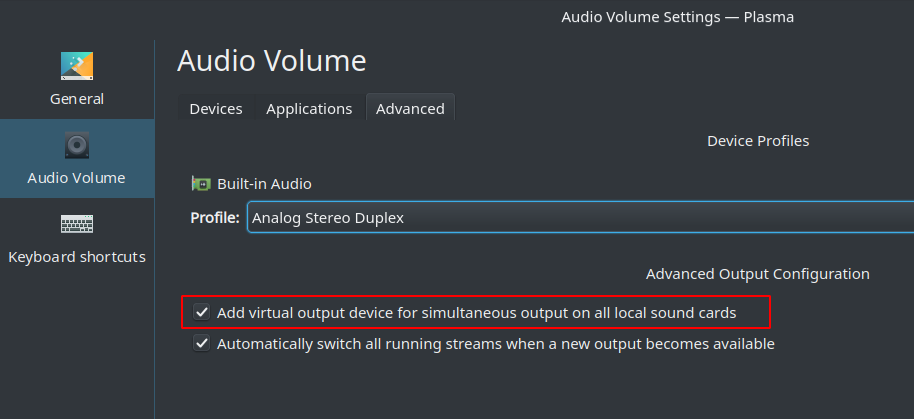
In Kubuntu 18.04, Plasma 5.12 paprefs is not needed, as a similar setting is already there:

enter image description here

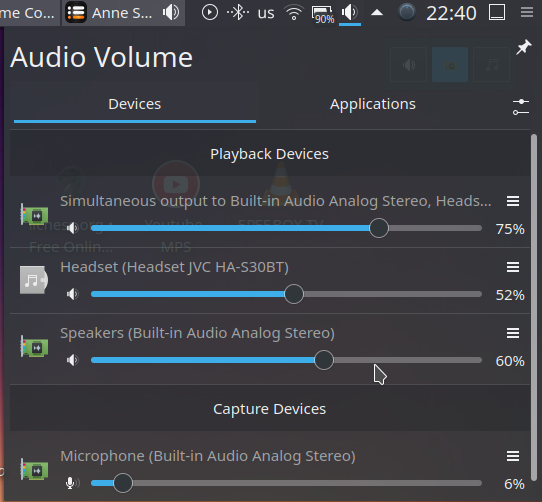
A new output option should become available after reboot, called “Simultaneous output”.

enter image description here

Or in pavucontrol:

enter image description here


In 18.10 with Plasma 5.13.5 that “Simultaneous output” option has been removed, so paprefs is needed.

  • 1
    "Simultaneous output" is still available on my ArchLinux with KDE 5.19.2 –  Jul 06 '20 at 10:26
10

Because LeonidMew was asking about 18.04 (I'm using 18.04.2), here's my version.

The GUI paprefs tried to combine one HDMI with one analog output, instead of both hdmi. So I edited the file /etc/pulse/default.pa as described by Léo Léopold Hertz

$ gedit /etc/pulse/default.pa  # make changes as in method a or b below
$ pulseaudio -k # then restart pulseaudio

Both the following methods work on their own, so pick one (make sure to add these lines to the top of the file, I put it right after .fail ! Otherwise it doesn't work).

Method A

load-module module-alsa-sink device=hw:0,0
load-module module-combine-sink sink_name=combined

Method B

load-module module-alsa-sink device=hw:1,3 sink_name=hdmi
load-module module-alsa-sink device=hw:1,7 sink_name=hdmi2
load-module module-combine-sink sink_name=combined slaves=hdmi,hdmi2
set-default-sink hdmi-combined

Reference

Method A

For reference, the hw:0,0 comes from aplay -l

$ aplay -l
**** List of PLAYBACK Hardware Devices ****
card 0: PCH [HDA Intel PCH], device 0: ALC892 Analog [ALC892 Analog]
  Subdevices: 1/1
  Subdevice #0: subdevice #0
card 0: PCH [HDA Intel PCH], device 1: ALC892 Digital [ALC892 Digital]
  Subdevices: 1/1
  Subdevice #0: subdevice #0
card 1: NVidia [HDA NVidia], device 3: HDMI 0 [HDMI 0]
  Subdevices: 1/1
  Subdevice #0: subdevice #0
card 1: NVidia [HDA NVidia], device 7: HDMI 1 [HDMI 1]
  Subdevices: 1/1
  Subdevice #0: subdevice #0
card 1: NVidia [HDA NVidia], device 8: HDMI 2 [HDMI 2]
  Subdevices: 1/1
  Subdevice #0: subdevice #0
card 1: NVidia [HDA NVidia], device 9: HDMI 3 [HDMI 3]
  Subdevices: 1/1
  Subdevice #0: subdevice #0

Method B

And the 1:7 and 1:3 comes from

$ pacmd list-sinks | grep -e 'name:' -e 'alsa.device ' -e 'alsa.subdevice '
    name: <alsa_output.pci-0000_00_1b.0.iec958-stereo>
        alsa.subdevice = "0"
        alsa.device = "1"
    name: <alsa_output.pci-0000_01_00.1.hdmi-stereo-extra1>
        alsa.subdevice = "0"
        alsa.device = "7"

On the GNOME "sound settings" I set the other HDMI from 2nd monitor as output, and then re-ran the command

$ pacmd list-sinks | grep -e 'name:' -e 'alsa.device ' -e 'alsa.subdevice '
    name: <alsa_output.pci-0000_00_1b.0.iec958-stereo>
        alsa.subdevice = "0"
        alsa.device = "1"
    name: <alsa_output.pci-0000_01_00.1.hdmi-stereo>
        alsa.subdevice = "0"
        alsa.device = "3"

To verify these numbers are correct, I ran

$ aplay -D plughw:1,3 /usr/share/sounds/alsa/Front_Right.wav
$ aplay -D plughw:1,7 /usr/share/sounds/alsa/Front_Right.wav

which sounded on their respective monitors.
10

I could not get Takkat's proposal work out of the box in Debian 8.7, although I restarted the system. I assume you have completed Takkat's proposal in installing paprefs. Extension on Takkat's answer which works based on Arch Linux wiki where keep analog input and Pulse calls that "duplex"

# /etc/pulse/default.pa
# http://unix.stackexchange.com/a/180374/16920
load-module module-alsa-sink device=hdmi:0
load-module module-combine-sink sink_name=combined
set-default-sink combined

Then restart pulseaudio:

pulseaudio -k
Te Ri
  • 1,038
  • For me, this one worked when I had device="hw:0,0" as per aplay -l (see https://forums.linuxmint.com/viewtopic.php?t=264540#p1436479) – Laurenz Aug 11 '18 at 15:57
  • Make sure to put at top of file! This works for me (hw:0,0) on Ubuntu 18.04.2, playing on two HDMI monitors, after I moved the lines to the top. – orangenarwhals Jul 10 '19 at 22:20
8

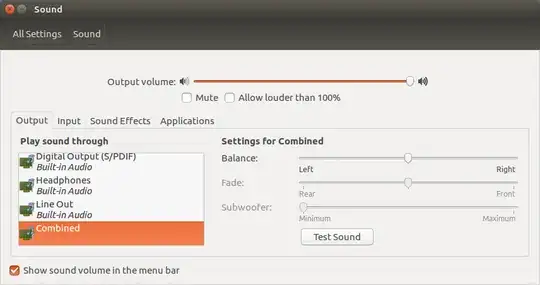
To complement the excellent answer from Takkat, I found the default name given to the new device was excessively long and distorted the Sound Settings dialog. In order to shorten that name, I had to additionally execute the following command:

gconftool --set --type string /system/pulseaudio/modules/combine/args0 sink_properties=device.description=Combined

Sound settings with combined device

Paulo
  • 255
5

With Pipewire (Ubuntu 23.04+)

Recent versions of Ubuntu use Pipewire instead of Pulseaudio. The proper way to configure Pipewire is as simple as (based on Pipewire’s Combine Stream module):

  1. Create a file named 10-simultaneous-output.conf in ~/.config/pipewire/pipewire.conf.d with the following content:
context.modules = [
{   name = libpipewire-module-combine-stream
    args = {
        combine.mode = sink
        node.name = "combine_sink"
        node.description = "Simultaneous Output"
        combine.latency-compensate = false
        combine.props = {
            audio.position = [ FL FR FC LFE SL SR ]
        }
        stream.props = {
        }
        stream.rules = [
            {
                matches = [
                    # any of the items in matches needs to match, if one does,
                    # actions are emited.
                    {
                        # all keys must match the value. ! negates. ~ starts regex.
                        #node.name = "~alsa_input.*"
                        media.class = "Audio/Sink"
                    }
                ]
                actions = {
                    create-stream = {
                        combine.audio.position = [ FL FR FC LFE SL SR ]
                        audio.position = [ FL FR FC LFE SL SR ]
                    }
                }
            }
        ]
    }
}
]
  1. Restart Pipewire:
systemctl --user restart pipewire.service
  1. Select the new “Simultaneous Output” as output device
    • globally in the Sound Settings or the top-right menu of Gnome
    • per application via PulseAudio Volume Control (pavucontrol), which, despite the name, also manages Pipewire

That’s it!

Didier L
  • 363
  • Maybe worth mentioning that the "pavucontrol" utility, despite referring to PulseAudio in the name, will allow to manage devices with PipeWire as well, so (once these instructions are followed) it can be used to assign the "Simultanous Output" device to the desired app(s). – Pietro Battiston May 06 '24 at 12:16
  • @PietroBattiston good idea, I have updated the answer – Didier L May 06 '24 at 15:10
  • 1
    In Ubuntu 24.04, the above mentioned setup generated a Simultaneous Output device in pavucontrol. Although the sound line is seen fluctuating, there is not sound. What is wrong? – Sun Bear Dec 09 '24 at 13:37
  • 1
    You still have to configure each individual sink for the right output, e.g. proper HDMI port on the GPU, proper digital/analog output on the MB. AFAIK it’s not possible to use multiple outputs on the same device, btw. – Didier L Dec 09 '24 at 13:58
  • @DidierL Thanks. Got it to work. pavucontrol -> Configuration -> Built-in Audio device -> Profile I have to select Pro Audio. The bluetooth speaker profile is High Fidelity Playback (A2DP Sink codec SBC). Nice that it works. I notice some delay from the bluetooth speaker. Is there a way to fix this delay? I tried setting-100ms and above for Latency offset for the bluetooth speaker but to no success. There is no latency offset for the Built-in Audio Pro and Pro 1 devices. – Sun Bear Dec 09 '24 at 14:56
  • @SunBear I’m not that familiar with all of this. I think A2DP might have inherent latency. A quick search found this question but you might have to ask a new one if this is specific to the simultaneous output. Make sure that you don’t have such delay with direct output to the same device & profile. – Didier L Dec 09 '24 at 15:34
  • @DidierL I have posted my question here. Appreciate any help that you can offer. Thanks. – Sun Bear Dec 09 '24 at 18:12
  • It's unclear to me why the answer recommends to use combine.latency-compensate = false. combine.latency-compensate = true seems to be a better default for most uses of this module (which most likely will be, getting music or video to play on several outputs synchronously, with no delay.) – Ten Sep 29 '25 at 21:03
  • @Ten all the examples on the documentation page set it to false, but I guess it depends on the use case. Mine was to send audio to both my VR headset and my speakers, so I don’t need it. I assume this parameter will only add latency (not reduce it), so it probably works well for music, but maybe less so for video playback, as it will just cause that latency to be noticeable on all devices. It might be a good solution for Sun Bear’s issue though. – Didier L Sep 29 '25 at 21:48
2

Nowadays

Actually, with pipewire, just the GUI part seems to bee missing for this to work (in GNOME, as of GNOME 45).

Actually, there are many GUI tools for this and similar tasks (like distorting audio or so), just search for pipewire on Flathub e.g..

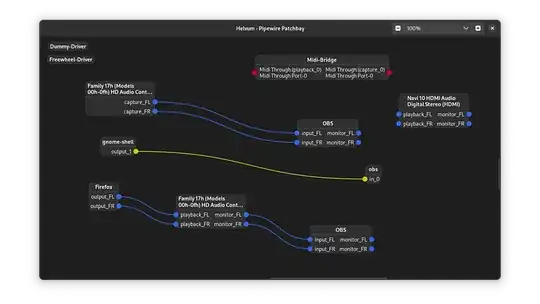
I tested some and found Helvum to be good and working for that use case.. In the self-proclaimed “graphical patchbay for PipeWire”. You can just connect the same source twice there or mix that up even more: .

I.e. drag and drop the source from the left to the right, where the audio devices are. (Note FL is left audio and FR is right audio) The disadvantage/important thing to note is the source only appears once it has audio output and you need to configure this for each application. (though, the benefit of course is, you can configure it separately)

The benefit is this also works on immutable distros.

My tries

Before using Fedora Silverblue 39 I tried using the paprefs:

$ rpm-ostree install paprefs             
Checking out tree 9450953... done
Enabled rpm-md repositories: fedora rpmfusion-free fedora-cisco-openh264 updates rpmfusion-free-updates updates-archive
Importing rpm-md... done
rpm-md repo 'fedora' (cached); generated: 2023-11-01T00:12:39Z solvables: 70825
rpm-md repo 'rpmfusion-free' (cached); generated: 2023-11-04T16:49:08Z solvables: 445
rpm-md repo 'fedora-cisco-openh264' (cached); generated: 2023-12-12T17:22:46Z solvables: 4
rpm-md repo 'updates' (cached); generated: 2024-03-18T02:04:08Z solvables: 24253
rpm-md repo 'rpmfusion-free-updates' (cached); generated: 2024-03-10T16:19:26Z solvables: 164
rpm-md repo 'updates-archive' (cached); generated: 2024-03-18T02:34:06Z solvables: 36849
Resolving dependencies... done
error: Could not depsolve transaction; 1 problem detected:
 Problem: package pulseaudio-module-gsettings-16.1-5.fc39.x86_64 from fedora requires libpulsecore-16.1.so()(64bit), but none of the providers can be installed
  - package pulseaudio-module-gsettings-16.1-5.fc39.x86_64 from fedora requires pulseaudio(x86-64) = 16.1-5.fc39, but none of the providers can be installed
  - package pipewire-pulseaudio-1.0.4-2.fc39.x86_64 from @System conflicts with pulseaudio provided by pulseaudio-16.1-5.fc39.x86_64 from fedora
  - package pipewire-pulseaudio-1.0.4-2.fc39.x86_64 from @System conflicts with pulseaudio-daemon provided by pulseaudio-16.1-5.fc39.x86_64 from fedora
  - package pulseaudio-16.1-5.fc39.x86_64 from fedora conflicts with pulseaudio-daemon provided by pipewire-pulseaudio-1.0.4-2.fc39.x86_64 from @System
  - package paprefs-1.2-5.fc39.x86_64 from fedora requires pulseaudio-module-gsettings, but none of the providers can be installed
  - conflicting requests
rugk
  • 1,053
  • 1
    FYI I just posted my own answer with proper configuration, you may want to try that. – Didier L Apr 15 '24 at 23:21
  • Great, yeah, but a GUI and temporary change is fine for me. My use case is covered quite good if it is explicitly not persisted, so let's not accidentially persist this config. – rugk Apr 17 '24 at 21:41
  • On my machine (Kubuntu 24.04) loading combined sink in pulseaudio did not do the job (audio still going only to 1 device) whereas using Helvum allowed to direct output to 2 devices directly and is working correctly. – Łukasz Korbel Apr 27 '25 at 07:01
1

For Ubuntu 24.04

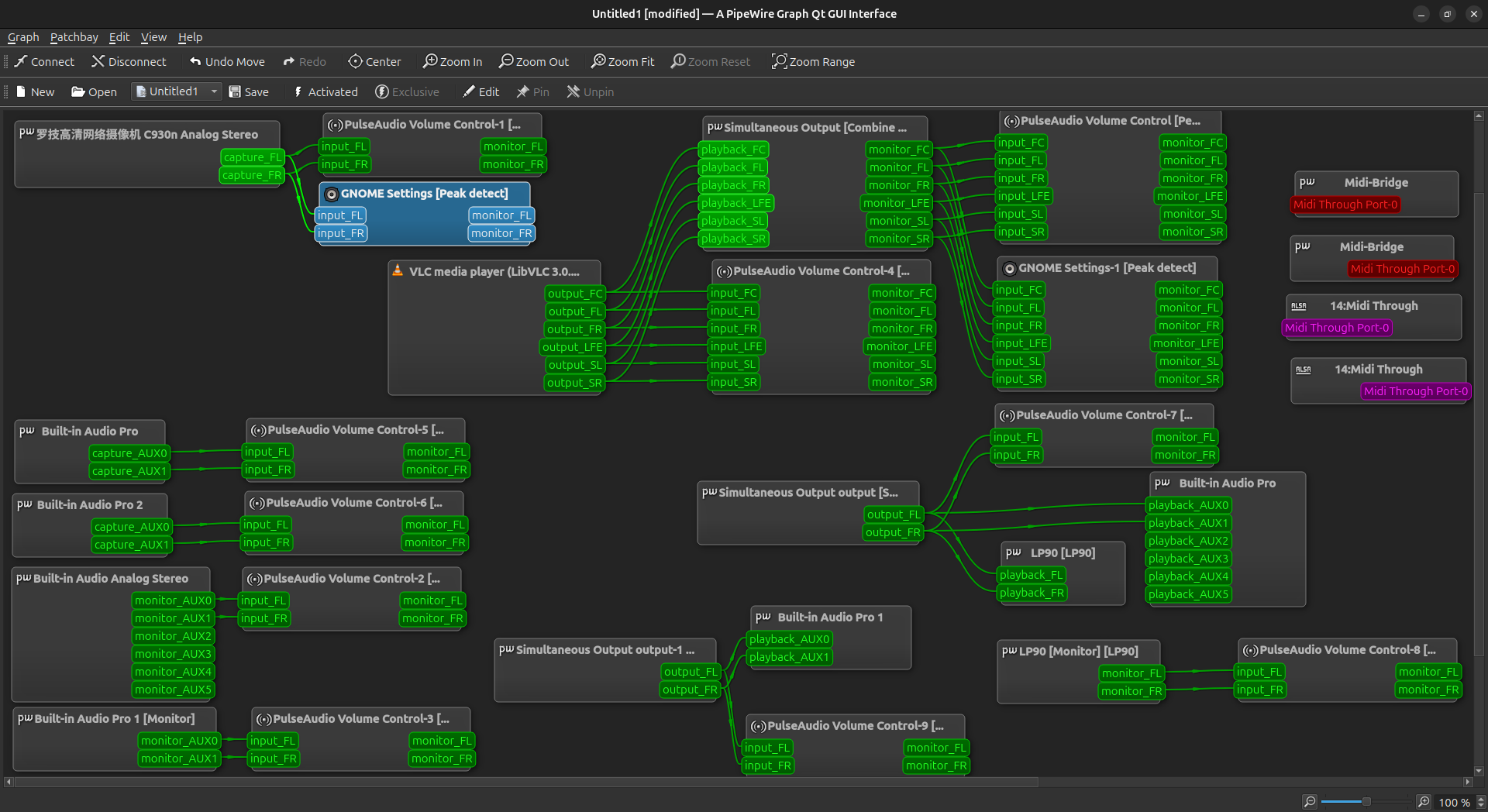
I recommend using qpwgraph since pipewire is installed. It is a GUI that allows a user to graphically make the necessary audio(+video) connection/disconnection without any coding involved. For example, below picture shows how I could connect VLC to the “Simultaneous Output” audio device created by @DidierL then from that device to both the Built-in Audio device and a bluetooth speaker(i.e. L90). No coding skill required. Very easy to do.

vlc

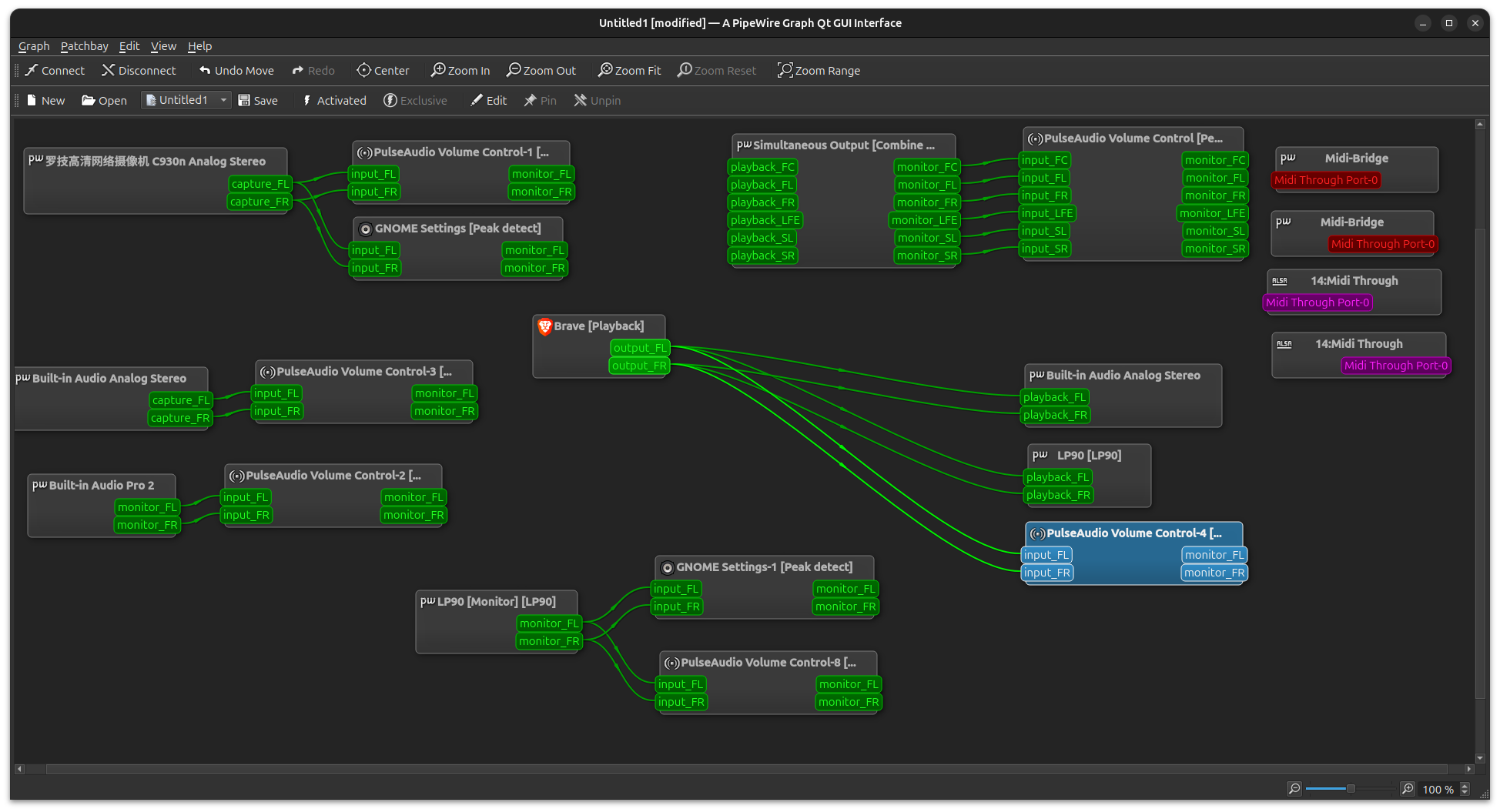
The next picture shows how I could do the same by directly connecting youtube in brave browser to both the Built-in Audio device and a bluetooth speaker(i.e. L90) without involving a simultaneous audio device. youtube

Below picture shows the the Simultaneous Output device connected to 3 speakers (1 built-in and 2 bluetooth types):

3speakers

To install qpwgraph, do

sudo apt install qpwgraph 

More info: https://gitlab.freedesktop.org/rncbc/qpwgraph

Sun Bear
  • 3,269
  • Also available on Flathub as a flatpak: https://flathub.org/apps/org.rncbc.qpwgraph – rugk Apr 28 '25 at 16:59