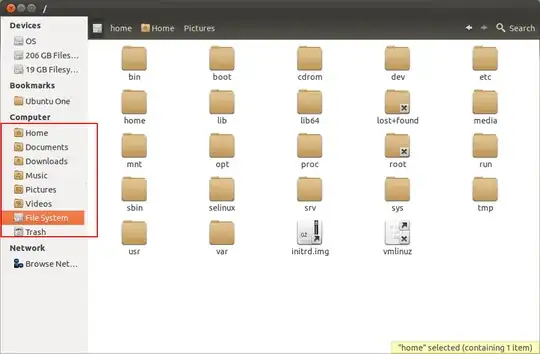
I want to remove Videos and Music from the left side panel. But, I can't seem to find the option to do so. How do you do that?
Asked
Active
Viewed 6.2k times
133
-
I was able to rename them in the side pane by just renaming each folder in the main pane. Highlight, press F2, rename. You might try making a symlink to your NAS folders and putting that in your Home folder, replacing the unneeded default folders. Right-click a destination folder, choose 'Make link', and drag the link into the home folder. Rename it Music or whatever, and replace the defaults. – Tom Brossman Nov 04 '11 at 17:03
-
1@ObsessiveFOSS Better bring it up to the GNOME devs. – jokerdino Aug 27 '12 at 11:51
9 Answers
71
Tested in Ubuntu 14.04
Those bookmarks are controlled by ~/.config/user-dirs.dirs and commenting out a lines configures the appearance of the list
As an example, to remove the Videos bookmark from the list change the line:
XDG_VIDEOS_DIR="$HOME/Videos"
to
#XDG_VIDEOS_DIR="$HOME/Videos"
Note:
After login the file ~/.config/user-dirs.dirs gets reverted to the original set by /etc/xdg/user-dirs.defaults. To prevent that make the file "read-only" either by right clicking and then properties > permissions or using the command
chmod -w ~/.config/user-dirs.dirs
If you need to edit the file again do the opposite via Nautilus or use the command
chmod +w ~/.config/user-dirs.dirs
If you want to apply this to all users in your system change the file vim /etc/xdg/user-dirs.conf and set the option enabled to False. You need root permissions or this.
muru
- 207,970
Bruno Pereira
- 74,785
-
is this the same file as user-dirs.dirs file that is located at: /home/USERNAME/.config/user-dirs.dirs ? I cant find a DIR that is located at ~/.config/user-dirs.dirs – Kalamalka Kid May 08 '16 at 07:20
-
1Commenting out is not the right solution (let alone changing the file permissions). Instead set e.g.
XDG_VIDEOS_DIR="$HOME"to disable the videos user directory as other answers suggest. For a source, see http://freedesktop.org/wiki/Software/xdg-user-dirs/#settings . – balu Jan 12 '18 at 00:56 -
2This doesn't work (for me, at least) on 16.04. @Ben's answer below does work. – mathandy Feb 24 '18 at 02:33
-
1
-
@KirillStarostin and everybody else: also see the comments concerning
~/.config/gtk-3.0/bookmarksin this answer here: https://askubuntu.com/a/762597/1033332 this helped me with impish indri 21.10 – rominator007 Dec 06 '21 at 21:06 -
on my Ubuntu 20.04 doing
chmod -w ~/.config/user-dirs.dirsstops the user account from logging into xwindows. – DorianFM Dec 30 '21 at 13:07 -
Note: it does not work for 20.04, the write permission will be restored after re-login. Instead set e.g.
XDG_VIDEOS_DIR="$HOME"will be worked well as other answer suggested. – Xiang Jan 04 '22 at 01:38
63
Open the file user-dirs.dirs in your ~/.config folder with your favorite text editor.
Comment out the line about the folder, which you do not want to be in the nautilus left pane. I commented about the Videos folder.
..........
..........
.........
XDG_DOCUMENTS_DIR="$HOME/Documents"
XDG_MUSIC_DIR="$HOME/Music"
XDG_PICTURES_DIR="$HOME/Pictures"
#XDG_VIDEOS_DIR="$HOME/Videos"
Then open a terminal, and run xdg-user-dirs-gtk-update, see the magic.
for 13.04 or later:
In Nautilus >= 3.6 this will not survive a logout/login or reboot. To overcome this we have to point our XDG directories to "$HOME" like e.g.:
XDG_VIDEOS_DIR="$HOME"
-
3
-
2
-
I have been looking for this for a while. Great answer. Mark as correct @jokerdino – Simon Jun 04 '13 at 12:37
-
3...until you reboot! The way around this is to point the folder to $HOME this sticks :) – Simon Jun 04 '13 at 13:35
-
3
-
-
-
@Anwar actually it seems to have worked while I was not paying attention. I guess a restart did it? – user3494047 Feb 15 '18 at 08:11
51
Aha - the definitive ~answer~ work-around, thanks to A. J. McMinn: Removing entries from Nautilus Places
Comment out the unwanted bookmarks in
~/.config/user-dirs.dirsMake or edit a
~/.config/user-dirs.conffile and add the entryenabled=false.
This solution persists over boot.
*...this could be done with a one-liner: echo "enabled=false" > ~/.config/user-dirs.conf
Ben
- 619
- 6
- 6
-
7the
enabled=falseflag in~/.config/user-dirs.confis the intended way to do this, thechmod -wway suggested by @Bruno Pereira is a workaround. – LeartS Nov 12 '14 at 17:17 -
1
-
-
2
-
3Actually for 16.04, a log out/log in suffices; no need for full reboot, saves you a few seconds ;-) – sxc731 Jan 02 '17 at 09:38
-
1I have upvoted this, but it ought to be called the definitive work-round, not the definitive answer. If you want the variables set that point to each well-known directory, but you don't want them as nautilus bookmarks, there is still no solution (other than fixing the hard-coding in nautilus). For instance, if I remove the 'Pictures' bookmark from nautilus in this way, it also breaks the PrtSc key, because the
$XDG_PICTURES_DIRvariable is empty. – Bob Briscoe Jul 21 '20 at 12:41 -
-
-
Works on Pop Os 21.04, thank you! Though all the files at home are now on the desktop. – Kirill Starostin Nov 02 '21 at 09:57
-
Works on Ubuntu 18.04.4 LTS. Without the ~/.config/user-dirs.conf "enabled=false" line the original lines in ~/.config/user-dirs.dirs are restored on reboot (I took a step-wise approach to testing the mod so observed this). Using user-dirs.conf enabled=false after reboot the unwanted default folders (e.g., Pictures, Videos, etc.) commented out in user-dirs.conf had been moved down in the Nautilus Sidebar and now allowed me to right-click on each and Remove them, the change then persisting on following reboots. Now my own bookmarks have their rightful prominence, grin. – Dalton Bentley Sep 09 '23 at 22:39
-
-
7
These directories are set by xdg-user-dirs.
Reading the documentation shows that you can disable a user directory by pointing it to your home directory. Use Ubuntu-Tweak or manually edit the file ~/.conf/user-dirs.dirs and point all the bookmarks you do not want to see to your home dir, and they will also disappear from the Nautilus side bar.
NOTE: I tried commenting out and removing the lines from ~/.conf/user-dirs.dirs as forestpiskie suggests, and that worked only until the next time I logged in. By setting them to the $HOME dir, the settings stuck.
PKKid
- 116
5
In Ubuntu 24.04 LTS (GNOME 46)
The Files (Nautilus) application reads a list of directories from the file ~/.config/user-dirs.dirs in your home directory. These directories get added to the side-bar, and cannot otherwise be removed.
Here are the default contents of ~/.config/user-dirs.dirs if your locale is in English:
# This file is written by xdg-user-dirs-update
# If you want to change or add directories, just edit the line you're
# interested in. All local changes will be retained on the next run.
# Format is XDG_xxx_DIR="$HOME/yyy", where yyy is a shell-escaped
# homedir-relative path, or XDG_xxx_DIR="/yyy", where /yyy is an
# absolute path. No other format is supported.
#
XDG_DESKTOP_DIR="$HOME/Desktop"
XDG_DOWNLOAD_DIR="$HOME/Downloads"
XDG_TEMPLATES_DIR="$HOME/Templates"
XDG_PUBLICSHARE_DIR="$HOME/Public"
XDG_DOCUMENTS_DIR="$HOME/Documents"
XDG_MUSIC_DIR="$HOME/Music"
XDG_PICTURES_DIR="$HOME/Pictures"
XDG_VIDEOS_DIR="$HOME/Videos"
You may be tempted to delete the lines that you don't want, but this won't work. When you log in to your GNOME session, the command xdg-user-dirs-update is run, and it will add back any lines that you've deleted. The main purpose of this command (along with xdg-user-dirs-gtk-update) is to check that these directories exist, and that their names are the expected names for the current locale.
If you want to want to make sure that ~/.config/user-dirs.dirs remains unchanged, you need to change a different file named ~/.config/user-dirs.conf (notice the filename extension is .conf, not .dirs this time), and add enabled=false (with no spaces), with this command:
echo 'enabled=false' > ~/.config/user-dirs.conf
Now comment out or delete any lines you want from ~/.config/user-dirs.dirs . Run xdg-user-dirs-update to verify that it remains unchanged. Run nautilus --quit to close any existing Files processes, and then open the Files application.
(Alternatively, you can modify the default directories that xdg-user-dirs-update fill in by modifying /etc/xdg/user-dirs.default (this requires sudo privileges and it affects all users on that computer). After doing that, modify ~/.config/user-dirs.dirs, run xdg-user-dirs-update, and restart Nautilus.)
You may notice that these folders are now listed in the third section of the side-bar, but this time, you can easily remove them, by right-clicking on them, and clicking "Remove from Bookmarks". You can finally get this result seen in this screenshot:

Note that Files (Nautilus) is not the only application that uses ~/.config/user-dirs.dirs , so if any other application expects to find a folder for Documents or Pictures or Videos or Music, it may have unexpected behaviour.
There are rumours that GNOME developers are considering making it easier for users to remove default directories from the side-bar, according to this OMGUbuntu article in 2023. In 2024, some code got committed to make this change.
Flimm
- 43,943
4
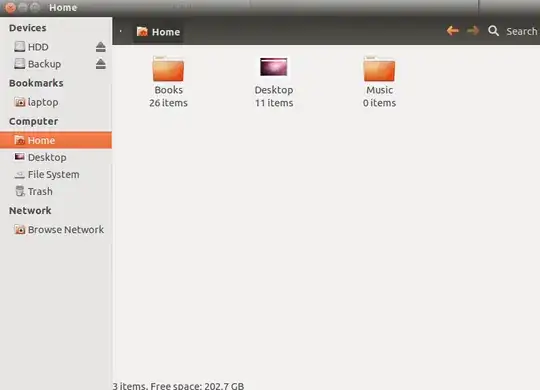
- Make the modifications you want to
~/.config/user-dirs.dirslike comment out the directories you don not want for example. - For the changes not to be reverted at login, you can execute in your terminal
echo "enabled=false" > ~/.config/user-dirs.confwhich will create the user-dirs.conf file containing the optionenabled=false. - Test the changes and their persistence by logging out and in again. Nautilus should display :
Flimm
- 43,943
sinekonata
- 572
- 7
- 23
-
1Personally, from all the answers out here, this one is the only one that worked. – sinekonata Apr 21 '14 at 18:18
-
3
These steps still seem to work in 18.04. Based on comments in this thread I made the following bash script that performs the task. Note, you still need to restart nautilus and right-click remove the items after executing these commands:
nautilus_hide_unwanted_sidebar_items()
{
    echo "Removing unwanted nautilus sidebar items"

    if [ "1" == "0" ]; then
        # Sidebar items are governed by files in $HOME and /etc
        ls ~/.config/user-dirs*
        ls /etc/xdg/user-dirs*

        cat ~/.config/user-dirs.dirs
        cat ~/.config/user-dirs.locale

        cat /etc/xdg/user-dirs.conf
        cat /etc/xdg/user-dirs.defaults

        #cat ~/.config/user-dirs.conf
    fi

    ### --------------------------------------
    ### modify local config files in $HOME/.config
    ### --------------------------------------

    chmod u+w ~/.config/user-dirs.dirs
    #sed -i 's/XDG_DOCUMENTS_DIR/#XDG_DOCUMENTS_DIR/' ~/.config/user-dirs.dirs
    sed -i 's/XDG_TEMPLATES_DIR/#XDG_TEMPLATES_DIR/' ~/.config/user-dirs.dirs
    sed -i 's/XDG_PUBLICSHARE_DIR/#XDG_PUBLICSHARE_DIR/' ~/.config/user-dirs.dirs
    sed -i 's/XDG_MUSIC_DIR/#XDG_MUSIC_DIR/' ~/.config/user-dirs.dirs
    sed -i 's/XDG_PICTURES_DIR/#XDG_PICTURES_DIR/' ~/.config/user-dirs.dirs
    sed -i 's/XDG_VIDEOS_DIR/#XDG_VIDEOS_DIR/' ~/.config/user-dirs.dirs
    ###
    echo "enabled=true" >> ~/.config/user-dirs.conf
    chmod u-w ~/.config/user-dirs.dirs

    ### --------------------------------------
    ### Modify global config files in /etc/xdg
    ### --------------------------------------

    #sudo sed -i 's/DOCUMENTS/#DOCUMENTS/'     /etc/xdg/user-dirs.defaults
    sudo sed -i 's/TEMPLATES/#TEMPLATES/'     /etc/xdg/user-dirs.defaults
    sudo sed -i 's/PUBLICSHARE/#PUBLICSHARE/' /etc/xdg/user-dirs.defaults
    sudo sed -i 's/MUSIC/#MUSIC/'             /etc/xdg/user-dirs.defaults
    sudo sed -i 's/PICTURES/#PICTURES/'       /etc/xdg/user-dirs.defaults
    sudo sed -i 's/VIDEOS/#VIDEOS/'           /etc/xdg/user-dirs.defaults
    ###
    sudo sed -i "s/enabled=true/enabled=false/" /etc/xdg/user-dirs.conf
    sudo echo "enabled=false" >> /etc/xdg/user-dirs.conf
    sudo sed -i "s/enabled=true/enabled=false/" /etc/xdg/user-dirs.conf

    # Trigger an update
    xdg-user-dirs-gtk-update

    echo "
    NOTE:
        After restarting nautilus the unwanted items will be demoted to regular
        bookmarks. You can now removed them via the right click context menu.
    "
}
Erotemic
- 475
-
-
@Quasímodo it's a block comment, similar to
#if 0in C. Look at the items inside it. It's just acting as notes giving the commands to inspect the files of interest. It works nicely with copy / paste unlike inline comments. – Erotemic May 25 '22 at 20:10
0
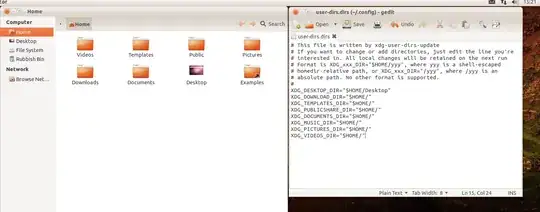
Edit -
Dug into it a bit further - if you edit ~/.config/user-dirs.dir you can remove them from the panel and still have them as folders in your /home it seems.
23 93 26 35 19 57 3 89
- 5,676
-
1
-
-
4That removes the special folder functions also from the system ie: downloads will not be selected as download folder anymore, pictures will not be the default folder when using image programs, I really dont advise you on doing that @jokerdino. – Bruno Pereira Nov 14 '11 at 19:37
-
@brunopereira81 Are default directories the only thing this will change? Or might there be other, more drastic things? – Kris Harper Nov 14 '11 at 19:49
-
1It will change more then just the default directories I think, thats why the warning, you can ofc set it back to how it was but that file is used to set up which directories you want to use for those functions, remove a directory, remove a function. – Bruno Pereira Nov 14 '11 at 19:51
-
Thanks for the details - I'll know a bit more next time. – 23 93 26 35 19 57 3 89 Nov 15 '11 at 07:39
-1
try going on Bookmarks in window menu, bookmarks > modify bookmarks (translate from italian ubuntu) and the remove the one that you don't want
otherwise Ctrl + D to access the menu
dodohjk
- 1,541
-
This doesn't work on Places anymore last I tried on Ubuntu 13.04. Editing the user-dirs.dirs as suggested above worked for me though. – Cardin Aug 24 '13 at 04:26